The Working Day, Step by Step
- 1Plan
- 2Assign
- 3Load
- 4Review billing
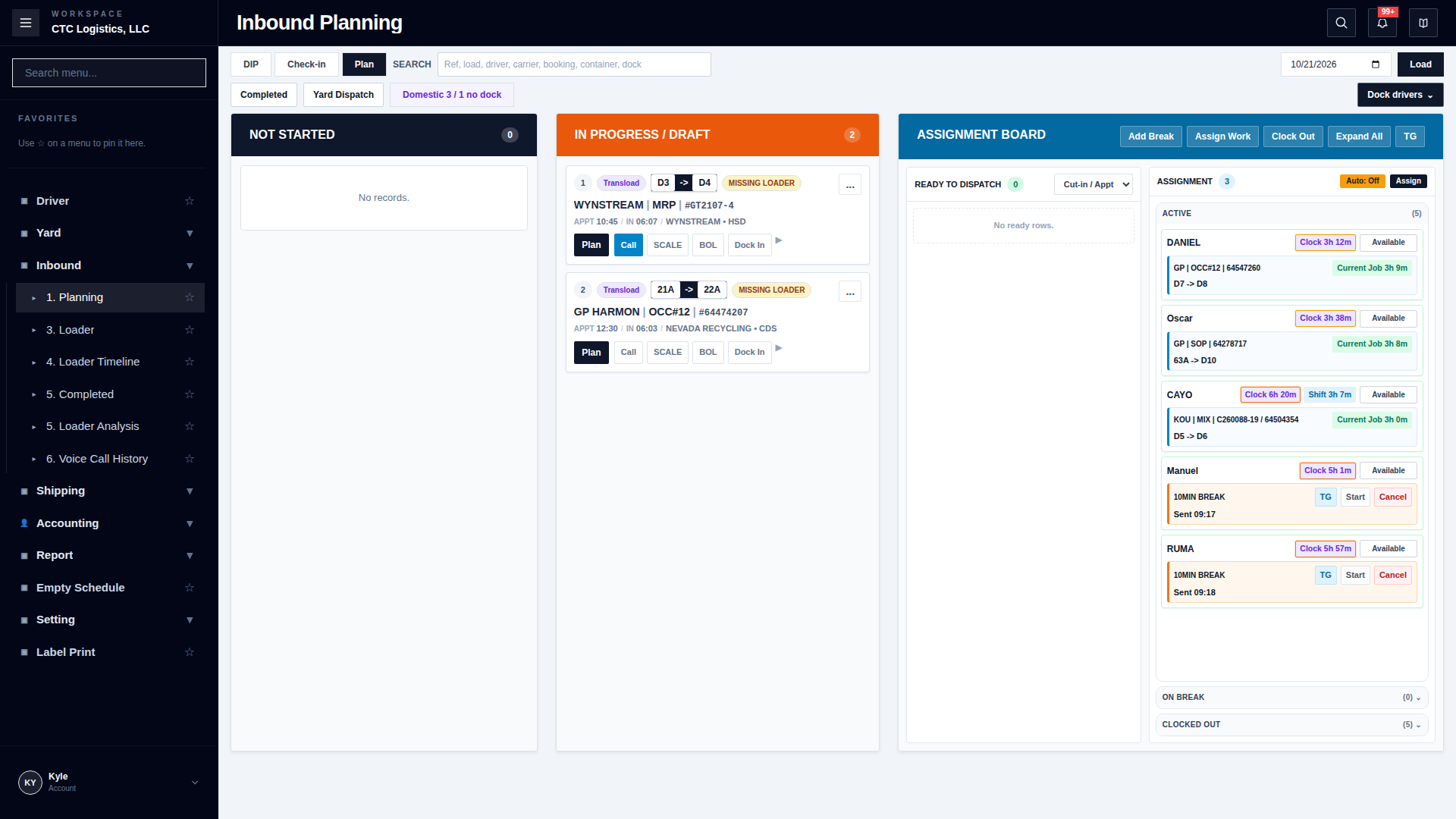 Inbound Planning
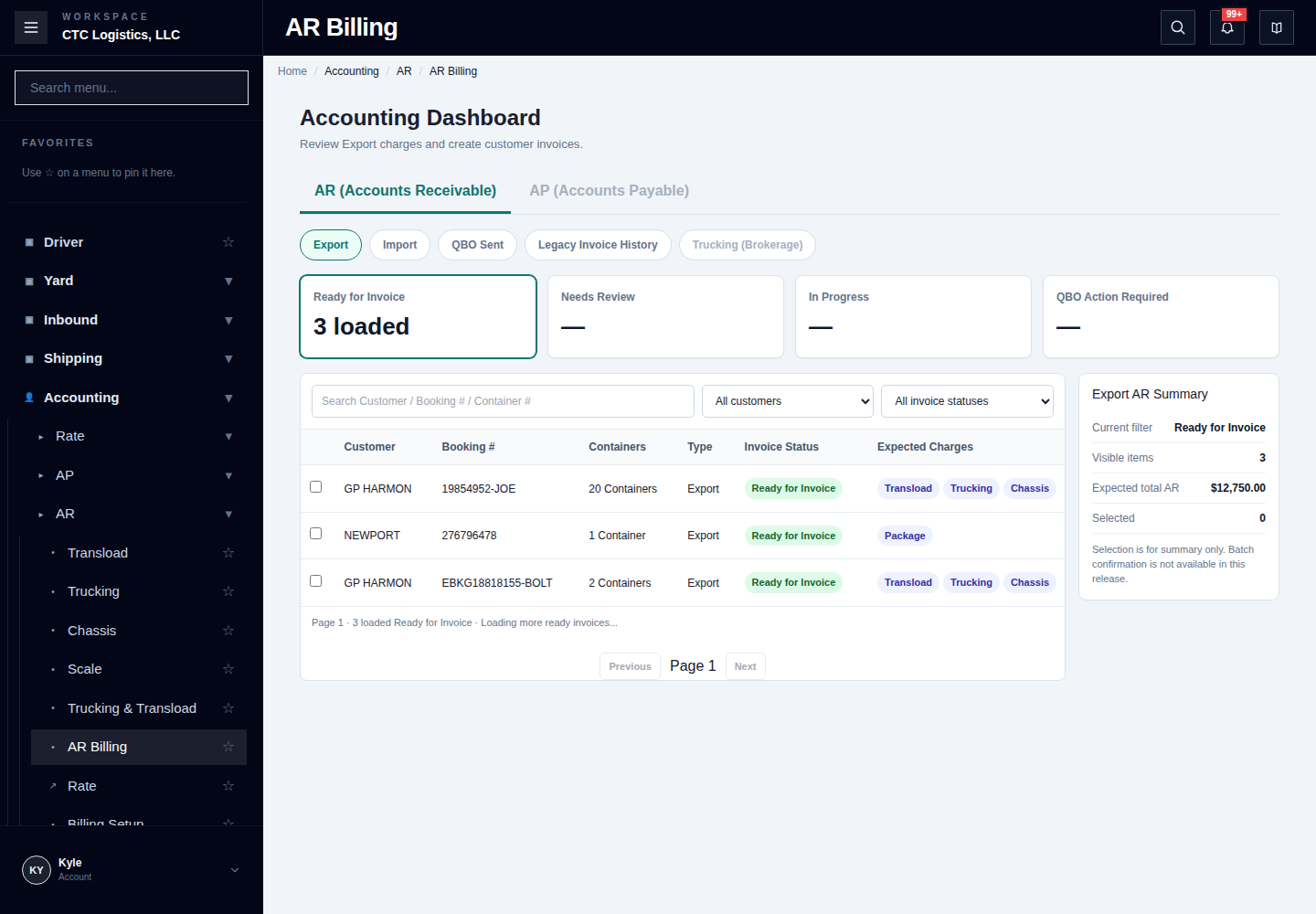 AR Billing
Purpose
The shape of a day, in the order work actually moves. Each step hands something to the next role.
Before you start
- You have the right account for this screen (see Permissions and Access).
- The date and record you are working on are correct.
- Words you do not know are in the Glossary.
Access
Every screen in the workspace. This page is the map.
Screen
No single screen. The
Steps
The Shape of a Day
| # |
Step |
Where |
Who |
What the next person receives |
| 1 |
An appointment comes in |
Appointment, Email Approval |
Office, dispatch |
A request that is confirmed or clearly marked unresolved |
| 2 |
Plan the day |
Export Dashboard |
Office |
Today's workload, what is late, what needs a decision |
| 3 |
Plan inbound |
Inbound > 1. Planning |
Office, dispatch |
A dated plan row, ready to be given to someone |
| 4 |
Give the job to a loader |
Inbound > 1. Planning → Assignment Board |
Office, dispatch |
A job, in order, with a named loader |
| 5 |
Do the loading |
Inbound > 3. Loader |
Forklift operator |
Finished loading, unloading or reload details |
| 6 |
Move equipment |
Yard Map, Yard Dispatch, Yard Instruction |
Dispatch, yard |
Equipment actually moved, and no leftover queue |
| 7 |
Deliver |
Driver |
Driver |
Delivery status and times. Office reviews parking |
| 8 |
Bill and close |
Accounting, Report |
Office, admin |
Charges, invoices, documents and emails each checked on their own |
The standalone Assignment Board is no longer where you start. Use the one inside
Inbound > 1. Planning.
Before You Close the Day
Go through these one at a time. Each is a question with a concrete answer — see
What Must Be True Before You Finish for the full
checkpoint list.
Fields
| Field |
What it means |
| Step |
Which stage of the chain |
| Who |
The role that owns it |
| What the next person receives |
The hand-off. If this is unclear, the chain breaks |
Status
There is no status on this page.
A job is finished when the record that owns each step agrees — not when the chain is complete on
paper.
Notes
- Work moves in one direction. If you are editing a record you do not own, you are probably on the
wrong screen — check Daily Work Overview.
- The schedule board and the yard map are views over the records. Correct a discrepancy on the
record that owns it.
- An unfinished item with a name against it is an acceptable close. An unfinished item quietly
marked done is not.
If Something Goes Wrong
| Situation |
What to do |
| The chain is stuck between two steps |
Find which record disagrees, and fix it there |
| A screen is missing from the menu |
Ask an administrator to check your account — see Menu Management and Roles |
| Something is not done at the end of the day |
Write it down with a name and its state against it |
| The same problem keeps recurring |
Follow Errors and Recovery rather than working around it |
Responsibilities
Dispatch
Forklift Operator
Yard Truck Driver
Truck Operator
Office and Billing
Supervisor and Administrator