Closing Out the Day's Billing
Purpose
It is a checklist, not a button. There is no single "close the day" action. Billing is finished only when each part is finished in its own screen, and you have checked each one separately.
Who does this
Office and billing staff who check at the end of the day that the billing work is finished and actually went out.
Before you start
- You have the right account (see Permissions and Access).
- The record and date you are working on are correct.
- Words you do not know are in the Glossary.
The separate parts
| The part | It is finished when |
|---|---|
| The transaction | You have reopened it and the details and lines are what you intended |
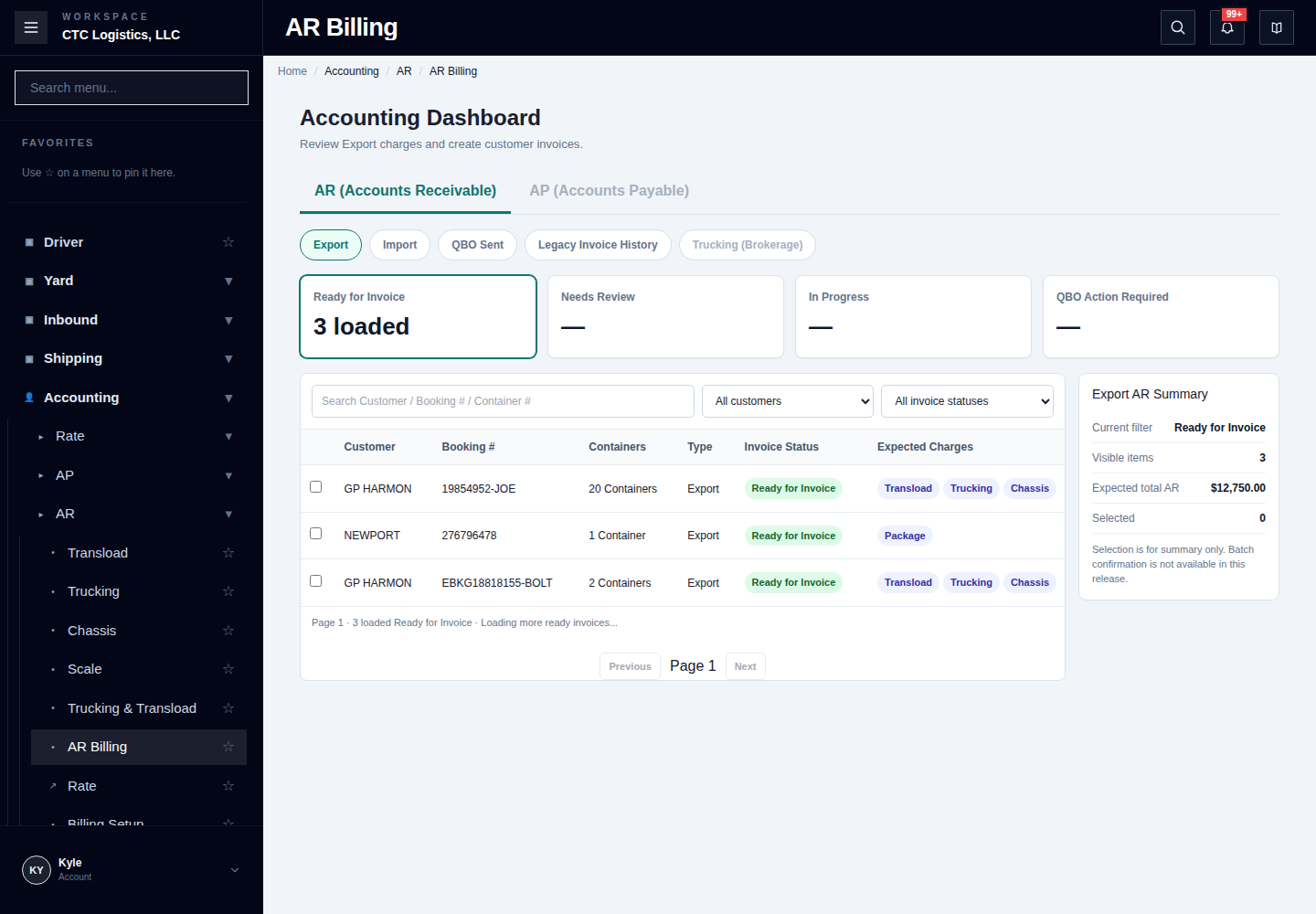
| The invoice, confirmed locally | The invoice and its lines exist locally and are marked ready for the accounts system |
| The invoice, sent to the accounts system | The invoice exists there, and the local record shows it as sent |
| The document attached | Every transaction you intended has a file that actually opens |
| The bill of lading emailed | The attachments and the recipient went, with evidence from the mail system |
| The packing list emailed | Every recipient you selected has evidence of success |
Each of these is checked on its own screen. Check them one at a time.
How to work through it
1. Decide what actually applies.
Identify the exact item, who it is with, the date, the reference, and what you are trying to achieve.
Not every billing action needs every other step. Creating a local accounting entry does not require sending an email or attaching a document. Do only what applies.
2. Do each part in its own screen, then reopen it and check.
If you used the invoice screen's Complete button, look at two things afterwards: the local invoice result, and what happened when it automatically tried to send to the accounts system. They can succeed or fail separately.
3. Check the evidence separately.
- A file existing on the server does not prove it is attached to the transaction. Open it from the transaction.
- An email screen saying "sent" does not prove it arrived. Check the mail system's own record.
4. Close it or carry it.
Only call an item finished when every part that applies has been verified. If something is not, write down what state it is in, what evidence you have, and who owns it.
An unfinished item carried into tomorrow with a name against it is acceptable. An unfinished item quietly marked done is not.
When only part of it went through
| What you see | What it means | What to do |
|---|---|---|
| Transaction is closed, nothing else checked | Only the local part is done | Check each remaining part on its own screen |
| Invoice exists locally and is "ready" | The local part committed. It has not gone to the accounts system | Look at the send result, then follow it up there |
| Some invoices sent, some failed | Part of it went out | Keep the ones that worked. Deal with each failure on its own |
| A send failed or timed out | It may or may not have gone | Search the accounts system by customer, number and amount before sending again |
| The file exists but is not attached | Partly registered | Compare which transactions should have it, then attach only those |
| An email result is unclear | It may already have been sent | Check the mail system's record before sending again |
Never resend a document or an email just because the screen did not confirm. Search first. A duplicate invoice or a duplicate email to a customer is harder to undo than a delayed one.
If something goes wrong
| Situation | What you do |
|---|---|
| The transaction says closed | That proves only the local part. Check the rest separately. |
| The invoice says ready | It has not been sent yet. Follow it up. |
| The send timed out | Search the accounts system before resending. |
| The email result is unclear | Check the mail system before resending. |
| The file will not open | Check whether it is attached to the transaction, not just stored. |
| Something is unfinished | Carry it with a name and its state against it. Do not mark it done. |
Who owns the next step
Office and billing own this checklist. Each part belongs to its own screen and its own process — see Reviewing and Creating an AR Invoice, Sending an Invoice to QuickBooks Online and Sending a Packing List by Email.
The full step-by-step
This page is the short version. The screen-by-screen procedure with every field and recovery step is here: