Billing Presets
Purpose
A preset is a saved rule for the charges a customer gets billed automatically. Each customer can have one.
Before you start
- You have the right account for this screen (see Permissions and Access).
- The date and record you are working on are correct.
- Words you do not know are in the Glossary.
Access
Accounting → AR → Rate
Screen
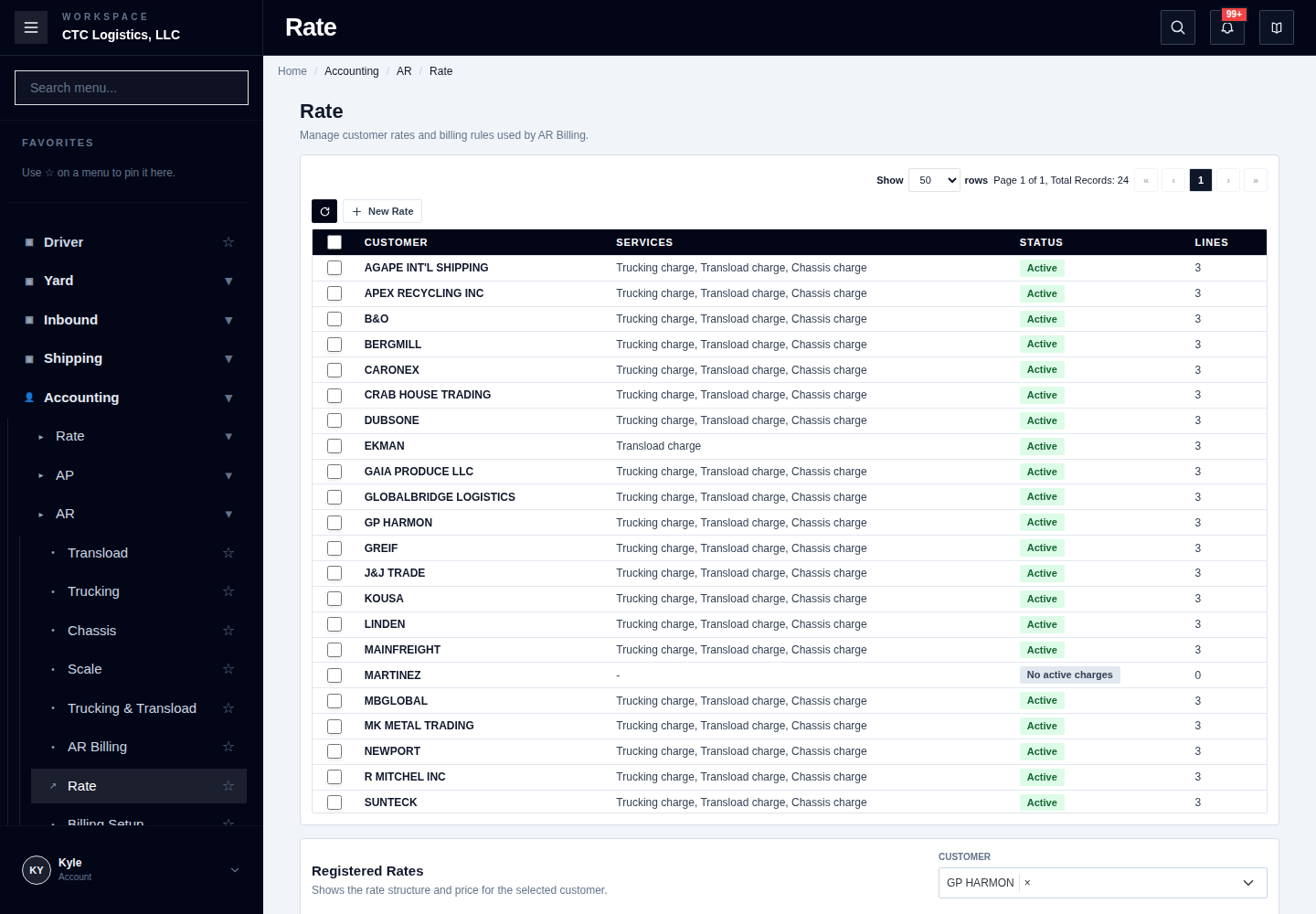
Steps
Create a Preset
- Open Billing Presets. The saved list and the selected preset appear.
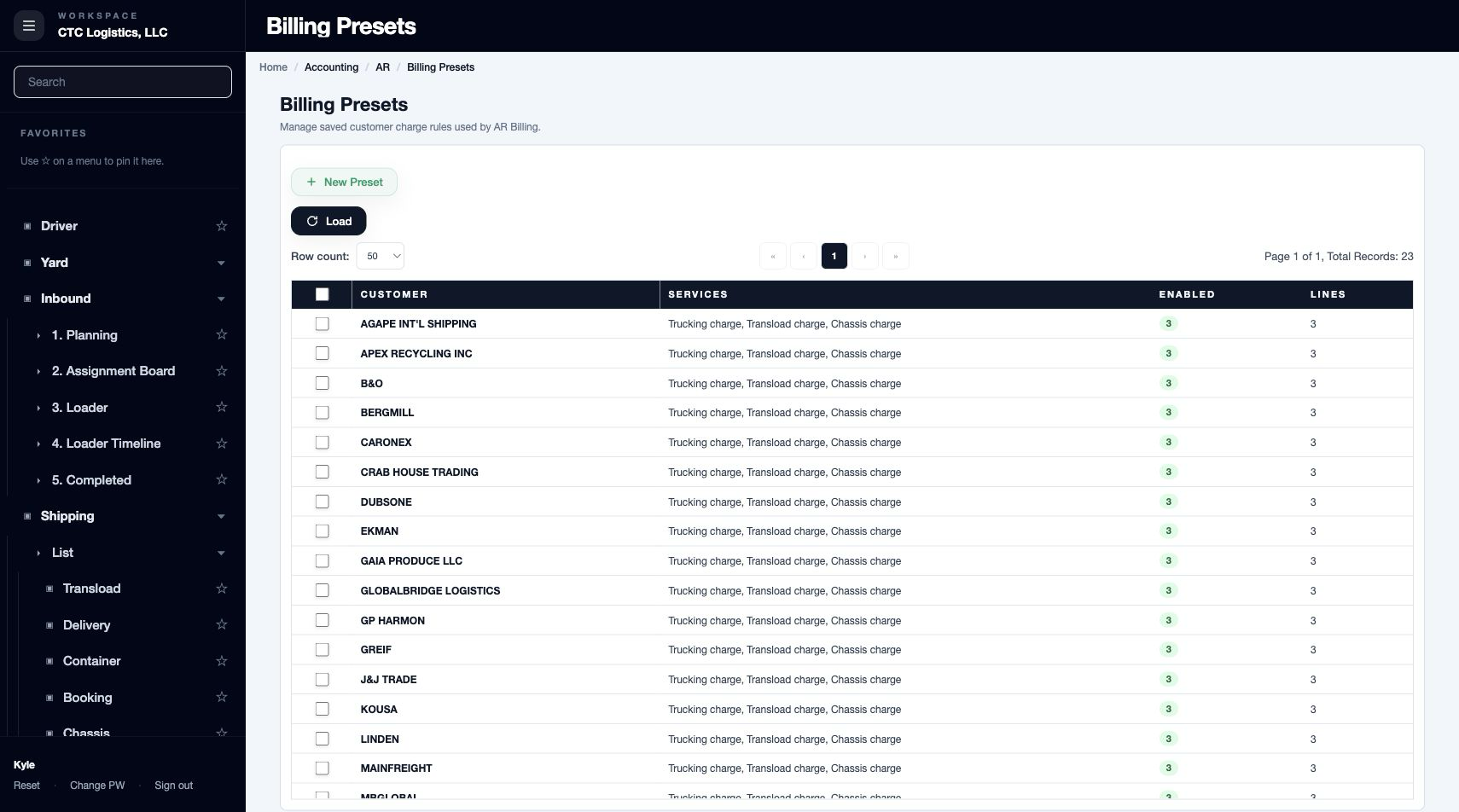 2. Choose New Preset. To change an existing rule, select that customer's row and choose Edit.
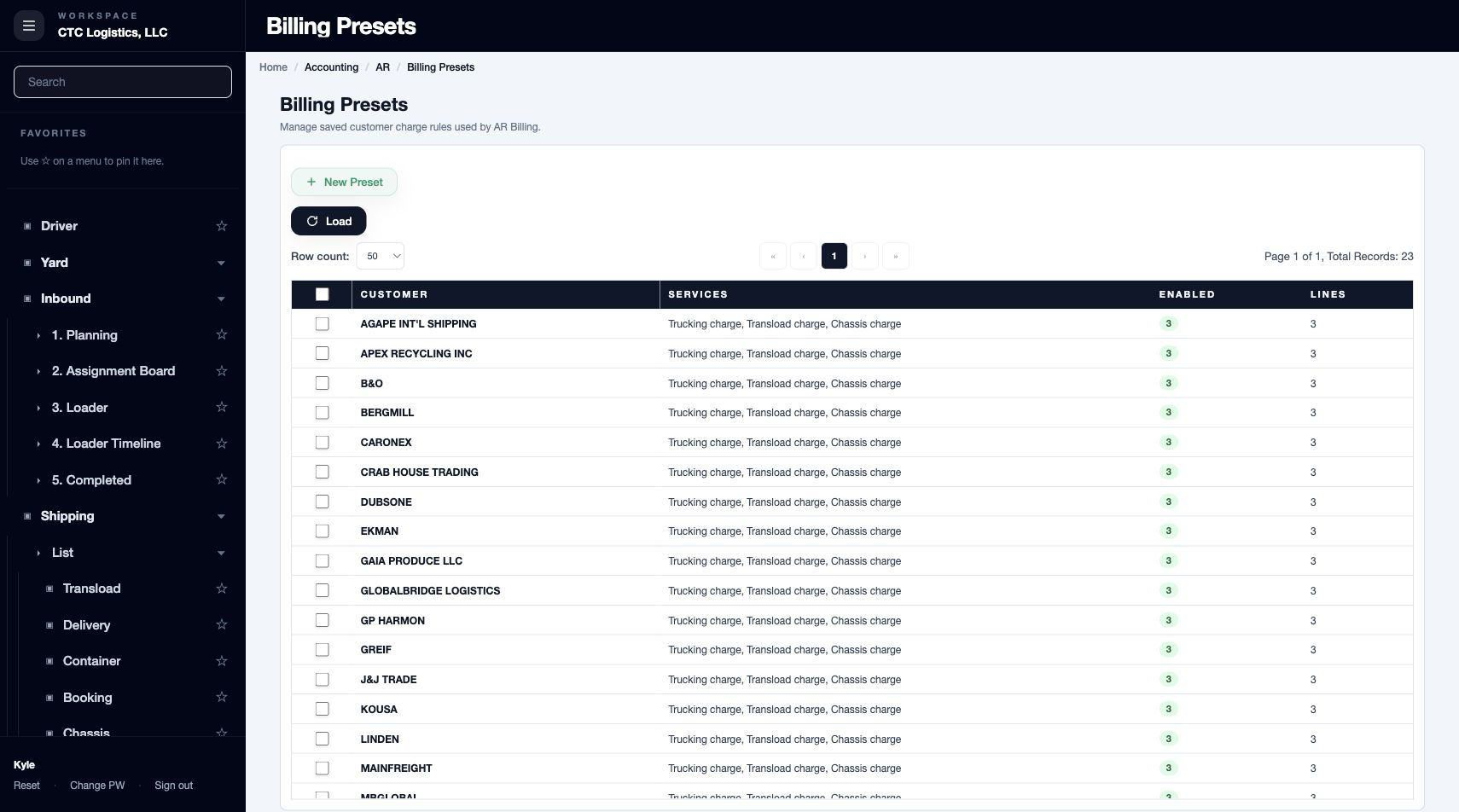 3. Select the Customer.
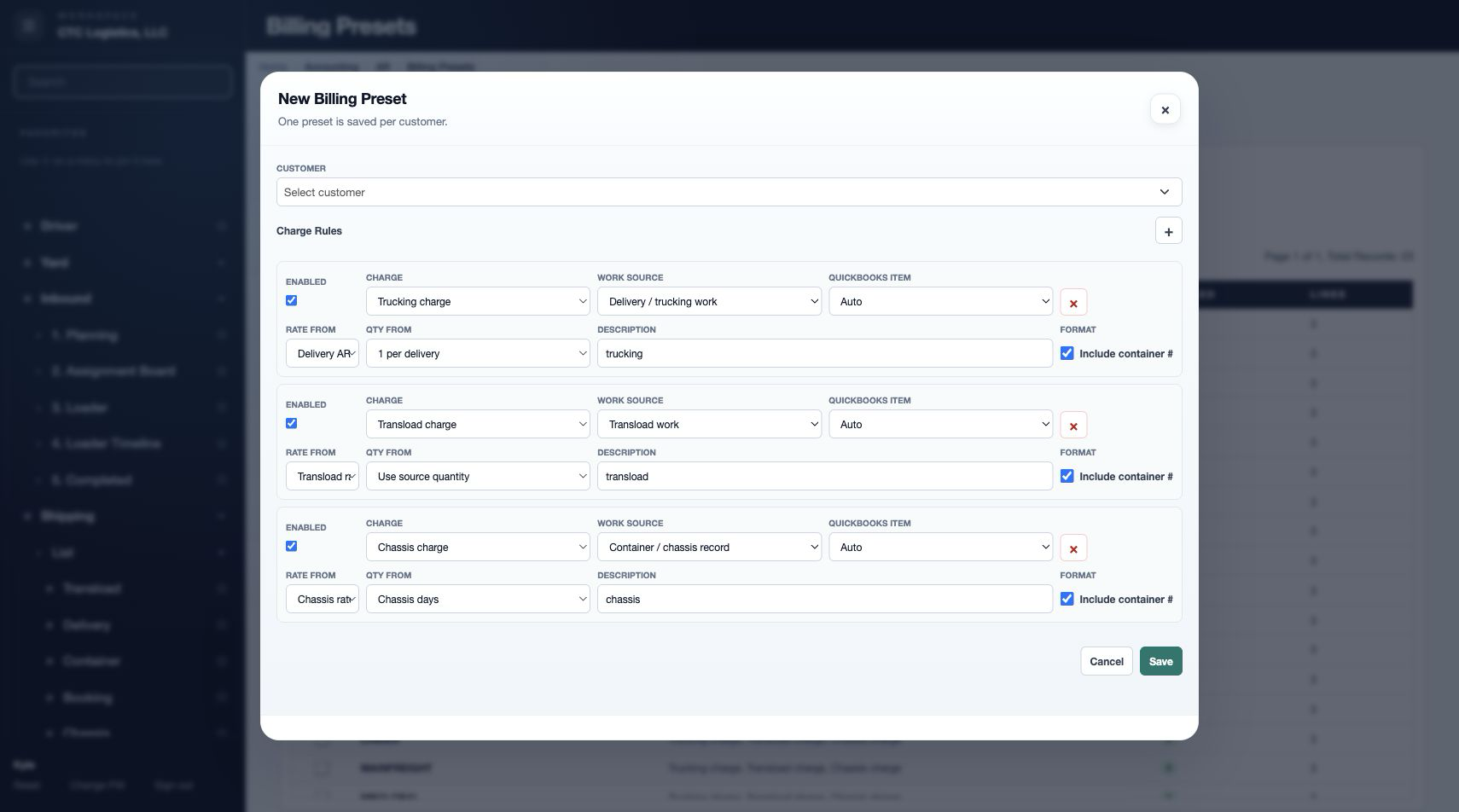
If the customer already has a preset, open it and update it rather than creating a second one.
Add Charge Rules
- Click + in Charge Rules. Add one rule per recurring charge that should be created automatically for that customer.
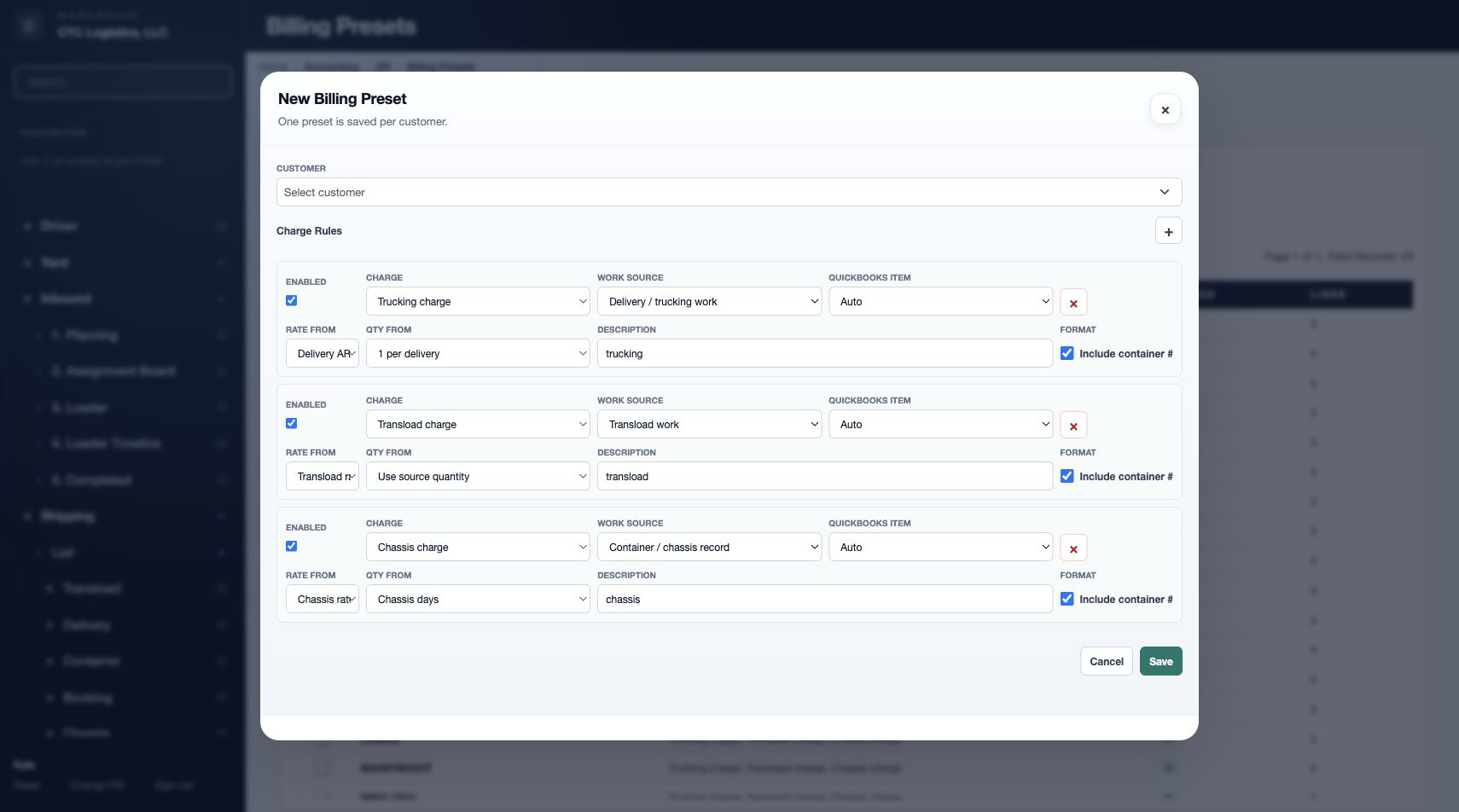 2. Tick Enabled. A rule must be enabled to be used during review.
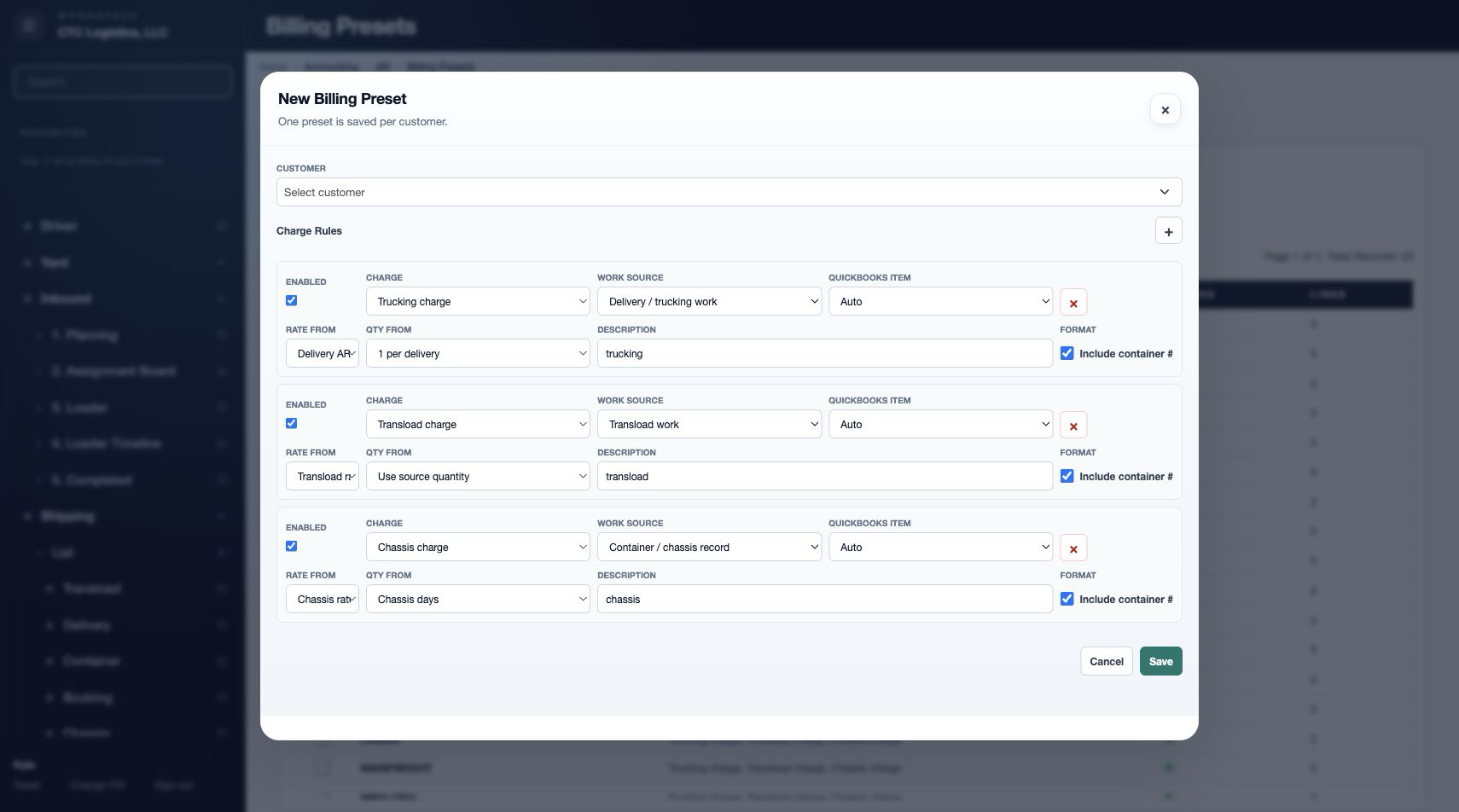
If the customer no longer uses a charge, turn
Enabledoff rather than deleting the rule.
- Select the Charge:
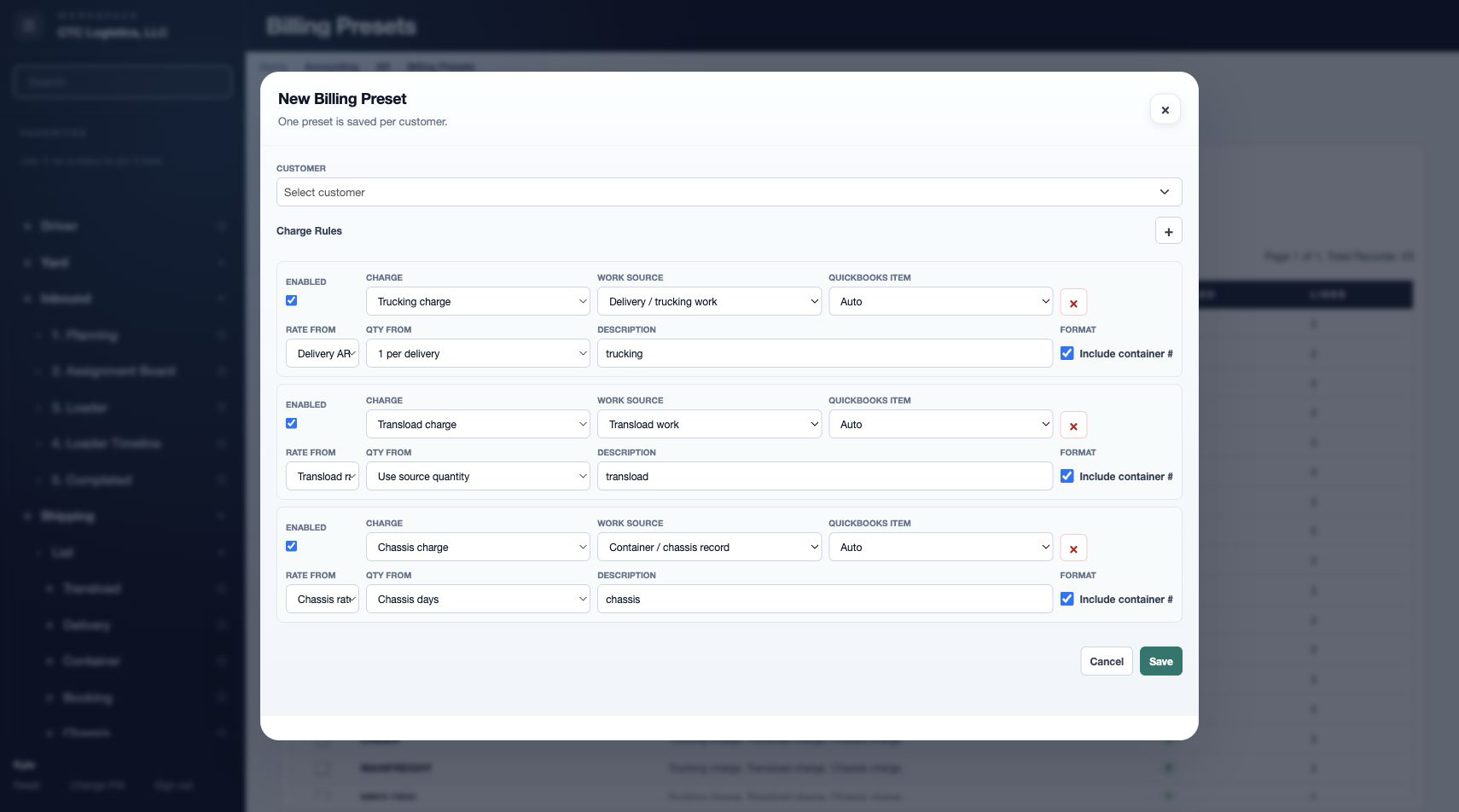
| Charge | Use it for | What to review |
|---|---|---|
| Trucking | Pickup, delivery or other trucking charges | The delivery rate and the number of moves |
| Transload | Transload work that should be billed | The work status, weight and billing basis |
| Chassis | Chassis day charges | Pickup and return dates, free days, billable days |
| Manual | A special charge to be entered by hand | For one-offs, add the line in the review window instead |
- Complete Work Source, QuickBooks Item, Rate From and Qty From.
Work Source tells the system which completed work creates the charge. QuickBooks Item is the item used on the invoice. Rate From and Qty From tell it where to take the price and quantity from.
- Enter the Description, choose whether to include the container number, and Save.
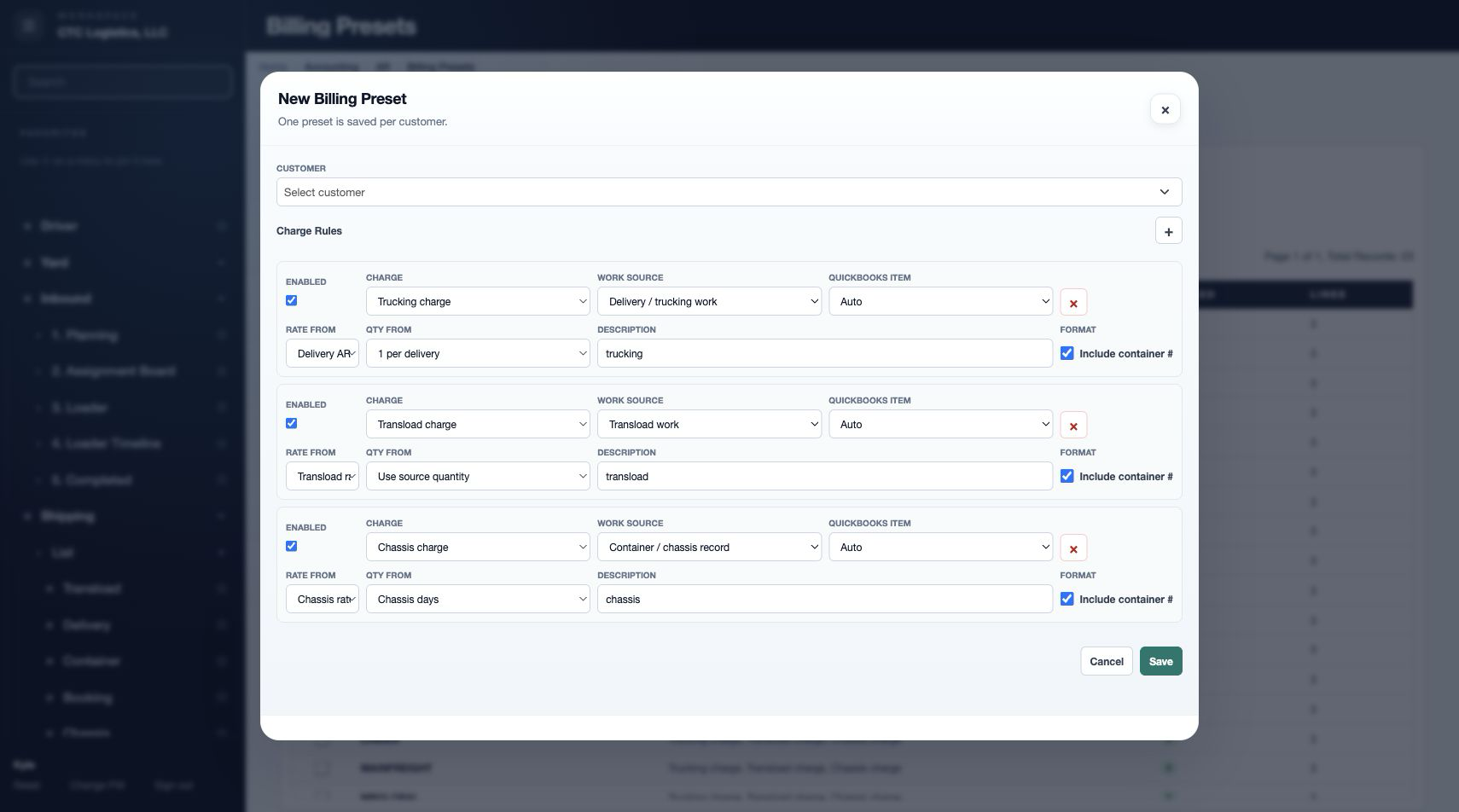
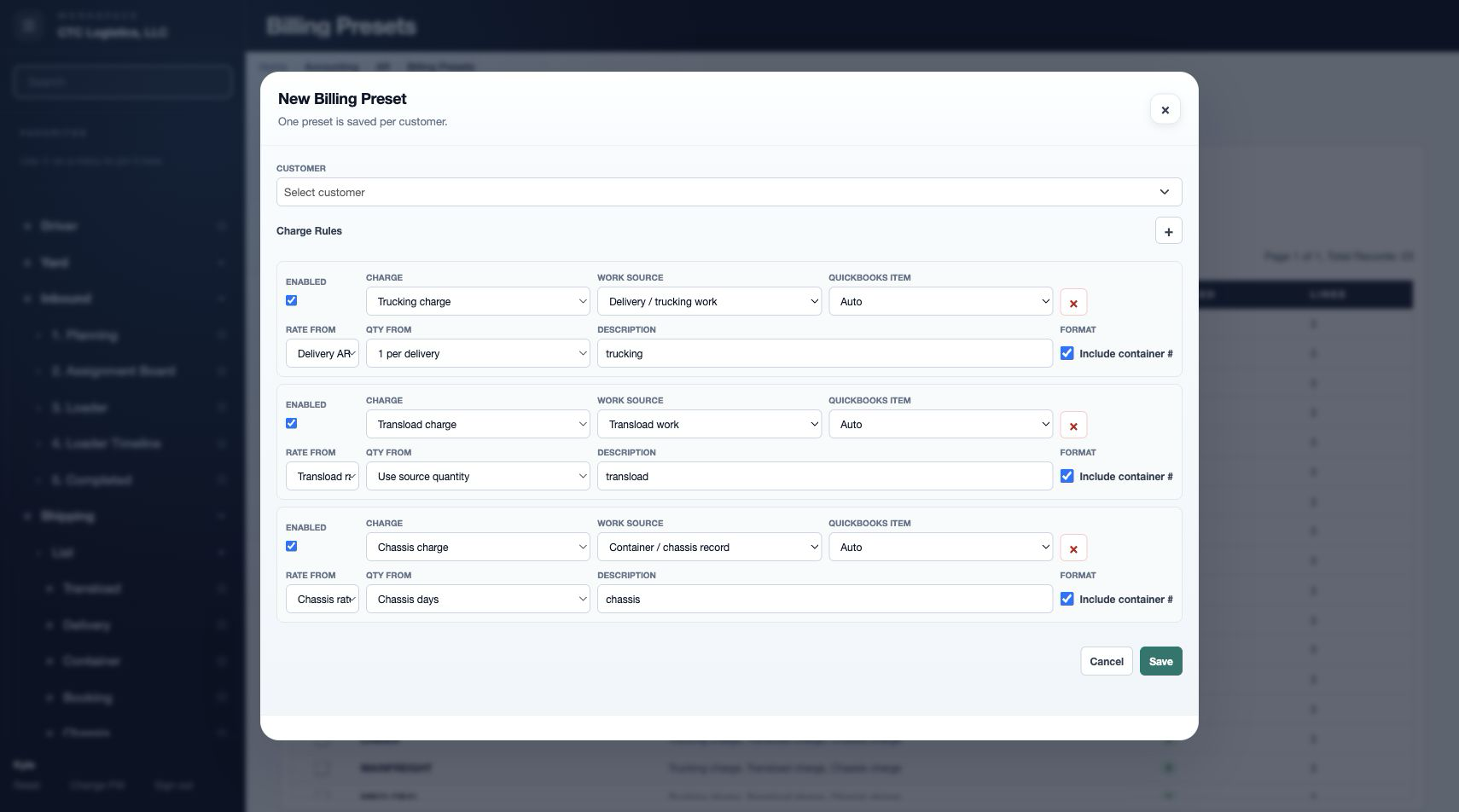
The description is the wording that may appear on the customer's invoice. Use plain words such as
truckingorchassis.
Fields
| Field | What it means |
|---|---|
| Customer | Whose rules these are. One preset per customer |
| Charge | Which charge this rule creates |
| Enabled | Whether the rule is used during review |
| Work Source | The completed work that triggers the charge |
| QuickBooks Item | The item used on the invoice |
| Rate From / Qty From | Where the price and quantity come from |
| Description | The wording on the customer's invoice |
| Include container # | Whether the container number is printed before the description |
Status
| Shown | Means |
|---|---|
| Enabled | The rule will be applied during review |
| Not enabled | The rule is kept but not used |
Notes
Add only the charges that customer actually uses. Do not add trucking, transload or chassis just because the option exists.
Exception charges — pier pass, clean truck fee, storage, detention, dry run — belong in a preset only when they genuinely recur for that customer. Otherwise add them by hand at review time.
Delete and Edit act on the whole preset. Changing a preset does not change invoices already created.
Related
- AR Billing — where the preset is used
- Billing, Invoices and Sending Documents — the whole billing picture
- Reviewing and Creating an AR Invoice