Errors and Recovery
Purpose
What to do when something fails, and — just as important — what not to do. Most damage in this system comes from repeating a write that had already succeeded, or working around an error by creating a second record.
Before you start
- You have the right account for this screen (see Permissions and Access).
- The date and record you are working on are correct.
- Words you do not know are in the Glossary.
Access
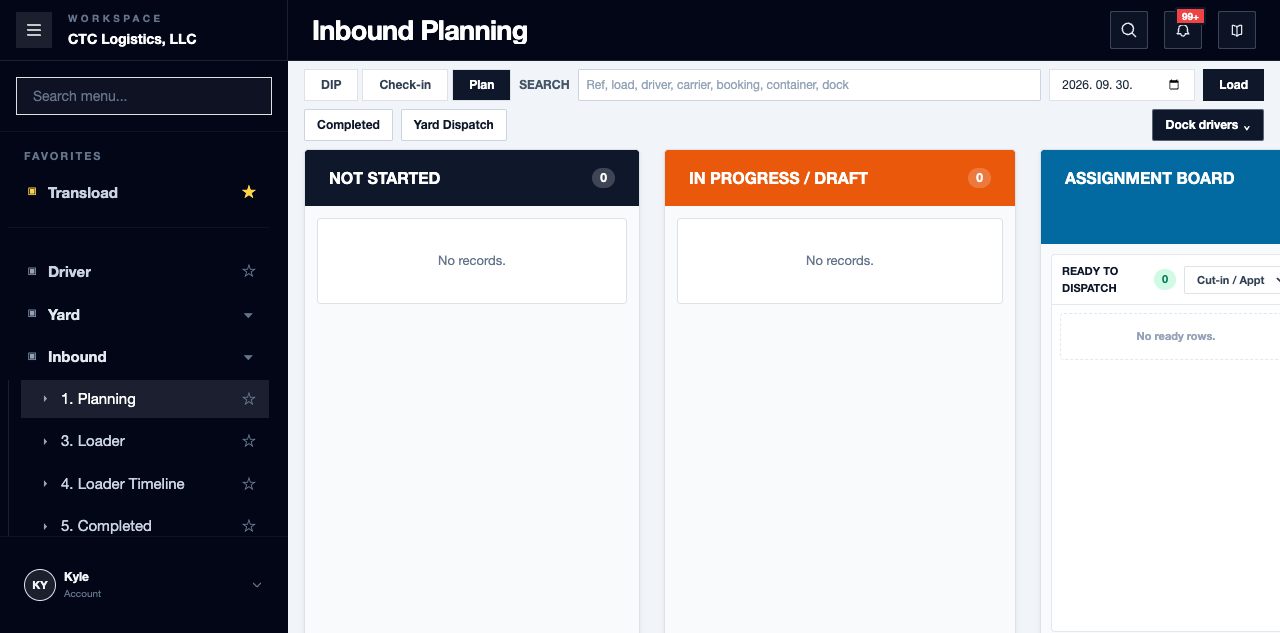
No single screen. This applies everywhere.
Screen
Steps
Your First Response
- Read the visible message and note the page, the operating date, the record reference and the action that failed.
- Refresh before trying again. Confirm whether the work already changed, completed or sent.
- Check the menu you were assigned, the details required, and the date you had selected — before asking someone else to repeat the action.
- If the work completed but the customer message, email, notification or accounts-system send failed, keep the completed work and follow that system's retry step.
- Escalate repeated errors, or anything that looks like duplicate work, with the details captured.
The Common Cases
| Signal | Do this | Do not |
|---|---|---|
| Sign-in or access denied | Confirm the correct account and assigned menu with a supervisor or administrator | Borrow another person's account, or try to bypass the menu |
| No rows, or an unexpected empty list | Confirm the operating date, the search and filter state, the status lane and the reference | Create a duplicate because a filtered list looks empty |
| Target location already occupied | Confirm the physical location, then clear it or queue behind it once it is safe | Force a second move, or keep retrying without checking |
| Loader start or complete failed | Refresh the assigned row, correct the missing details, confirm the loader queue | Click Start or Complete repeatedly |
| Email reply failed after approval | Keep the appointment result, read the message error, resend only the eligible reply on the same thread | Recreate the appointment or re-approve a completed row |
| Accounts system shows ERROR | Correct the customer, item or invoice details and resend the same completed row | Create a second invoice to get round it |
Undo on Loader Work
Use Undo only for work that is active and has not reached a final completed state.
After an Undo, confirm the same assignment is back in Ready before starting again.
Do not use Undo to reopen completed or unloaded work. Send terminal corrections to the office manager or supervisor.
Fields
| Field | What to capture |
|---|---|
| Page and menu path | Where you were |
| Your role | Who you were acting as |
| Operating date | Which day |
| Record reference | Which record |
| Exact error text | Verbatim, not your summary |
| The action just before it | What triggered it |
| What refresh showed | Completed, pending, unchanged or duplicated |
| Blast radius | Whether the work result, the customer message, or both, are affected |
Status
There is no status here. What matters is whether the write committed.
An uncertain result is not a failed result. Stop writing until a refresh tells you what actually landed.
Notes
- Stop the transaction when the physical state, the customer's intent, or the selected record cannot be identified with confidence.
- Stop repeated writes after a timeout, error or uncertain response, until a refresh confirms what is committed.
- Never work around an error by changing access, creating duplicate work, or overwriting a final status just to clear a queue.
- If an assignment notification fails, retry it from the Assignment Board. If a duplicate submission reports an existing assignment, refresh and continue with that one rather than creating another.
- If Start or Complete is blocked, check the current job, break, queue and clock state before retrying.
- If Clock Out does not complete, the workflow stays available for retry. A final ten-minute break does not use Clock Back In.
- An external timekeeping problem does not undo a completed local Clock Out. Report it to a manager.