Yard Dispatch
Purpose
Plan a yard move, let a driver claim and perform it, and verify it actually happened — across the planning board, the driver's instruction, and the physical yard.
Who does this
Office and Dispatch raise the moves; Yard Truck Drivers claim and complete them.
When you need this
When something in the yard has to move, and whenever you need to confirm a move finished.
Before you start
Three screens must not be confused:
| Screen | What it is |
|---|---|
The planning board (Yard Dispatch) |
what office has scheduled |
The active instruction (Yard Instruction) |
what one driver has claimed |
The yard map (Yard Map) |
where things physically are |
A move is only done when all three agree.
| You need | Why |
|---|---|
| Your intended personal account | Do not bypass a missing menu with another account |
| The yard map open first | To confirm where the item actually is |
Access
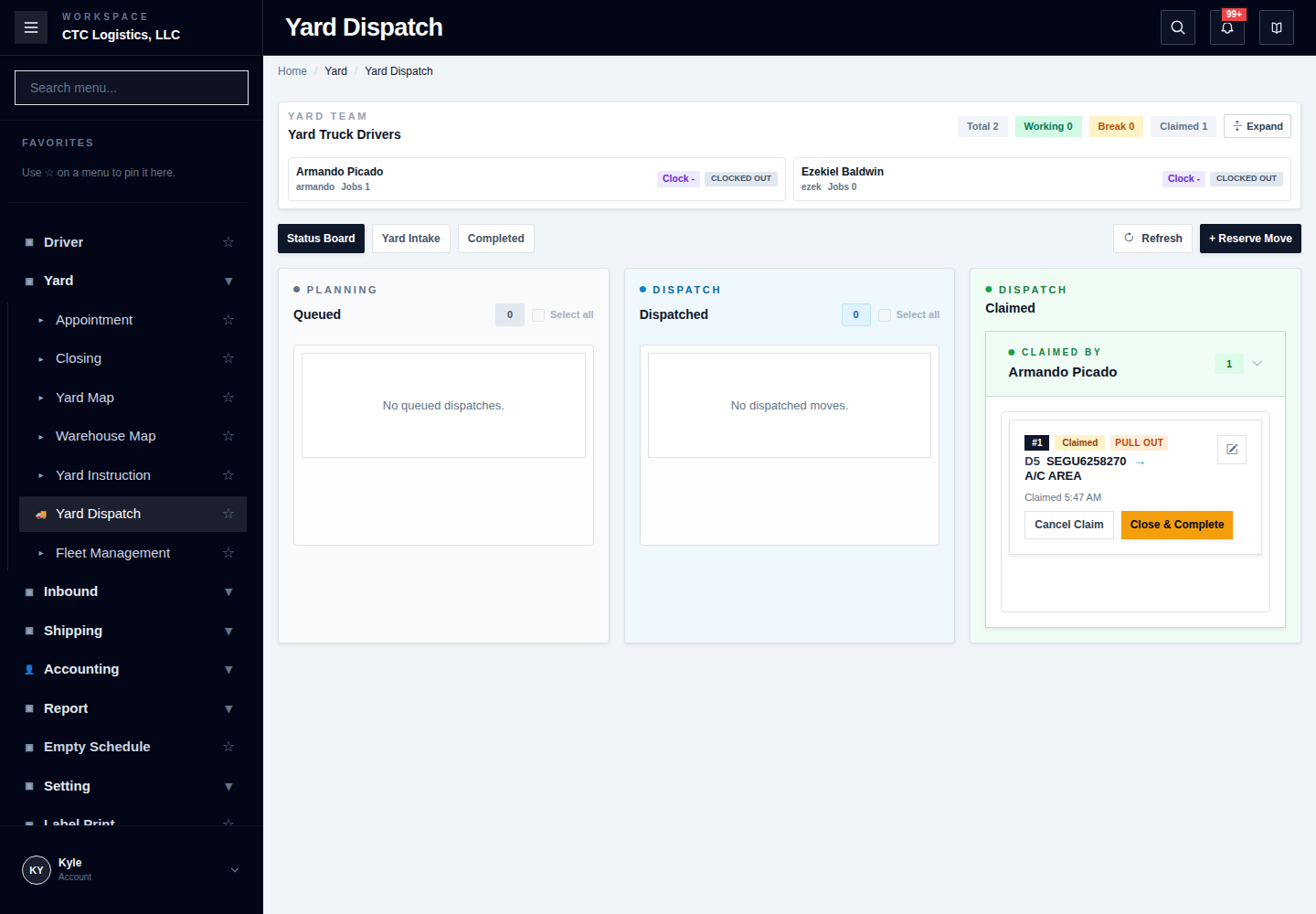
Yard → Yard Dispatch
Screen
Steps
1. Check the item is really there
Open Yard Map, find the item, confirm its type, identifier and current spot. Then open
Yard Dispatch and check whether it already has an active instruction.
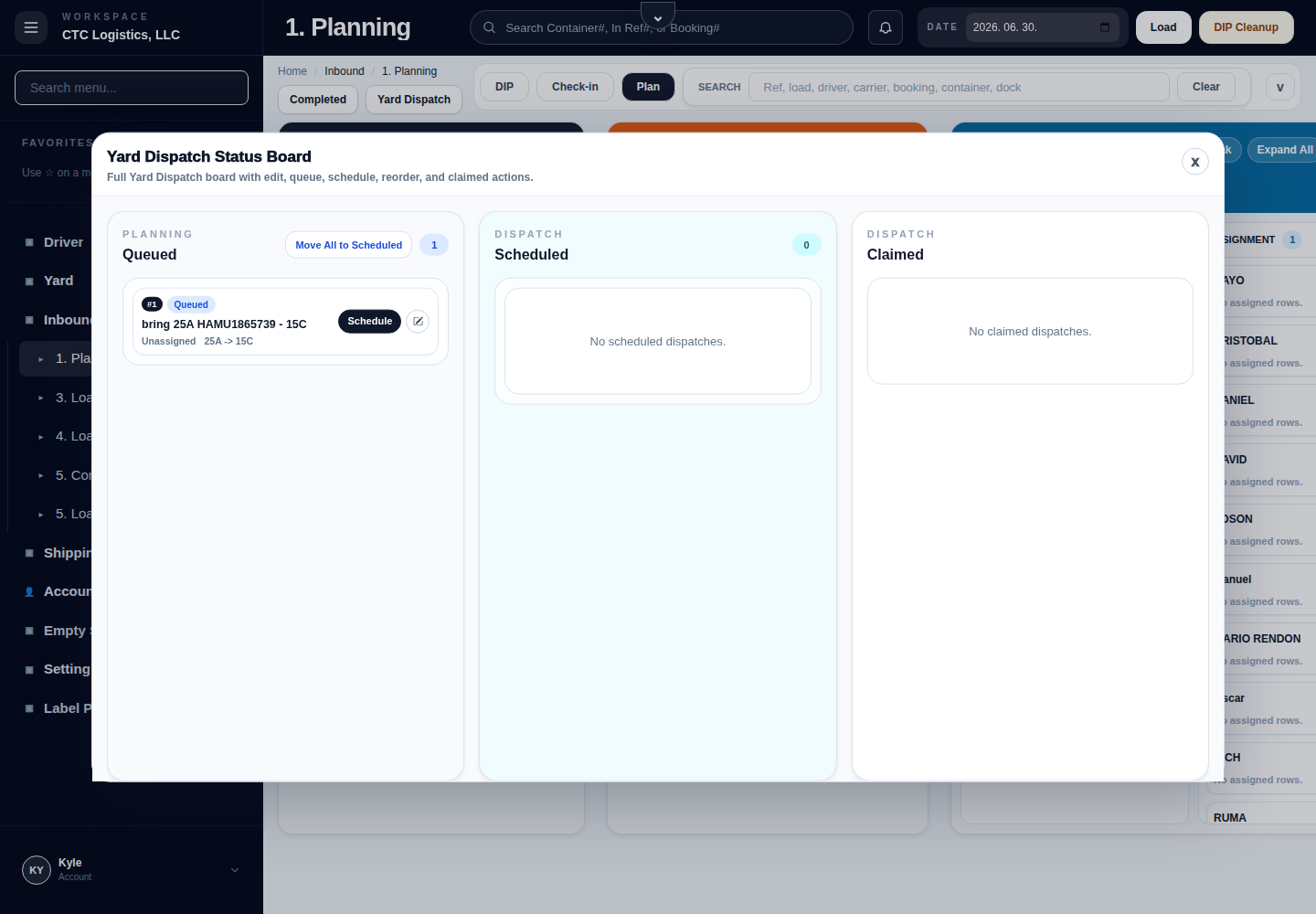
If the map, the queue and what you can see disagree, stop. Record the item, its real spot, the from and to, the queue id and any occupant before office changes anything. Do not schedule from a guessed location.
2. Raise the move (office)
Reserve Move — the item is already in the yard and needs a future move.
- Select the current location and item.
- Confirm Move To.
- Optionally set a driver, priority and remark.
- Choose Queue while planning, or Scheduled when the destination is ready.
- Refresh and verify each created card.
Each selected item becomes its own instruction. If it stops partway, keep the rows that exist and create only the missing ones. An auto relocate-before-pull-out card marked
TEMPmust be given a real destination before it can be scheduled.
Yard Intake — an unmapped item is physically present and needs an exact spot.
- Search for it, confirm the entity type, select the exact target spot.
- Select Move once, then refresh the map to confirm.
Yard Intake writes physical occupancy directly. It is not a queue draft. If the target is occupied, verify the occupant and its real clearing instruction before queueing behind it.
3. Schedule and order (office)
Set From (must match the real current spot), To, Type, Driver, Remark. Schedule a
card, or drag it into Scheduled, only once To is valid. With Move All to Scheduled, if it
partly fails, refresh and fix only the outstanding rows.
4. Claim and move (driver)
- Refresh, confirm the item is still at From, then select Claim, once.
- Move only the claimed item. For an area or stack group, choose the exact spot you placed it.
- Select Complete, once.
A claim is refused if the item is not scheduled, the destination is missing, the location differs, or the driver already holds another job. Refresh and report; do not keep pressing Claim.
For a pull-out, use Close & Complete and submit the closing once — keep the container selected, add the closing photos, enter the empty weight, and submit.
5. Verify (office, after every completion)
- Open Yard Dispatch → Completed and filter by the date or item.
- Open the map and find the actual item — or confirm it was dropped as intended.
- Confirm no active queue remains for the same item.
- Compare the item, the route, the actual spot, the driver and the time.
Two near-identical completed rows can mean one physical move. Do not move the item again just because two rows are visible.
If something goes wrong
| What you see | What to do |
|---|---|
| Target blocked or occupied | Verify the target and occupant; queue behind a proven clearing dependency only |
| No available location for an area or lane | Stop. Office picks another destination |
| A move only partly completed | When a Yard Move Only Partly Completed |
| Timeout after claim or complete | Refresh the queue and the map before retrying |
| The driver cannot start | Handing Work from the Yard to a Driver — the yard may still own the unit |
| Two completed rows | Compare item, route and time. Do not repeat the physical work |
Trade terms you will hear. A container held at the terminal too long attracts demurrage; held outside it, detention. If Proof of Delivery (POD) matters for this move, confirm it before you leave. See the Glossary.
What good looks like
- The instruction reads Completed, the map shows the item in its new spot, and no active queue is left for it.
- Any pull-out has its closing photos, empty weight and weight ticket recorded.
Related
- Dispatch — all your tasks
- Yard Truck Driver
- Moving Equipment Around the Yard — the business view
- Warehouse Map