Fleet Management
Purpose
Fleet Management holds the yard's vehicles and equipment — tractors, chassis, trailers, forklifts and yard trucks — with their service, inspection, meter and document history, and their current status.
Before you start
- You have the right account for this screen (see Permissions and Access).
- The date and record you are working on are correct.
- Words you do not know are in the Glossary.
Access
Yard → Fleet Management
Screen
Steps
Find an Asset
- Pick an asset type in the left sidebar to load that type, or enter a unit, plate or VIN and select Load to search across types.
- Select a unit in the sidebar or the table to open its detail.
- Double-click a row in Fleet Assets to edit it.
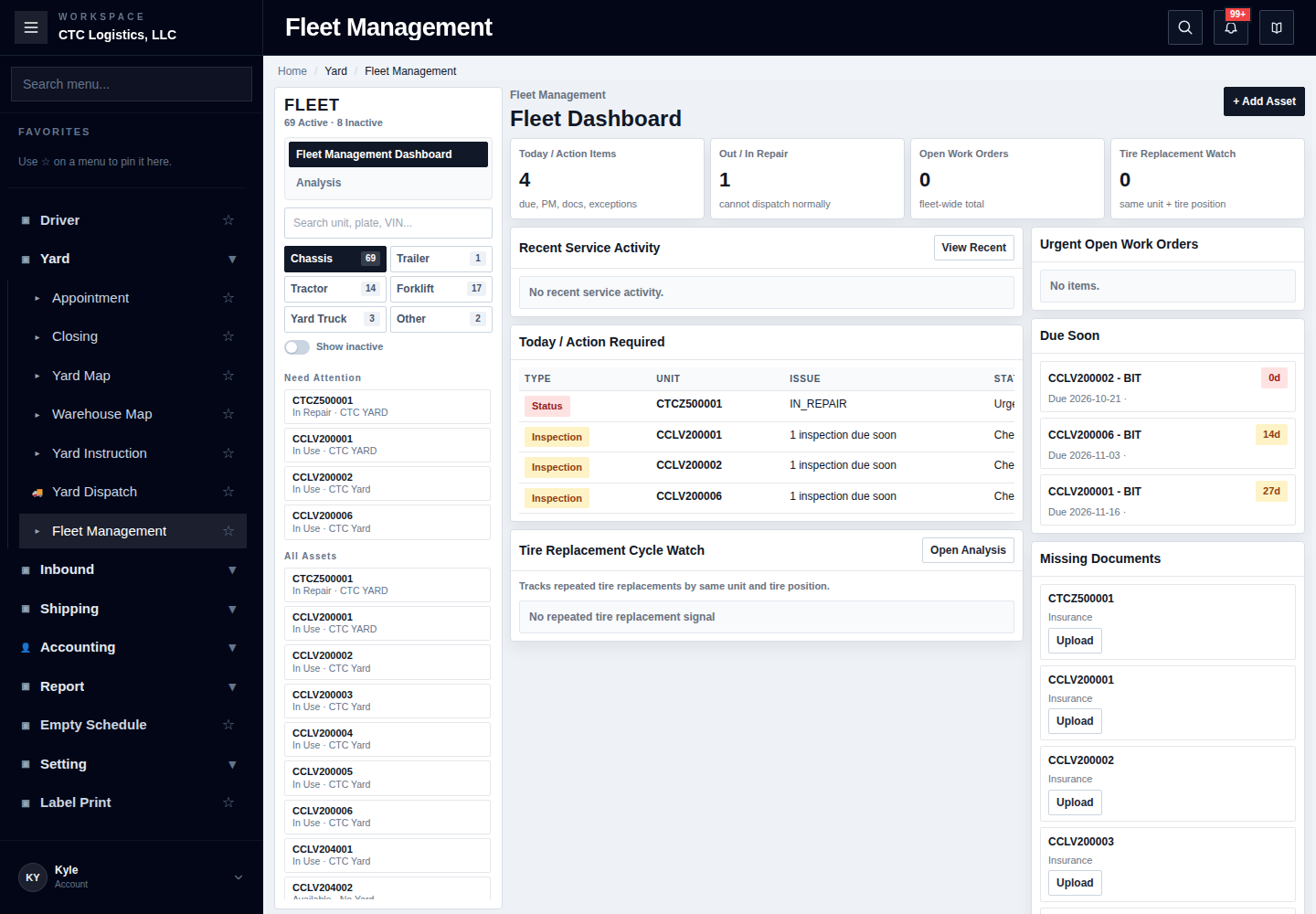
The sidebar also carries Analysis, Chassis, Trailer, Tractor, Forklift, Yard Truck, Other, Show inactive, Need Attention and All Assets.
Add and Edit an Asset
- Select + Add Asset, then enter the type, unit number, status, yard, and the profile fields for that type.
- To change an existing asset, open it and select Edit Asset. Reopen it after saving to confirm the values took.
Record Service, Inspection and Meter
- + Add Service — repair or maintenance history, vendor, cost, meter value, notes
- + Add Inspection — inspection type, inspected date, next due date, result, vendor, cost, notes
- Meter check-in — available on tractors, forklifts and yard trucks. A saved meter entry also updates the asset's current meter.
Use Edit on a service or inspection row to correct it. Delete removes only the selected entry — check the activity list afterwards.
Change an Asset's Status
Choose Change Status, enter a required reason, and optionally create a work order.
The status change is the main operation. If the optional work order then fails, the status change has already saved. Reopen the asset and add only the missing work order.
Analyse
Analysis groups service history by tyre cycle, vendor, cost, frequency or pattern.
An aggregate is not the asset. Open the source asset before acting on a grouped figure.
Fields
| Field | What it means |
|---|---|
| Unit number | Required, and must be unique within your company |
| Type | Decides which profile fields apply |
| Status / Yard | Where the asset is and what state it is in |
| Meter | Updated by a saved meter entry |
Status
The dashboard surfaces what needs attention: action items, units out or in repair, open work orders, tyre replacement watch, recent service, inspections due, and missing documents.
Notes
- Validation errors create no activity and do not change the asset. Correct the highlighted value and submit once.
- If a result is unknown or the page was interrupted, reopen the asset and read its status and activity history before retrying.
- Delete is available from the asset editor. Confirm the exact unit before deleting.
- Documents cannot be uploaded from this screen. The file provider is not connected; selecting a file reports that nothing was uploaded and creates no partial record. Keep using the approved document path. A selected local file is not evidence that anything was delivered.
Related
- Menu Management and Roles
- Working a Delivery — where yard trucks are used
- Errors and Recovery