Working a Delivery
Purpose
It runs your working day: you check in, work through the deliveries assigned to you, record what happened, and check out at the end.
Who does this
Truck operators who drive deliveries from check-in to check-out.
Before you start
- You have the right account (see Permissions and Access).
- The record and date you are working on are correct.
- Words you do not know are in the Glossary.
Access
Driver
Before you start — check whose work this is
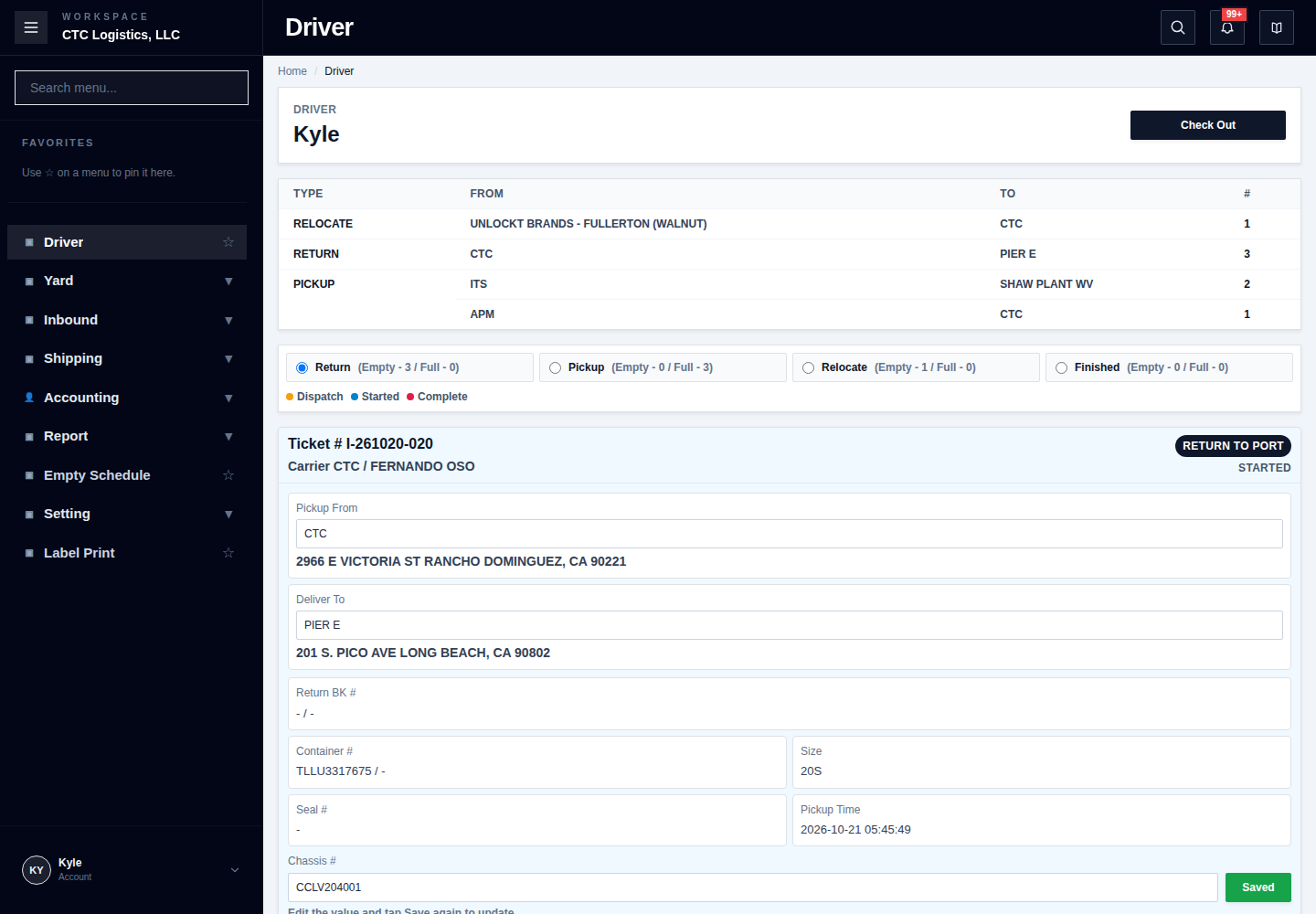
Look at the name at the top and compare it with the delivery cards.
If you can see another driver's work, or a list that is not just yours, stop and report it. Do not start a delivery because its buttons happen to be enabled. Buttons being clickable is not proof the job is yours.
For each card, check the ticket, the freight, the from and to, and the container or chassis against what you are actually driving.
Starting your day
- Enter the date and start time.
- Truck number, starting mileage and remark are optional.
- Check the inspection items — condition, engine, in-cab, exterior — and record what you actually find, not what is expected.
- Submit, then check the top of the screen and your cards.
If the check-in result is unclear, do not submit a second one. Reload and see whether your day is already open. Two open days cause real confusion later.
The delivery card
Some fields save the moment you change them, and some do not:
| Field | What to do |
|---|---|
| Pickup From, Deliver To | Change them and they save straight away |
| Container #, Chassis #, Remark | Change them, then press Save or Enter |
After any error or frozen screen, reload and check what was actually saved before typing it again.
Starting a delivery
- Find the delivery you are working.
- Press Start, once.
It records the pickup time and moves the card to Started.
If the container is being taken out of our yard, the system clears its yard spot first, then starts the delivery. If the start fails after that, the yard may already be cleared — reload and check your card, the yard map and the queue before doing anything else. Do not fix the yard map yourself.
While you are out
Photos — take the delivery photos the job asks for. They are saved as soon as you upload them, which means a photo can exist while the delivery is still open. If the finish then fails, check the photo is already there — do not upload it again.
Saying you have arrived — for deliveries to our own yard, you can send an arrival notice. Office may mark it as assigned, hold outside, or dismissed.
"Assigned" on an arrival notice does not give you a parking place. Wait for an actual parking instruction.
Sending your location — only when you are asked. It is a single ping at that moment, not continuous tracking, and it does not change the delivery's status.
Finishing at a customer
- Press Finish.
- Upload the photo if the screen asks for one.
- Submit, once.
Then check the delivery shows as delivered, with the time on it.
Finishing at our yard
- Press Finish and satisfy the photo prompt.
- Choose where you actually put the container.
Two different things can happen:
- The spot is empty — the container is moved, and the delivery is completed as a separate step.
- The spot is occupied — if you confirm, the move is queued behind the other one and the delivery is marked done. The container is not actually placed until that spot clears.
Delivering is not the same as placing the container. If you queued behind another job, the yard move is still outstanding. Check the map and the queue.
Parking back at CTC
Some jobs finish by parking back at our yard. This one takes three people:
- You press Request Parking.
- Office assigns an actual spot, or an area and lane to follow.
- You wait for the assignment, follow the instruction, and press Confirm Parked. If you were given an area, enter the exact spot you used.
Then check the parking status, the delivery status, the yard map and the queue — confirming the parking and completing the delivery are two separate steps, so one can be done without the other.
Reporting a problem
If something goes wrong, press Trouble and record the ticket, what the physical situation is, a photo, and the yard state.
Undo puts a delivered or troubled card back to Started and clears the delivery time.
Undo is not a full reversal. It does not put back the equipment load status, the terminal times, the yard queue or location, or anything that was sent to someone else. Office has to review all of that separately. Do not treat Undo as "putting it back".
Ending your day
- Check your completed work, your photos, and the parking and yard state where they apply.
- Enter the finish time. Mileage and remark are optional.
- Submit, then confirm the screen has gone back to Check In and your cards are locked.
If you created a day log by mistake, deleting it is an exceptional correction — not a normal way to finish.
If something goes wrong
| Situation | What you do |
|---|---|
| I can see another driver's work | Stop and report it. Do not act on it. |
| Check-in result is unclear | Reload and check. Do not submit a second one. |
| A field I changed did not save | Press Save or Enter for that field. Reload and verify. |
| Start failed | The yard spot may already be cleared. Check the card, the map and the queue. |
| Finish failed after the photo | The photo is already saved. Check it rather than re-uploading. |
| I queued behind an occupied spot | The move is still waiting. Check the map and the queue. |
| Parking confirmed but the delivery is not done | They are separate. Report it. |
| I used Undo and things still look wrong | Undo does not reverse everything. Office must review the rest. |
Who owns the next step
The driver owns the delivery. Office owns parking assignments and anything Undo left behind — see Moving Equipment Around the Yard and The working day, step by step.
The full step-by-step
This page is the short version. The screen-by-screen procedure with every field and recovery step is here: