Moving Equipment Around the Yard
Purpose
It records a request to move one item from one spot to another, and follows that move through to the end.
Who does this
Dispatch staff who create the move instructions, and yard truck drivers who carry them out.
Before you start
- You have the right account (see Permissions and Access).
- The record and date you are working on are correct.
- Words you do not know are in the Glossary.
Access
- Office:
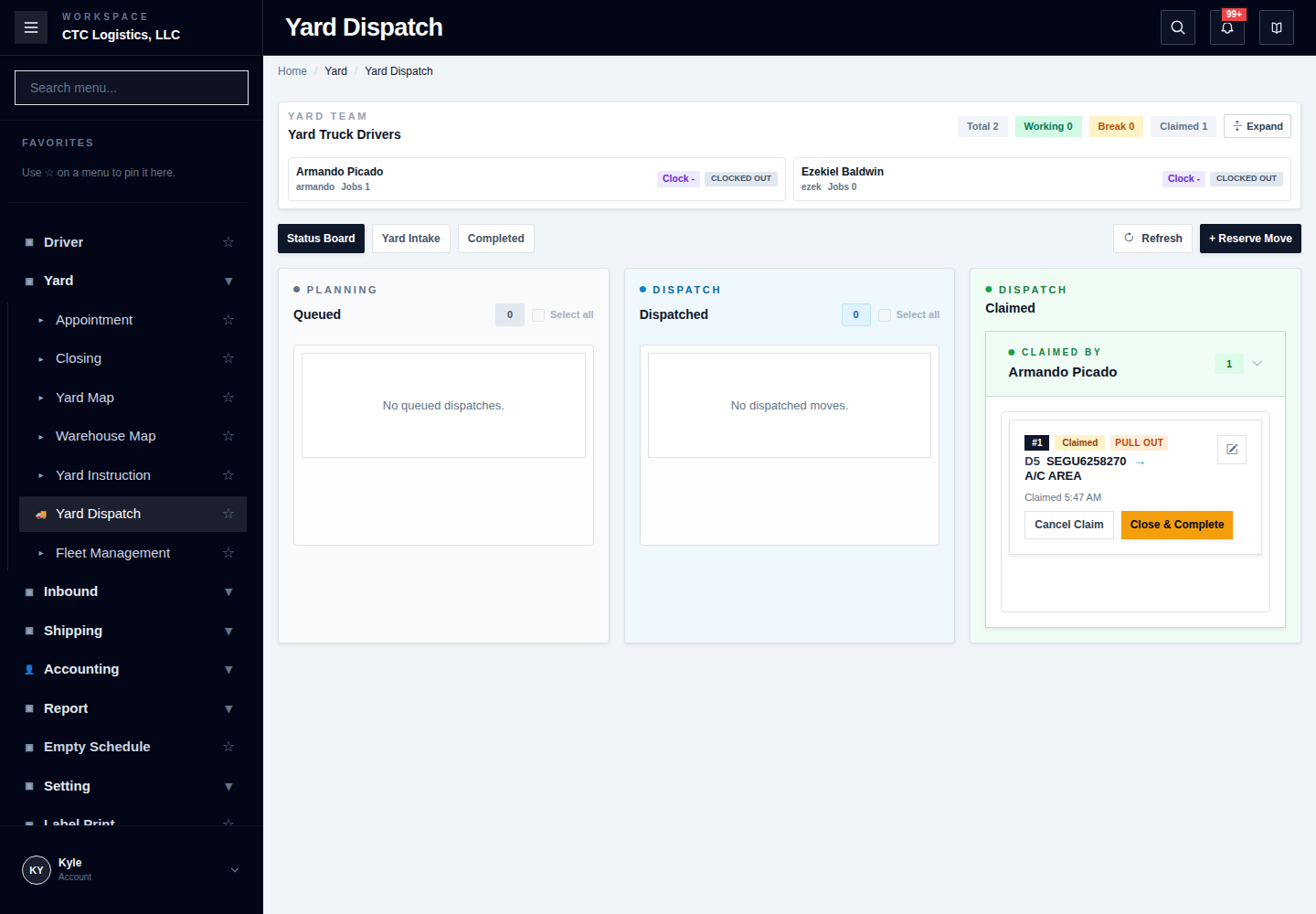
Yard > Yard Dispatch - Driver:
Yard > Yard Instruction, signed in with their own account
Before anything is raised
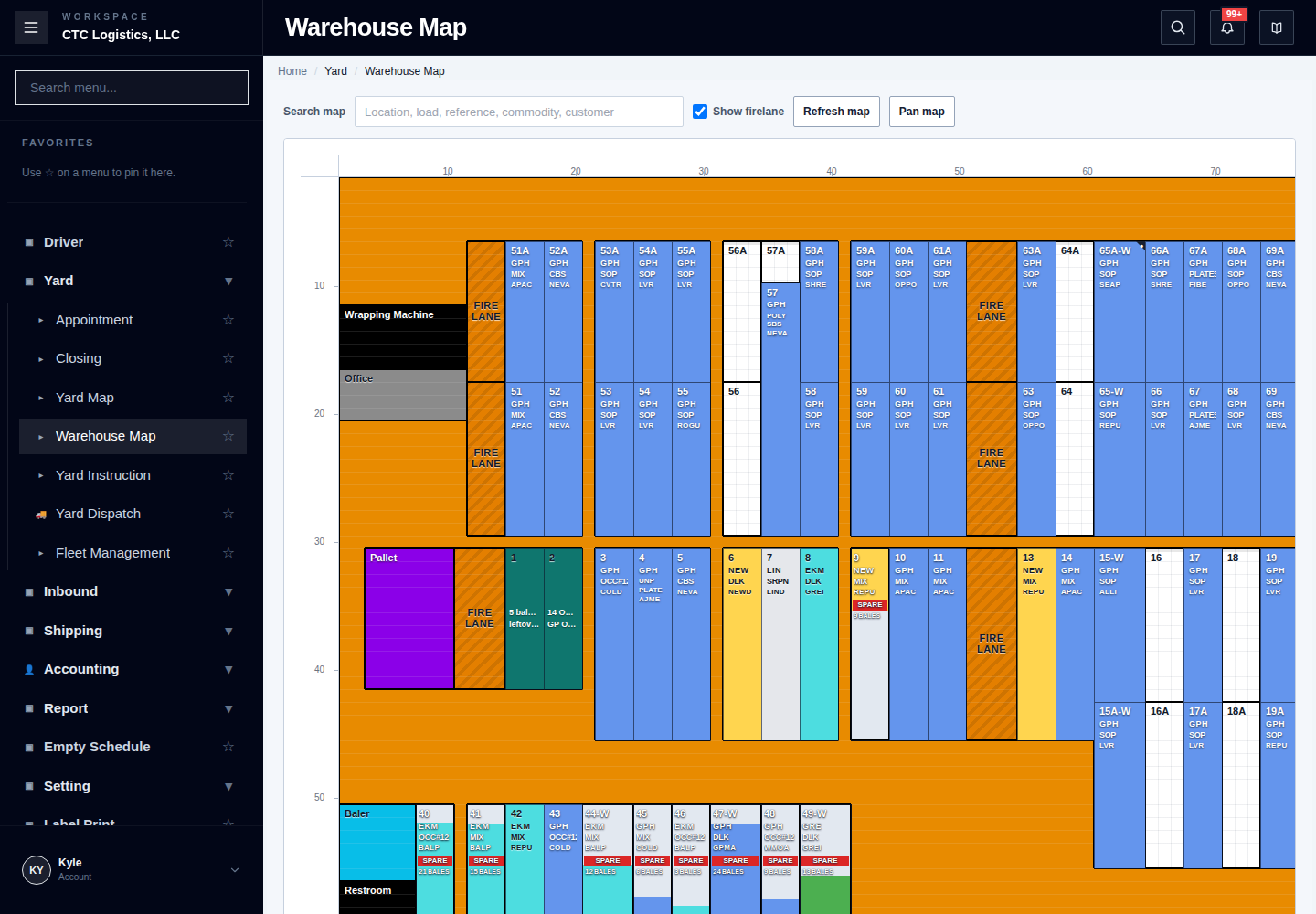
- Look at the item on the Yard Map.
- Check the queue for anything already planned for it.
- Check any related pull-out or relocate instruction.
- Confirm where the item physically is now, and where it is going.
If the map, the queue and what you can see in the yard disagree, stop. Do not raise an instruction from a guessed location. Find out which one is wrong first.
Office: raising the move
Reserve a move — the item already has a location. Choose the item, the destination, and optionally a driver, priority and remark. Each item you select becomes its own instruction.
Yard intake — the item is not on the map at all. Choose the item and the exact spot. This writes the location directly, so be certain of the spot.
If a move partly fails, check what was created before trying again.
If the target spot is already occupied, the screen will tell you who has it. Only move it on if you have checked that the other instruction is meant to be cleared.
Office: scheduling
- Check the from, to, type of move, driver and remark.
- Resolve any item still marked as temporary.
- Move the instruction to Scheduled and put it in the right order.
Scheduling several at once can partly succeed. Refresh before correcting, and fix only what is outstanding.
Driver: taking the job
- Refresh the instruction list.
- Check the item is physically where the instruction says it is.
- Select Claim, once.
The instruction will only let you claim it if:
- it is scheduled,
- it has a real destination,
- the item is where the instruction says, and
- you have not already claimed another one.
Driver: doing the move
- Follow the item, the from spot, the type of move and the destination.
- Move only the item you claimed.
- If the instruction says to stack it in an area or group, record the exact spot you actually put it in.
If the yard no longer matches the instruction, do not complete it. Report the instruction, the item, where it was meant to be, where it is, and who is in the way.
Driver: completing the move
- Enter the actual spot if the instruction asks for it.
- Select Complete, once.
The instruction disappears from your active list. Office will see it under completed, and the item at its new spot on the map.
If the system told you a spot was occupied and offered to queue behind it, accepting that is not proof the move finished. Check both instructions before doing more work in that area.
Pulling a container out
Pulling a container out of the yard is finished through Yard Closing, not the normal completion.
- Open the instruction and choose Close & Complete.
- Keep the container bound to the same instruction.
- Enter the closing details and confirm.
- Check the result before leaving the area.
If something goes wrong
| Situation | What you do |
|---|---|
| The item is not where the instruction says | Do not claim it. Report it to Office. |
| Claim will not work | Check the four conditions above — usually you already hold another instruction. |
| The save result is unclear | Refresh and read it before trying again. A repeat can create a second instruction. |
| The target spot is occupied | Check who holds it. Only queue behind them if their instruction is meant to be cleared. |
| You moved it but the screen refused | Report it. Do not keep moving things to make the screen agree. |
| You cannot find the item | Stop. Ask. A move cannot be claimed without the item. |
Who owns the next step
Dispatch owns the instruction. The claiming driver owns the move. Once it is complete, office sees the result on the map — see Reading the Warehouse Map and The working day, step by step.
The full step-by-step
This page is the short version. The screen-by-screen procedure with every field and recovery step is here: