Reading the Warehouse Map
Purpose
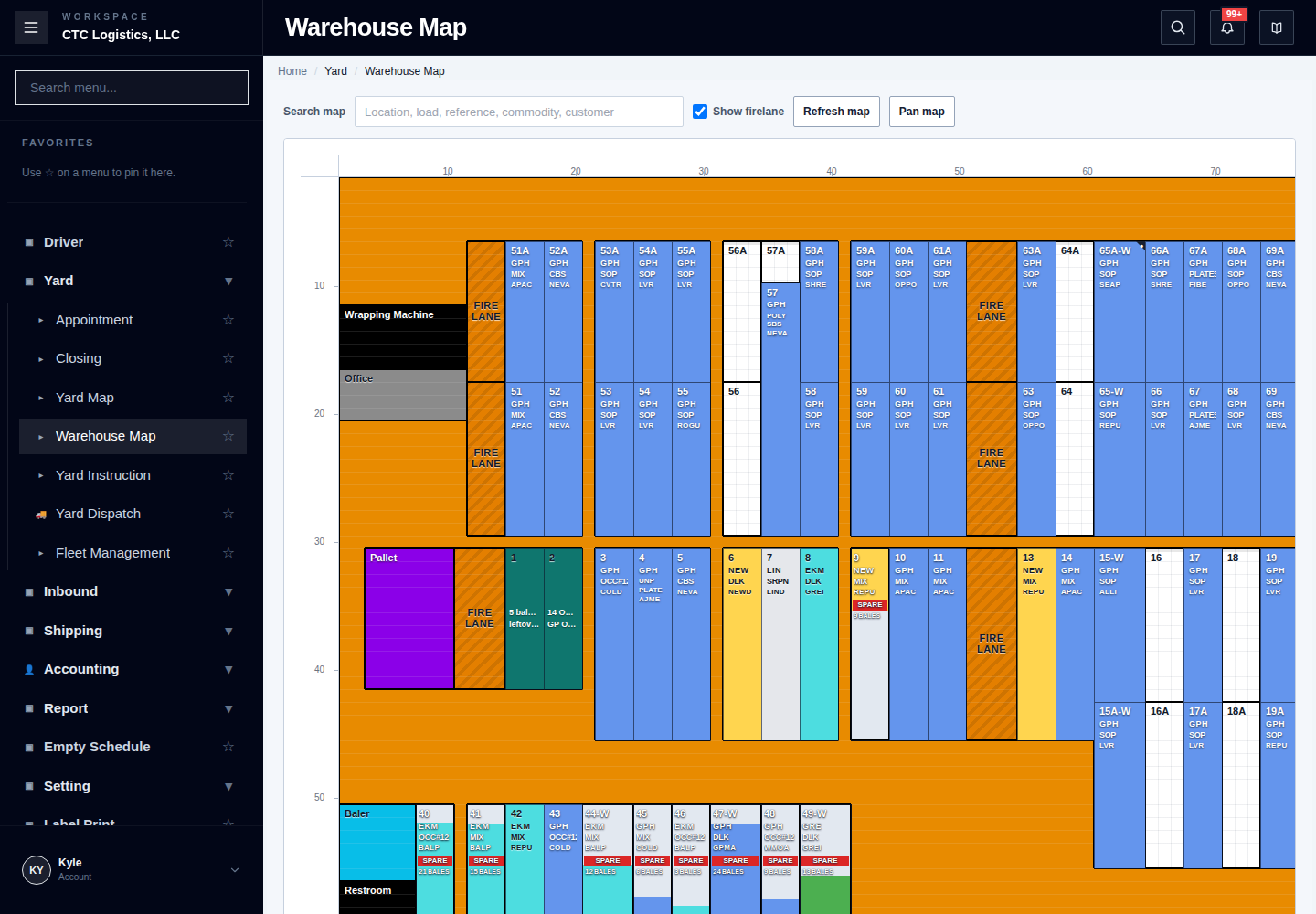
It draws a floor plan of the warehouse and colours each location by what is currently in it.
Who does this
Warehouse staff who need to see what is stored where.
Before you start
- You have the right account (see Permissions and Access).
- The record and date you are working on are correct.
- Words you do not know are in the Glossary.
Access
Yard > Warehouse Map
How to read it
Select a location to open its card. The card shows the customer, commodity, load number, quantity, weight and the date it came off the vehicle.
| What you see | What it means |
|---|---|
| Location filled in | Stock is there. |
| Location striped | More than one lot is recorded at this location. See the warning below. |
| Location empty | Nothing eligible is recorded there. |
| Dark grey, shimmering | Stock is being unloaded right now. |
| Red, shimmering | Stock is being moved back out. |
Purple R badge |
A move back out is scheduled. |
Orange, marked ⚠ FL |
This is a fire lane. It is not meant for normal storage. |
Fire lanes
Fire lanes are shown orange so they stay visible. If stock is found in one, it needs moving — but that is a separate job with its own rules. Do not move stock out of a fire lane on your own initiative.
Turn Show firelane off to see the map without the orange fire lane layer. The stock underneath is unchanged either way.
Looking around
- Search highlights matching locations. It does not hide anything else.
- Refresh map reloads the current state.
- Pan map lets you drag the view without opening anything. Ordinary scrolling still works.
- If the map stops updating, reload the page.
Opening the load behind a location
With one location holding exactly one lot, the card offers Open Transload Edit to work on that load. It also offers Plan Reload and Plan DIP to schedule stock movement.
Correcting a spare bale count
Office staff can correct the count on one spare lot when the physical count does not match.
- Open the location's card.
- Choose Adjust Bale Balance.
- Enter the actual quantity and actual weight, and give a reason. A reason is required.
- Save, then look at the card again.
This changes the count on that lot. It does not move stock, does not change the map, and does not recreate anything.
Important: more than one lot in a location
If a location shows as striped, do not use Open Transload Edit, and do not adjust a bale count there. The records disagree about what is in that location. The inventory record has to be corrected first.
If something goes wrong
| Situation | What you do |
|---|---|
| Stock is missing from the map | Check the load it belongs to. Stock is only shown when that load is still recorded as unloaded. |
| A location shows as striped | Do not work from it. Report it so the inventory record can be corrected. |
| A location on the map is not one you know | Note it and report it. The inventory record may point at the wrong location. |
| The map will not refresh | Reload the page. Do not assume what you see is current. |
| You cannot open a load from a location | It happens when more than one lot is recorded there. See above. |
| A bale count adjustment was refused | The new count is below what is already reserved. Check the physical count before trying again. |
Who owns the next step
Warehouse staff own the map. Stock that is in the wrong place is corrected through the inventory record, not on the map — see Correcting an Inventory Lot and The working day, step by step.
The full step-by-step
This page is the short version. The screen-by-screen procedure with every field and recovery step is here: