Warehouse Map
Purpose
The Warehouse Map shows where stock physically sits and lets you mark a load as spare, check whether a location is being reloaded, and change how much space a load appears to take up.
Who does this
Warehouse and Inventory staff.
When you need this
When you need to know where stock physically is.
Before you start
- You have the right account for this screen (see Permissions and Access).
- The date and record you are working on are correct.
- Words you do not know are in the Glossary.
Access
Yard → Warehouse Map
Screen
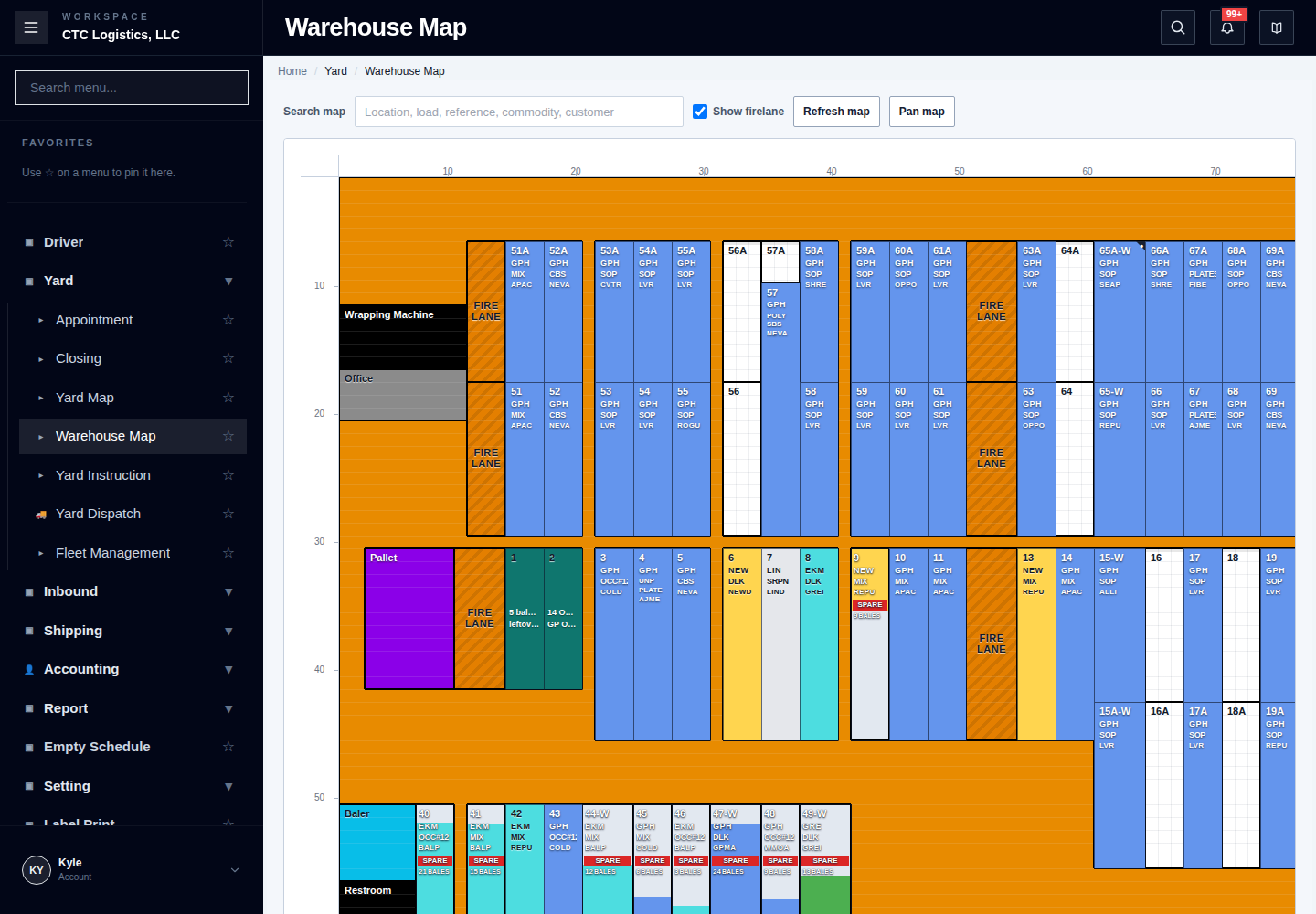
Main Features
Mark a Load as Spare
Use this when an unloaded load at a warehouse location must stay available as spare inventory.
- Open the Warehouse Map.
- Select the location holding the load.
- When the Spare button appears, select it and confirm.
- Wait for the map to refresh.
The load then shows as SPARE and stays at its location.
Check the Reload Status
A red badge on a location shows what is happening to it:
| Badge | What it means |
|---|---|
| DIP above RELOAD | A planned inbound reload is due |
| PLANNED above RELOAD | A standard reload is planned |
| RELOADING | The reload has started |
If the status is unclear, refresh the map before you take the next action.
Adjust a Visual Footprint
Adjust size changes only how large a load or marker looks on the map. It moves nothing.
- Select the load or marker, then choose Adjust size.
- Drag an edge outward to extend into free space, or inward to shrink an earlier extension. An extension disappears when its width or height reaches zero.
- Keep the footprint joined to its original location.
- Choose Save size to keep it, or Cancel to discard.
Select the load or marker again to see the whole adjusted footprint, including any extensions.
Fields
| Field | What it means |
|---|---|
| Spare | Shown only when the location holds one current, eligible load |
| Adjust size / Save size | Changes the drawn footprint, not the stock |
| Reload badge | The reload state of that location |
Status
| Shown | Meaning |
|---|---|
| SPARE | The load is unloaded, at its location, and available as spare inventory |
| DIP / PLANNED / RELOADING | What is scheduled or happening at that location |
Marking a load spare does not change its quantity, weight or owner, and it does not place it anywhere.
Notes
- If the Spare button is not shown, refresh the map and confirm the location holds exactly one current, eligible load.
- If the update errors or its result is unclear, refresh and check before trying again. Do not submit the action repeatedly.
- The map will not let a footprint expand into another load's footprint, a fire lane, non-storage space, or off the map. If there is no room, shrink it or pick a different edge.
- Nothing here moves stock. The footprint is a drawing.
Related
- Adjusting Bale Stock — correcting the stock figures
- Setting Stock Aside for an Order — committing stock to an order
- Moving Equipment Around the Yard — actually moving it