How to Create or Change a Booking
Purpose
A Booking is the agreement record for one shipment: who the shipper is, which shipping line carries it, and when it is planned. It is the first place a new order is registered.
Access
Shipping → List → Booking
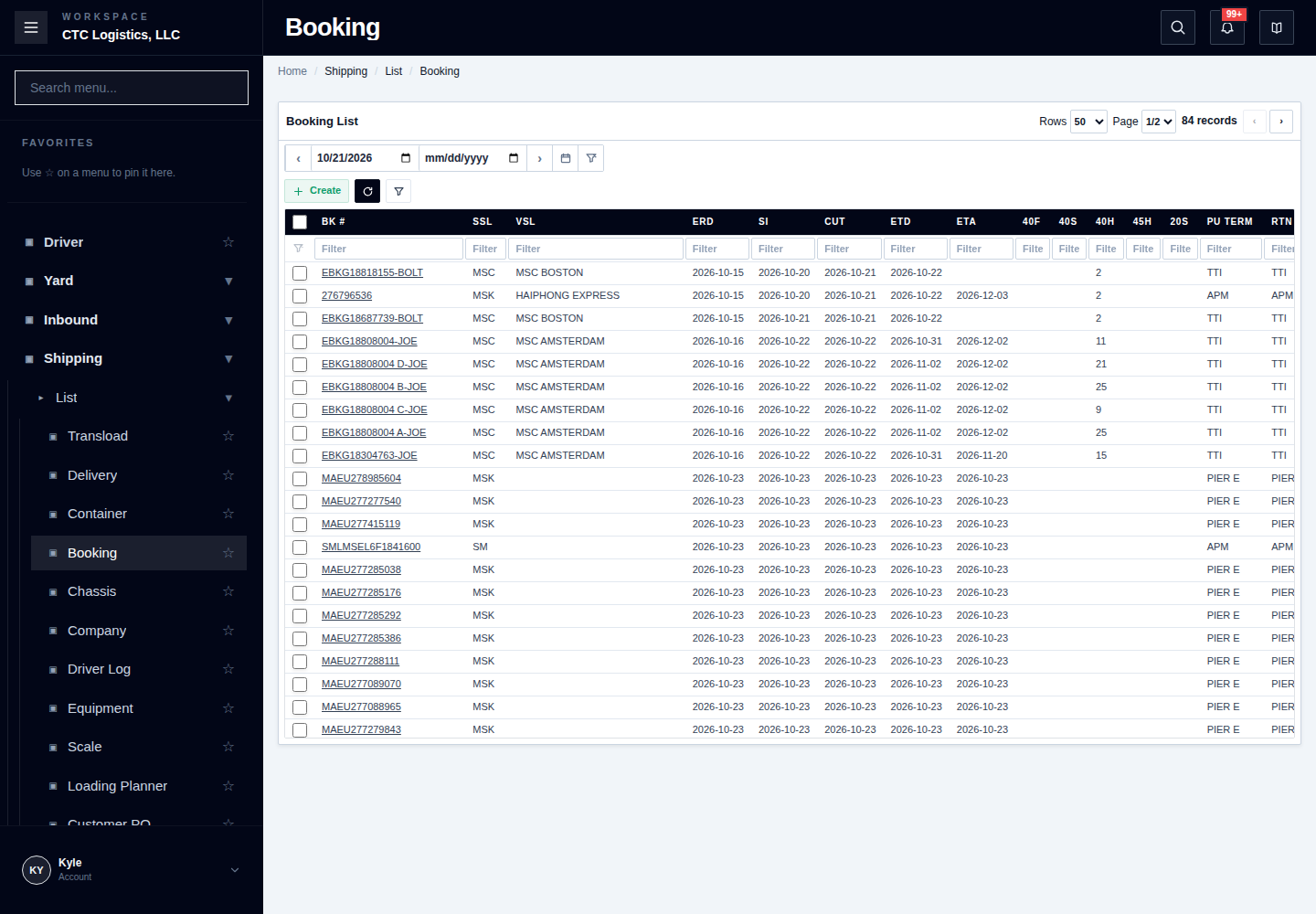
Screen
Steps
Before You Start
Search by booking number, invoice or order reference, or by date range.
If a matching booking already exists, open it and change it. Creating a second booking for the same shipment is the single most common way this screen causes trouble.
What You Must Enter
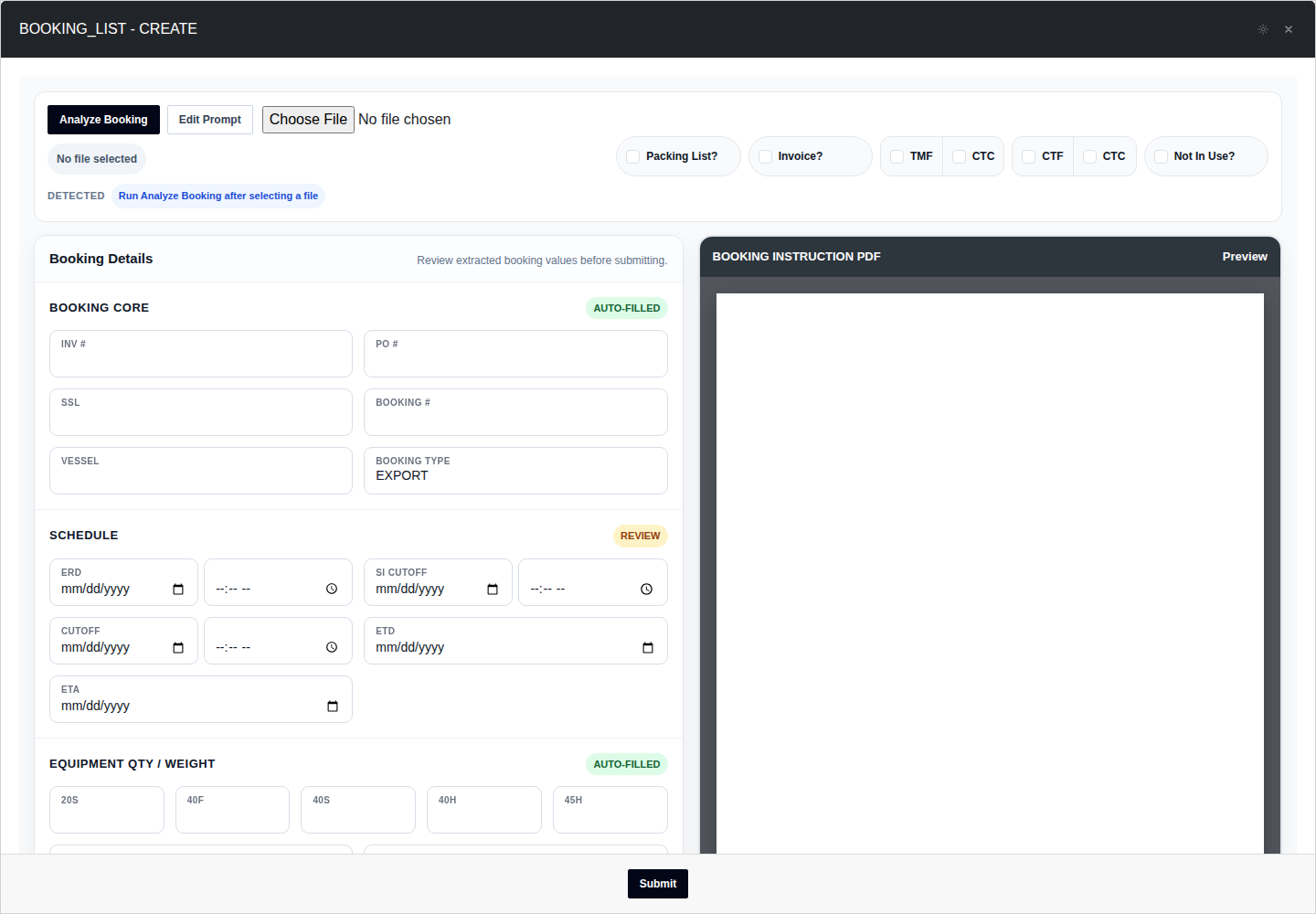
| Field | Required | Note |
|---|---|---|
| Booking number | Yes | Your own reference for this shipment |
| Shipping line | Yes | The carrier |
| Booking type | Yes | Export, import or another type |
| Shipper | Yes, at least one | The party sending the goods |
| Cutoff, port, planned quantity, parties | If the job needs them | |
| Sales link | Optional | Only when this booking belongs to a sales order |
Save It
- Fill in the fields.
- Save once.
- Open the saved booking detail again and check it. The save message alone proves nothing.
After Saving
The detail view should show your values, with dates in the system's own format, the invoice number the system kept, and every switch you set still set.
Fields
| Field | What the system may do to it |
|---|---|
| Invoice number | Empty or duplicated — replaced with the system's own number |
| Date | Empty or unreadable — ends up empty |
| Date | Past the allowed range — can move to a different date |
| Sales link | If it is not valid, it can be removed or kept. You must check which |
The system can change values you typed. After saving, read back what it actually kept.
Status
The booking's own state is not shown as a simple status here.
Saving a booking can also write to the linked transload, order lines, lots and inventory balances. It can reset a lot's remaining quantity, or detach linked inventory when the booking is in a state that no longer allows the link.
Notes
Trade terms you will hear. A booking may be FCL (one shipper fills the container) or LCL (shared with other shippers). The booking's cut-off is the latest time the container can be accepted for that sailing — after it, the container misses the vessel and may start attracting demurrage at the terminal. See the Glossary.
If the booking is referenced by a transload, save the booking first and then reopen the transload, the order lines, the lot and the inventory before using any of them for stock, money or documents.
A booking can save successfully and still leave the linked job partly undone. The success message is about the booking, not about the transload or the inventory.
Related
- Booking Confirmation — the document this produces
- Turning an Import Container for Export
- Creating an Export Brokerage Job