Empty Schedule
Purpose
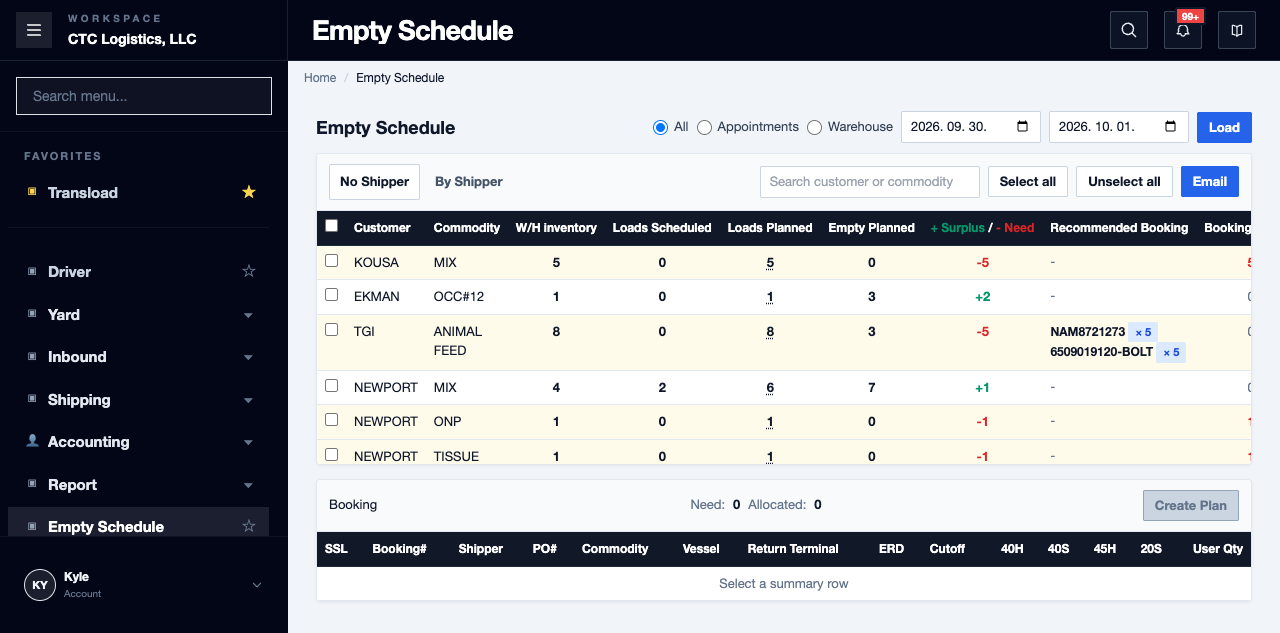
Empty Schedule shows the demand that has no booking against it — what customers want and what has not been carried yet. Use it to see that demand and to send booking inquiry emails from it.
Before you start
- You have the right account for this screen (see Permissions and Access).
- The date and record you are working on are correct.
- Words you do not know are in the Glossary.
Access
Empty Schedule
Screen
Steps
Find Rows
- Choose the date range and select Load.
- Type customer, commodity or shipper text into the search box.
Every word you type must match. Entering
GP MIXnarrows the table to rows containing both words, not either.
Send Booking Inquiries
- Select the rows to include.
- Choose Email.
- Read the result list — sent, skipped and failed rows are listed separately.
Select all and Unselect all apply only to the rows the search is currently showing. Rows filtered out are not selected.
Fields
| Field | What it means |
|---|---|
| Date range | Which demand the list covers |
| Load | The demand rows themselves |
| Search box | Matches all words entered, against customer, commodity and shipper |
| Result list | Which rows were sent, skipped or failed |
Status
| Shown | Meaning |
|---|---|
| Sent | The inquiry went for that row |
| Skipped | The row was not sent — check why in the result list |
| Failed | The send was attempted and did not succeed |
A row appearing in this list means demand with no booking, not stock and not a confirmed job.
Notes
Trade terms you will hear. Rows here are often FCL (full container) or LCL (shared) demand with no booking yet. The cut-off is why an inquiry matters — a booking made after cut-off misses the vessel. See the Glossary.
- Sending an inquiry does not create a booking and does not reserve anything.
- Creating the empty plan is a separate action under Booking — see How to create or change a Booking.
- Check the failed rows in the result list rather than assuming everything went.
Related
- How to create or change a Booking — turning demand into a booking
- Creating an Export Brokerage Job
- The working day, step by step