AR Billing
Accounting → AR → AR Billing
1. Choose the work type
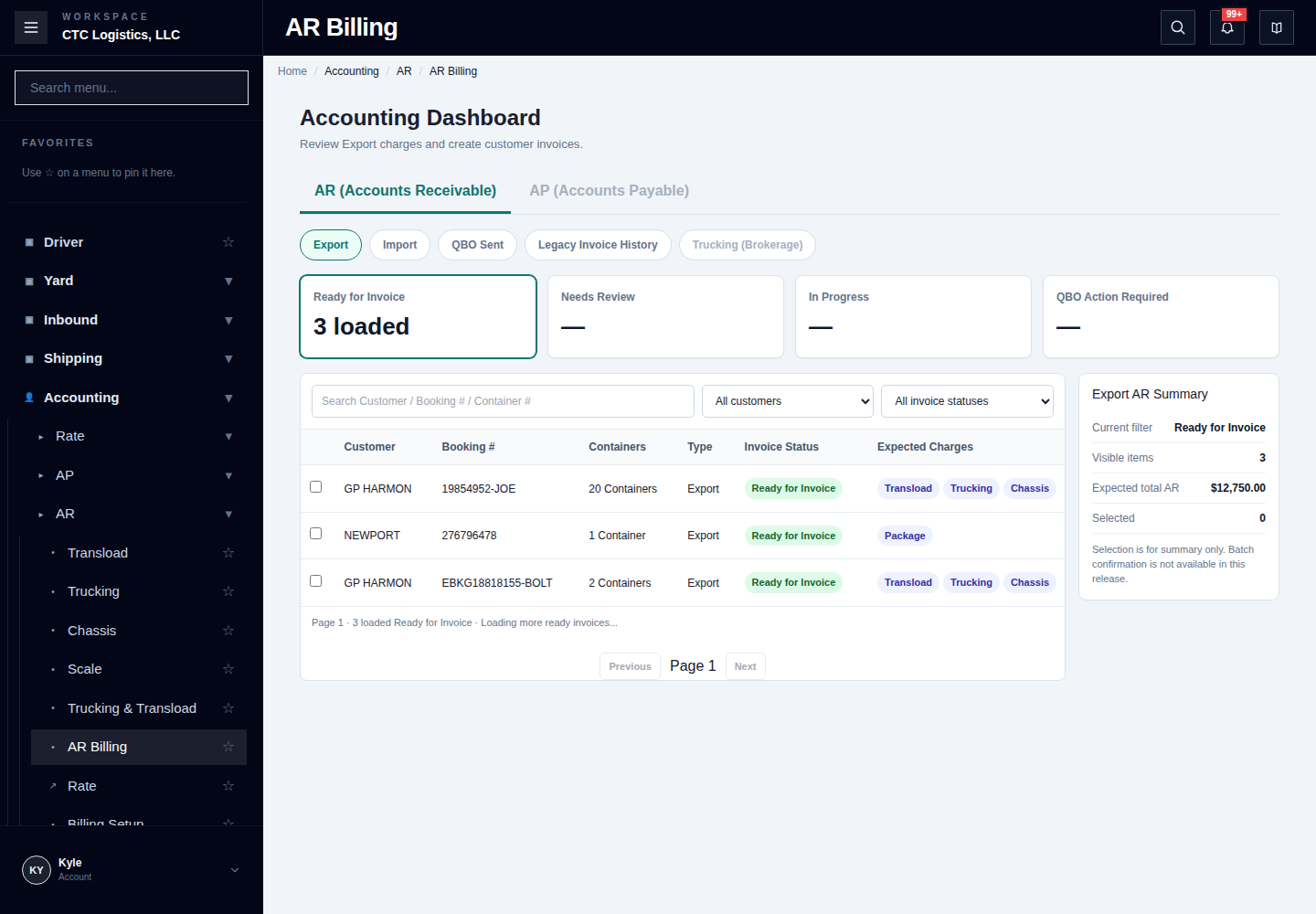
Open Export, Import, or Trucking (Brokerage). Until a type is selected, the list asks you to select Import or Export.
2. Find the work to bill
Use Customer, Reference #, Container # and Invoice Status. The counters group work into Ready for Invoice, Needs Review, In Progress and QBO Action Required.
The list shows Expected Charges, Invoice Total and Action Needed. Confirm the customer and shipment reference before opening its invoice review.
3. Review one invoice
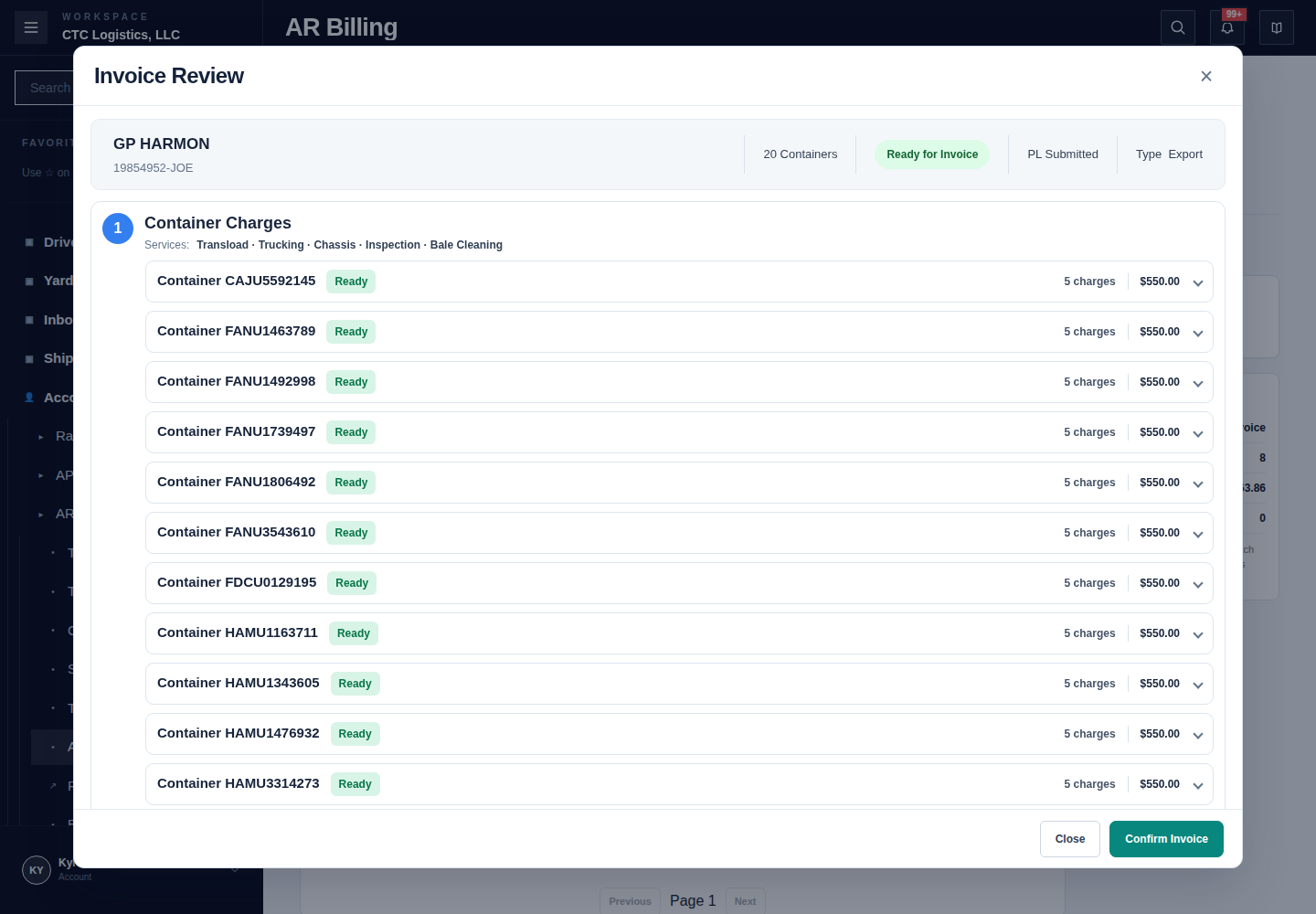
Open the row's review action. Check the customer and booking at the top. Expand Container Charges to inspect each container. Review Booking Additional Charges and the Invoice Summary before Confirm Invoice.
In the summary, check Invoice Date, Due Date, Terms, Invoice Grouping and # of Invoices to Create. One booking can produce several invoices; the displayed count must match your intended grouping.
Selecting rows changes the AR Summary only. This screen does not offer batch confirmation.
4. Check the invoice and QBO result
Check the saved invoice and its QuickBooks Online result separately. Use the QBO Sent view to review sent records. A local invoice alone does not prove it reached QuickBooks.
Before retrying a QBO action, search QuickBooks for the same invoice number. Do not create a second invoice to retry delivery.