Warehouse, Reports and Adjustment
Purpose
The warehouse and reporting screens, and which of them actually change data. A menu under Report is not automatically read-only — that distinction is the point of this page.
Before you start
- You have the right account for this screen (see Permissions and Access).
- The date and record you are working on are correct.
- Words you do not know are in the Glossary.
Access
Label Print · Yard > Warehouse Map · Report > Inventory · Report > Storage Report ·
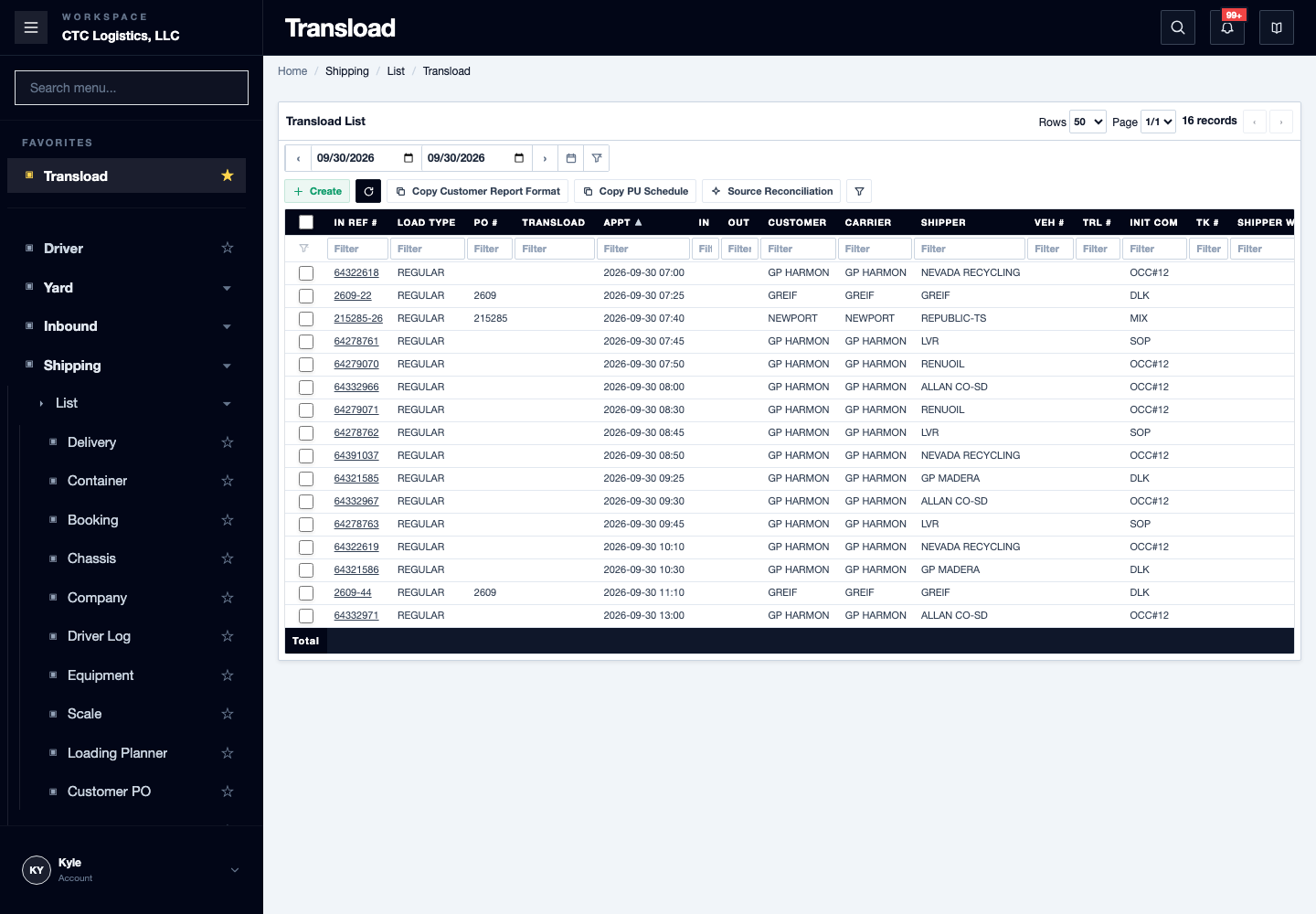
Report > Trucking Summary Report · Report > Final Loading Review · Transload list
Screen
Steps
Know What Writes
| Surface | Normal action | Effect |
|---|---|---|
| Label Print | Find, open and print a label | A physical print. No print ledger |
| Label location field | Change the warehouse location, when enabled | Writes placement and its mirror |
| Warehouse Map | Review the grid, lots and indicators | Read-only |
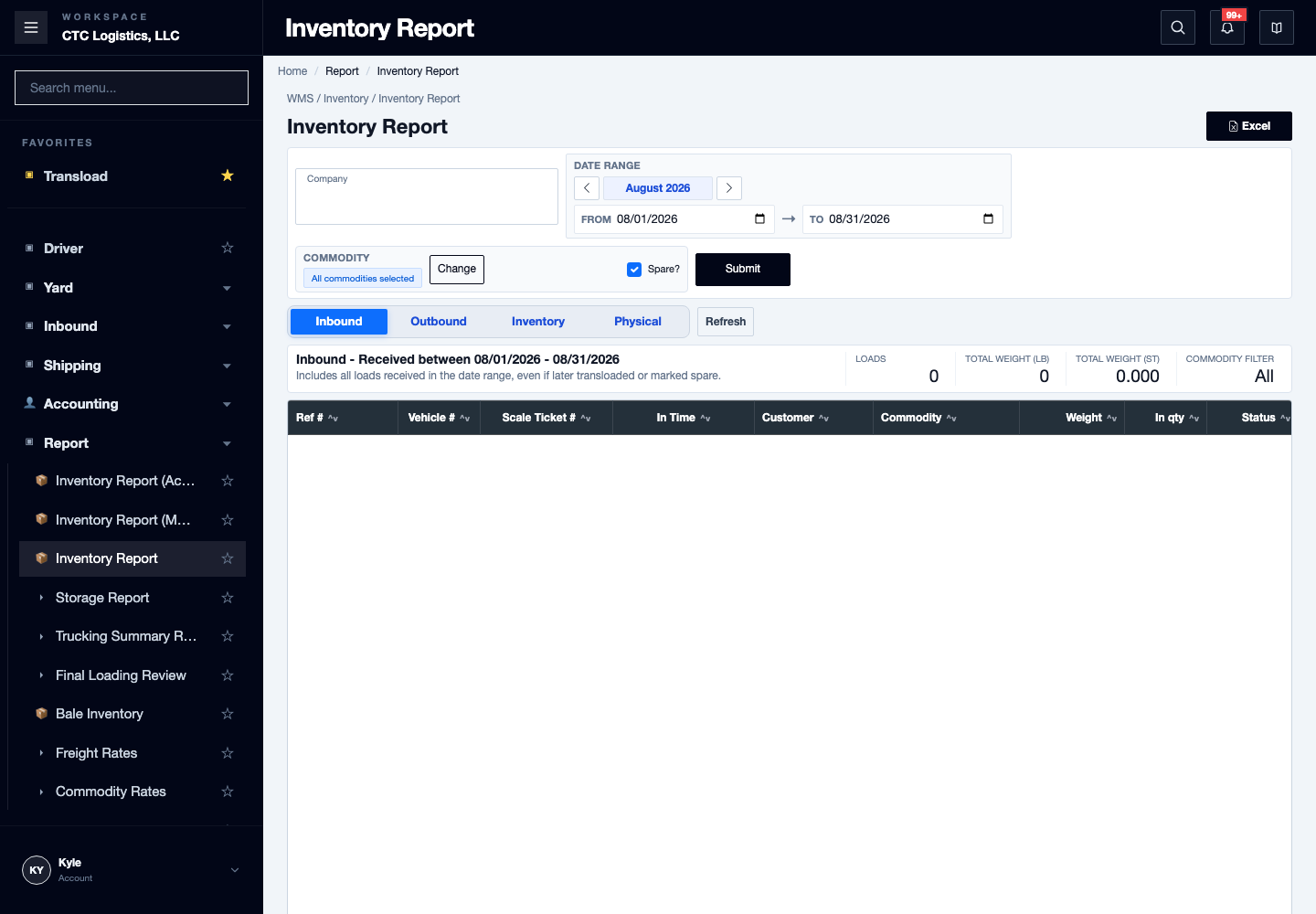
| Inventory Report — inbound, outbound, inventory | Review and export | Read-only |
| Inventory Report — Physical | Save a draft or finalize | Writes a snapshot |
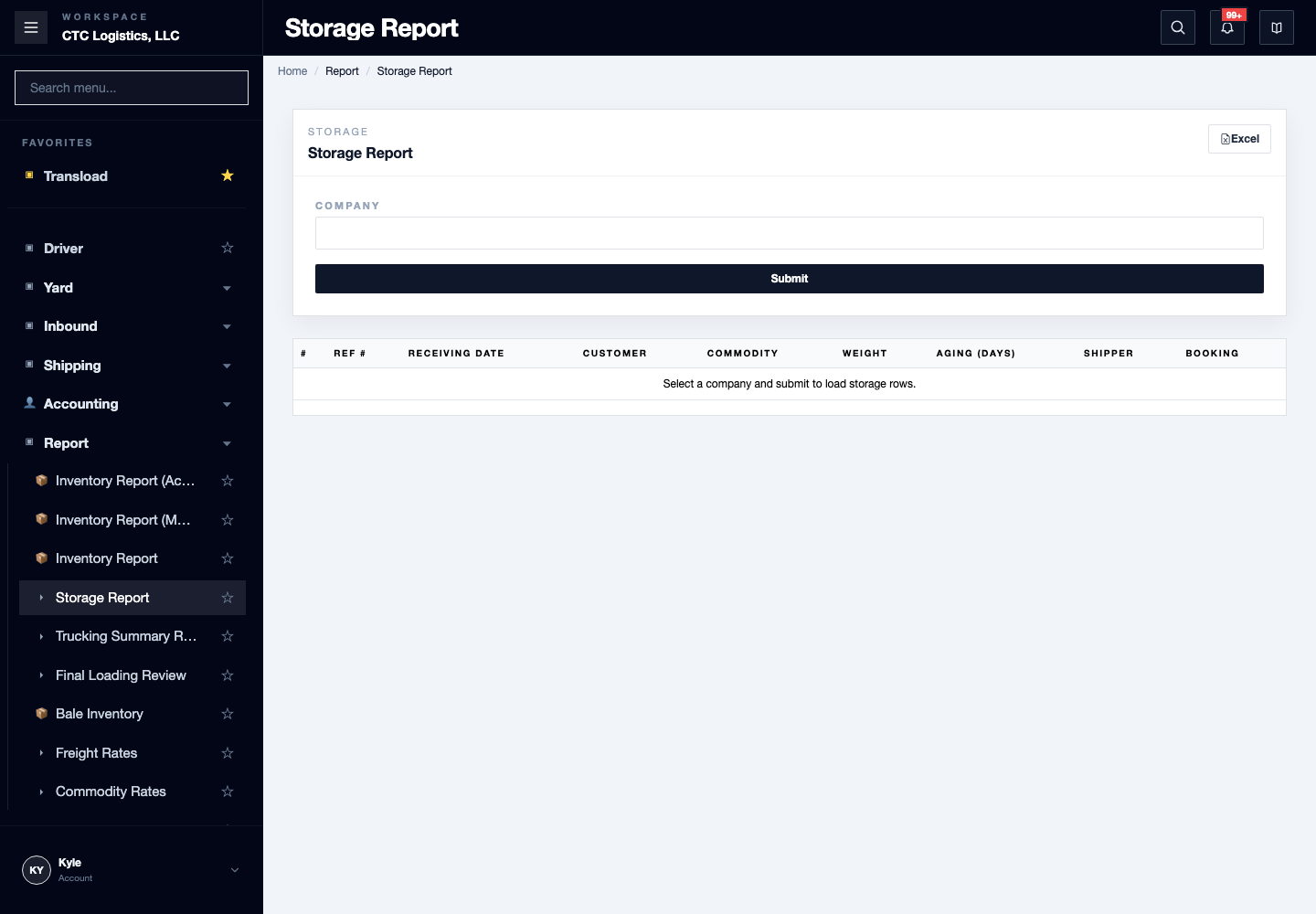
| Storage Report | Review and export | Read-only |
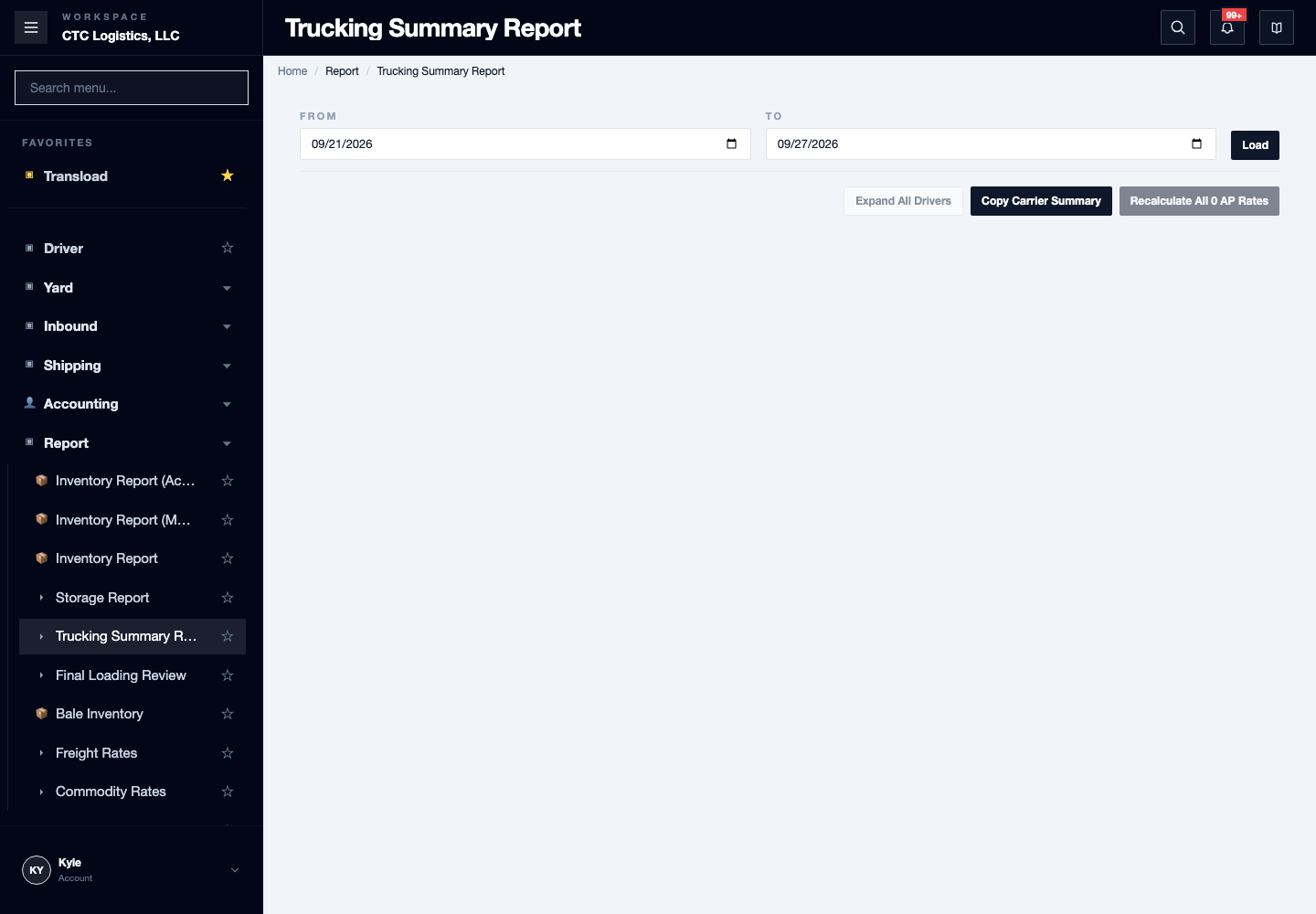
| Trucking Summary | Review totals and driver transactions | Read-only |
| Trucking Summary — Recalculate 0 AP Rates | Recalculate zero-rate deliveries | Writes delivery rates |
| Monthly and accumulative inventory | Review and export | Read-only |
Daily: Unloaded Bales to Spare
Use this when an unloaded load stays in the warehouse and its bales may later be applied to another load. It preserves the existing lot, balance, location and map placement.
Step 1 — finish the unload with its warehouse location.
Complete the unload through the normal loader flow. Confirm the load reads UNLOADED with one active
purchase lot and a warehouse location. Record the load reference and the current bale balance before
doing anything. Do not use a load that is still transloading.
Step 2 — change the lot to spare, once.
Submit the spare completion once, then reread the same load and its lot. Confirm the load reads SPARE,
the lot type reads SPARE, and the balance and location did not change. After a timeout, reread
before retrying. Never create another lot to compensate for an uncertain result.
Step 3 — optionally apply the extra source. Open Inventory Adjustment and find the completed target load. Review its reference, the bale difference, the weighing facts and any planning instruction. Choose Apply, select the actual spare source lot, and submit the accepted quantity and weight once.
A planning note is reference only. Record the actual source location and the balance before you apply — a successful apply writes the source movement and the history together.
Skipping this step does not block anything. Only the spare tracking, the history evidence and the bale tracking reference stay absent.
Step 4 — verify the tracking on the Transload List.
Scroll right from Bale Diff to Bale Trk. For an applied adjustment, confirm the Source — the
source lot code or original reference, never the target outbound reference — and the consumed count.
A voided entry must no longer appear. If the adjustment was skipped, the field is blank and that is
not a failure.
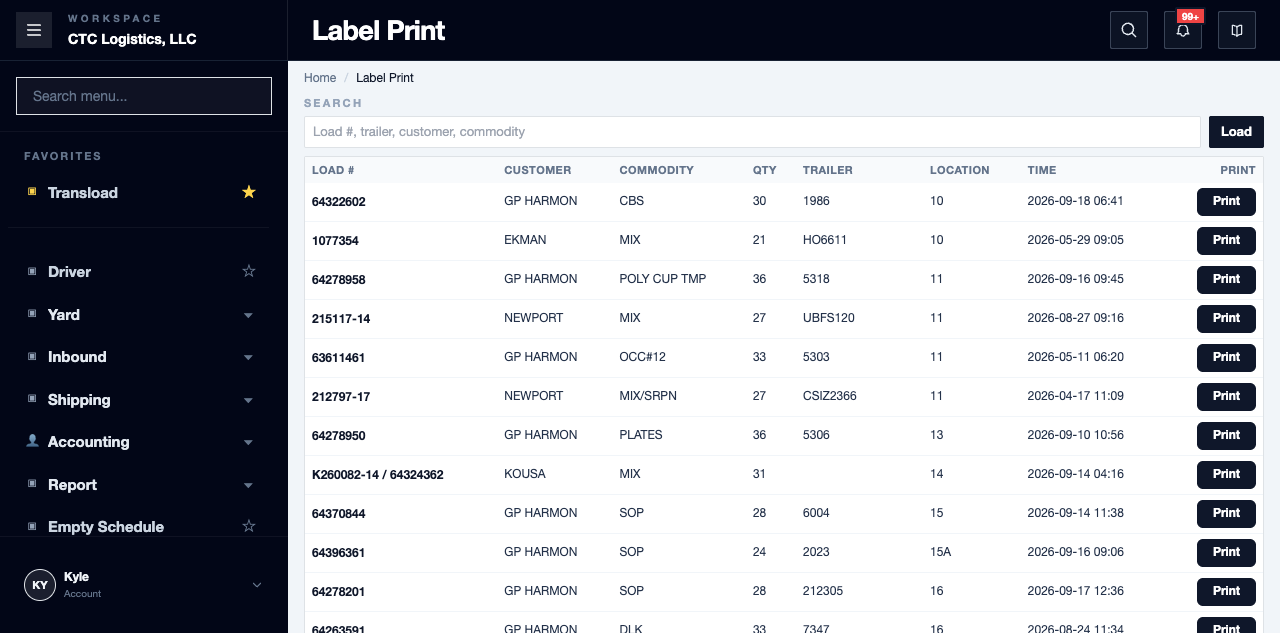
Label Print
- Search for the intended load and open the candidate from the list. Do not substitute a guessed direct id.
- Confirm the reference, commodity, quantity, offload date and location. The three-character customer value is derived from the billing company name — it is not a customer-code authority.
- Print, then verify the physical output. Nothing records that it printed.
- If printing fails, reopening is safe for the data, but it can produce duplicate physical labels.
If the warehouse-location selector is enabled, changing it is a data write. The returned value is immediate confirmation only — a reload can prefer the planner location, and the map reads the stock lot's occupancy, so neither proves the placement matches. Keep the result and use an authorised exact read when you must prove it. A read-only label account cannot change it, and a spare label can print even when the location cannot be updated.
Warehouse Map
A read-only reconciliation view. Use the location label, the occupied and mixed state, the lot details, the reload indicators and the search highlight to understand the current picture. Show firelane changes presentation only. The map never assigns, releases or moves stock.
- Search with several space-separated words —
GP MIX— and a location highlights only when its current data contains every term. Matching ignores case. - A reload source location stays on the map with a red shimmer and a RELOADING badge. That is active reload work — it does not mean the target door is storage.
- If a lot is missing from the grid, compare its source warehouse location with the configured map
location, and verify that its source load exists, is not deleted, and is still
UNLOADEDorSPARE. The view hides the lot when that source condition fails even if the balance is positive. Escalate it to the inventory owner — do not try to write to the map. - If an automatic refresh errors, no further refresh is scheduled. Treat what you see as stale and reload the page.
Read-only Reports
For inventory movement, storage, trucking summary and monthly inventory:
- Confirm the account, and only the filters that report actually offers. The storage report takes a company only — it has no date or period.
- Load it and verify the period you expected.
- Compare anomalies against the owning appointment, loader, delivery, stock or billing record.
- Export only when the visible filters are right.
- Hand unresolved differences to the source owner with the filters and the record ids.
These reports have no stored completion state. An export is a browser download, not an update. Menu visibility and API access can differ — report an authorisation problem rather than working around it.
The storage report shows the selected company's current unloaded loads, and its ageing is calculated against today's date. It is a current-as-of view, not a historical period report.
Physical Inventory Snapshot
The Physical tab writes data.
- Confirm the company, period and commodity selection.
- Load it and establish whether the result is saved or worked out from source.
- Review every line and total.
- Use Save Draft while review is open, then reload that exact scope.
- Use Finalize only for the result you intend to be permanent, then reload and confirm it reads finalized.
After a failure or timeout, reload before submitting again. Once finalized, the normal page cannot replace it.
Trucking Rate Refresh
Recalculate 0 AP Rates is a write, separate from reading the summary.
- Select the period and one driver.
- Review the zero-rate deliveries.
- Run it once.
- Compare updated and unmatched — unmatched means no applicable rate was found.
- Reload the summary and the affected deliveries before any retry.
The batch skips deliveries that already have a transaction or a non-zero rate, and a request error rolls the whole batch back.
Final Loading Review
Use it after a completed reload or load. Confirm the review date and open the matching row.
- The summary separates inbound, measured outbound and initial difference. The measured weight and the scale ticket do not change during reconciliation.
- For extra bales, choose existing inventory or a manual source. Planned sources are recommendations, not requirements. Select up to five eligible actual sources and finish the allocation before confirming.
- For leftover bales, enter the approved warehouse location and create the leftover before reconciling.
- For load to load, confirm the matching inbound and outbound result. No source allocation is needed.
- If a source has already been applied, reverse it before independently changing the reconciled outbound figures. After a completed action or an uncertain result, refresh the exact row first.
- Space-separated search words are all required, and may match the load, reference, customer, or either commodity.
Source Reconciliation (read-only)
Find current or past spare sources before starting separate reconciliation work. You do not need a tracking number.
- Open it from the Transload List toolbar or the Final Loading Review header. The number shown is the current needs reconciliation count.
- Review the four tabs: needs reconciliation, open sources, reconciled, and data issues. Search by source load, customer, commodity, source shipper or shipper family.
- Select a source load to see its original, allocated and remaining quantities, then its linked target loads, the final outbound values, the review status and the packing condition.
A source is flagged reconciliation needed only when a later source in the same customer, commodity and shipper family has actually been used. A provenance or balance problem shows under data issues.
This directory is read-only. It changes nothing. A target marked packing-list locked must not be changed by a later reconciliation.
An eligible spare source with no map placement stays selectable and is marked unlocated spare — no override or reason is needed. Verify its customer, commodity and remaining balance first; the action does not create a placement. An eligible leftover with no location behaves the same way.
Fields
| Field | What it means |
|---|---|
| Source | The source lot code or original reference. Never the outbound reference |
| Bale Trk | Shown only when an active extra movement exists |
| Customer value on a label | Derived from the billing company name |
| Physical tab scope | Company, period and commodity |
Status
| Shown | Means |
|---|---|
| SPARE | The lot is unloaded and available |
| RELOADING / PLANNED RELOAD | Active reload work on that location |
| Unlocated spare / Unlocated leftover | Eligible, but with no placement recorded |
| Packing List Locked | Must not be changed by a reconciliation |
Notes
- If printing fails, reopening is safe for the data but can produce duplicate physical labels.
- A report's module access and the page's can differ. Report it; do not bypass it.
- Known gaps worth knowing: label direct-id and candidate eligibility are not identical; spare can be printable but not placement-editable; a legacy schema can complete bale changes without a durable history, so a repeated leftover or spare creation can create another lot — reconcile a timeout from the visible source before retrying; a count check rejects on the balance it saw without locking the lot, and a void can clamp the weight while keeping the full reversal — so exact undo parity is not guaranteed; printer setup and who signs off business decisions are still to be confirmed.
- These reports change nothing. The snapshot, the rate refresh, the location field and the bale adjustments are the only writes on this page.
What to Include When You Report
The page, the account, the filters, the load, delivery or lot identifier, what you asked for, the exact response, and what a reread showed. Never include credentials.