Finding a Transload by Bale Tracking Number
Purpose
The Bale Trk filter finds a transload by the bale tracking value shown in the Bale Trk column. Use it when you have a tracking number from a document and need the load it belongs to.
Before you start
- You have the right account for this screen (see Permissions and Access).
- The date and record you are working on are correct.
- Words you do not know are in the Glossary.
Access
Transload
Screen
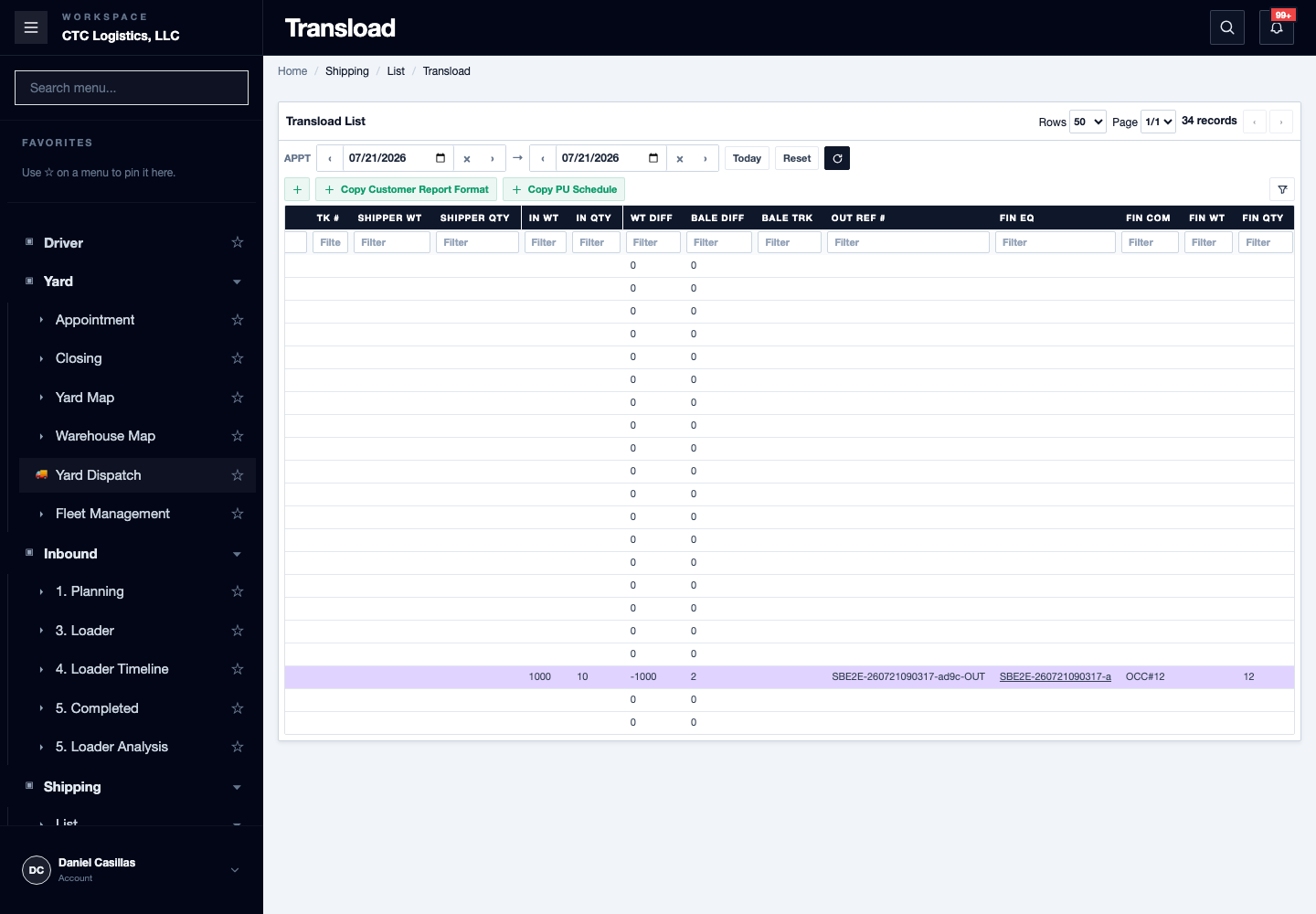
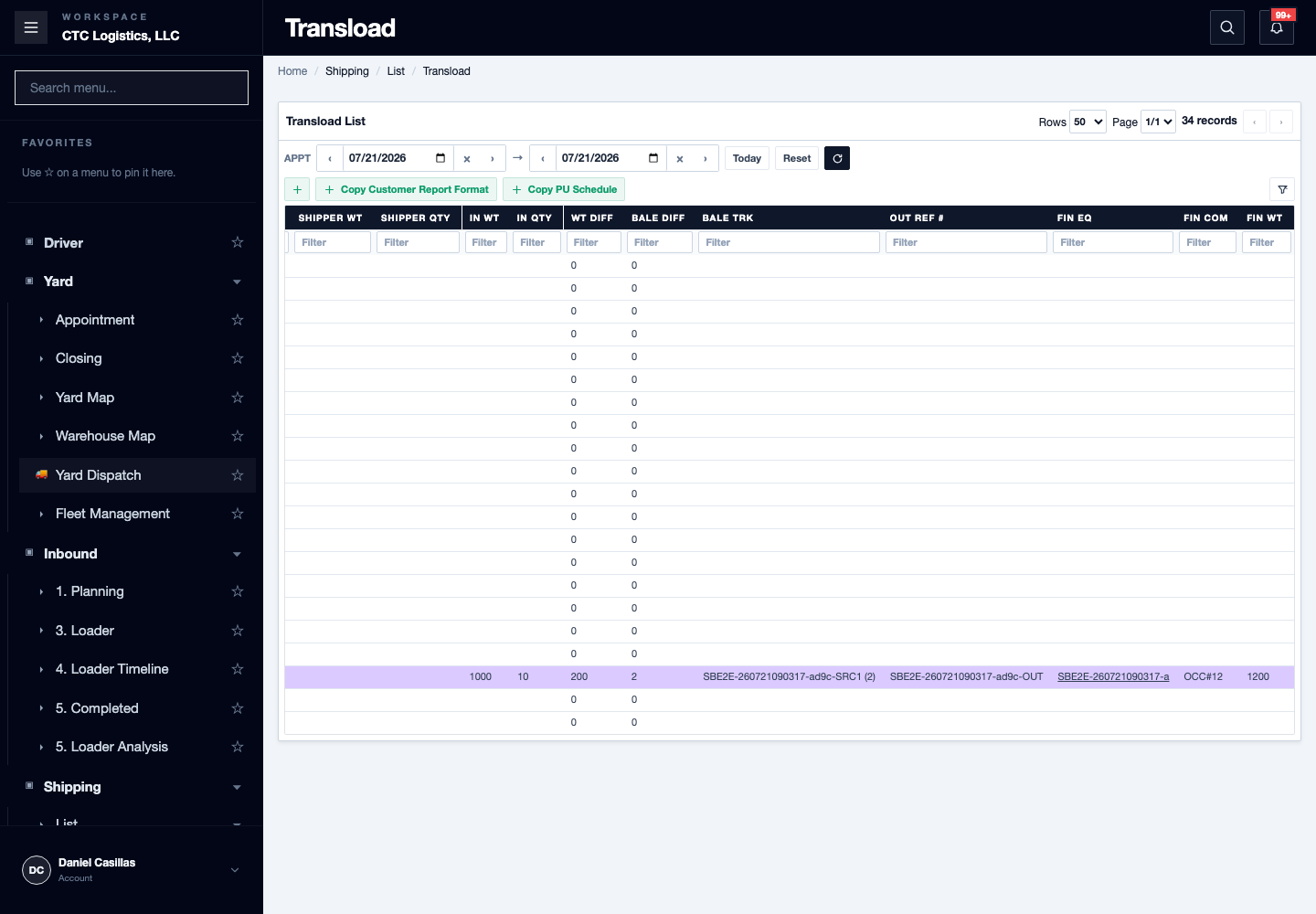
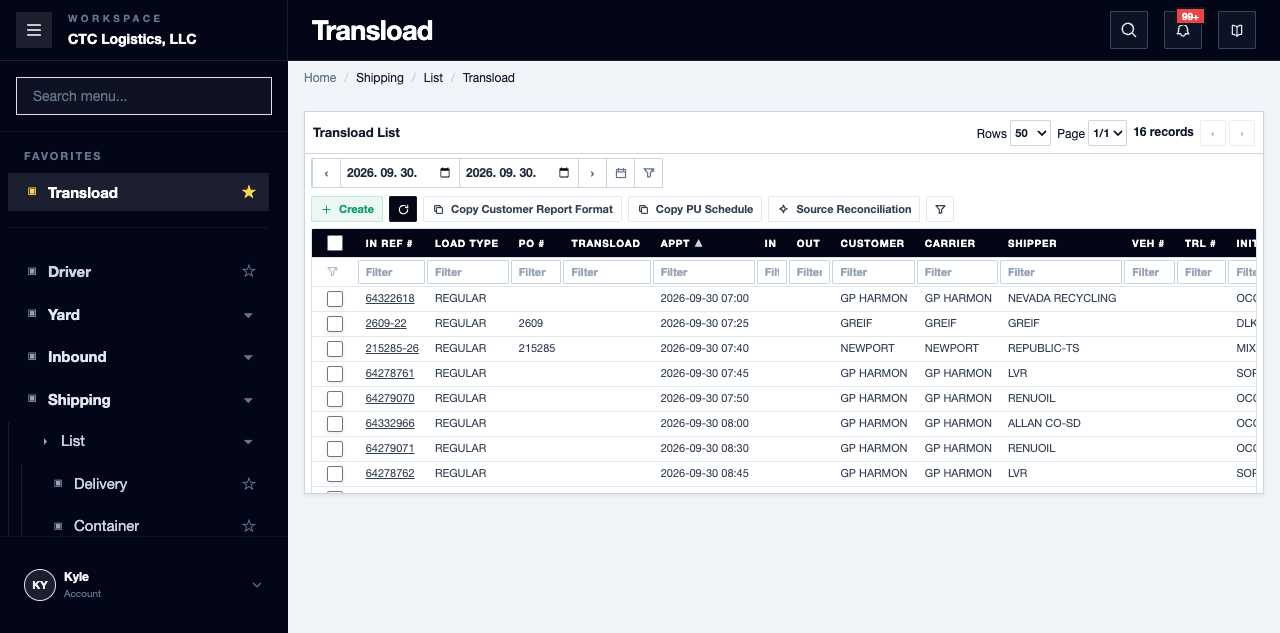
Steps
Filter by Bale Trk
- Open Transload and set the date range that contains the load.
- Show the column filters.
- Enter all or part of the tracking value in Bale Trk — for example
64151266. - Press Enter to reload the list.
The list then shows only rows whose Bale Trk value contains what you typed. The row count and the page controls follow the filtered result.
Fields
| Field | What it means |
|---|---|
| Bale Trk | The bale tracking value on the row. This is what the filter matches against. |
| Date range | Which loads the list covers. Set it to include the load before filtering. |
Status
The filter has no status of its own. It narrows the list; the rows it leaves still carry whatever state the transload is actually in.
Notes
- If no row appears, widen the date range first, then check the value in the Bale Trk column. A tracking number that is not listed is usually outside the dates you asked for.
- The filter matches on any part of the value, so a partial number is enough.
Related
- Reading the Warehouse Map — where the bales physically are
- Adjusting Bale Stock — correcting the stock figures
- Reviewing a Load of Bales — signing a load off