Reviewing an Appointment Email
Purpose
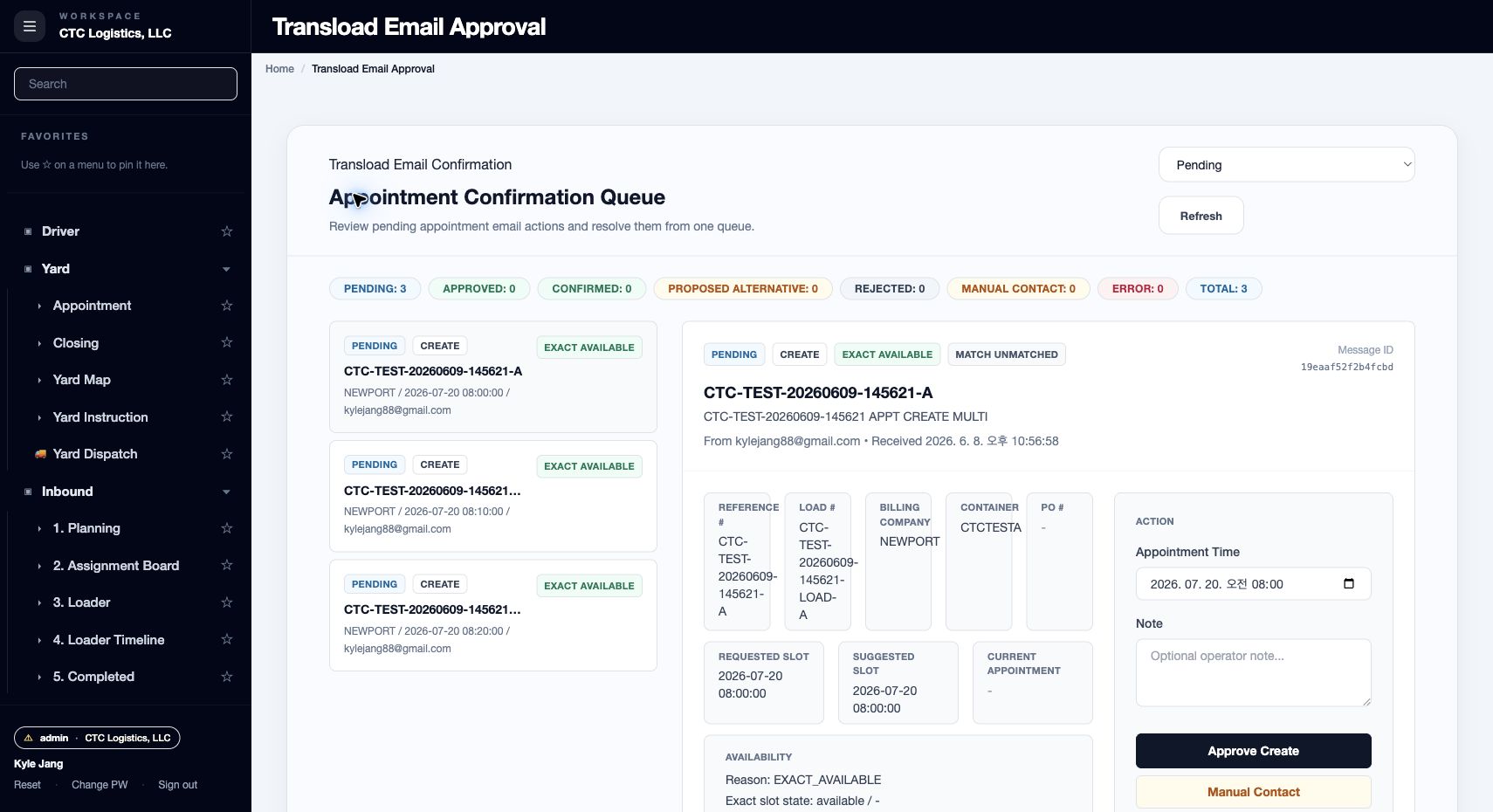
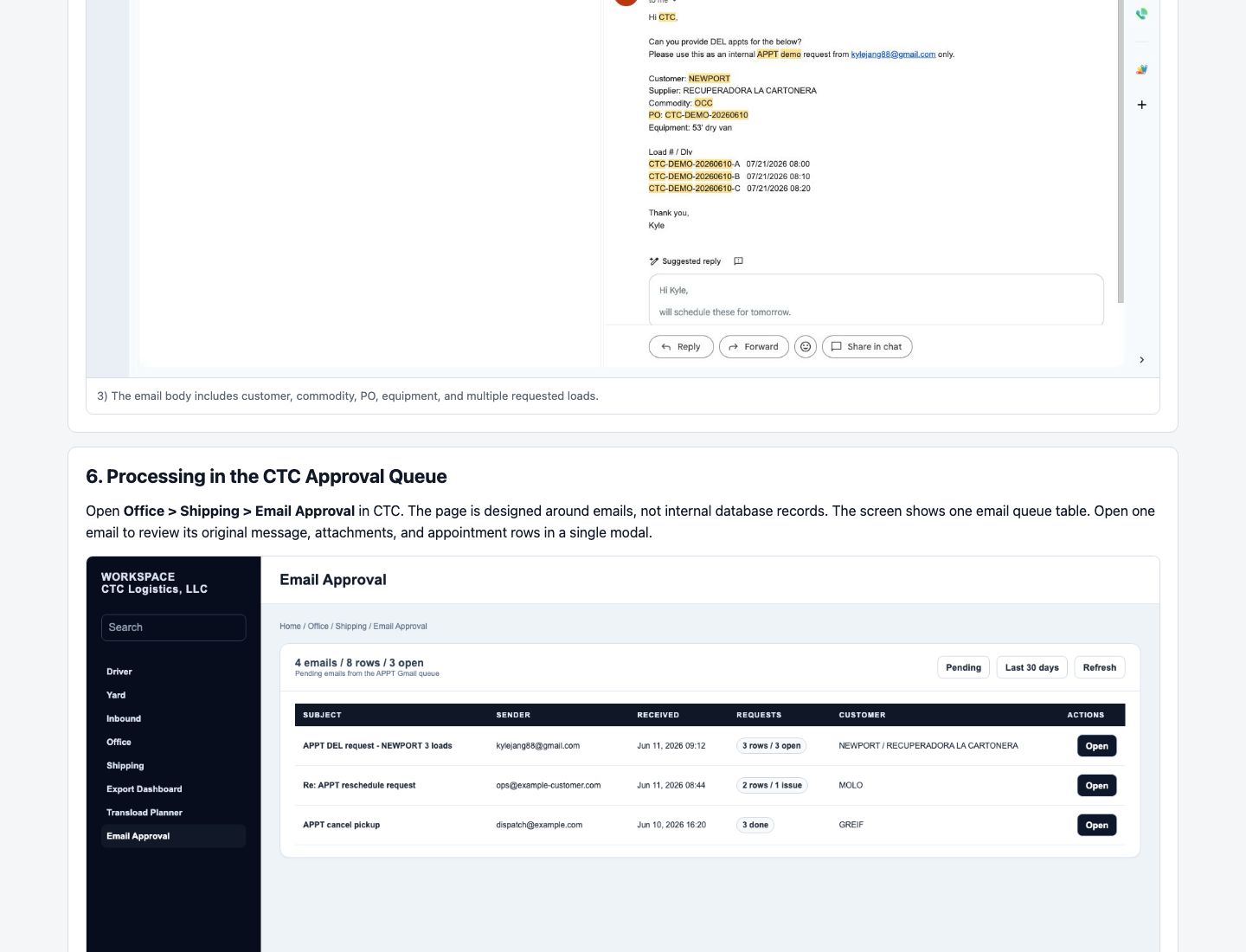
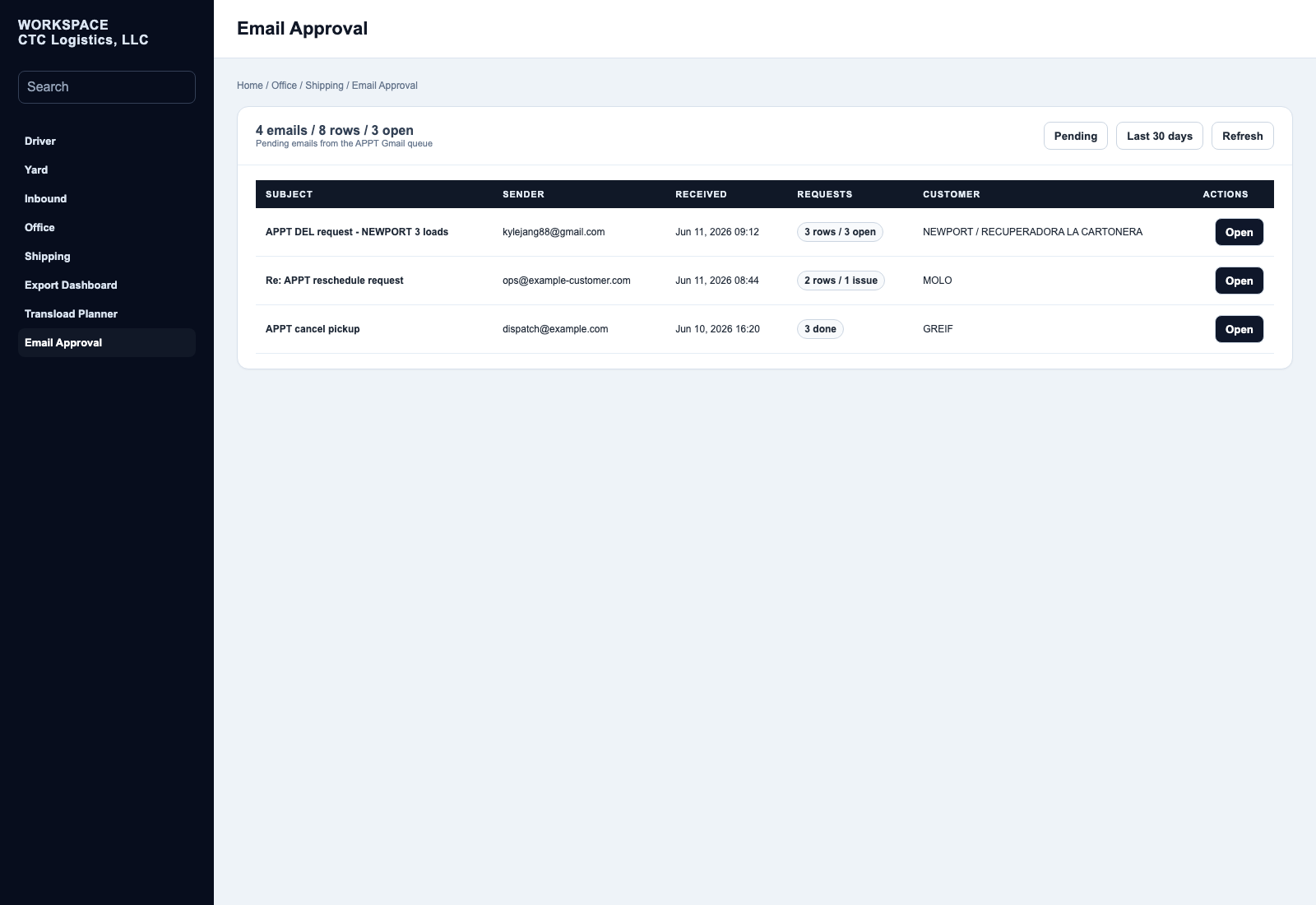
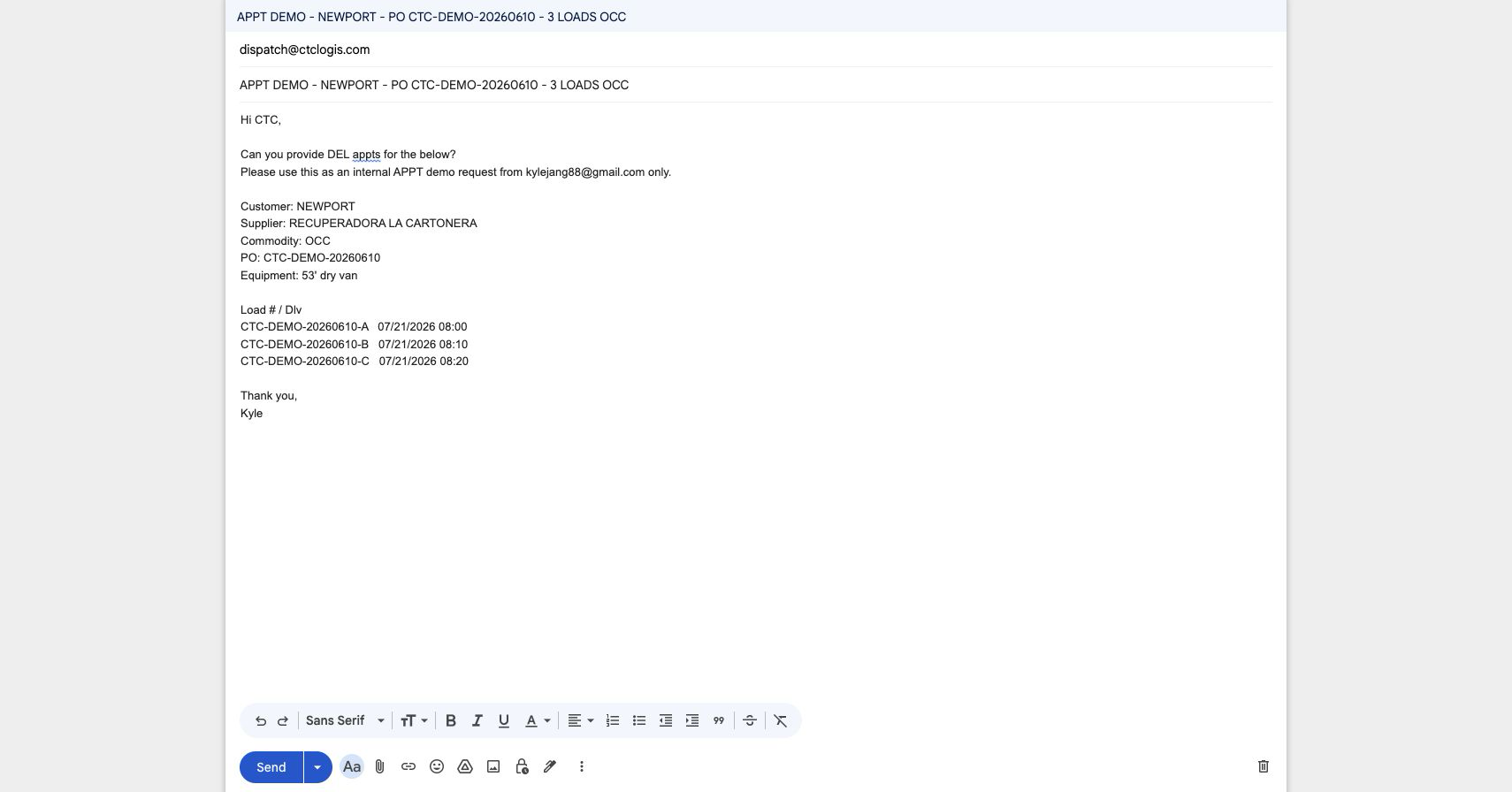
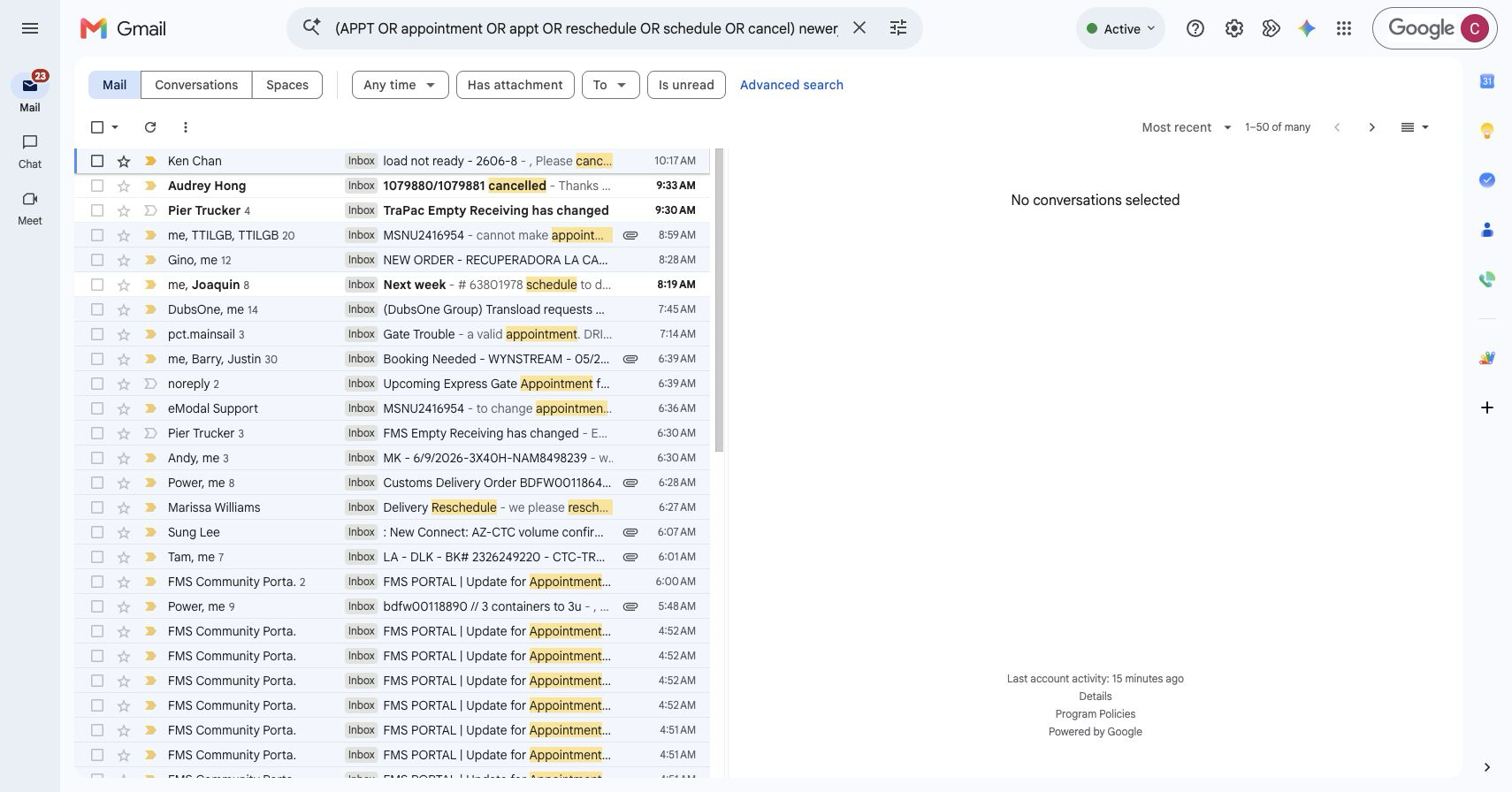
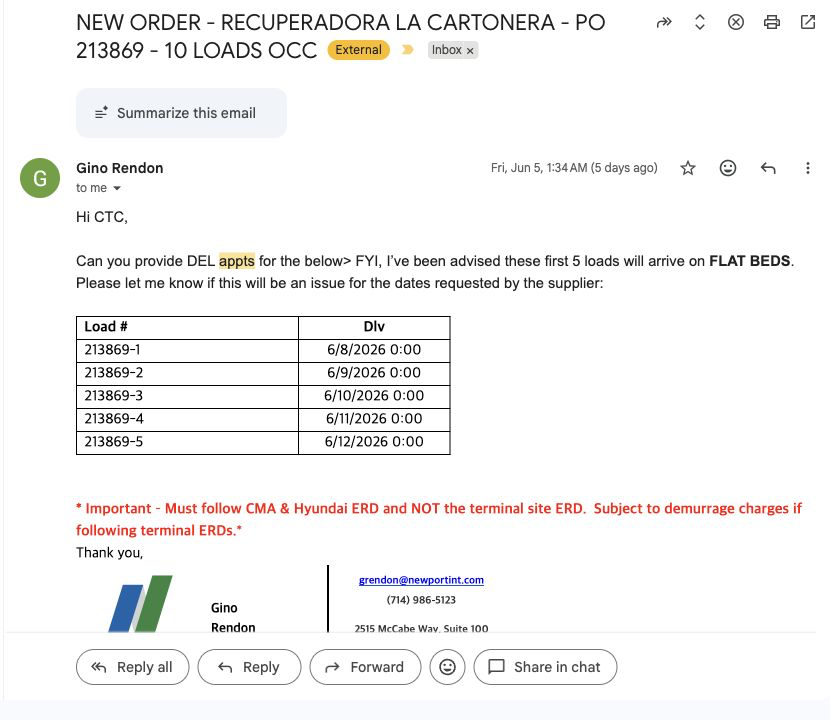
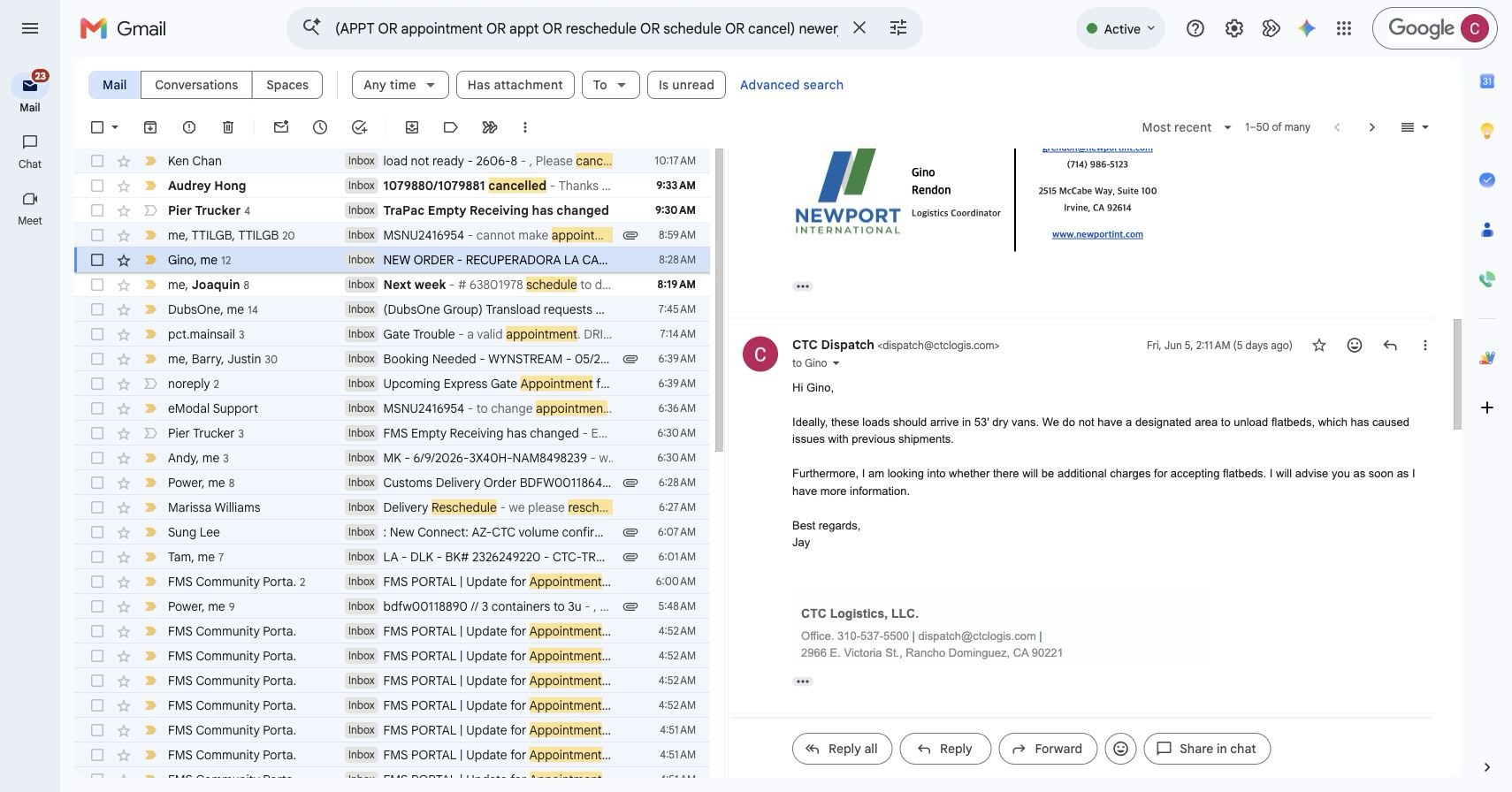
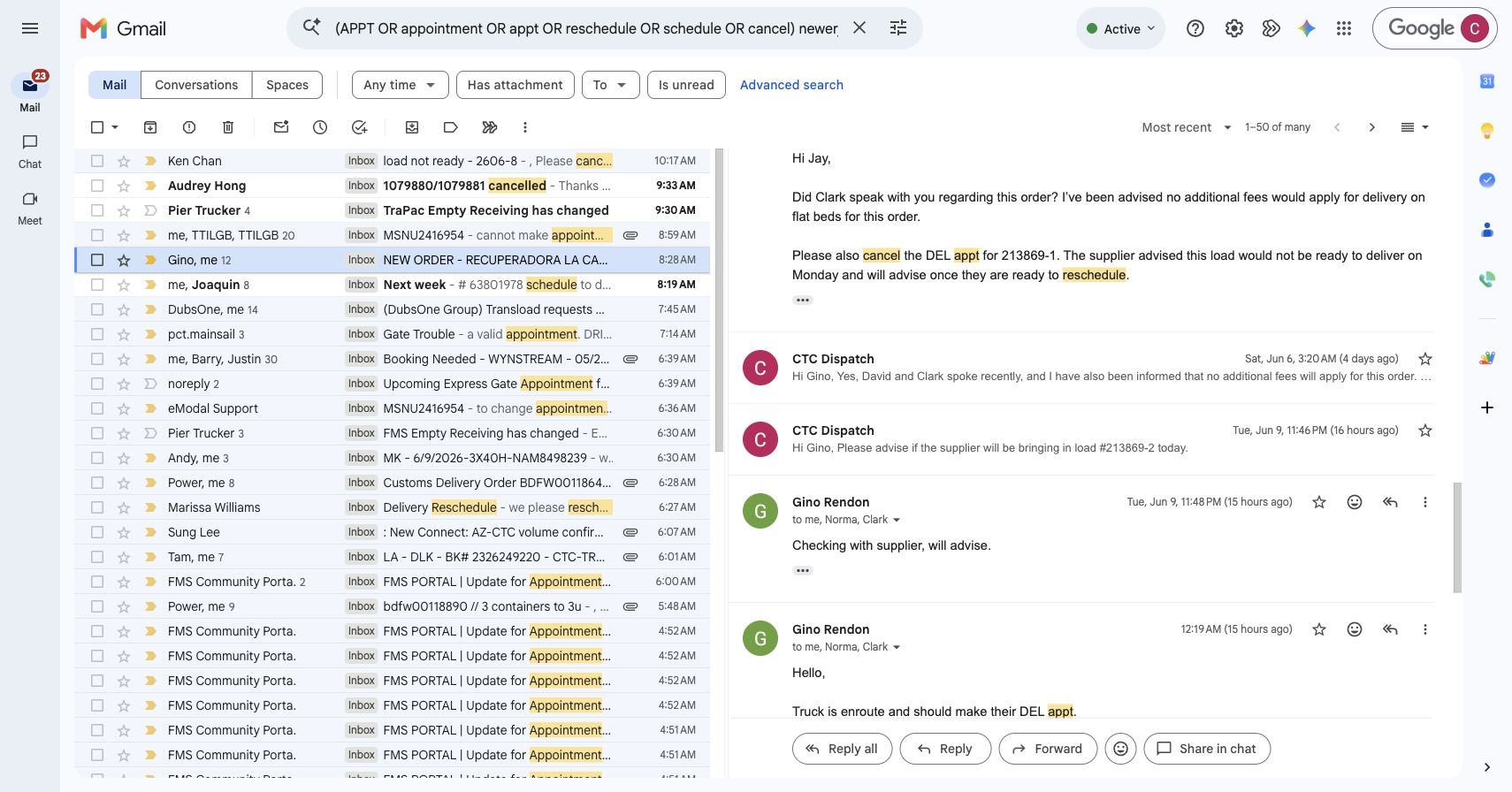
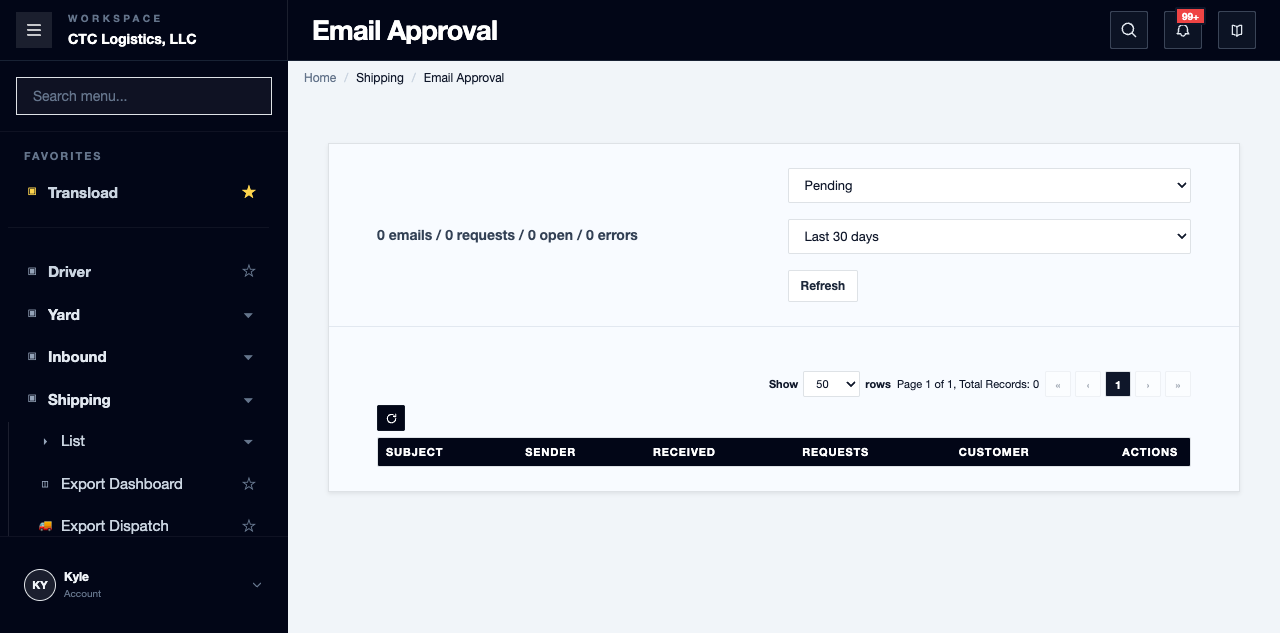
Appointment requests arrive by email and land in a review queue. You make the business decision; the system classifies the request, validates your choice, commits the appointment change, and then tries to reply to the customer.
Who does this
Office staff reviewing appointment requests.
When you need this
When a booking request has arrived by email for review.
Before you start
- You have the right account for this screen (see Permissions and Access).
- The date and record you are working on are correct.
- Words you do not know are in the Glossary.
Access
Shipping → Email Approval
Screen
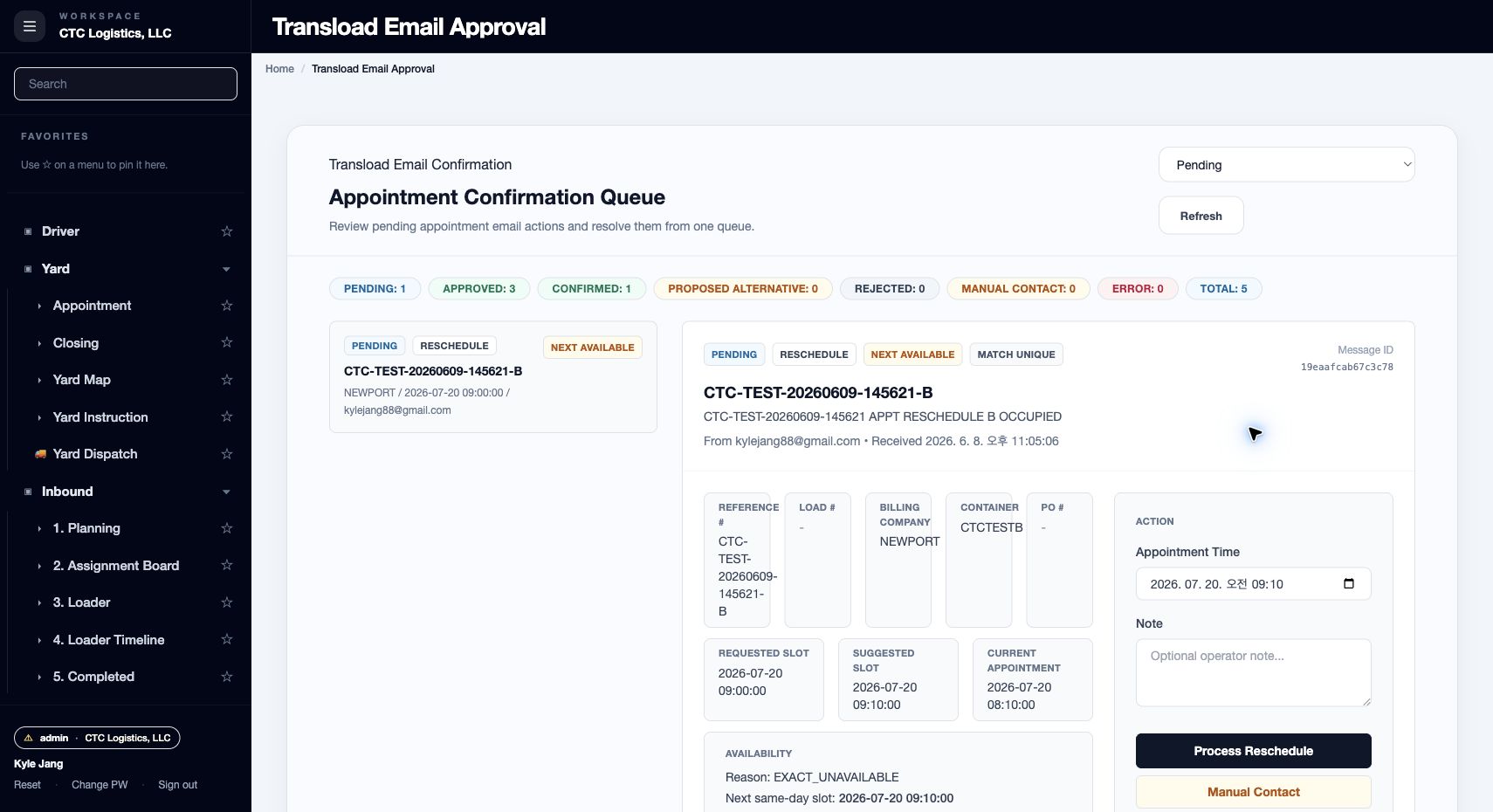
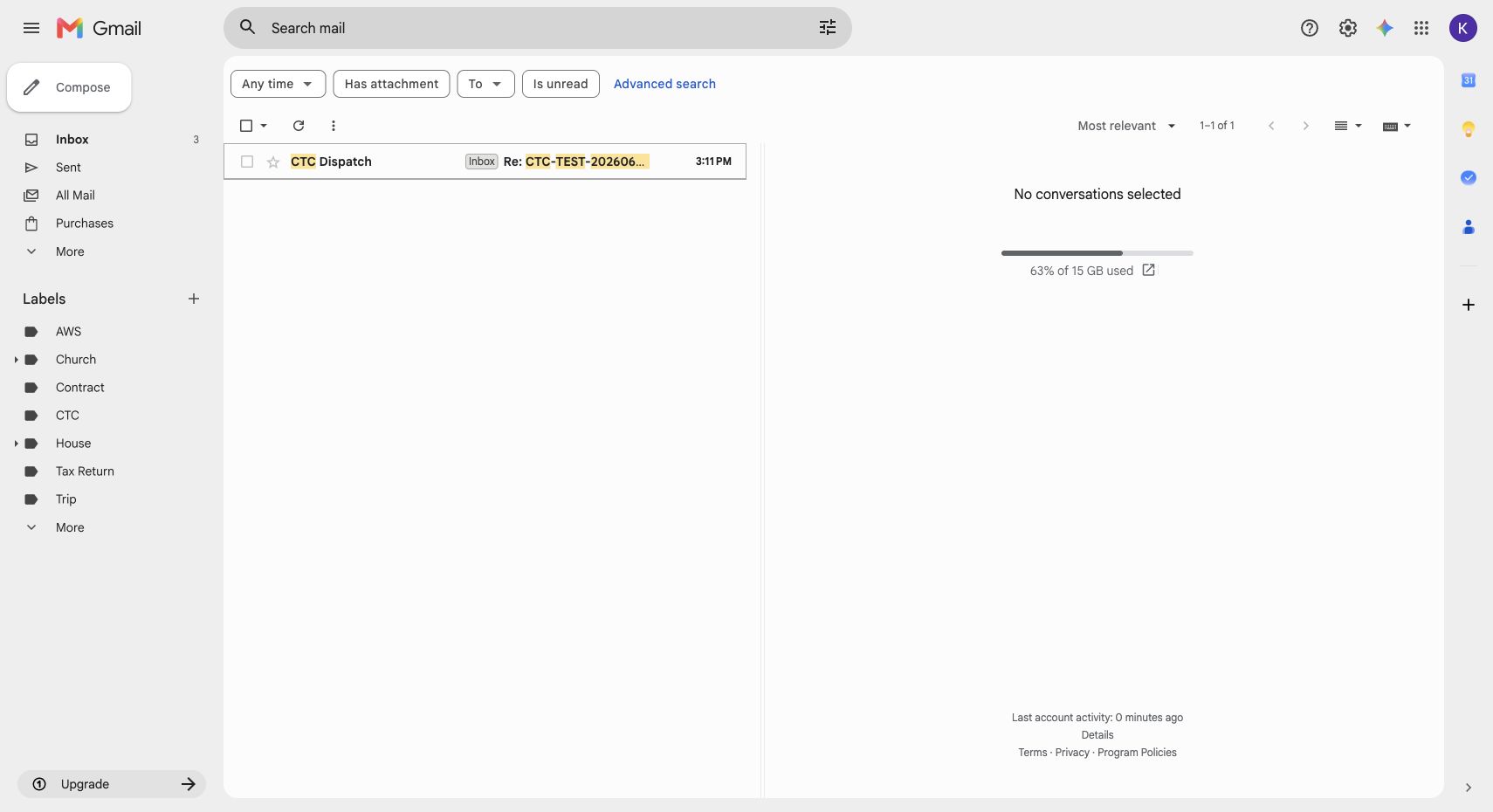
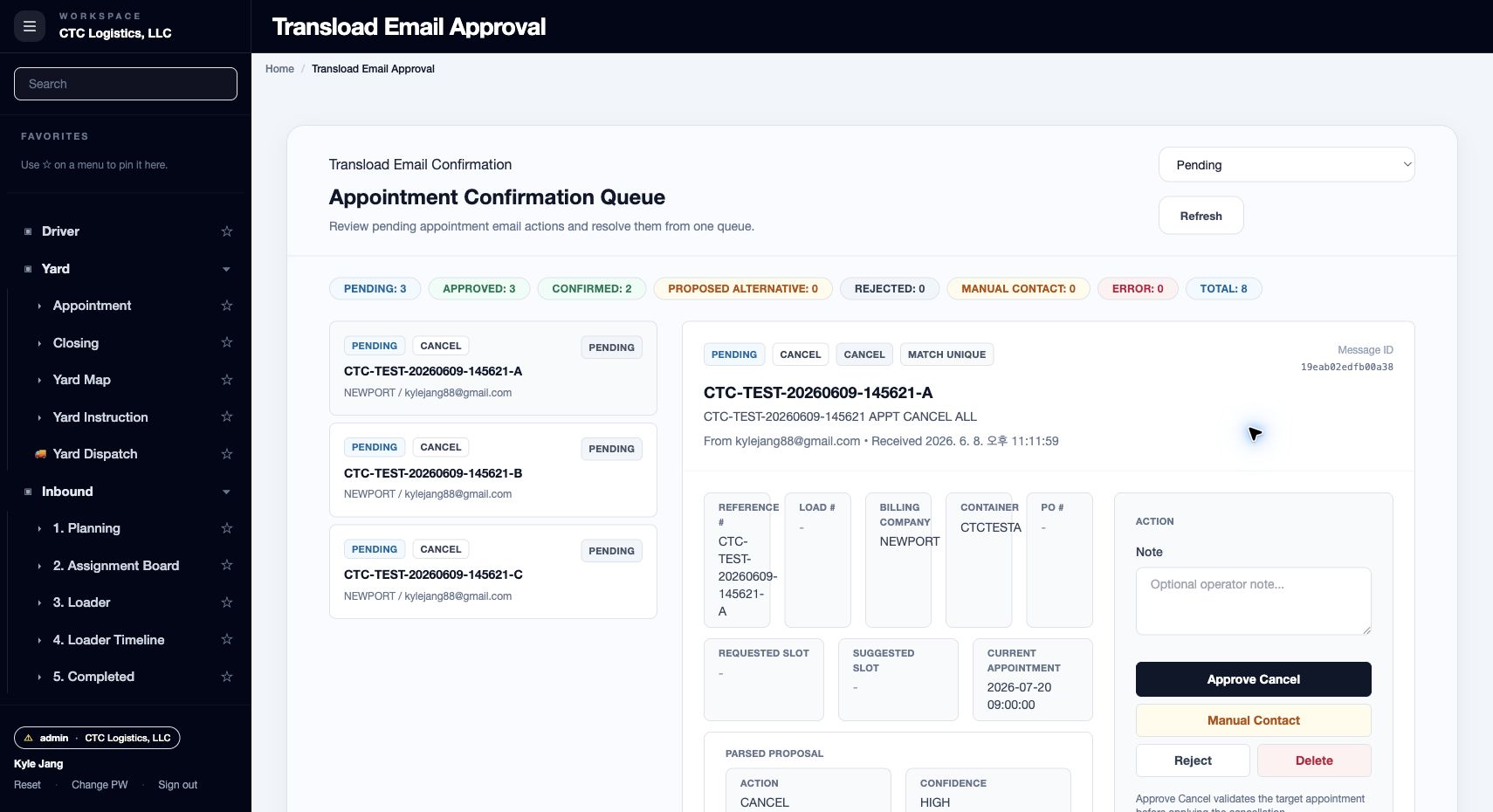
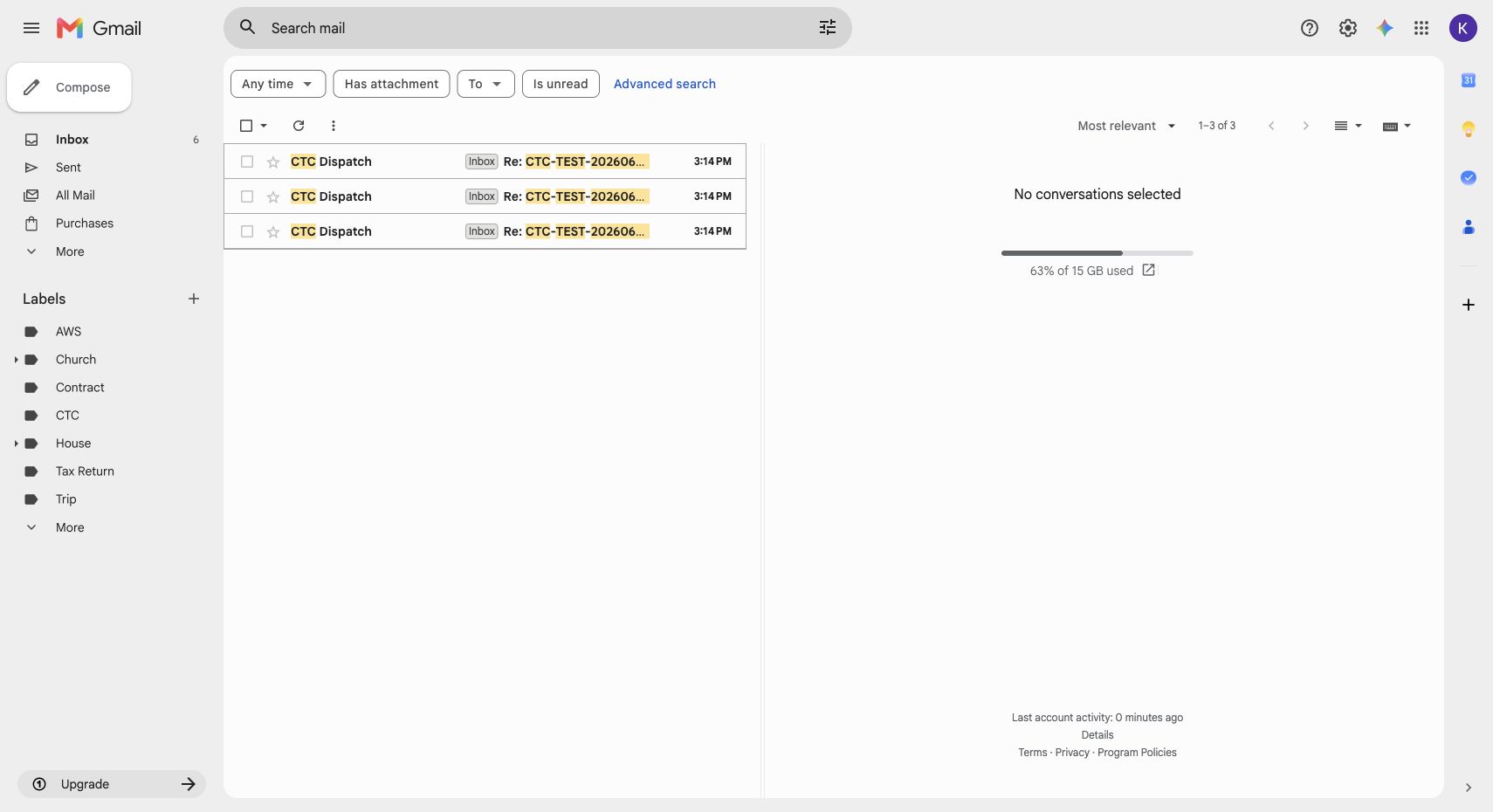
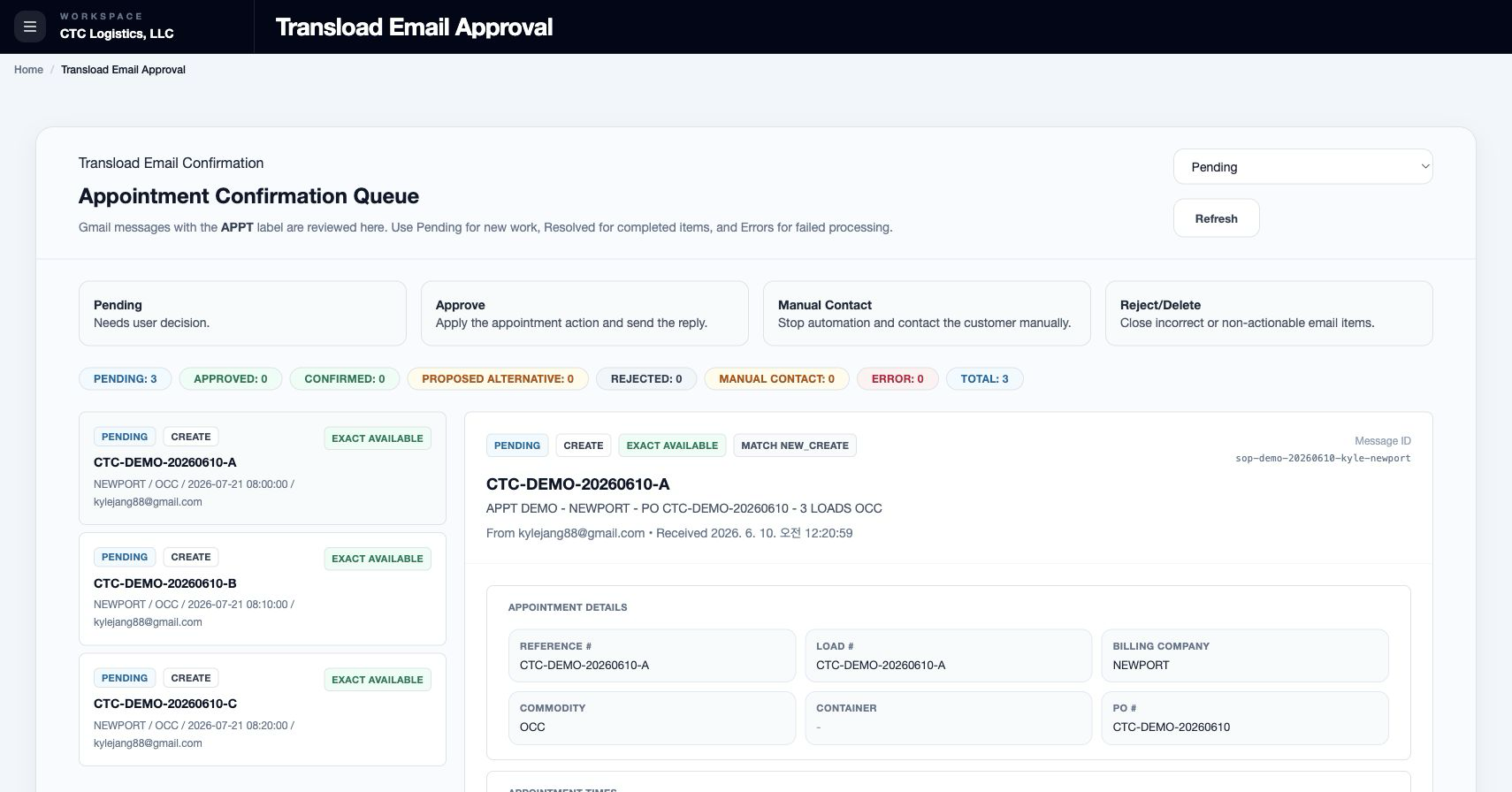
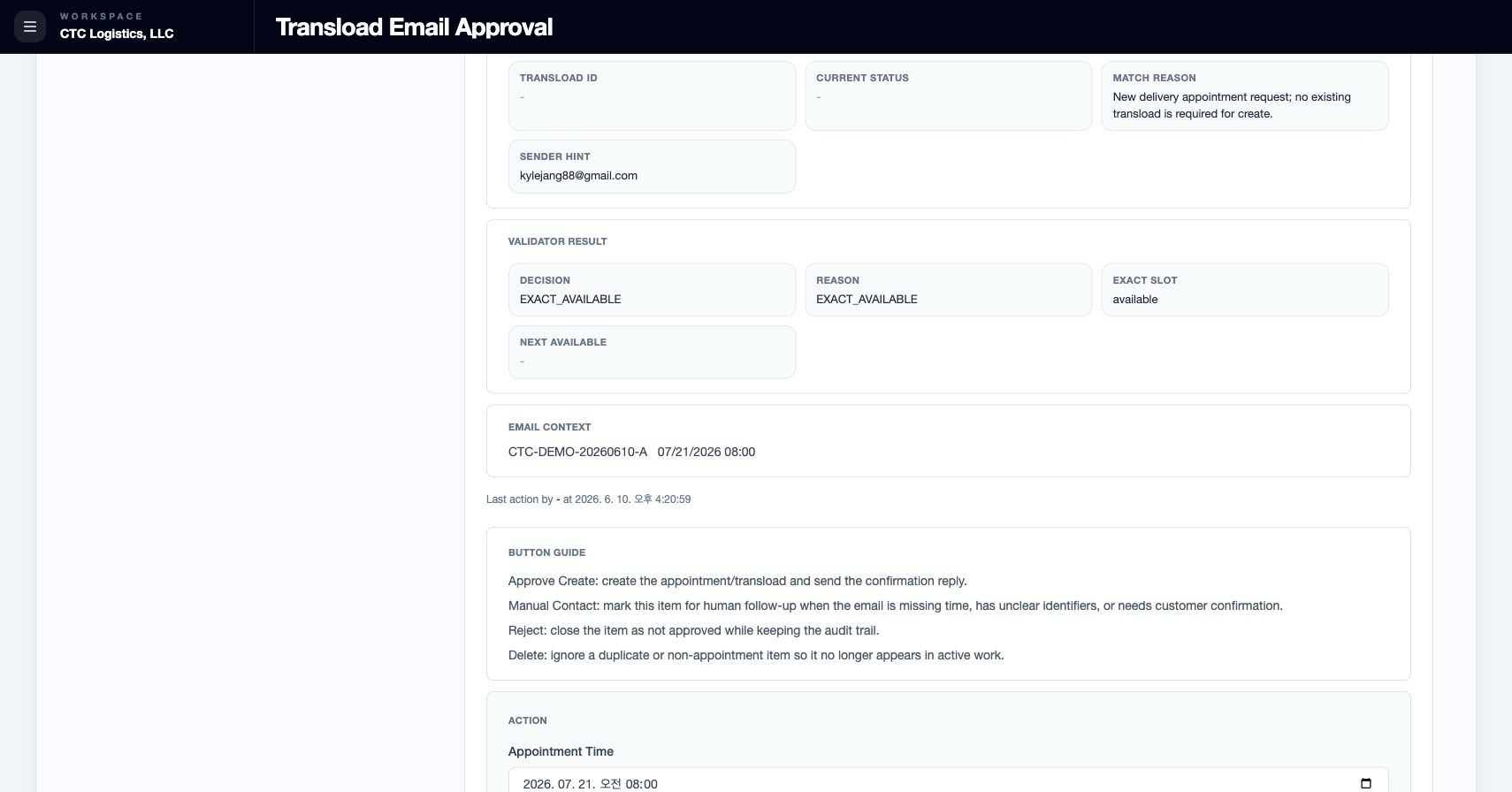
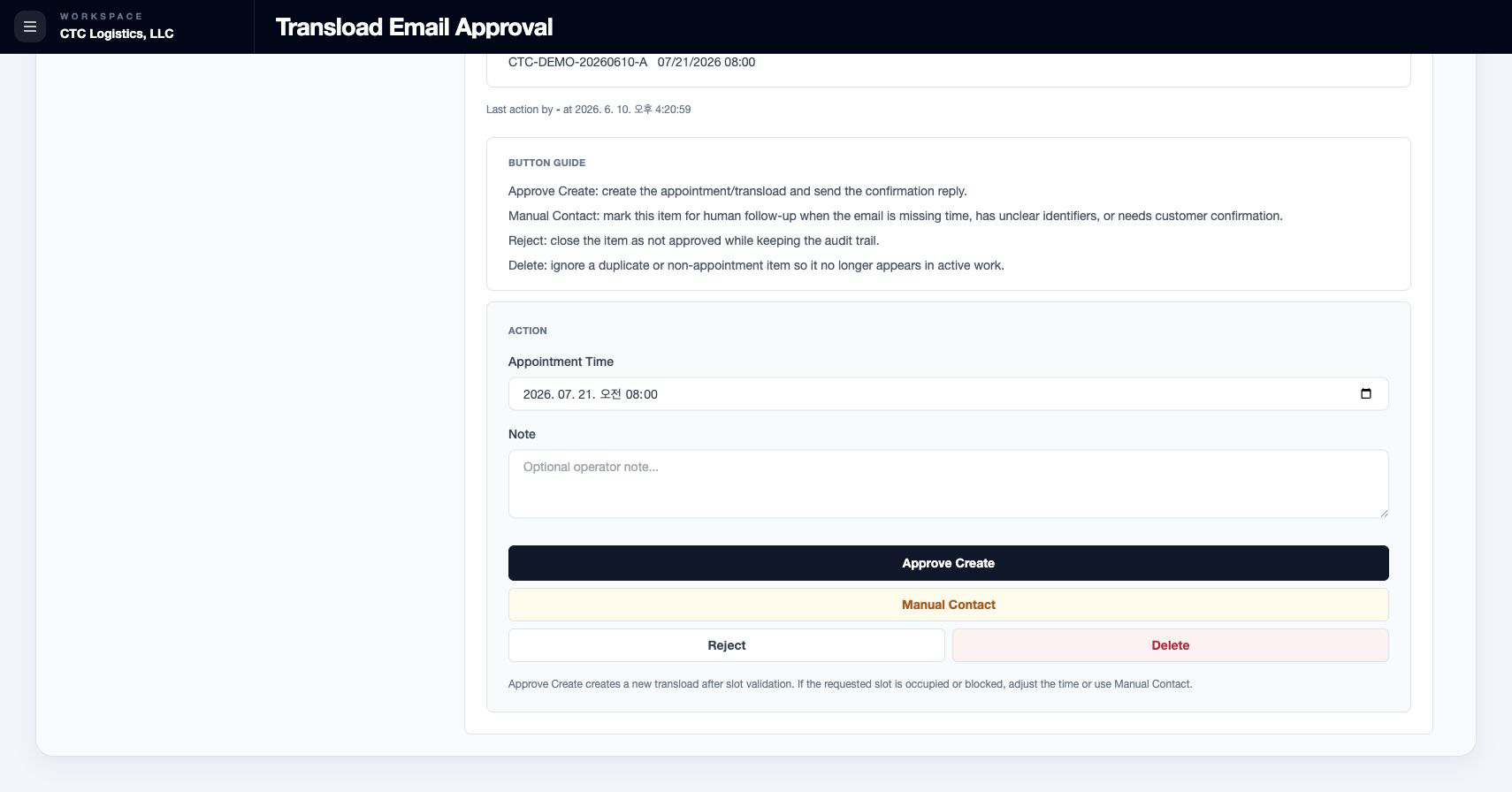
Main Features
Before You Start
- Work on one email in one browser tab.
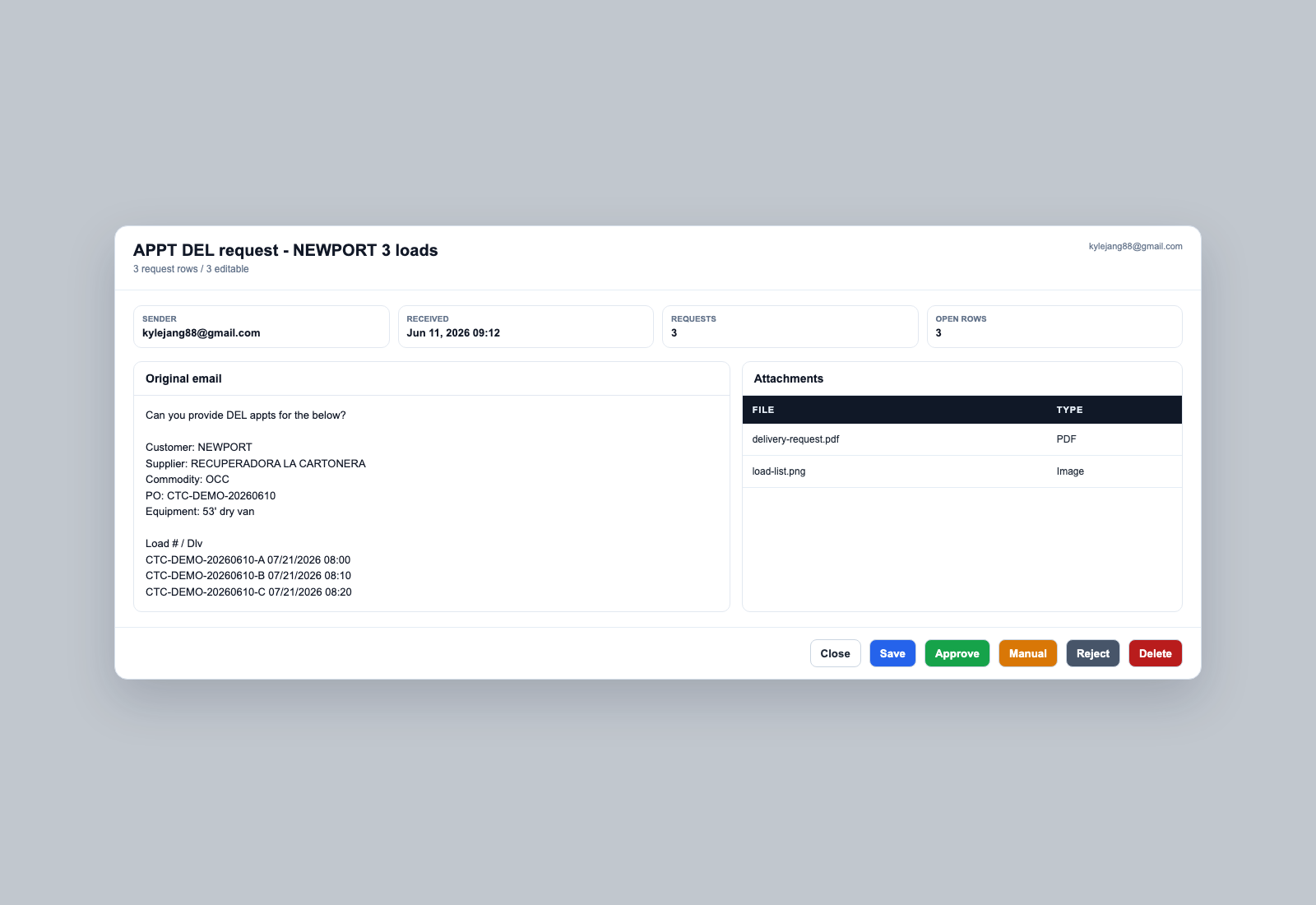
- Keep the original email and its attachments visible while you compare each extracted row.
- Confirm the sender, the reference or load number, the requested date and time, the equipment, the commodity, and the existing appointment when the request changes or cancels something.
Three Different Things
These are not interchangeable:
| Layer | Values | What it is |
|---|---|---|
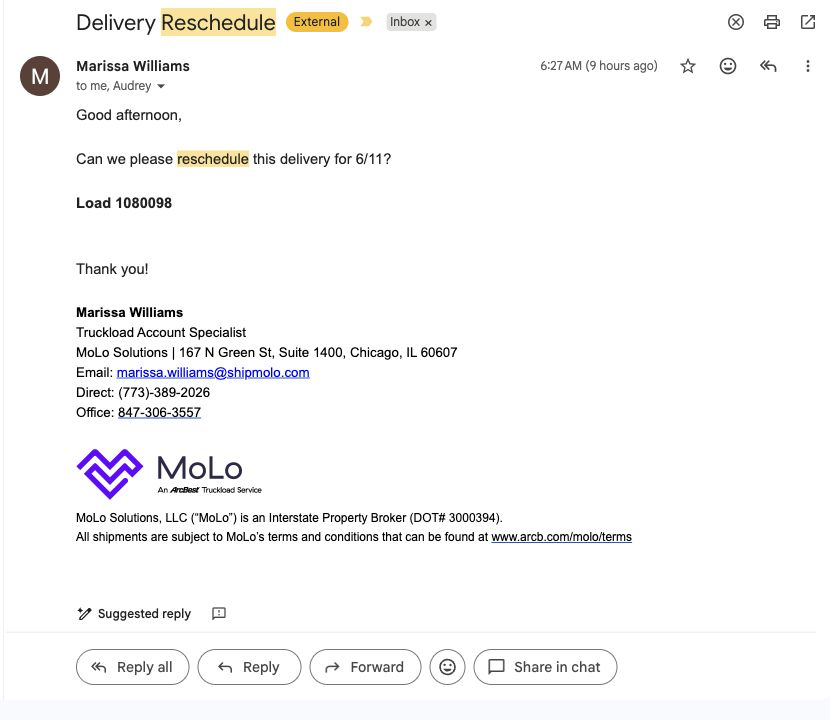
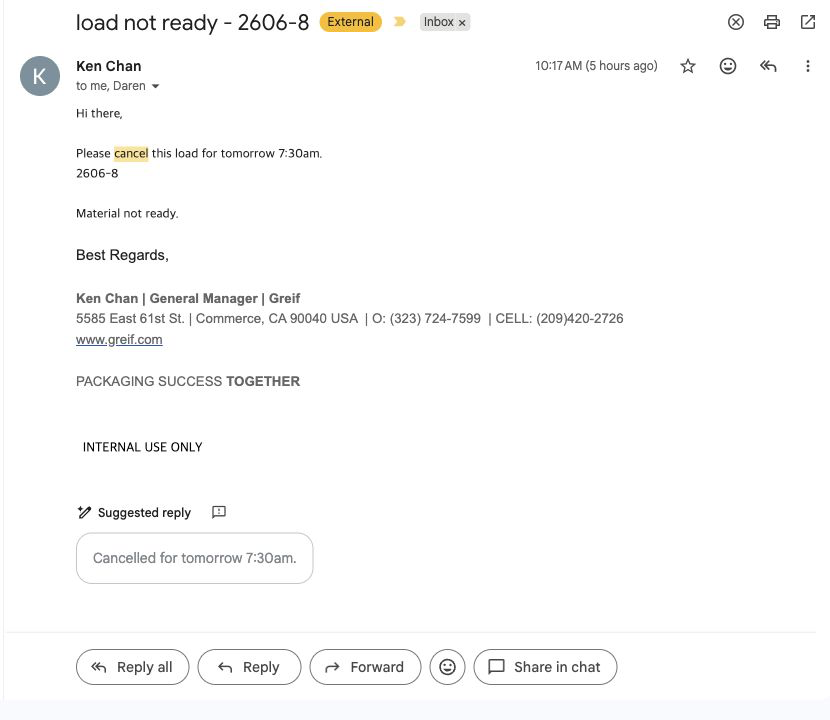
| Request type | Create, Reschedule, Cancel, Inquiry | Taken from the email. Editable while the row is open |
| Your choice | Approve, Reject, Delete | The human action on this screen |
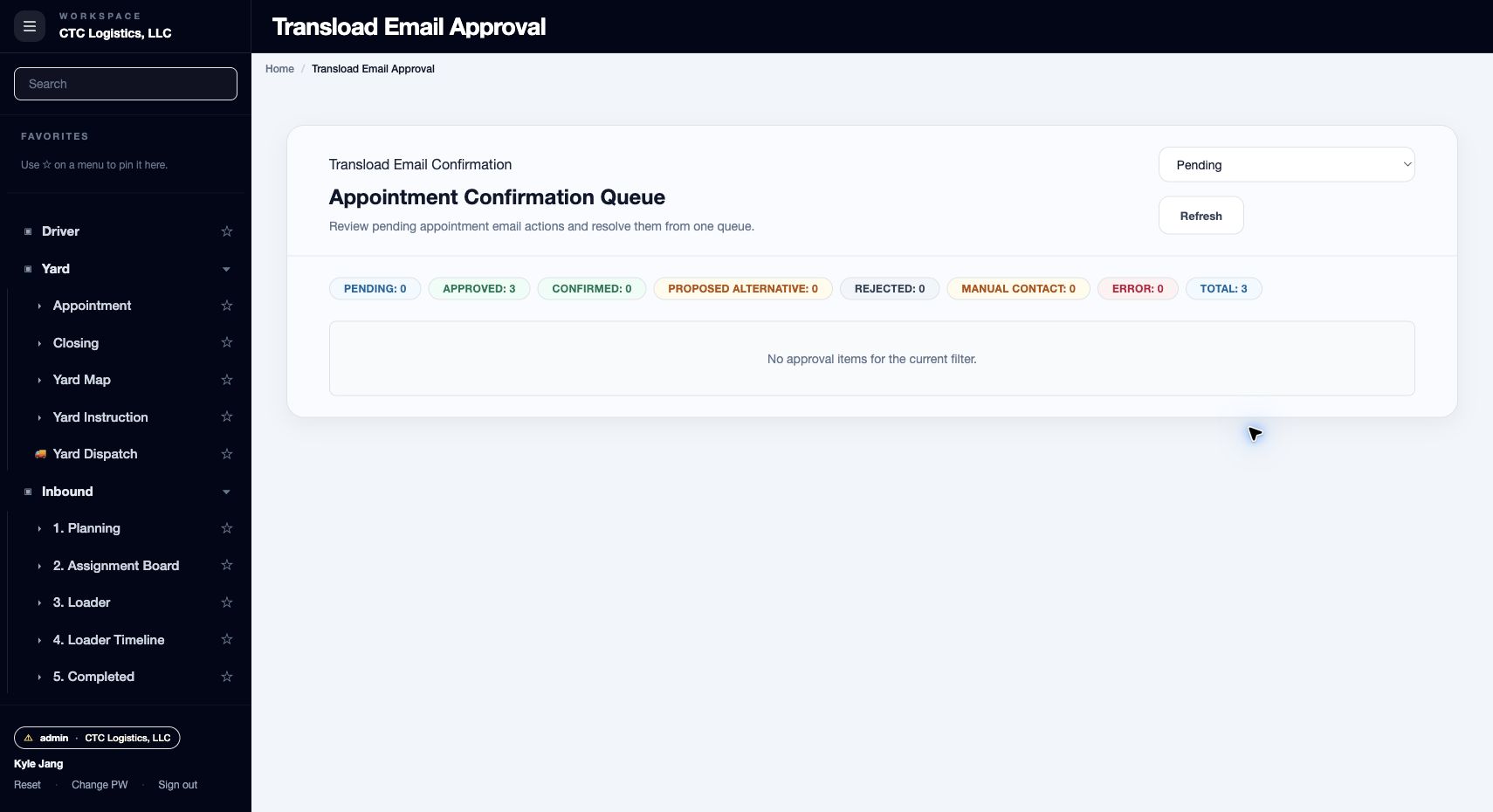
| System result | Approved, Confirmed, Alternative proposed, Rejected, Manual contact, Error, Ignored | What got recorded |
Save and Close do not resolve a request. Manual contact is produced by a safety fallback, not by a button on this screen. A cancel request can also change the appointment itself to cancelled or no-show.
What the Buttons Actually Do
| Button | What it does | What it does not do |
|---|---|---|
| Save | Applies your edits to the page and redraws the table | Saves nothing durable. A refresh loses the edits |
| Approve | Runs each selected open row through validation and the action | An inquiry cannot be approved. Resolved rows are blocked |
| Reject | Rejects every eligible row in the email, then sends one rejection reply | It is a whole-email decision, not a single row |
| Delete | Marks the selected rows ignored | Does not cancel an appointment and sends no reply |
| Close | Closes the review | Does not save your edits or assign an owner |
Review and Process a Request
- Open the row and read the original message and attachments.
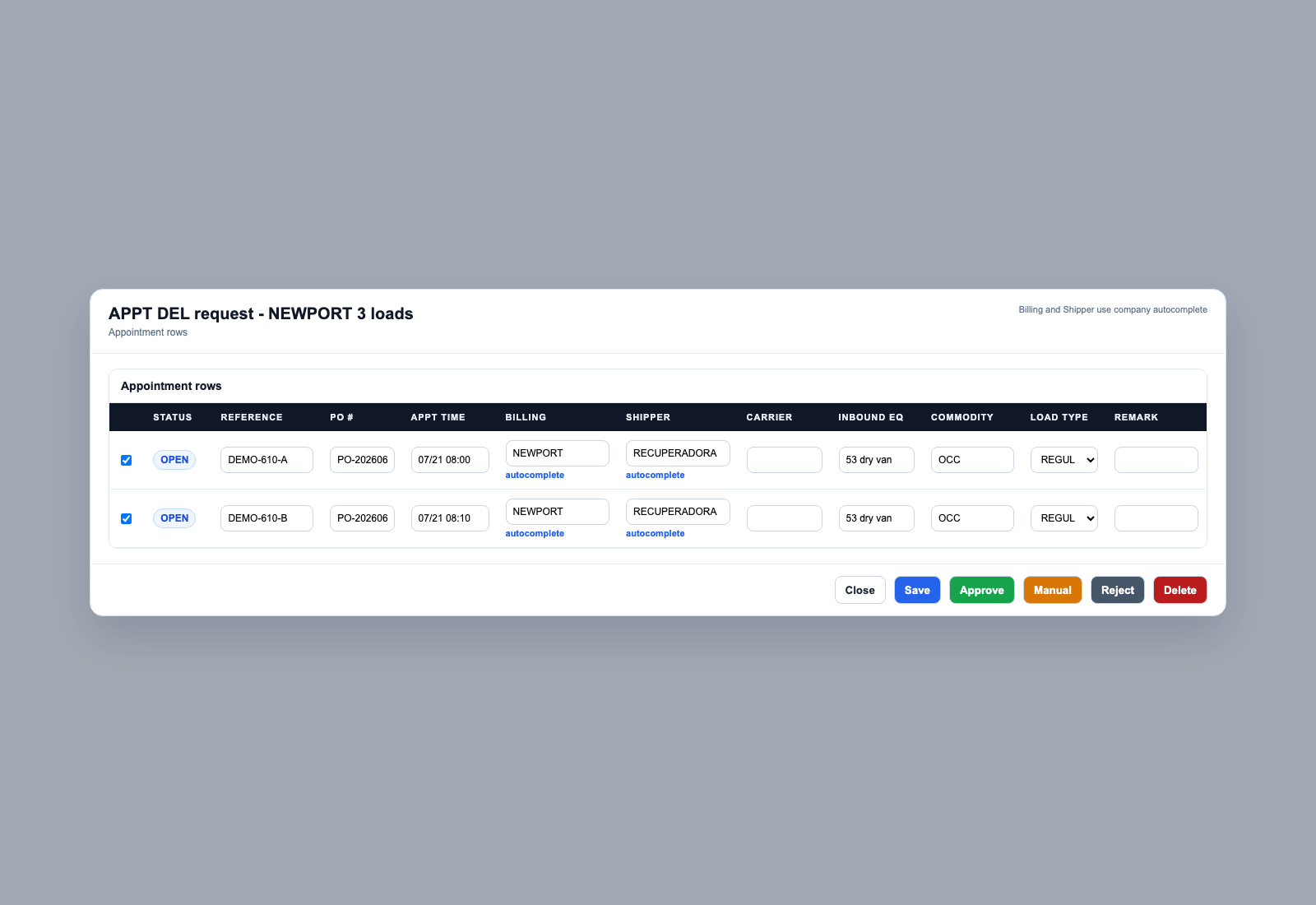
- Compare each extracted row against the source email. Correct only what the source supports.
- Confirm the request type.
- For an unmatched create, confirm the billing party, shipper, carrier, equipment type and number, commodity, reference, appointment time and remark before approving.
- Select only the open rows that belong to this one decision.
- Approve, Reject or Delete using the rules below.
- Reload and verify the stored result and the appointment itself.
What Each Action Does
| Type and your choice | What the system does | What you must check |
|---|---|---|
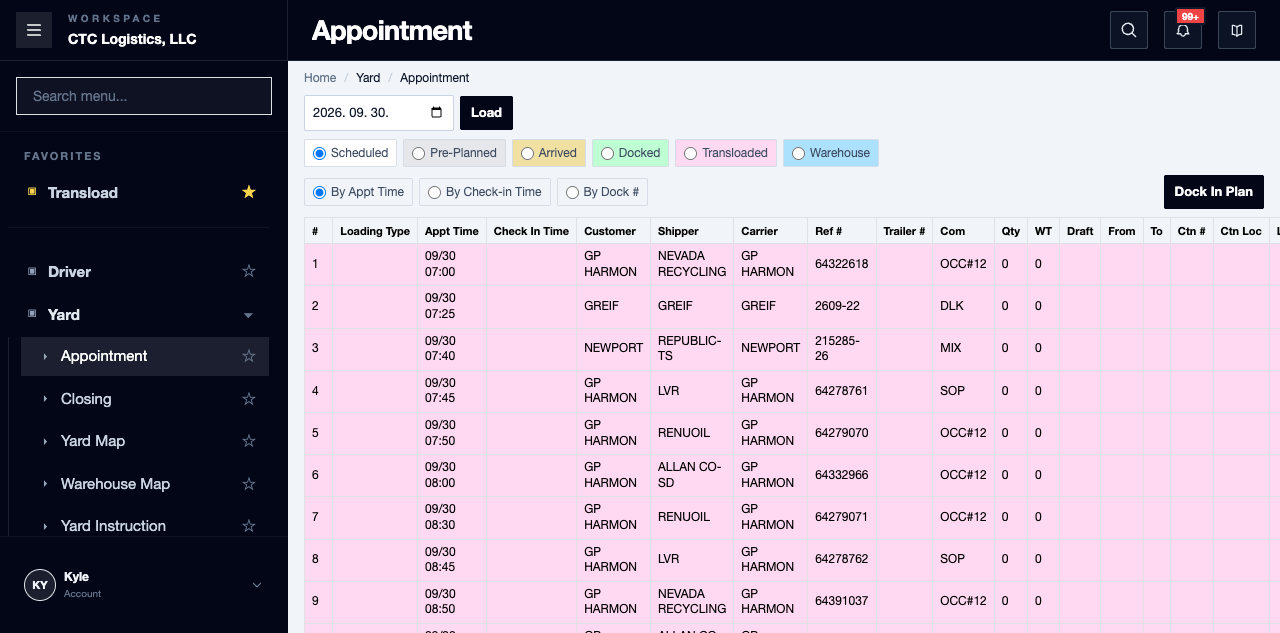
| Create + Approve, unmatched | Creates the load as scheduled and links it | That it reads approved, appears under Yard > Appointment, and shows in Inbound > 1. Planning |
| Create + Approve, matched | Treats it as an appointment-time change | The appointment time. Do not assume your other edits took |
| Reschedule + Approve | Exact or unchanged time becomes confirmed. An occupied slot becomes alternative proposed. Unsafe cases need manual contact or fail | The current, requested, proposed and resolved time |
| Cancel + Approve | A safe target becomes cancelled; no-show wording can produce a no-show | The exact target and the final appointment state before replying |
| Inquiry + Approve | Blocked | Keep it for manual follow-up, or reject the whole request if that is the decision |
| Reject | Marks the whole email rejected | That every intended row is rejected, and the reply state |
| Delete | Marks only the selected rows ignored | That no appointment action was actually intended |
Alternative proposed and no-show are results the system derives from the request type, the slot, the appointment state and the wording of the email. They are not buttons you press.
The Customer Reply
- The appointment is committed before the reply is attempted.
- A reply failure does not undo the appointment change.
- A successful send records the message and thread ids; a failure records the error. That is evidence the send happened — not evidence a person read it.
- For an approved create whose reply failed, resend only the eligible create rows from the same email, thread and recipient. An existing reply id blocks a duplicate send.
- For a rejected email, use the rejection retry only for the complete eligible set.
- A manual-contact outcome may notify a configured chat recipient. A notification failure does not authorise a second appointment change — reread the request and the appointment first.
Fields
| Field | What it means |
|---|---|
| Request type | What the email is asking for |
| Appointment time | The time being requested |
| Reference / load number | Which job |
| Carrier, equipment, commodity | What is moving |
Status
| Result | Means |
|---|---|
| APPROVED | Accepted |
| CONFIRMED | The requested time was free |
| PROPOSED_ALTERNATIVE | The requested time was taken. A different time was offered |
| REJECTED | Refused |
| MANUAL_CONTACT | Needs a person to follow up |
| ERROR | Something failed |
| IGNORED | Cleared from the queue without an appointment change |
| CANCELLED / NOSHOW | The appointment itself |
Notes
Trade terms you will hear. Booking requests often arrive as an ASN or by EDI — an electronic message from the customer or terminal rather than an email from a person. Treat both as requests to confirm, never as confirmed. See the Glossary.
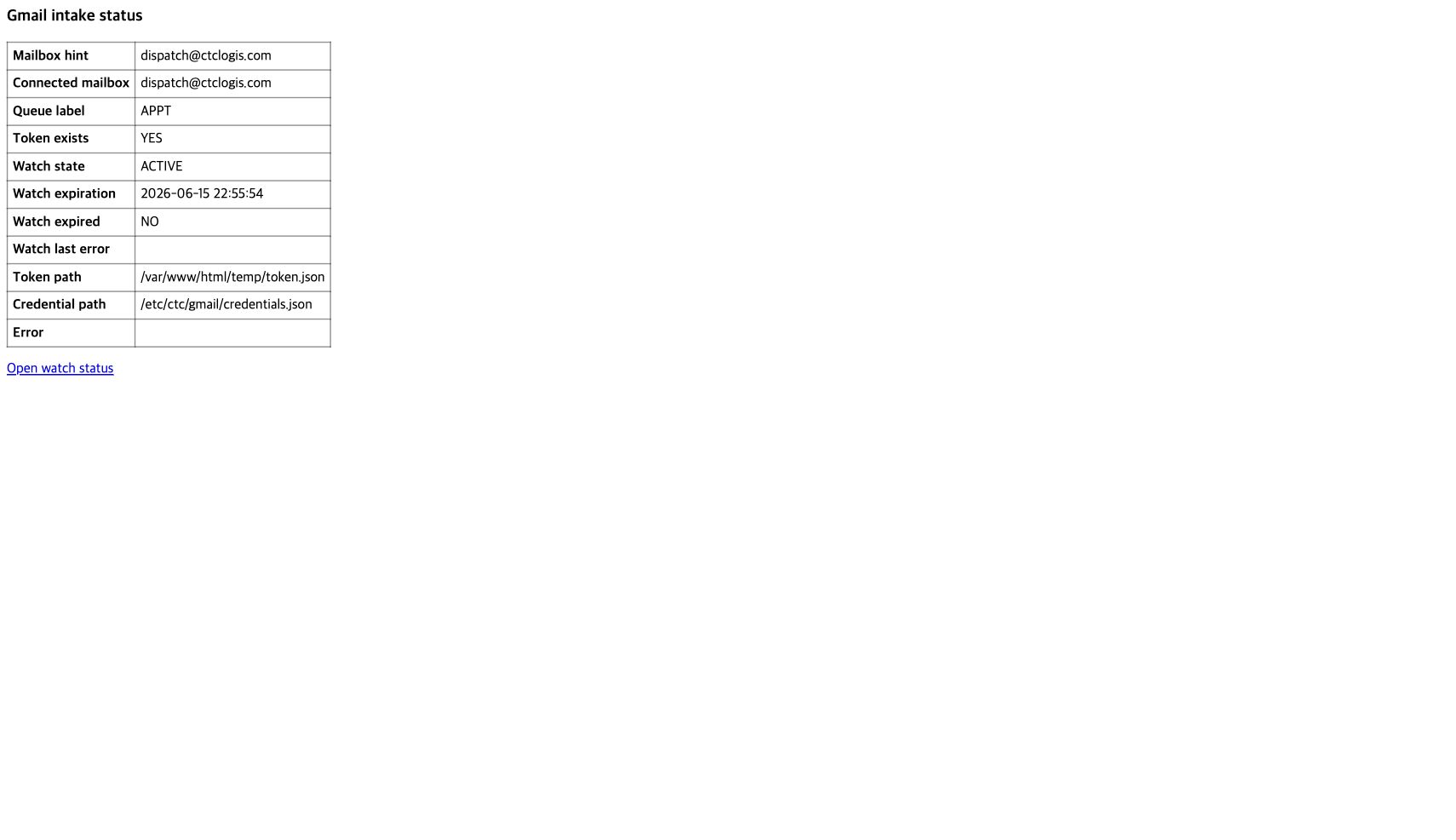
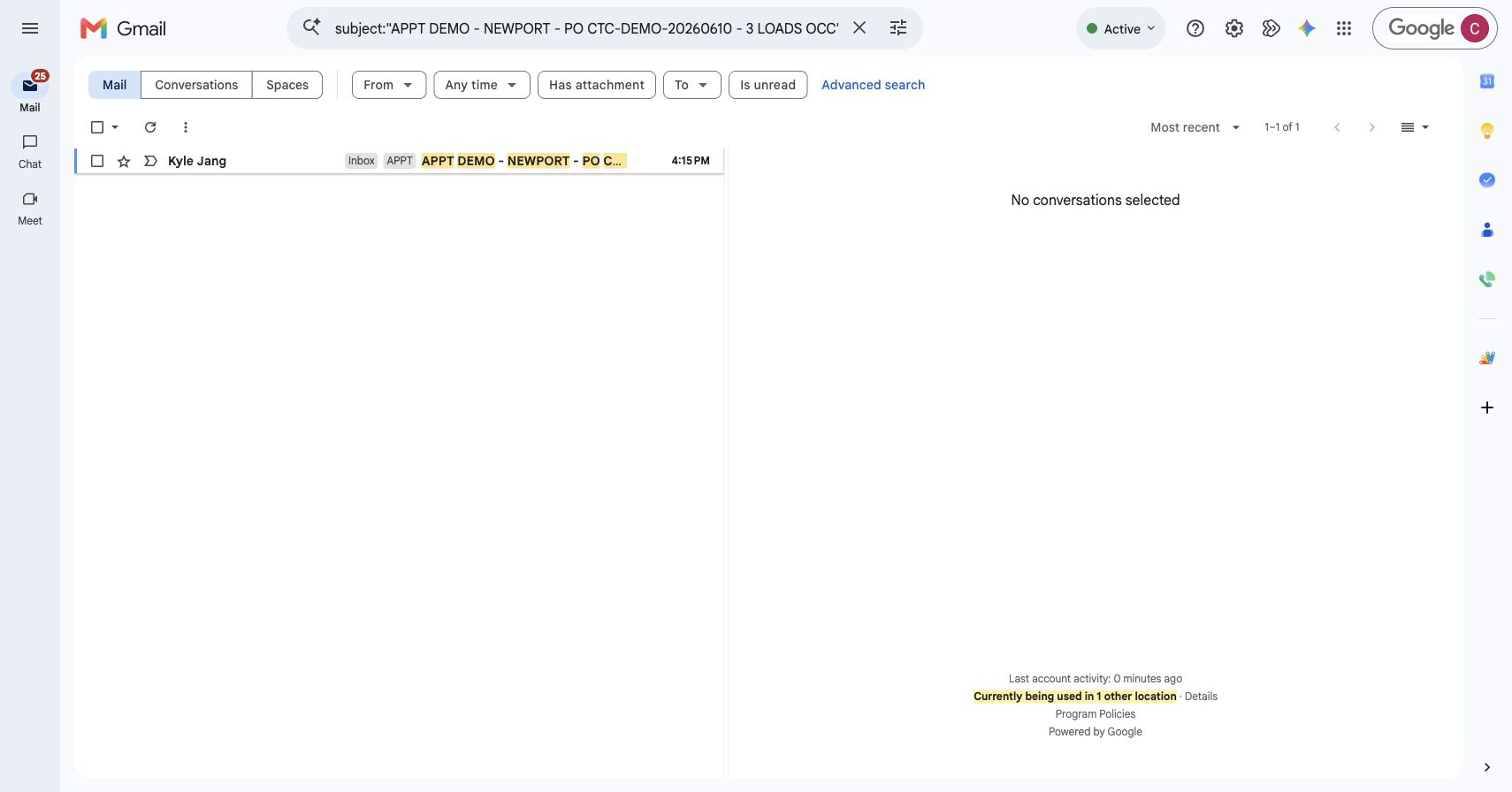
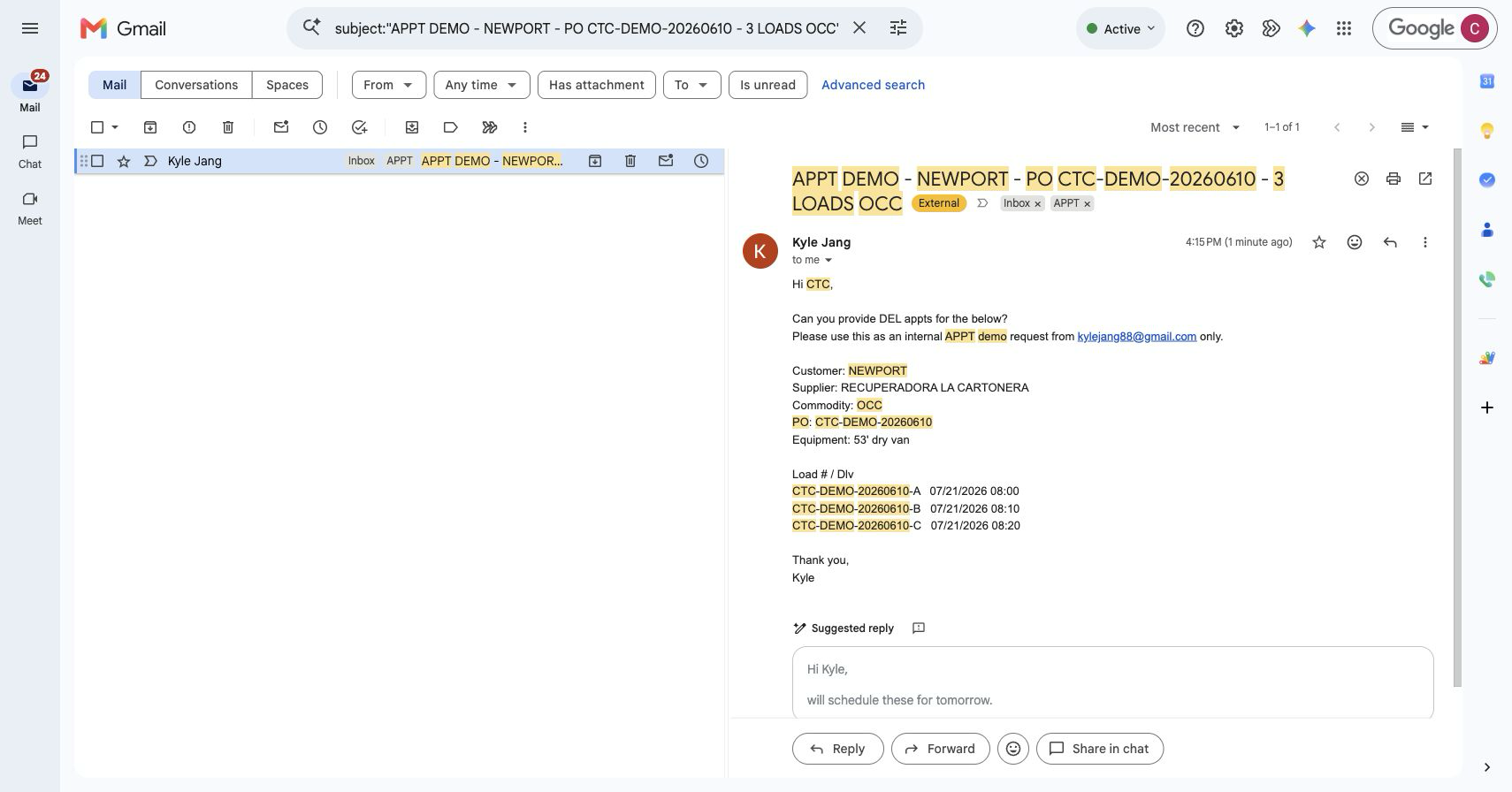
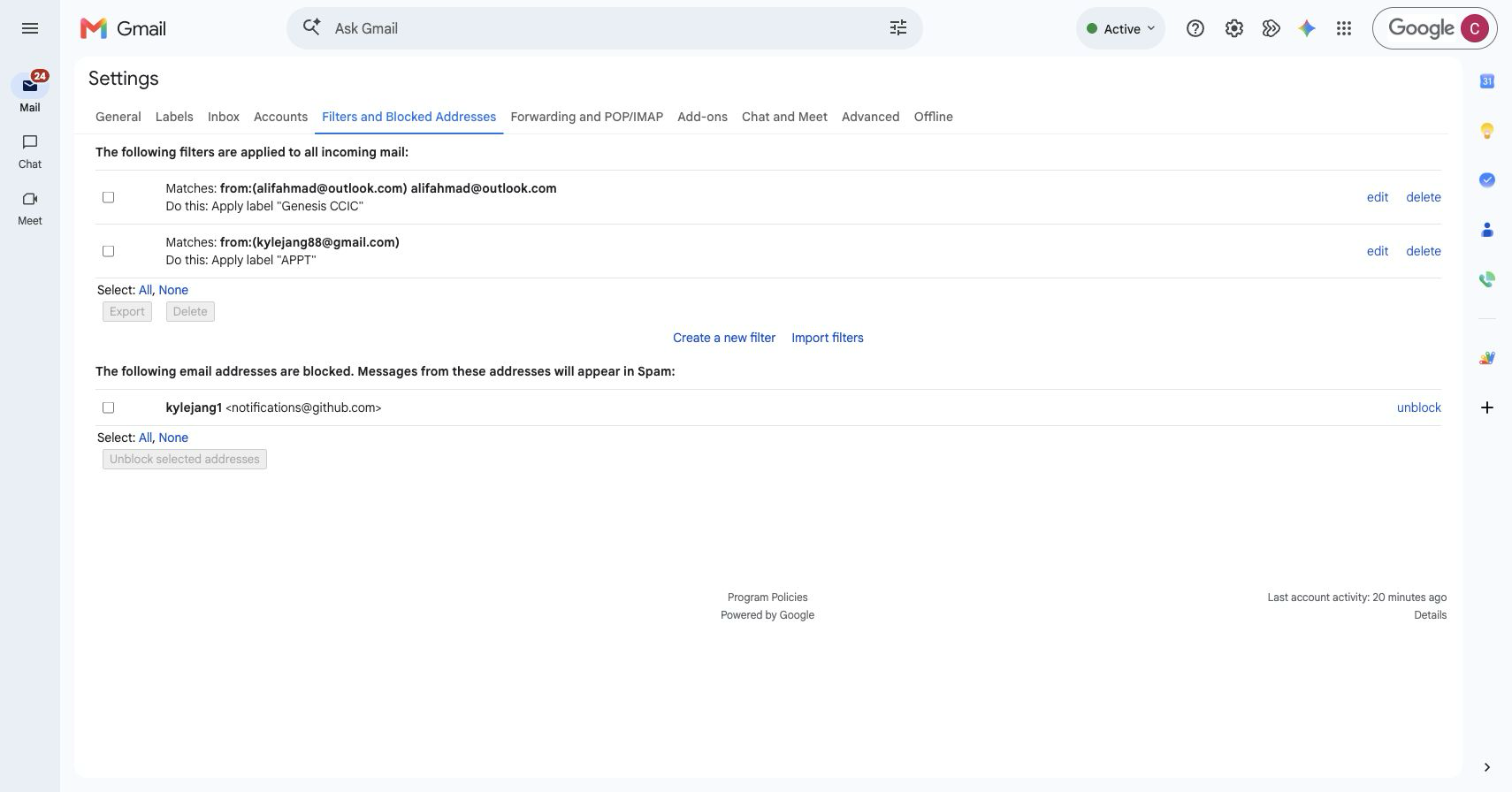
- An email only enters the queue when Gmail applies the
APPTlabel. The subject line alone does not trigger it. After intake the label is removed to prevent duplicates — so if the label is missing and no row exists, the Gmail filter needs fixing. - Ask trading partners to use
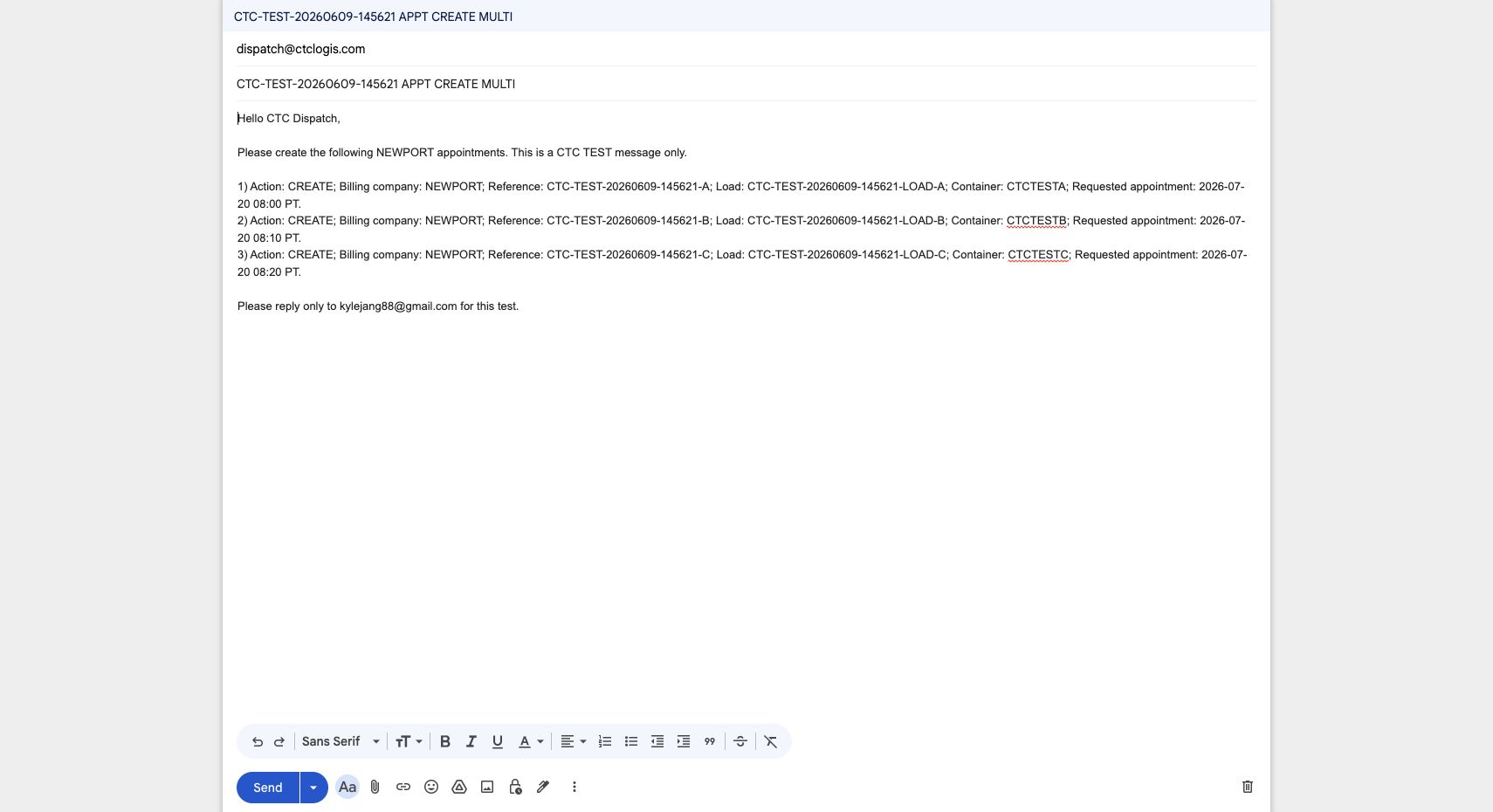
APPT - [Customer] - [Create / Reschedule / Cancel] - [PO or Load #], with the action, customer, reference, date and time, carrier, equipment, commodity, quantity and notes. For a change or cancellation, include the existing appointment reference and time. Natural-language emails still need human review — never guess a missing value. - One email carrying twenty to thirty loads is one email row with many request rows. Approving runs row by row and can partly succeed, so review each result.
- Save alone is not durable. If your edits vanish, reopen the original email and re-enter them.
- If the requested reschedule slot is unavailable, use the recorded alternative. Do not invent a time.
- If a cancel target is missing, already closed, or already in progress, do not force it. Use the manual path and record the follow-up elsewhere.
- Only the create and reject replies have a supported retry. A reschedule or cancel whose reply failed needs manual contact — do not repeat the business change just to resend an email.
- A row left open by Save or Close is not assigned and not completed.
If Something Goes Wrong
| Problem | Do this |
|---|---|
| The email or row is missing | Check the Gmail APPT label and the filters. A replay can re-ingest an existing message — reread the queue before creating anything |
| Your edits disappeared | Reopen the original email and re-enter them. Save alone does not persist |
| Approval returned an error | Reload first. If it did not commit, correct the source-supported fields and retry once. Otherwise do not repeat it |
| Duplicate or stale row | Compare the email, thread, reference, customer, date and any existing match |
| The reschedule slot is unavailable | Use the recorded alternative or manual contact. Do not invent a time |
| The cancel target is unusable | Do not force it. Use the manual path and record the follow-up |
| The reply failed after the change committed | Confirm the appointment state, then use only the eligible reply retry |
The End-of-Day Check
- Every appointment email has a clear result, or a separately managed manual follow-up.
- Confirmed creates and changes are visible under
Yard > Appointment. - New inbound work is visible in
Inbound > 1. Planningbefore it is handed on. - Cancel and no-show results match the exact appointment they were meant for.
- Reply-failed rows have been safely resent or written down for manual contact.
Related
- What Approving an Appointment Email Does — the business view
- Planning Incoming Deliveries
- Office Control