Outbound Sales
Purpose
This screen records an order to sell goods to a customer, links it to stock and to a booking, and follows it until it is delivered.
Who does this
Office staff selling and shipping goods.
When you need this
When a customer order is placed and needs to be shipped.
Before you start
- You have the right account for this screen (see Permissions and Access).
- The date and record you are working on are correct.
- Words you do not know are in the Glossary.
Access
Shipping → Outbound Sales
Screen
Main Features
Before You Start
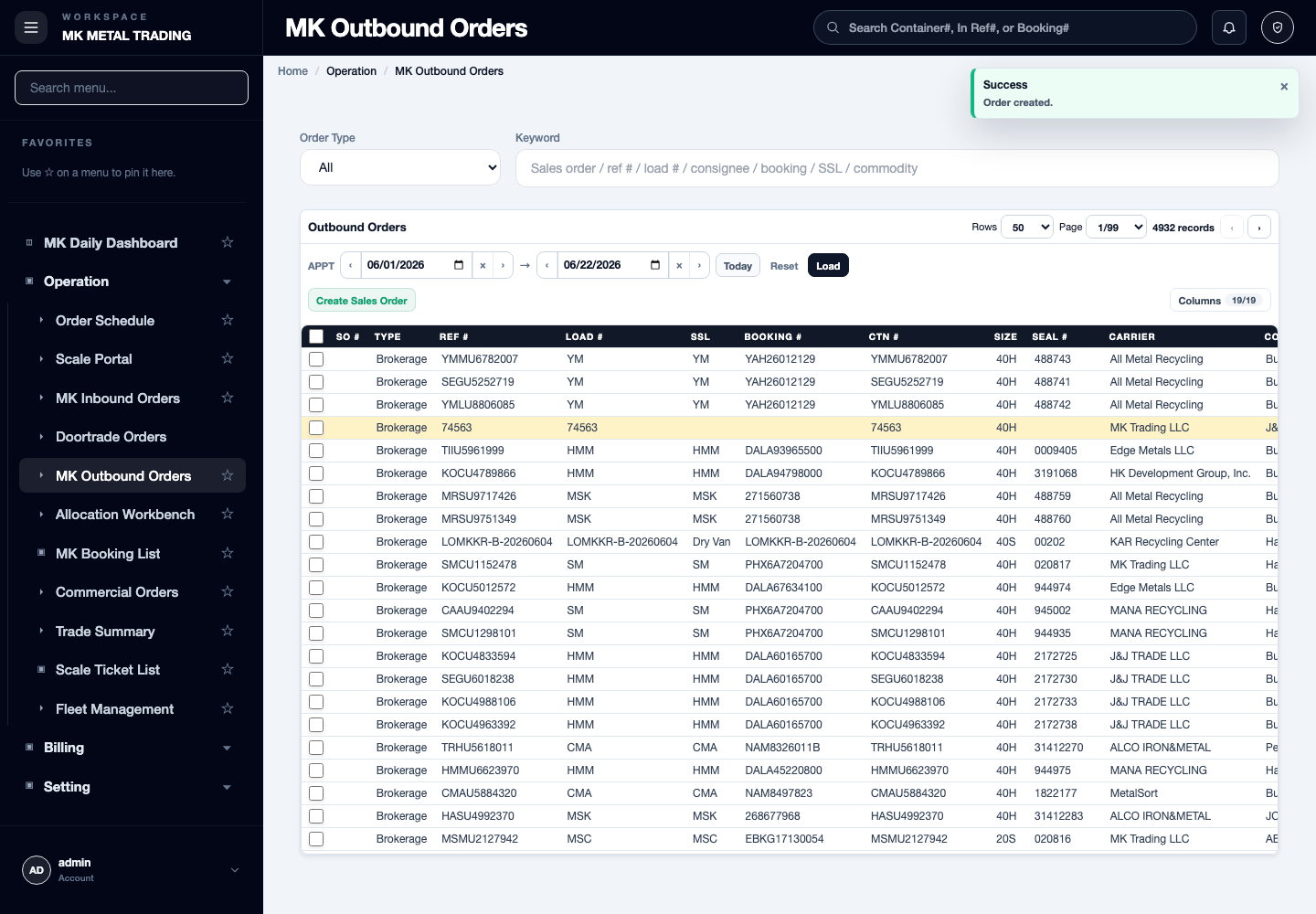
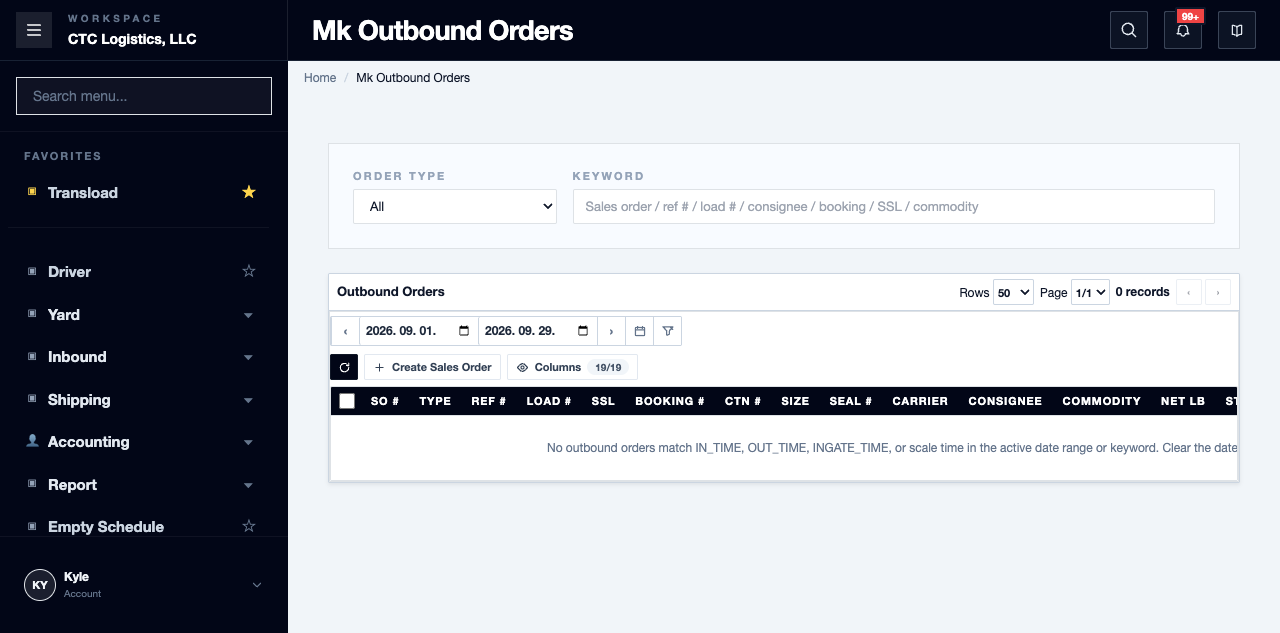
- Search by date, order number, reference, booking or container.
- Confirm whether the shipment is Ocean or Local.
- Confirm the sales agreement and the exact line it relates to.
- Treat the order, the allocation, the equipment link, the scale, the packing and the delivery as separate facts.
Create and Reread
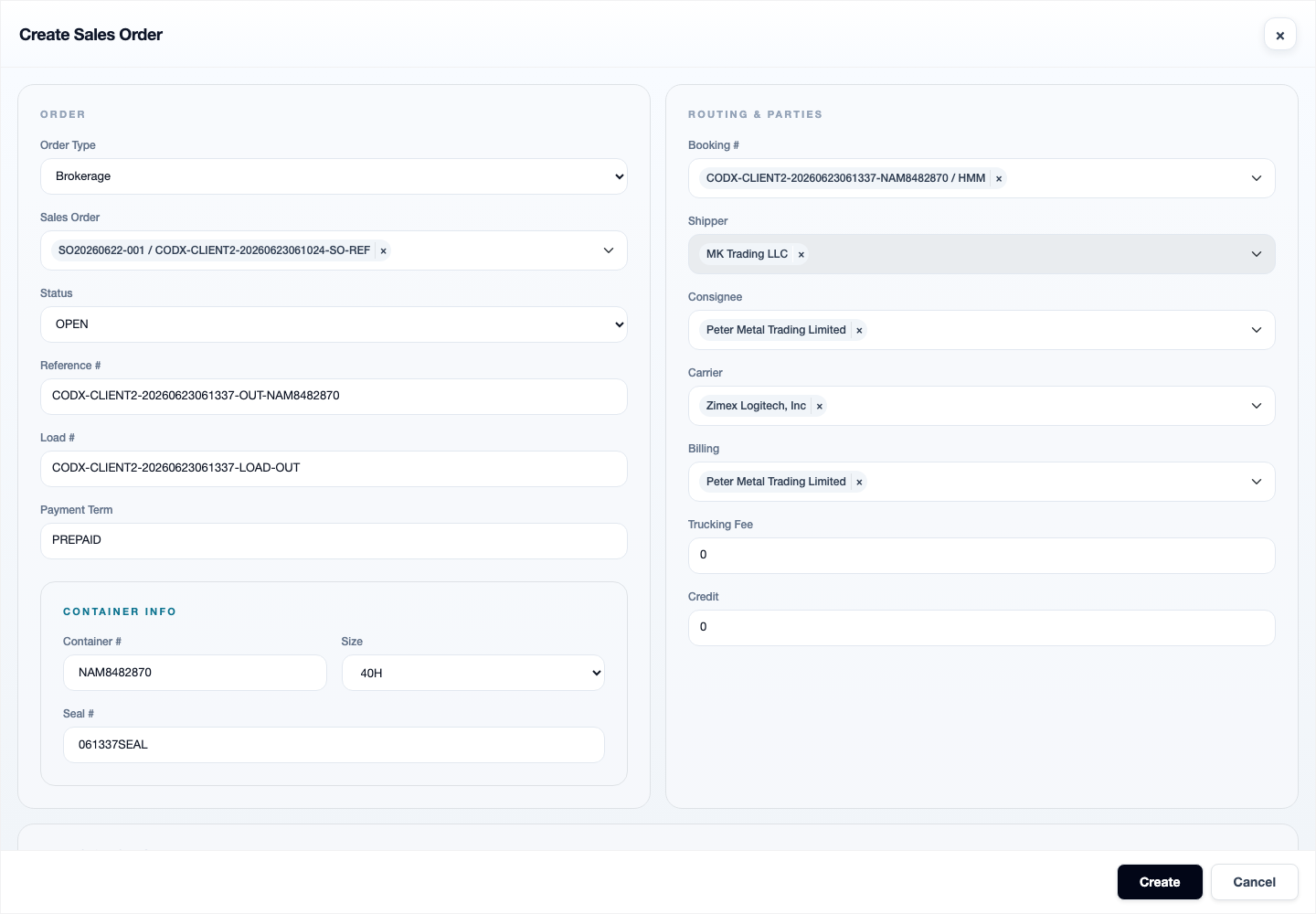
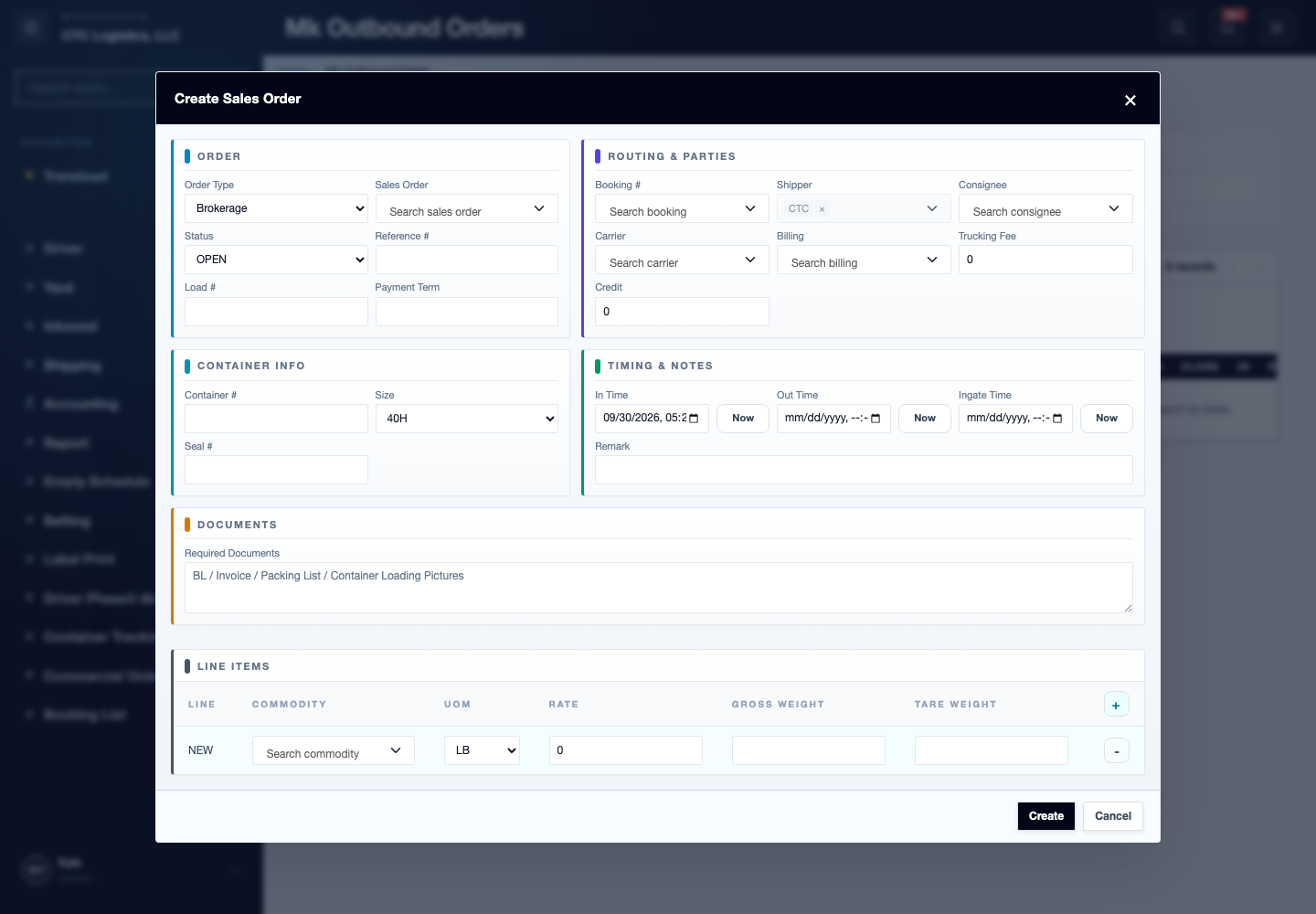
- Select New / Create Sales Order.
- For an ocean load, select the booking and enter the container and size. For a local load, confirm the required container.
- Enter the parties, the reference and load fields, the timing and the lines.
- Save once.
- Reopen the exact detail and verify the generated order number, the header and every line, the agreement and booking links, the container, size and seal, the equipment load and the commodity summary.
An ocean order saved without a booking, container or size is still accepted. Treat that as incomplete and fill it in rather than moving on.
Allocate Inventory
- Open the Allocation Workbench for the exact order.
- Select the intended eligible lot and the quantity and weight.
- Apply the allocation.
- Reread the allocation and the lot's remaining balance.
- Return to the order and review the derived values.
Saving the order creates lines with nothing allocated. The weight on an order line is not an allocation record — the lot balance is the real check.
Check Booking, Container and Packing
- Confirm the booking number, container, size and seal on the equipment link.
- The booking and the packing list are separate jobs. This order does not complete them.
- Once delivery, weighing or a transload owns the equipment, the booking, container and size can no longer be remapped.
After the Physical Work
Do the weighing and the delivery on their own screens, then come back and reread: the scale ticket and its actual weights, the equipment load and the order timing, the allocations and lot balances, and any delivery or packing evidence.
Once a scale record exists, the order's timing fields and status are held to it. If they will not change, the scale is the authority — fix it there, not here.
Fields
| Field | What it means |
|---|---|
| Order number | Generated on save |
| Booking / Container / Size / Seal | Checked on the equipment link |
| Line weight | Not evidence of allocation |
| Operational value | UNMAPPED, or linked to a warehouse or transload |
| Readiness | Derived from booking, container, size, lines, allocation weight, scale and time |
Status
| Shown | Means |
|---|---|
| OPEN / IN_PROGRESS / COMPLETED / CANCELLED | The header label. Its transition criteria are not defined |
| UNMAPPED | No stock allocated yet |
| READY_FOR_FINAL_EXECUTION | A projection. Not an approval and not a completion |
Notes
- Edit is only enabled after the exact detail loads. If the detail fails, reload the record — do not edit values copied from the list.
- Inspect the allocation, equipment, scale, delivery, transload and cost before editing.
- Lines can be corrected or removed only before allocation, receipt, weighing or linked work has progressed. A progressed attempt is rejected and the whole save rolls back.
- A line with stock allocated cannot be deleted. Recovery belongs to the allocation workbench — preserve the order, allocation and lot ids and escalate.
- Deleting the order is blocked by scale execution, delivery, allocation, transload linkage or cost.
- After an allowed delete, check the booking's reverse pointer — it can be left pointing at the deleted order.
- If a save is rejected, nothing from that save is applied. Correct the value and save again.
Related
- Creating a Sales Order — the business view
- Order Schedule and Allocation
- Printing a Packing List