Container List
Purpose
Container List finds container loads and lets you edit the equipment and load details directly from the row.
Before you start
- You have the right account for this screen (see Permissions and Access).
- The date and record you are working on are correct.
- Words you do not know are in the Glossary.
Access
Yard → Container List
Screen
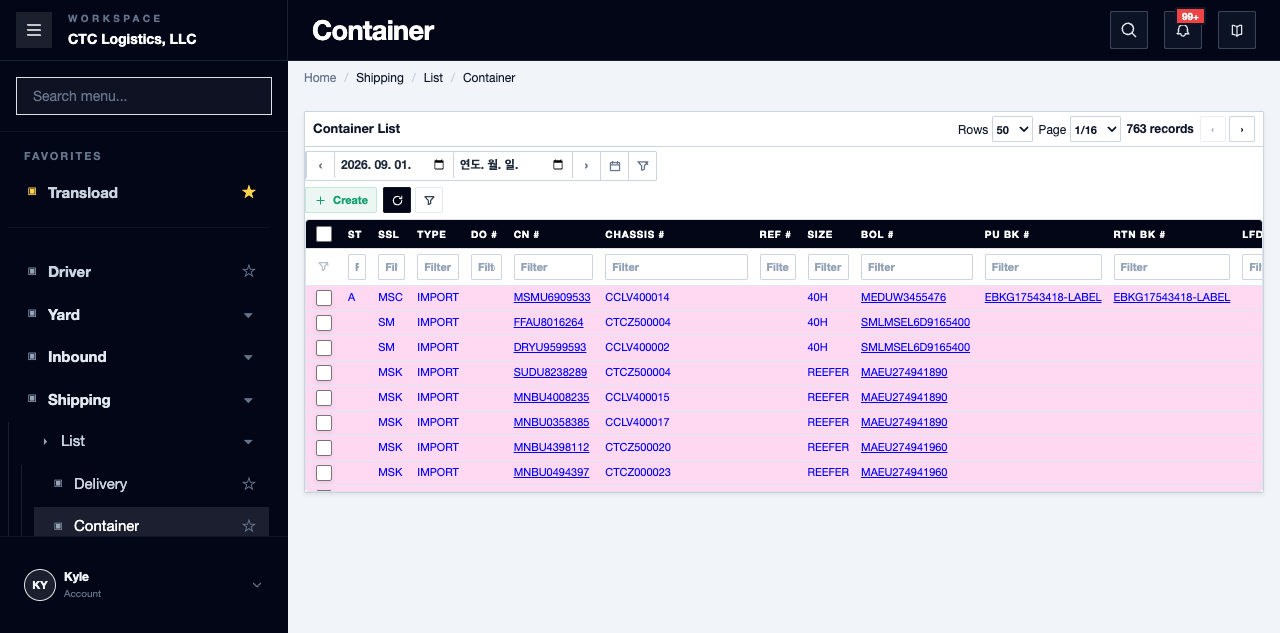
Steps
Open and Search
- Sign in with an account that can use container tracking.
- Enter a container, chassis, reference or booking value in Search.
- Select Load.
The list keeps its original column order: ST, SSL, TYPE, DO #, CN #, CHASSIS #, REF #, SIZE, BOL #, PU BK #, RTN BK #, LFD, RFD, PICKUP, STREET, RETURN, LOCATION, COM, QTY, NET, EMPTY, SEAL #, STATUS, RMK. Use the column selector and horizontal scroll to read all 24.
Edit a Container
- Double-click the intended row.
- Confirm the container number and the current reference before changing anything.
- Change only the direct fields: shipping line, container and chassis numbers, size, the LFD, RFD, pickup, street turn and return times, reference, empty weight, seal, status and remark.
- Save.
- Search and load the row again, and confirm the saved values and the status colour.
Fields
| Field | What it means |
|---|---|
| ST | Abbreviated. AVAILABLE shows as AV; not applicable is blank |
| LFD / RFD | Loaded and ready dates |
| CN # / CHASSIS # | Container and chassis numbers |
| EMPTY | Empty weight |
| SEAL # | Seal number |
| STATUS / RMK | Current state and free remark |
Read-only here: order type, delivery order number, BOL and booking links, location, and the commodity summary.
Status
| Row state | How it is coloured |
|---|---|
| EMPTY | Scheduled — yellow |
| FULL | Started — blue |
| RETURNED | Completed — green |
The colours are operating cues, not data. Always reread the row values before acting on it.
Notes
- Invalid dates, sizes, statuses, weights and over-length text are rejected, and the invalid change is not saved.
- If Save reports an error, correct the highlighted value and save again.
- If the browser times out or the result is unclear, close the dialog, search and load the row again, and compare the current values. Do not immediately press Save again.
- If a row seems to have disappeared, clear the search and load again before reporting it missing.
- If the record does not match the physical container or the paperwork, stop and report the container number, reference, status and the exact message. Do not change a different row instead.
- Editing here does not complete booking, location, commodity, photo or delivery history work.
Related
- Moving Equipment Around the Yard — actually moving it
- How to create or change a Booking
- Reading the Warehouse Map