Inbound Purchases
Purpose
This screen records goods arriving from a supplier and turns them into stock.
Who does this
Office staff receiving goods.
When you need this
When goods arrive from a supplier and need to become stock.
Before you start
- You have the right account for this screen (see Permissions and Access).
- The date and record you are working on are correct.
- Words you do not know are in the Glossary.
Access
Shipping → Inbound Purchases
Screen
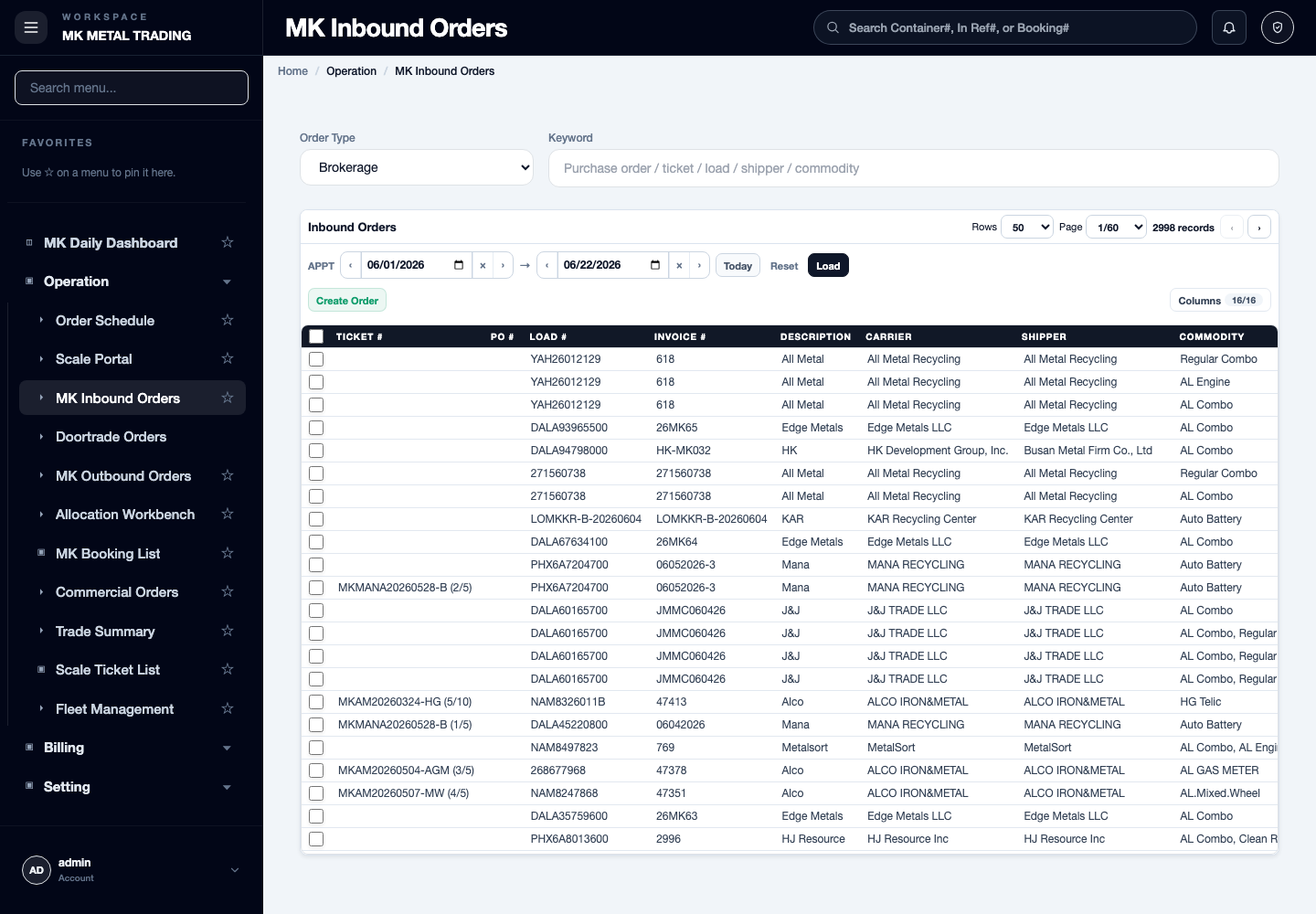
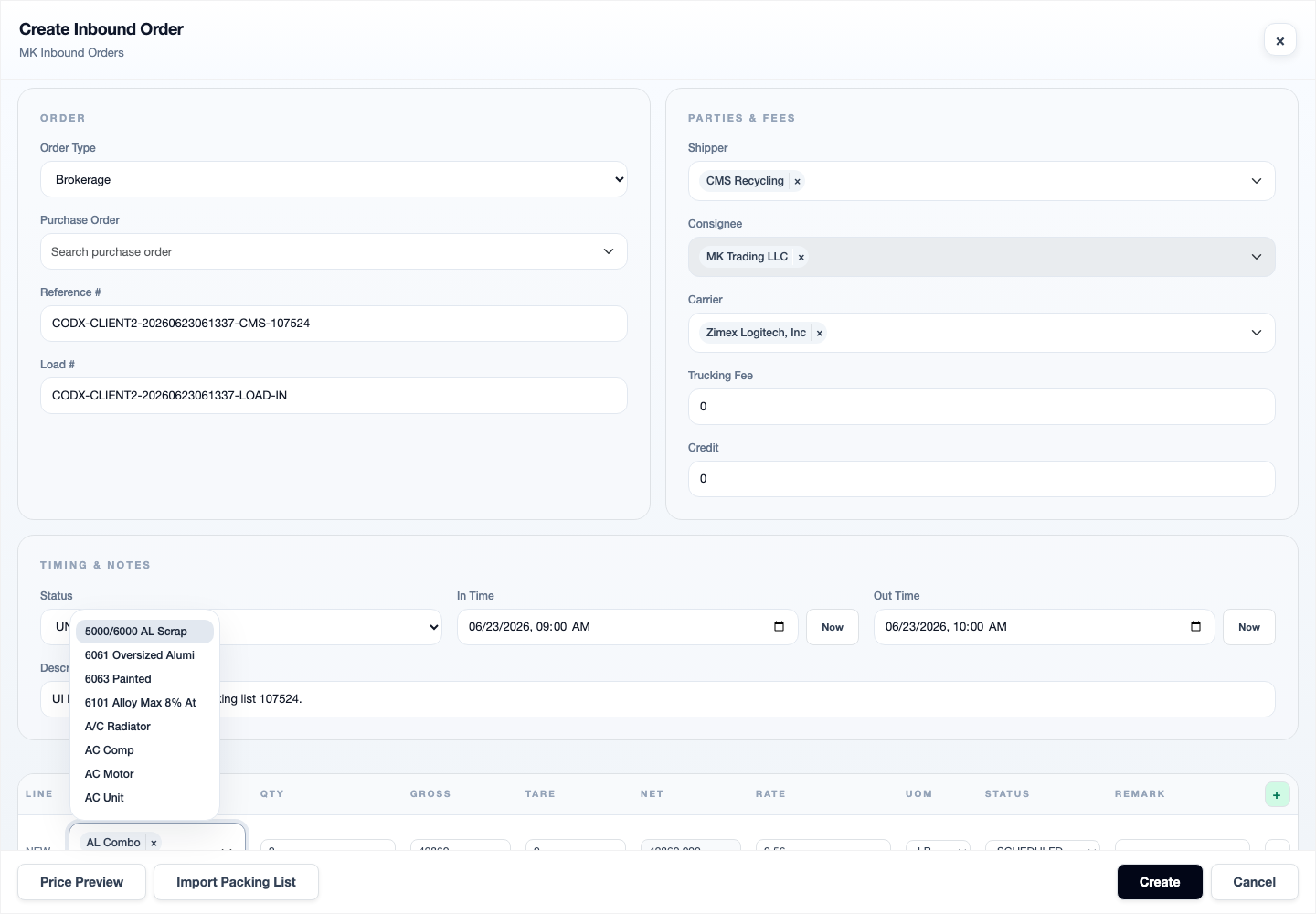
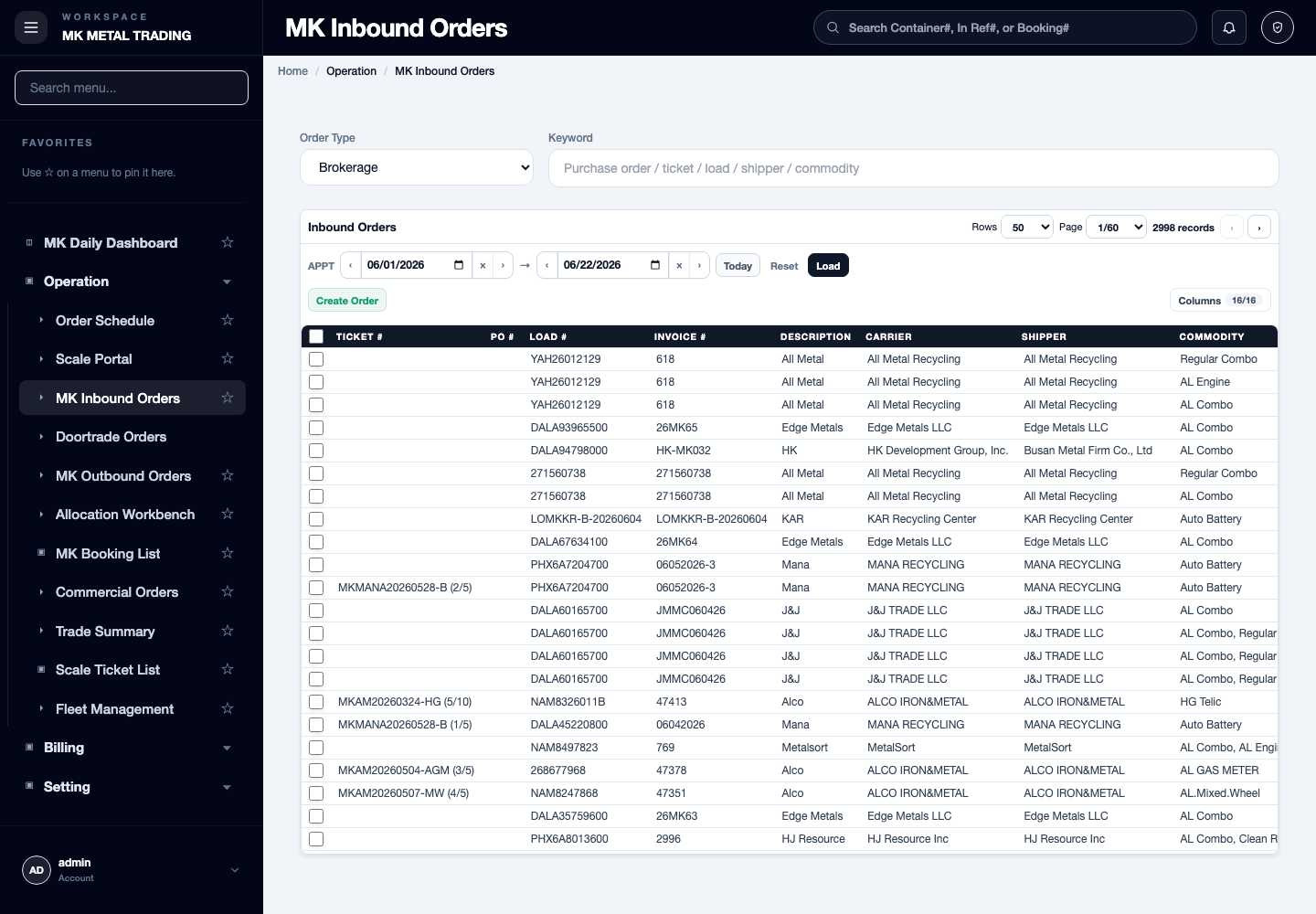
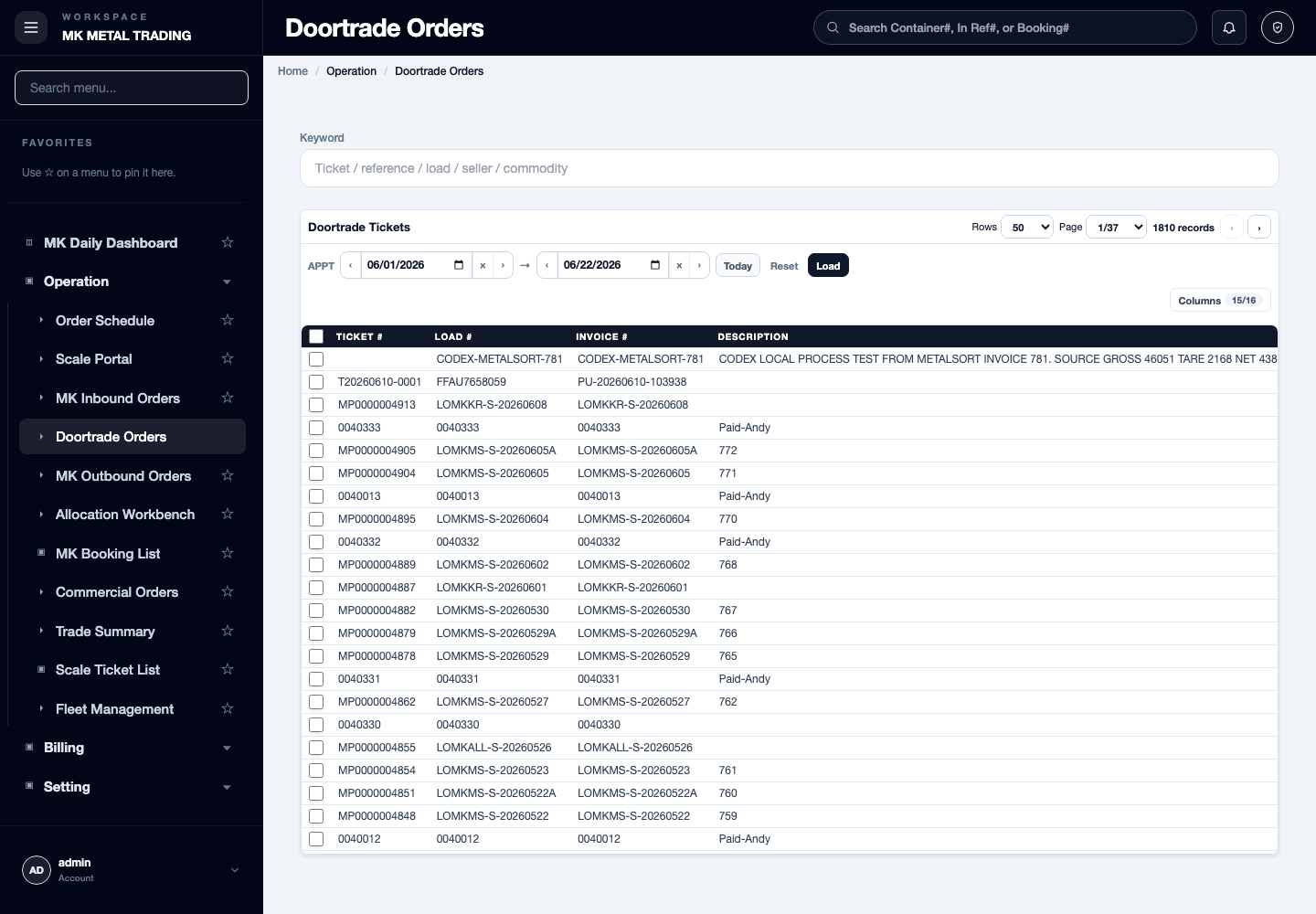
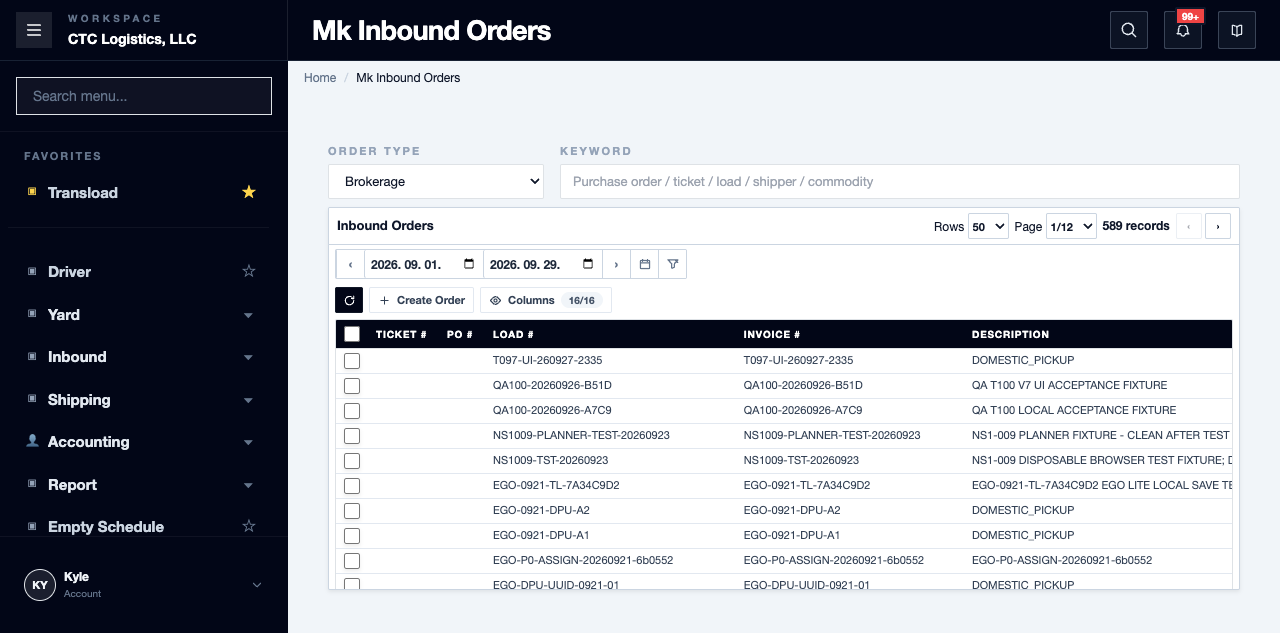
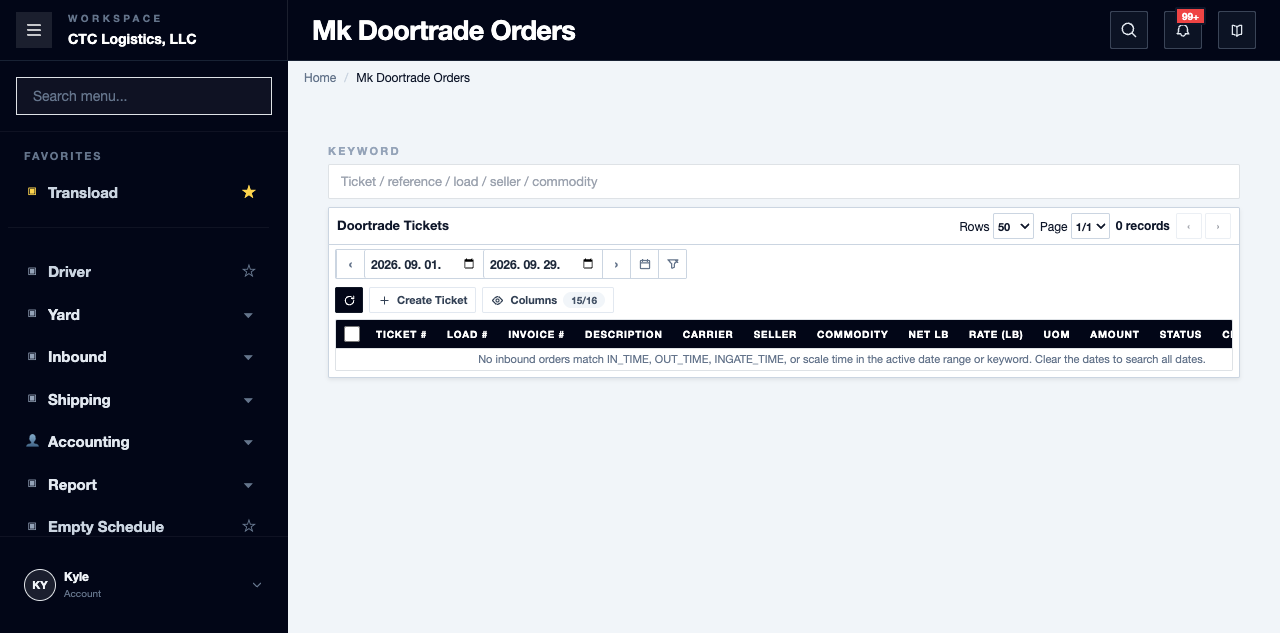
Main Features
Before You Start
- Confirm the intended company account.
- Search by date, PO, reference and load before creating another order.
- Confirm whether this is a scale receipt or an eligible brokerage receipt without scale.
- Verify the purchase agreement and the exact line it relates to.
- Treat the header close label, the item state, the load state and the stock lot state as four separate facts.
Create and Reread
- Select New / Create Order.
- Enter the order type, parties, reference, load and timing.
- Review each line: commodity, quantity, unit, gross, tare, net, rate, and the agreement line it links to.
- Save once.
- Reopen the exact detail and verify the generated PO, the header and every line.
Do not assume net is gross minus tare. Submit the net value you intend and verify it. The scale finalize step is what redistributes measured weights.
To remove a line on an existing order, remove it in the editor and then save. Closing or cancelling before saving keeps the line.
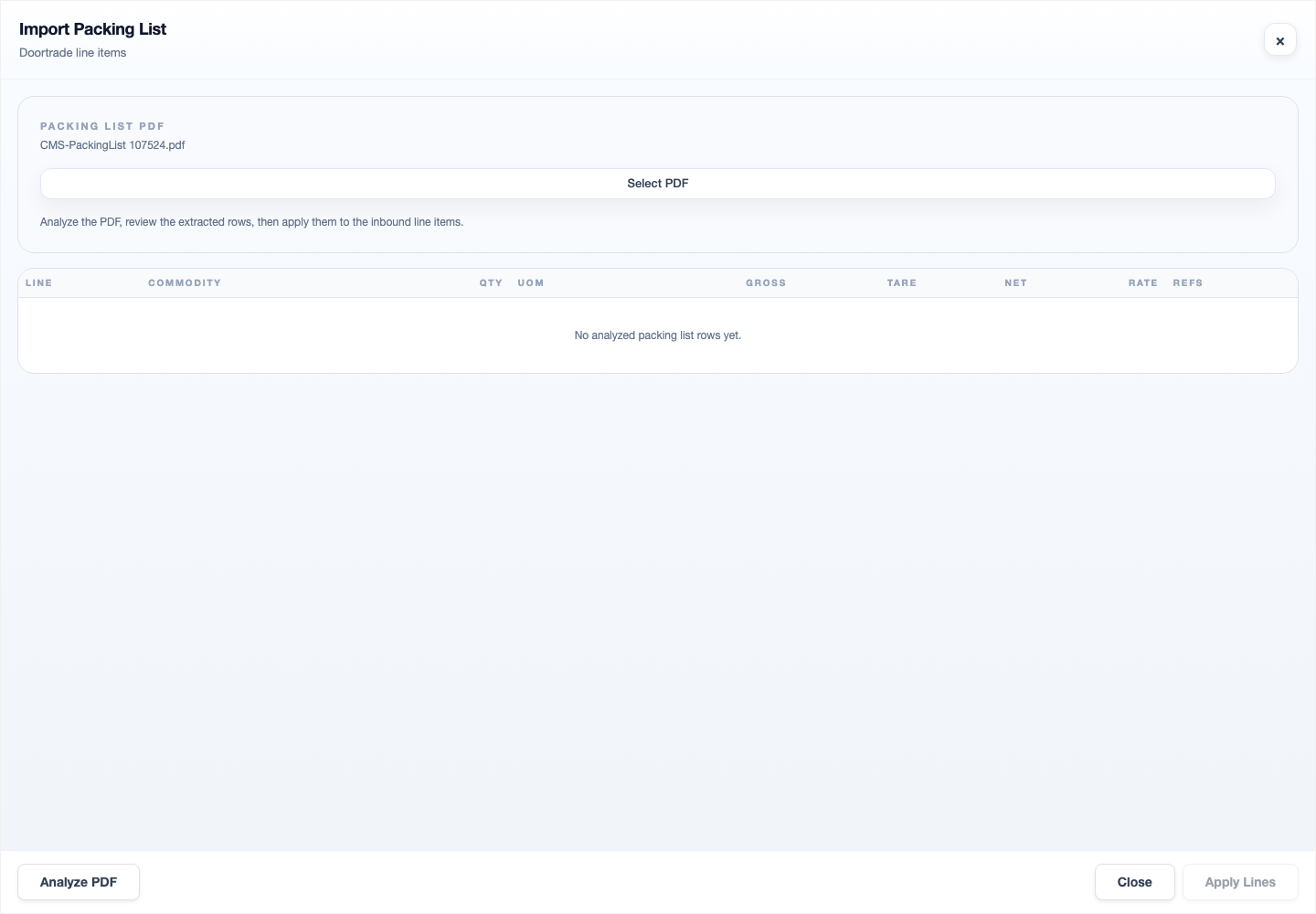
Doortrade Packing List Help
- Select the source document and choose Analyze.
- Compare every proposed value with the document.
- Apply only the rows you reviewed, or type the values in yourself.
- Save the order separately and reopen the detail.
Analyze is a separate request that fills the form. It does not save the order and does not complete the receipt.
Receive with the Scale
- Open the exact order in the Scale Portal and confirm the reference.
- Weigh in with the gross reading.
- Weigh out with the tare reading.
- Run the separate finalize action.
- Confirm the ticket and time, each line's distributed weight, and that the items read
UNLOADED. - Confirm the load reads
UNLOADEDand the new stock lot points at the exact source item and load.
Weighing out does not complete the receipt. If checkout worked but finalize failed, reload and retry only the finalize.
If the order has more than one active item, preserve the ticket and order and report the mapping gap — a receipt of several lines cannot be completed.
Complete Without Scale
Use this only when all of these hold:
- it is a brokerage ocean-freight order
- it is not cancelled
- nothing has been weighed or moved
- there is exactly one active item, still scheduled
- that item has a net weight above zero
Then open the Scale Portal, find the order in the schedule list, choose Complete Without Scale, and confirm the departure time, the item states, the load and the new lot — and that there is no scale ticket.
Choose What Happens Next
After the receipt the screen offers where the stock goes next: Warehouse Only, Direct Outbound or Mixed.
All three produce the same received stock. Direct Outbound and Mixed only open the allocation workbench — they do not create an allocation or an outbound order, and the choice is not stored. If the browser closes, confirm with the operator what they intended to do next.
Fields
| Field | What it means |
|---|---|
| Commodity, quantity, unit | What is arriving |
| Gross / Tare / Net | Weights. Net is not guaranteed to be gross minus tare |
| Rate | The agreed price |
| Agreement line link | Which purchase line this fulfils |
| Header close label | OPEN, IN_PROGRESS, COMPLETED, CANCELLED — separate from receipt |
Status
| Shown | Means |
|---|---|
| SCHEDULED | Arranged, not yet received |
| UNLOADED | The item has been received |
| TRANSLOADED | Moved on to another load |
The header close label does not prove the receipt or the inventory finished. A first non-empty departure time can also promote items to
UNLOADEDon its own.
Notes
Trade terms you will hear. An ASN (Advance Shipping Notice) may arrive ahead of the load. The supplier's booking has a cut-off; a late load can attract demurrage at the terminal. See the Glossary.
- If Save is rejected, nothing from that save is applied. Correct the value and save again, then reread the full detail.
- Editing a status or a time here can create load and stock effects without the scale or the finalize step. After any such edit, reopen the order and inspect the item, load and lot results.
- After completing a receipt, check the order id, every item, the load, the ticket and its times, the lot and its balances, and any allocation, ledger or placement evidence. Do not rely on the list row alone.
Related
- Scale Portal — where the weighing happens
- Receiving an Inbound Purchase — the business view
- Adjusting Bale Stock