Inbound Planning
Purpose
Plan the day: review the morning dock-in pool, check scheduled loads in, and get inbound jobs ready to assign to loaders.
Who does this
Office and Dispatch.
When you need this
At the start of the shift, and any time new work arrives or a plan needs fixing.
Before you start
| You need | Why |
|---|---|
| The Inbound menu open | The whole screen is gated on it |
| The correct operating date | Planning on the wrong date is the most common mistake here. Load before deciding anything |
| The Assignment Board in view | It is embedded on the Plan tab — the old standalone board is not the entry point |
The Assignment Board is embedded in this page. The old standalone board is not where you start.
Access
Inbound → 1. Planning
Screen
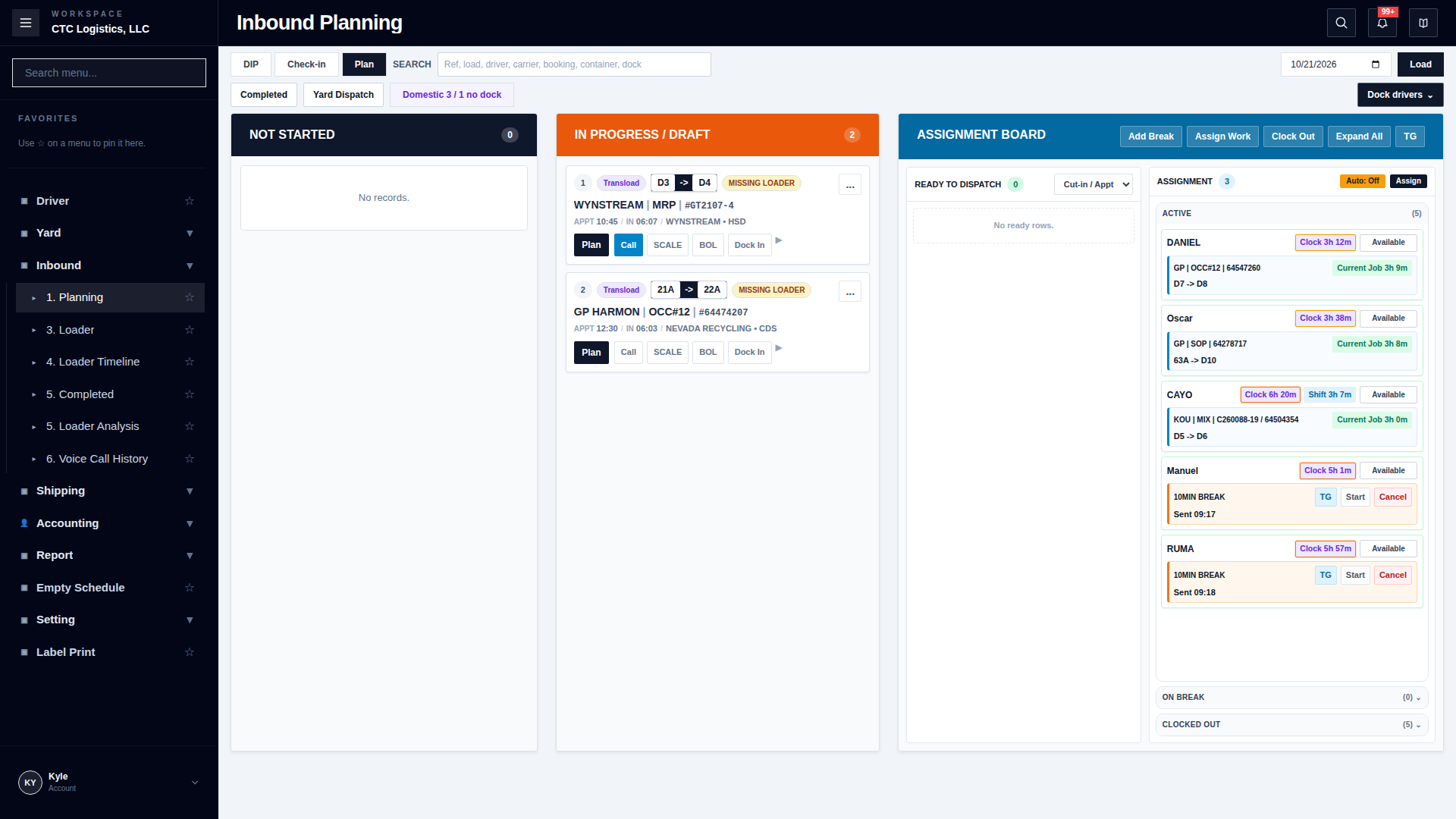
Steps
1. Load the workday
Open the board, set the operating date, click Load, and confirm the lane counts updated.
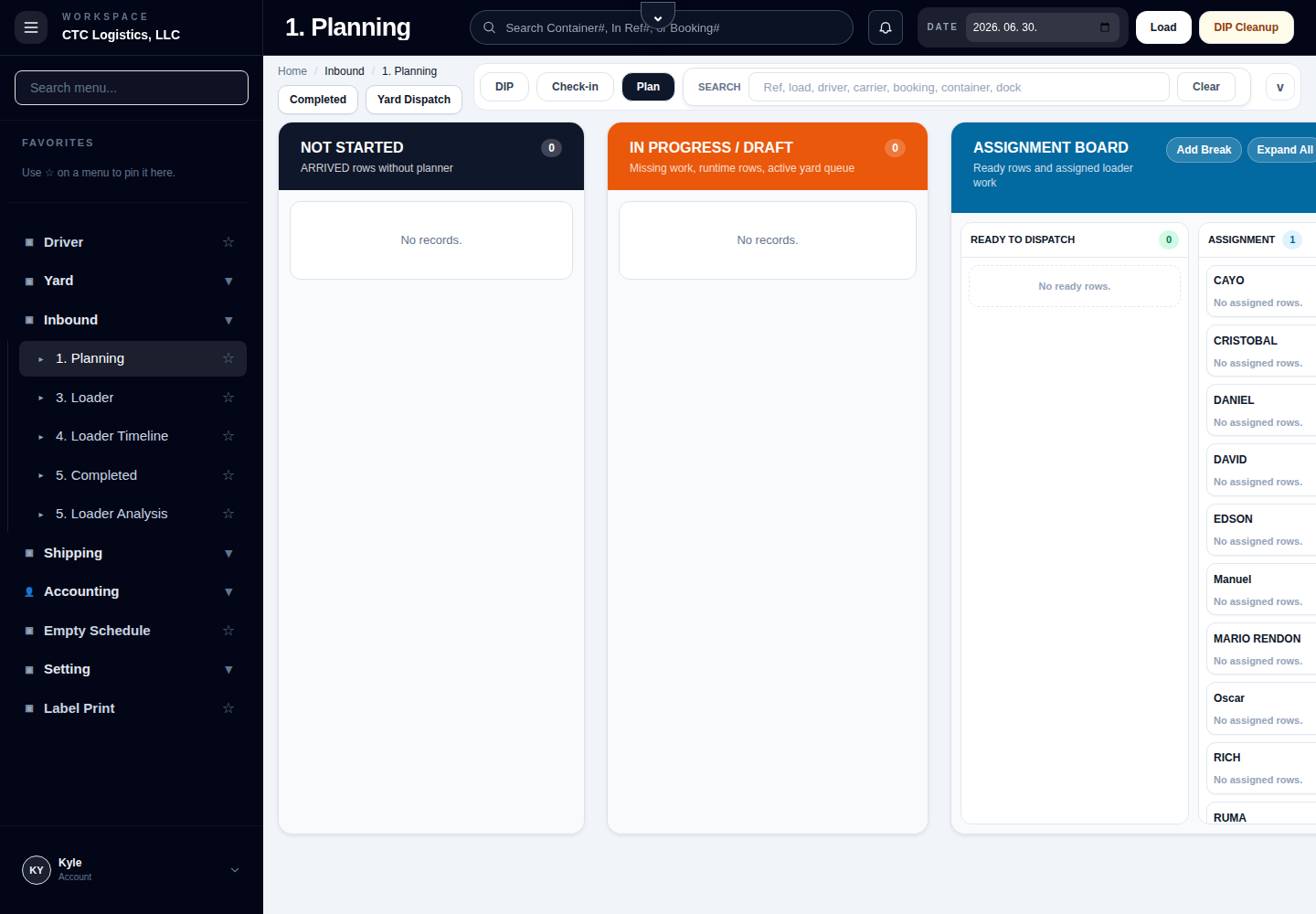
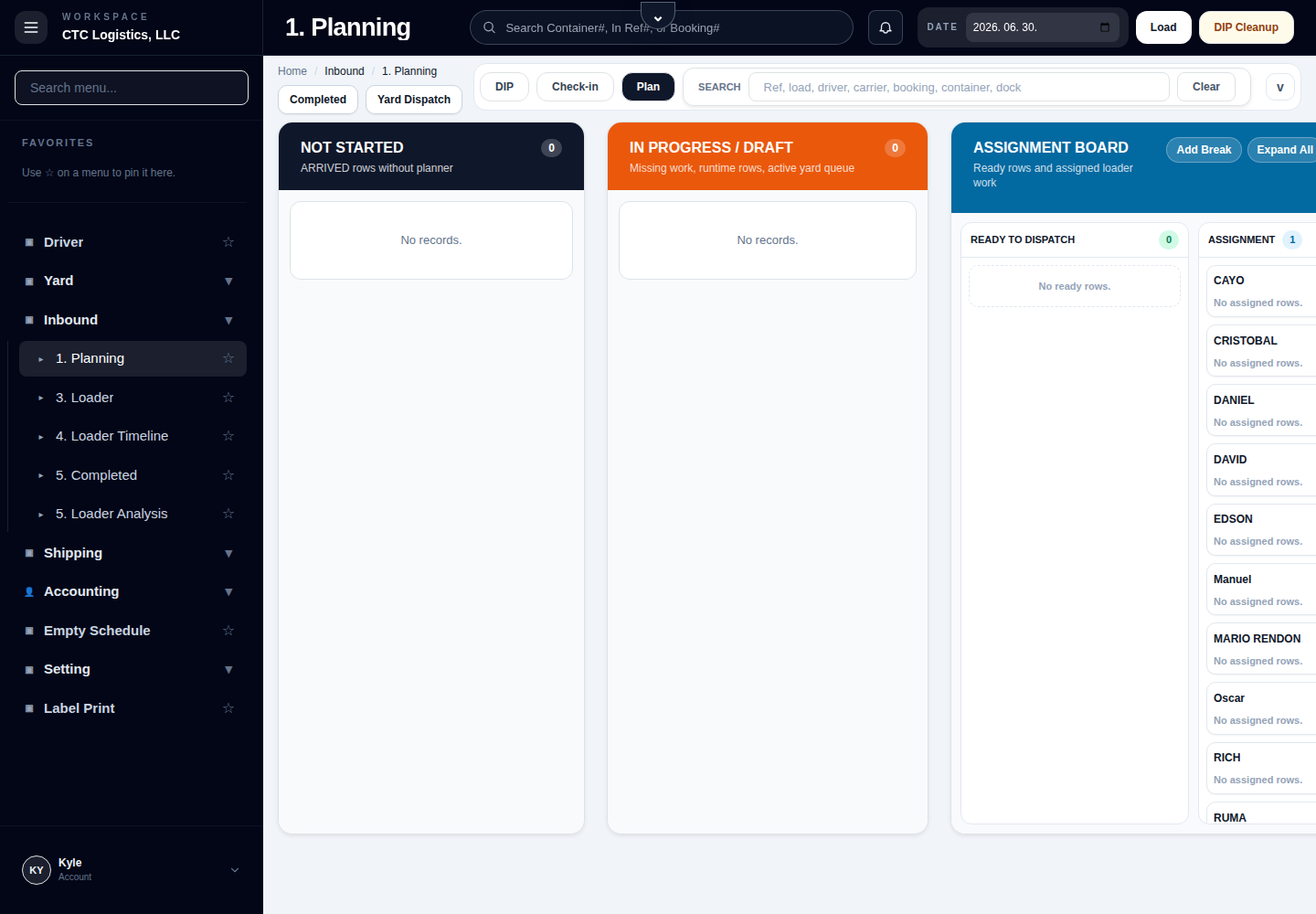
An empty lane can be normal. Use search only after the board has loaded, and clear the search before assuming a row is missing.
2. Review the morning dock-in pool (DIP tab)
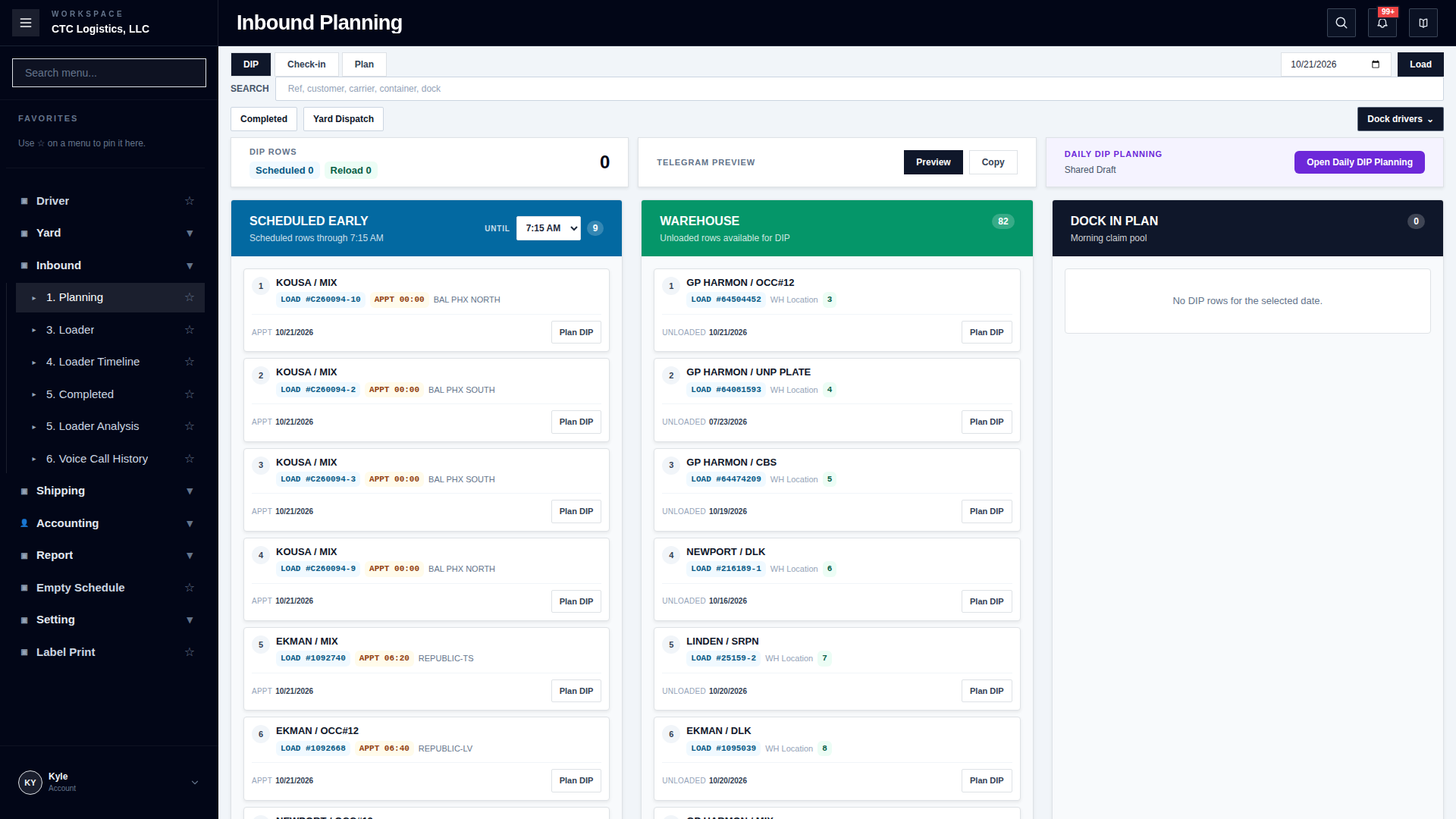
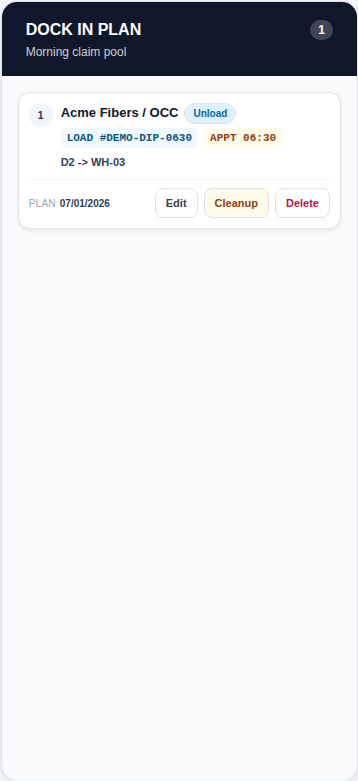
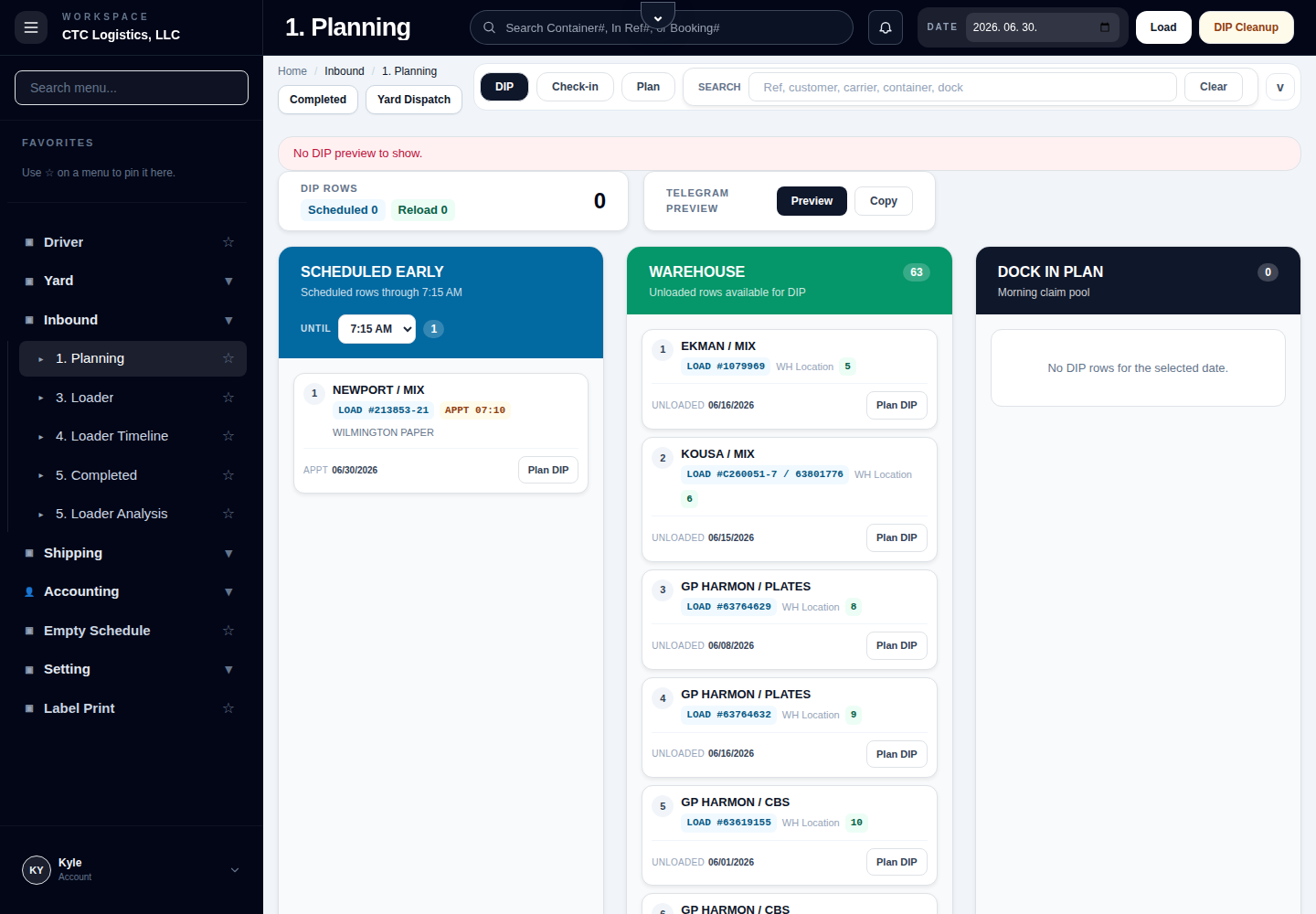
Three columns: SCHEDULED EARLY (appointments up to the cutoff), WAREHOUSE (unloaded rows available for reload), DOCK IN PLAN (already chosen).
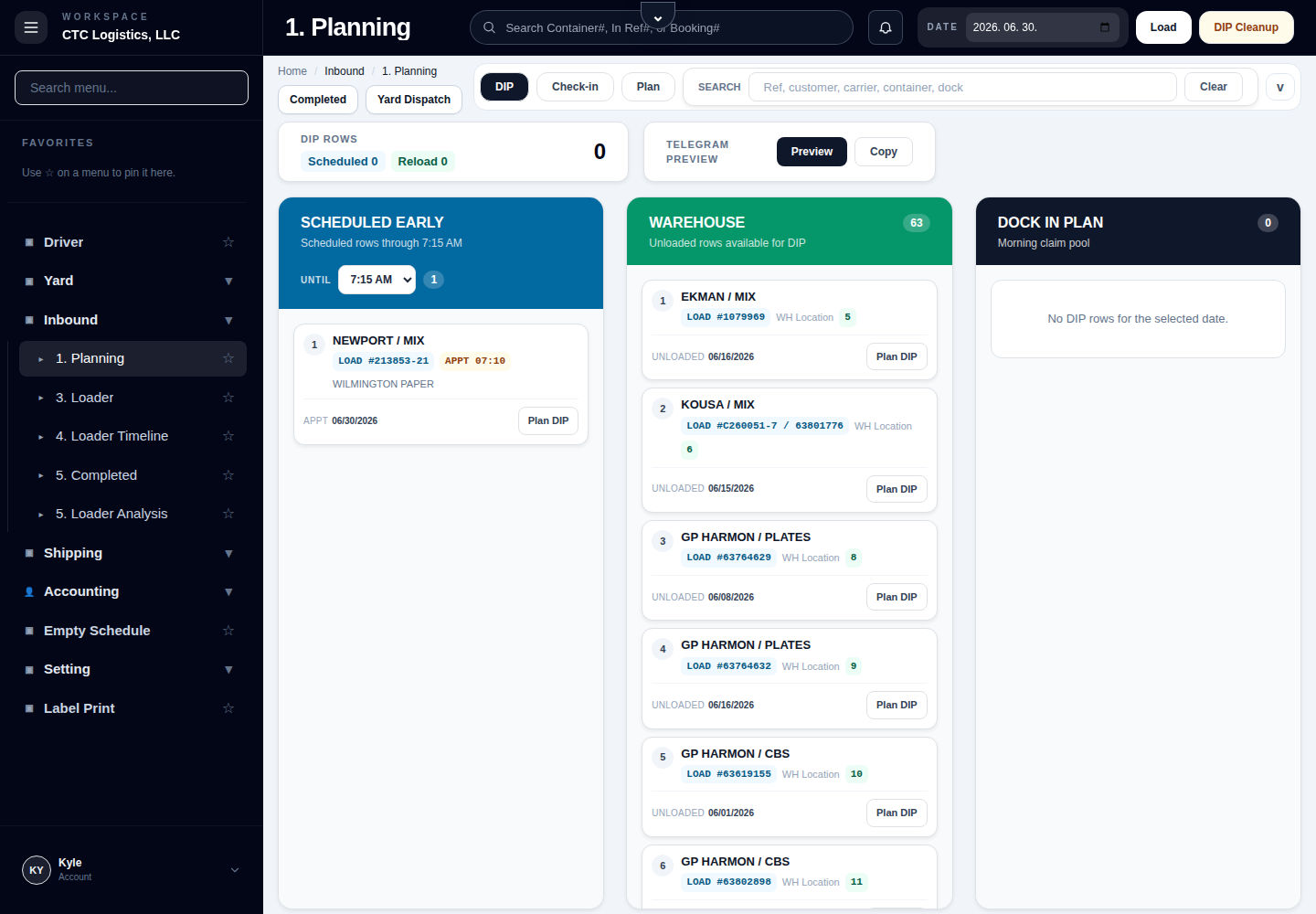
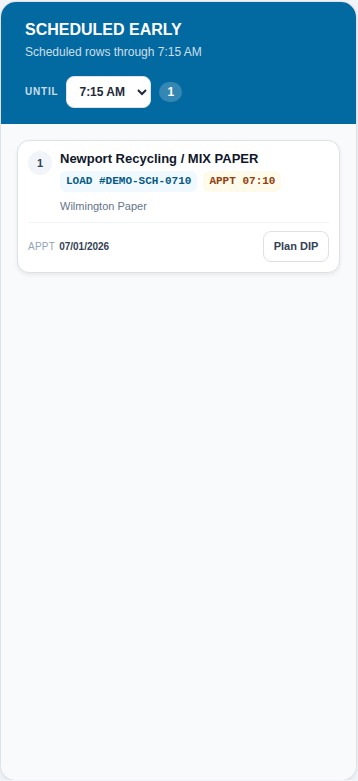
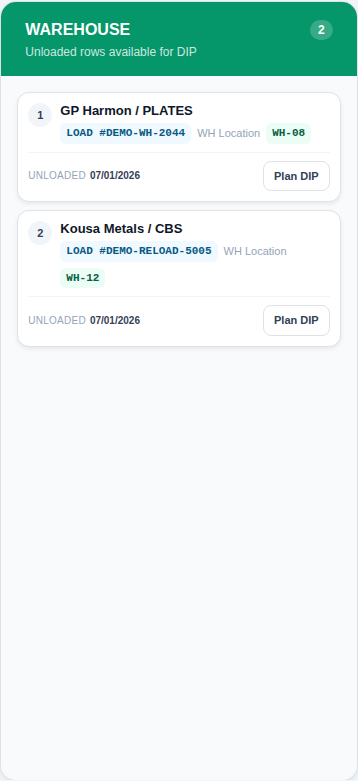
- Change Until to move the early cutoff.
- Choose Plan DIP on a card to add it to the pool. Confirm the dock, source, destination and loading
type, save, and verify the card moved to DOCK IN PLAN.
 - If
- If Planner saved, but failed to move to planned status appears, **refresh and reopen the same
planner. Do not create a second plan.** - To correct a row already in DOCK IN PLAN: Edit changes the dock or destination; Delete Plan cancels a plan that has not started (a normal row returns to arrived, a reloaded one to unloaded, and unclaimed yard work is cancelled — it can be refused once the queue is claimed). - Use Preview then Copy when the pool is ready. These do not send anything — they only render or copy the text.
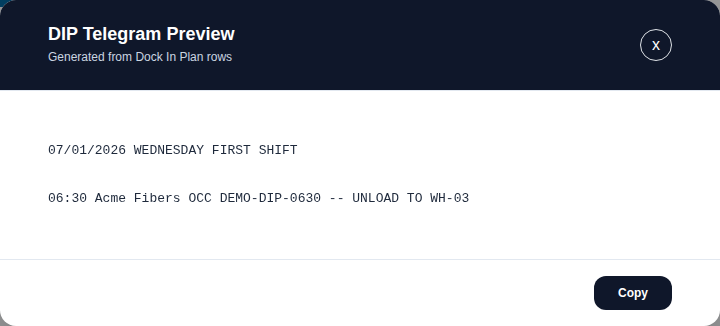
The DIP pool coordinates the morning. It does not complete any job.
3. Check in scheduled work (Check-in tab)
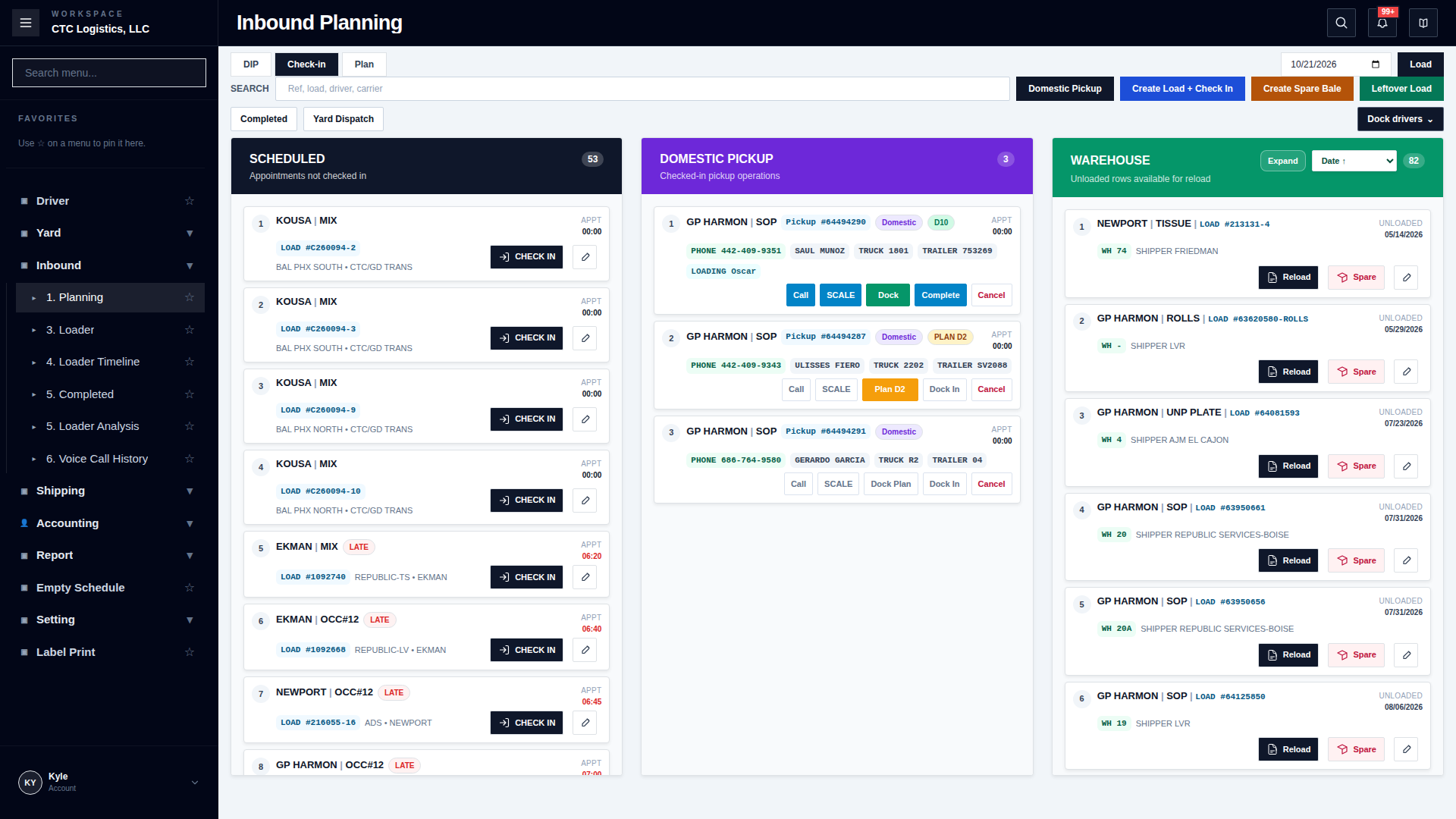
| Lane | Meaning |
|---|---|
| SCHEDULED | An appointment exists but the load has not checked in |
| DOMESTIC PICKUP | Active domestic pickup operations |
| WAREHOUSE | Unloaded rows available for reload or spare |
Find the scheduled card, confirm reference, carrier, driver, commodity and appointment, then use the check-in action once the load has actually arrived. It then moves into planning.
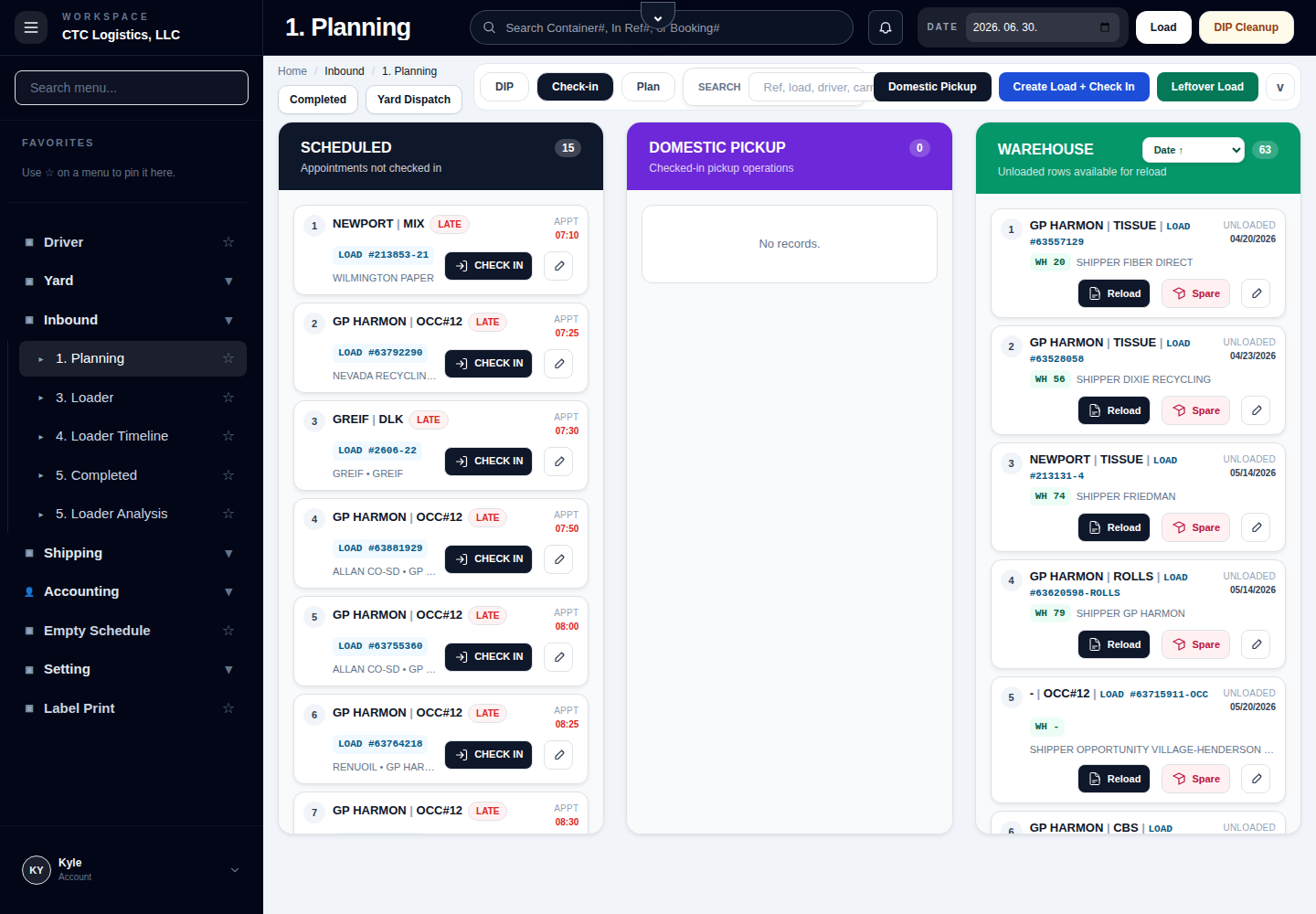
Do not check a load in before physical arrival is confirmed.
Two special rows, only when the work is not already a scheduled appointment: - Create Load + Check In — a regular load, checked in at once
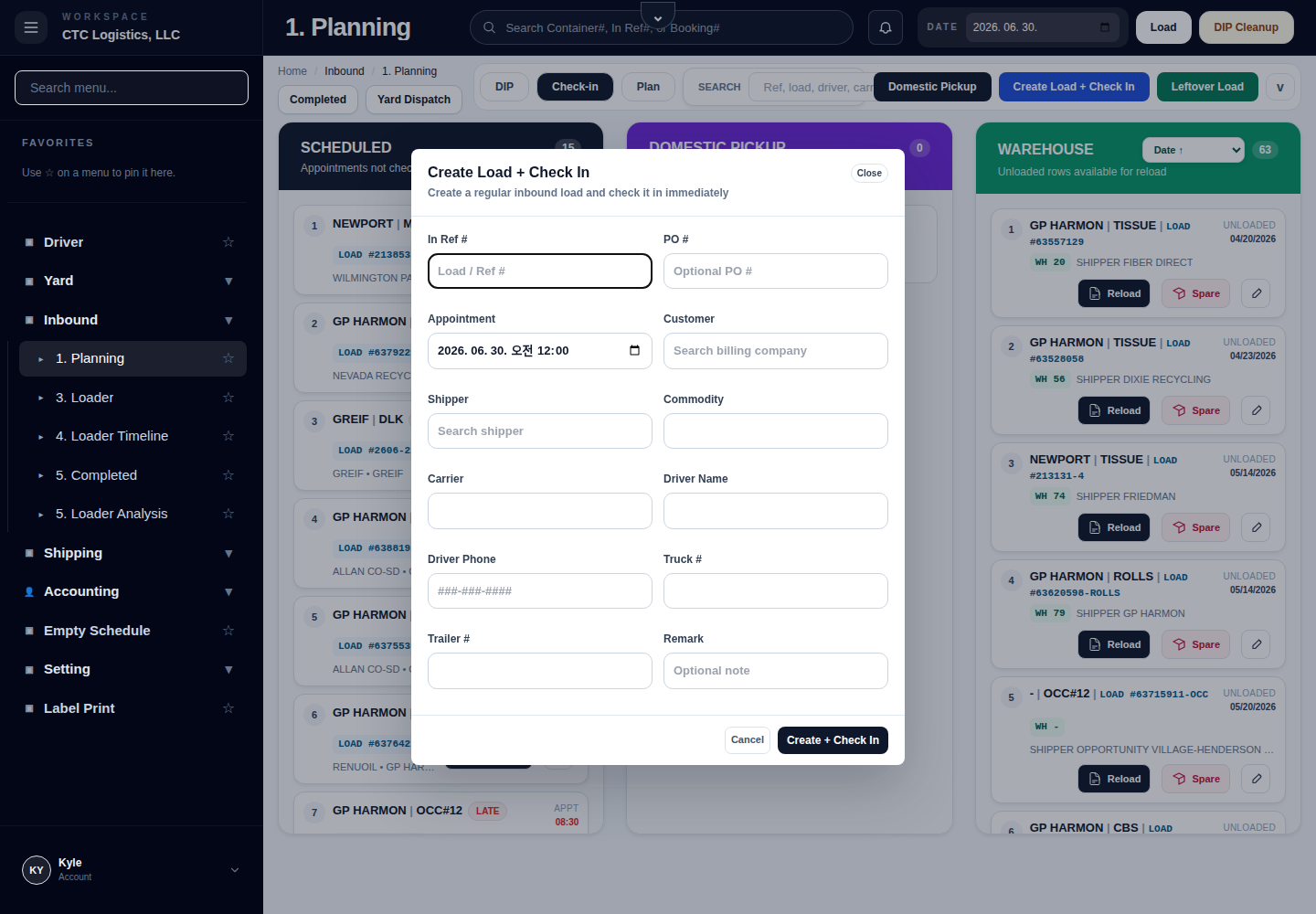 - Leftover Load — an unloaded warehouse load for reload planning (not for a normal appointment)
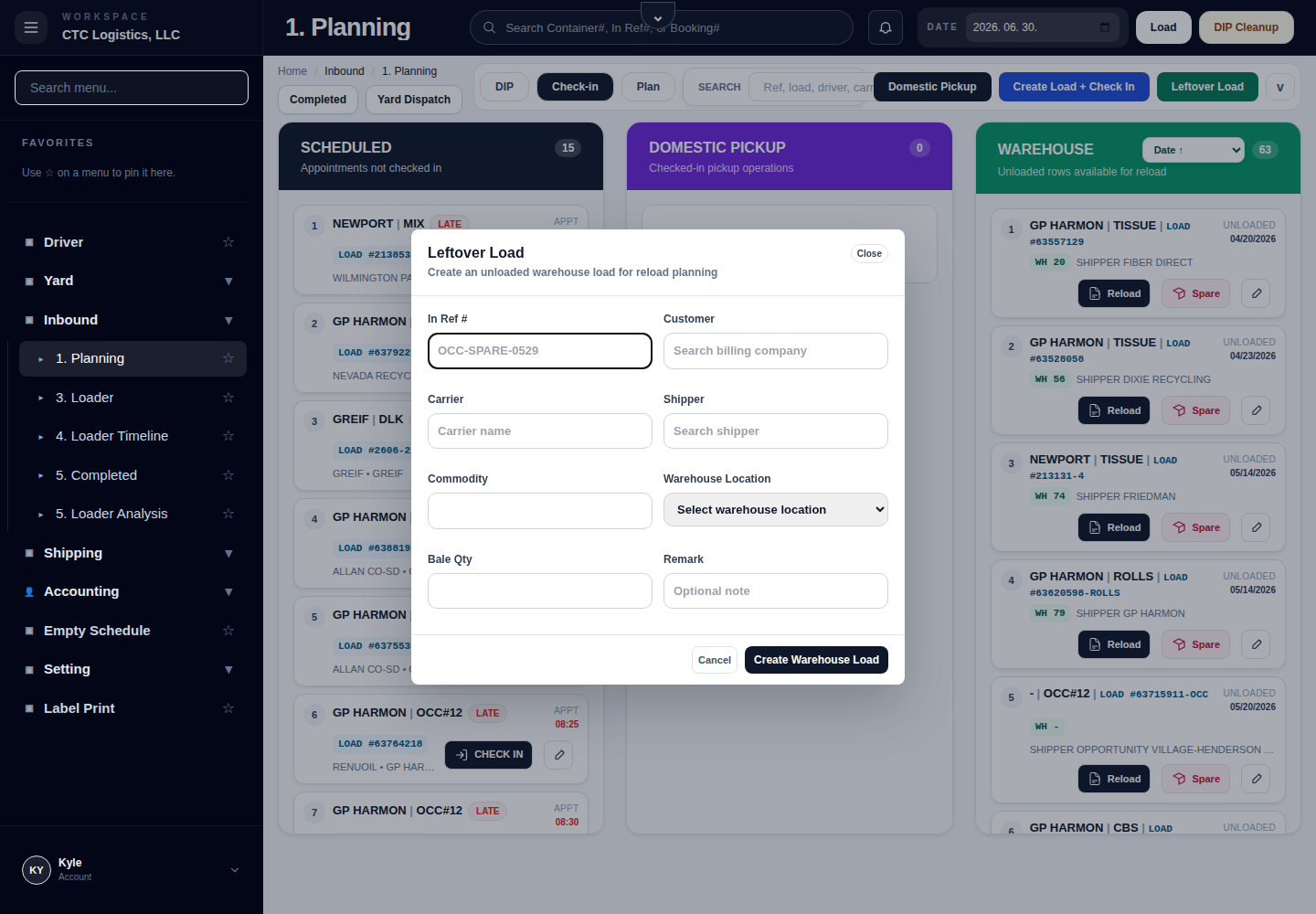
4. Plan the work (Plan tab)
| Lane | Meaning | What you do |
|---|---|---|
| NOT STARTED | Checked in, no active planner | Choose Plan, fill the dock, equipment, booking, loading type, source and destination |
| IN PROGRESS / DRAFT | A plan is open, work is underway, or fields are missing | Edit the fields, or Delete Plan if it was a mistake and has not started |
| READY TO DISPATCH | Required fields are complete | Assign it from the Assignment Board |
Choose the load type first — Transload, Domestic or Unload — its sections open immediately. You may save a draft before every field is known; Save Plan stores a draft, it does not mean the load is ready. Submit or Apply is only available when the operational requirements are met.
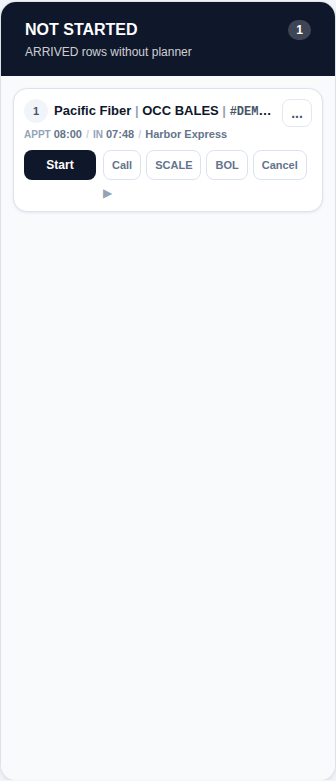
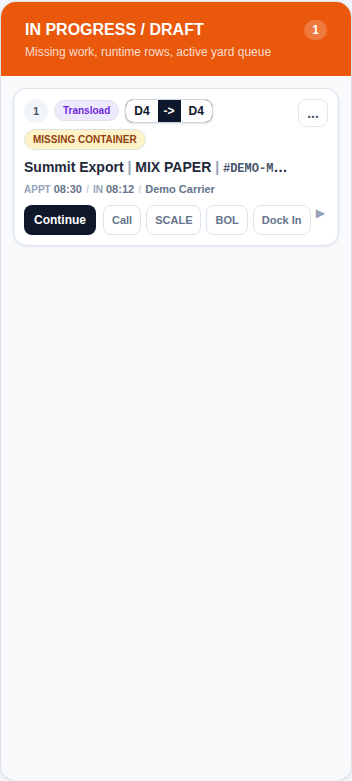
Do not assign a row until the plan reflects the real dock, equipment, booking and warehouse requirements. A missing booking, container, pickup, dock or warehouse spot must be fixed first.
5. Assign ready jobs
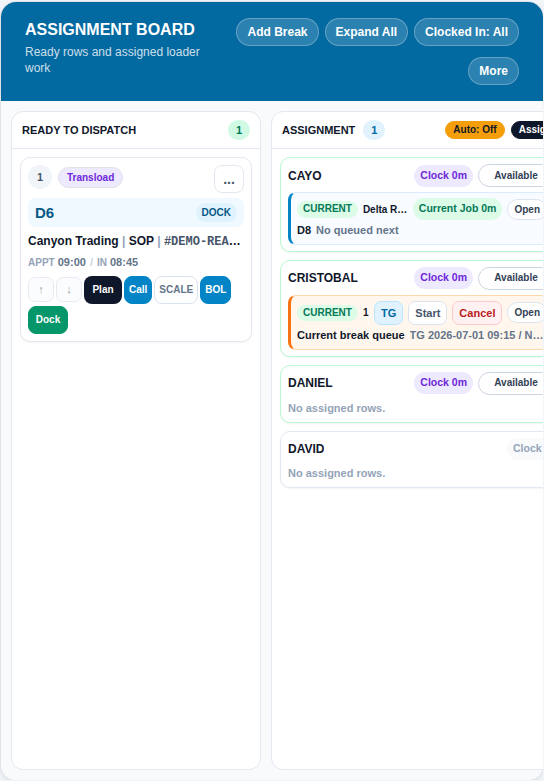
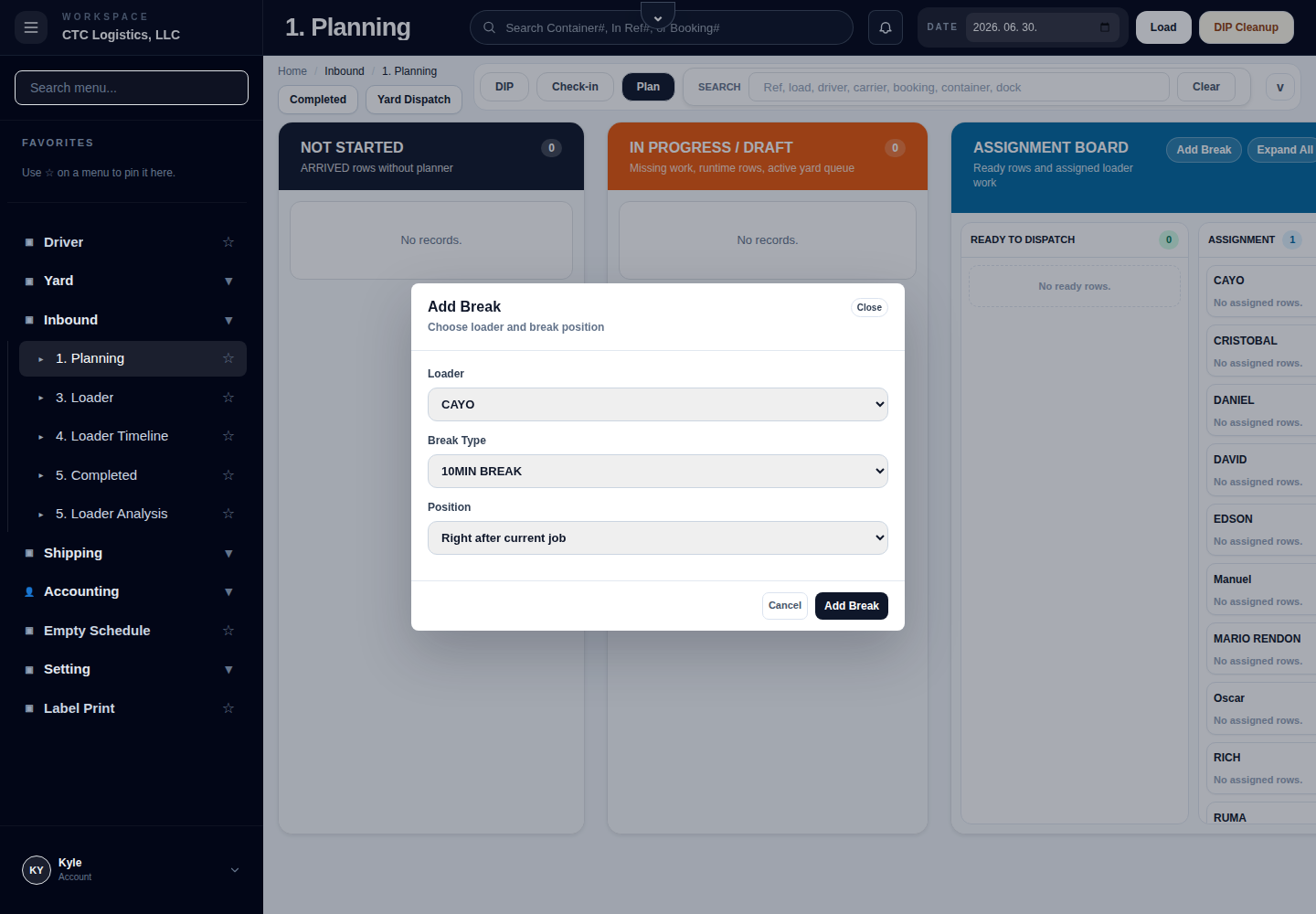
Trade terms you will hear. An ASN (Advance Shipping Notice) tells the terminal what is coming so it can be received. Bookings have a cut-off; after it, the load waits and may attract demurrage. See the Glossary.
If something goes wrong
| What you see | What to do |
|---|---|
| A row seems missing | Clear the search and load again before reporting it missing |
| Planner saved but not moved to planned | Refresh and reopen the same planner. Do not create a second plan |
| Delete Plan refused | The queue is claimed or timing exists. It is not a mistake you can force |
| A missing status on a card | Fix it before assigning. Read the status on the card |
What good looks like
- Every ready row reflects the real dock, equipment and booking.
- The dock-in pool matches what is physically arriving.
- Every assigned job has a named loader.
Related
- Dispatch — all your tasks
- Inbound Assignment Board
- Inbound Loader — where the work is done
- Something's Wrong