Inbound Loader
Purpose
Clock in, start your assigned job once, record the evidence, and complete it. This is the whole operator day on one screen.
Who does this
Forklift Operator.
When you need this
You have loader jobs assigned, and you are working them.
Before you start
| You need | Why |
|---|---|
| Your own operator account | Another account shows the wrong jobs and breaks the record of who did what |
| The operating date set correctly | You will look at the wrong day's work |
| Your job assigned to you | If it is not there, do not take it — see Permissions and Access |
| A clear search filter | A stale filter hides your work |
Start and Complete are one-time actions. Pressing either twice is the most common way this screen causes trouble.
Access
Inbound → 3. Loader
Screen
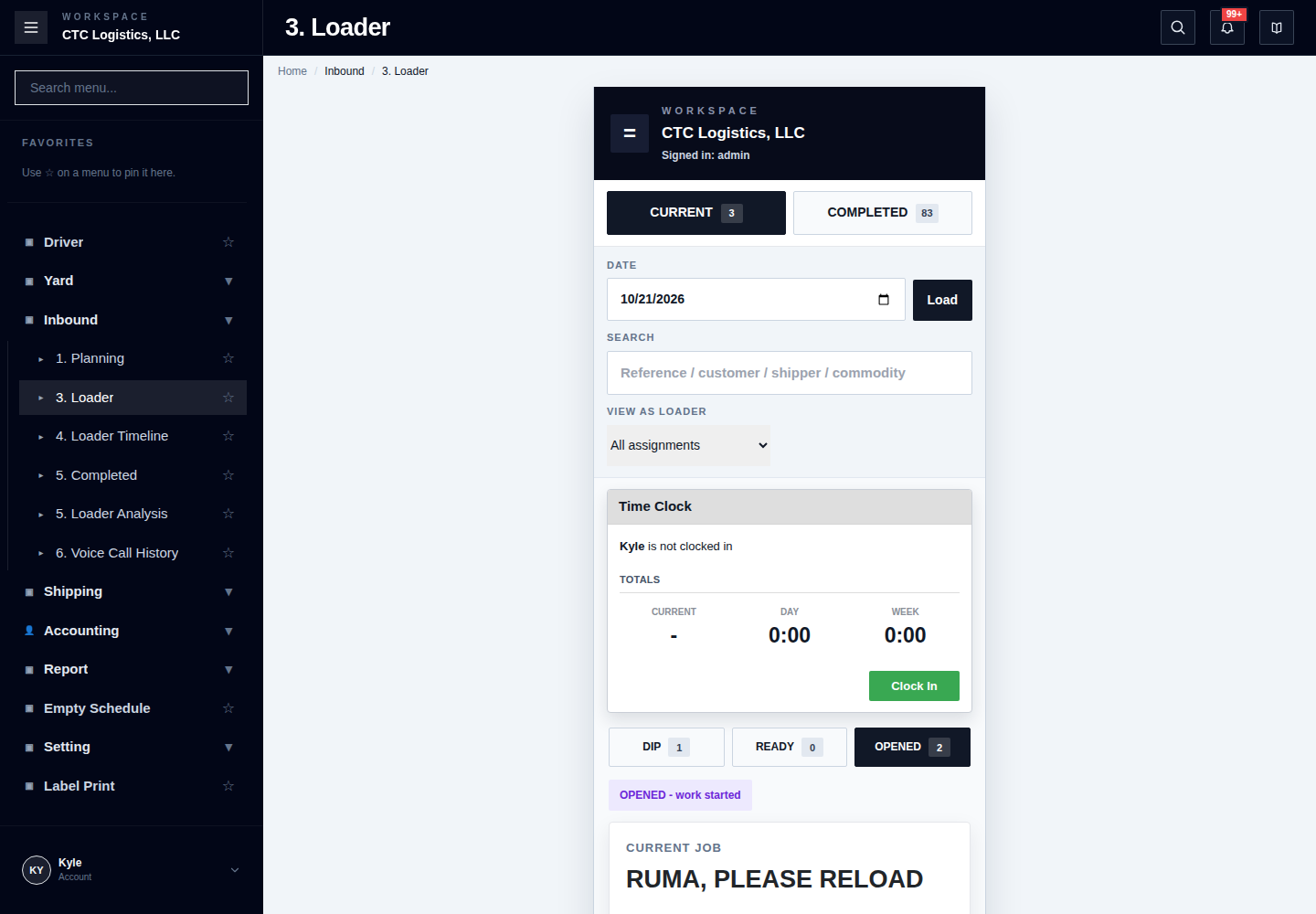
Steps
1. Start your shift
- Confirm the username at the top is you.
- Confirm the operating date.
- Refresh the job list and clear any search filter.
- Check the time clock panel. If you are not clocked in, click Clock In, once.
Clocking in first is the required sequence, even though the screen does not enforce it. If a job was started with no clock event, do not start another job to compensate — report it.
2. Take your break when it comes
A queued break appears in the time clock panel when it is your turn. Choose Start Break or Start Lunch, once. The panel shows the elapsed time while it is open.
Never start a second break because a message failed to send.
3. Confirm the job
- Find your row under Ready.
- Before starting, confirm the dock or warehouse location and the type of work shown on the card.
- For a dock-in-pool row, use Check In and Dock In only when the physical arrival and dock actually match the card.
A dock-in-pool row is a claim — whoever starts it is recorded as the actor. Non-pool cards are filtered to your own assignment. Never use a shared account.
If a job you expect is missing, check the date, your account and the filters before reporting it.
4. Start the work — once
Transload or reload: click Start Job, select the actual loading container if prompted, confirm the row moves to In Progress.
Unload: click Start Job, confirm the bale quantity if you know it, enter the actual warehouse location, then click Confirm & Start.
If Start times out or looks unclear, refresh. Do not press it again — a repeat can fail even though the first press already worked.
5. Record the evidence and complete
Transload or reload: 1. Upload at least five loading photos to the same job. 2. Open Complete Job. 3. Confirm the initial bale count. 4. Choose Added, Leftover or No Change and enter what the form asks. 5. Confirm the calculated final bale count matches the physical result. 6. Enter the final seal number and confirm the loading equipment or container. 7. For a reload, review the stock source choice. 8. Click Submit Complete, once.
Unload: 1. Open Complete Unload. 2. Enter the final bale quantity and the actual warehouse location. 3. Use Submit Complete for the normal path. 4. Use Complete + Space Review only when office needs to review the placement footprint. 5. Submit once and confirm the result.
6. Clock out at the end of your shift
Finish or hand over any active work, close any open break, then click Clock Out, once.
A time-sync warning does not erase your clock event. Report it — do not clock in again.
If something goes wrong
| What you see | What to do |
|---|---|
| Start timed out | Refresh. Do not start again. |
| Complete failed but the photo is there | The photo already saved. Refresh and retry only the complete |
| The completion message failed to send | Keep the completed job and send the report yourself. Do not complete again |
| A job is missing | Check date, account and filters. If still missing, report it — do not take someone else's |
| You started a job but it was wrong | Stop, record the reference, and use Undo as a controlled exception |
| Undo says "moved back to Ready" but the job shows Resume Job | Undo did not fully roll back. Report it — do not start again |
What good looks like
- The job reads Completed, with the terminal time on it.
- The photo count, the bale reconciliation and the seal are all filled in.
- Your clock shows you started and finished with no unexplained gap.
- If anything was carried, it was written down with a name against it.
Screens used
Inbound > 3. Loader— this screen
Related
- Forklift Operator — all your tasks
- Giving a Loader a Job and a Break
- Something's Wrong — find your symptom
- Loader Timeline and Completed Work