Inbound Assignment Board
Purpose
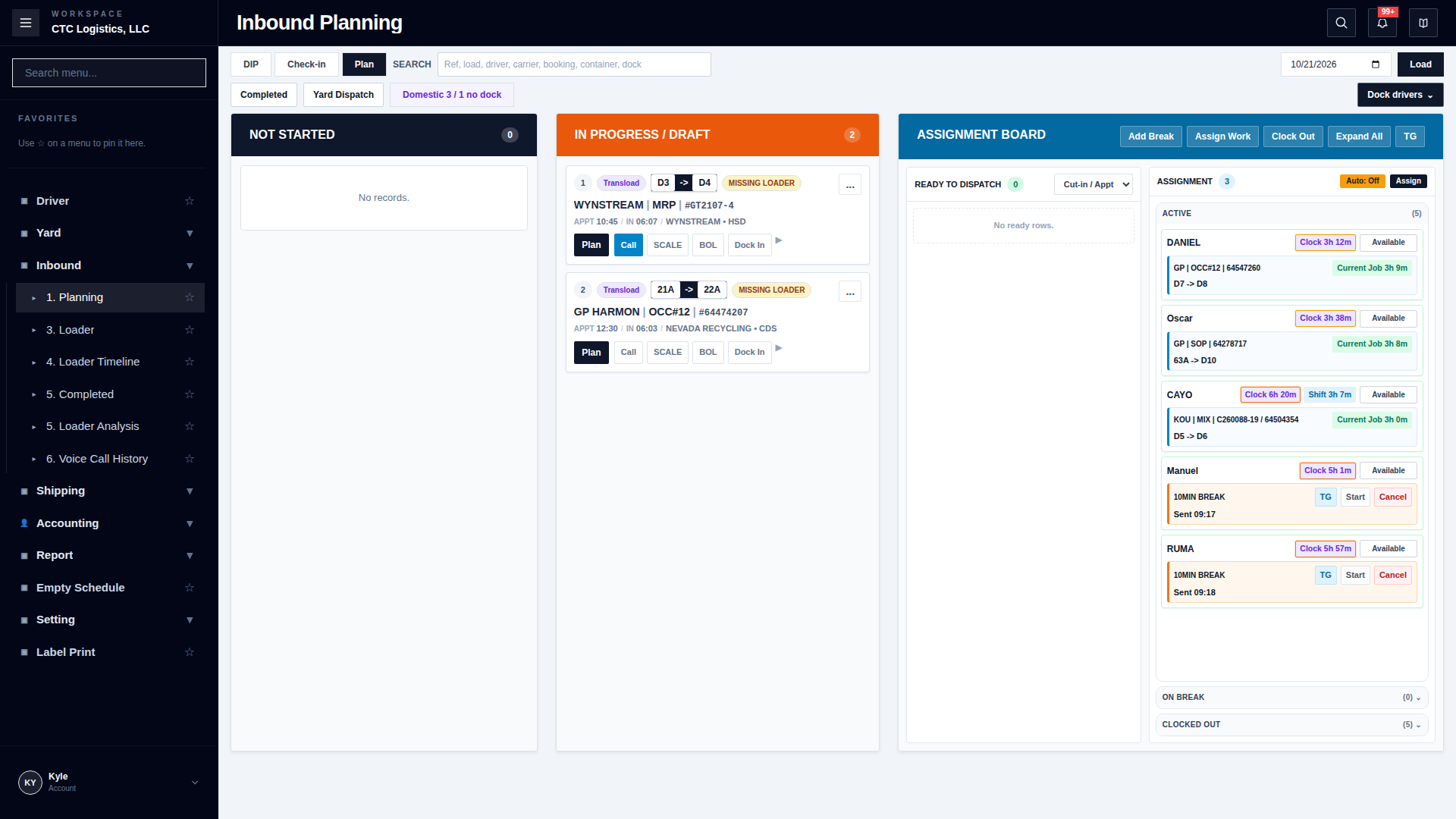
The Assignment Board sits on the right of the plan board. It is where office gives a ready job to a named loader, and where a loader's break is queued.
Who does this
Office and Dispatch.
When you need this
When a ready job must go to a named loader.
Before you start
- You have the right account for this screen (see Permissions and Access).
- The date and record you are working on are correct.
- Words you do not know are in the Glossary.
Access
Inbound → 1. Planning, then the ASSIGNMENT BOARD on the right of the Plan tab
Screen
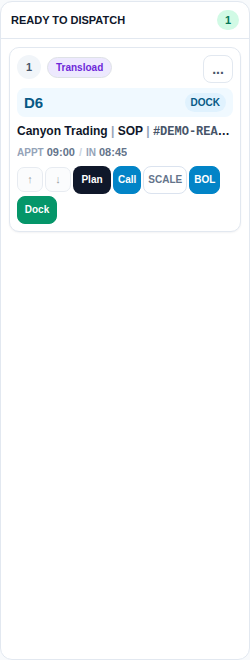
Main Features
Assign a Ready Job
- Review READY TO DISPATCH.
- Confirm the row really is the next job that should go out.
- Assign it to the correct loader's queue.
- Confirm the notification behaviour if prompted, or if the board is set to send automatically.
- After assigning, the job appears under that loader in the ASSIGNMENT list.
Queue a Loader Break
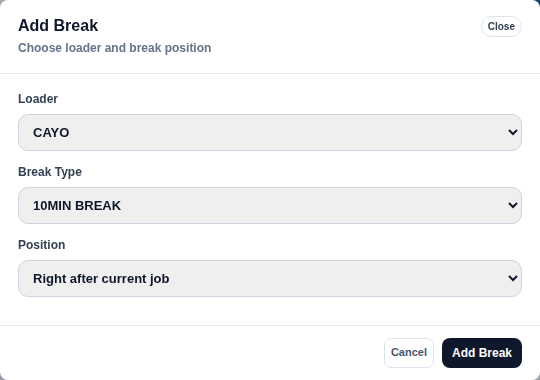
Choose Add Break, then:
- Select the correct loader.
- Select the correct break type.
- Confirm the start time and duration.
- Use the send options according to the current office process.
A queued break changes which job goes out next. If a break was entered wrongly, edit or cancel it from the assignment queue.
Fields
| Control | What it means |
|---|---|
| READY TO DISPATCH | The list of jobs that can be assigned |
| Clocked In: All | Filters which loaders are visible |
| Auto TG | Whether the browser attempts a notification automatically |
| TG | Sends the notification for that specific row |
| Add Break | Queues a break or lunch |
Status
| Shown | Meaning |
|---|---|
| Assigned | The job is in that loader's queue |
| Auto TG: ON | An automatic notification will be attempted |
| Auto: Off | Automatic assignment is not actively assigning until changed or run manually |
Auto TG: ON does not guarantee anything was sent. It attempts a notification only when the row is eligible, is first in the queue, and the loader is idle. It is not proof of delivery.
Notes
- Save stores the plan and the assignment. It does not mean the notification was sent. Sending is a separate step.
- Confirm the loader and the dock before sending.
- Never use another person's or a shared account. The loader must be a real stored user.
- A loader's own clock state and physical readiness belong to the loader screen, not here.
When Something Goes Wrong
| You see | What it means | What to do |
|---|---|---|
Assigned, but automatic notification send failed |
The assignment saved; the message did not | Keep the assignment and use that row's TG action. Do not assign it again |
| A notification failed after a break was saved | The break saved; the message did not | Keep the break and use its TG action. Do not create a duplicate break |
| A job will not assign | It probably still shows a missing status, or the loader is not clocked in | Fix the plan first, or check the loader's clock state |
| The wrong loader got the job | It was assigned before the clock or readiness check | Edit or cancel it from the assignment queue, then reassign deliberately |
Assign Work and Clock Out
The Assignment Board includes Assign Work and Clock Out beside Add Break. Select the intended loader and review the assignment before confirming.
Related
- Inbound Planning — where jobs become ready
- Inbound Loader — where the work is done
- Loader Timeline and Completed Work