Working a Delivery
Purpose
Check in, run your assigned deliveries, record the evidence, and check out. This is the whole driver day on one screen.
Who does this
Truck Operator.
When you need this
You have deliveries assigned and you are driving them.
Before you start
| You need | Why |
|---|---|
| Your own driver account | Another account shows the wrong jobs and breaks the record of who drove |
| The physical unit checked against the card | Acting on the wrong unit is worse than being late |
| A clear photo queue | An uncertain upload can duplicate evidence |
A green message, or a card that reads Complete, does not prove the yard work or the parking step is finished. Those are separate.
Access
Driver
Screen
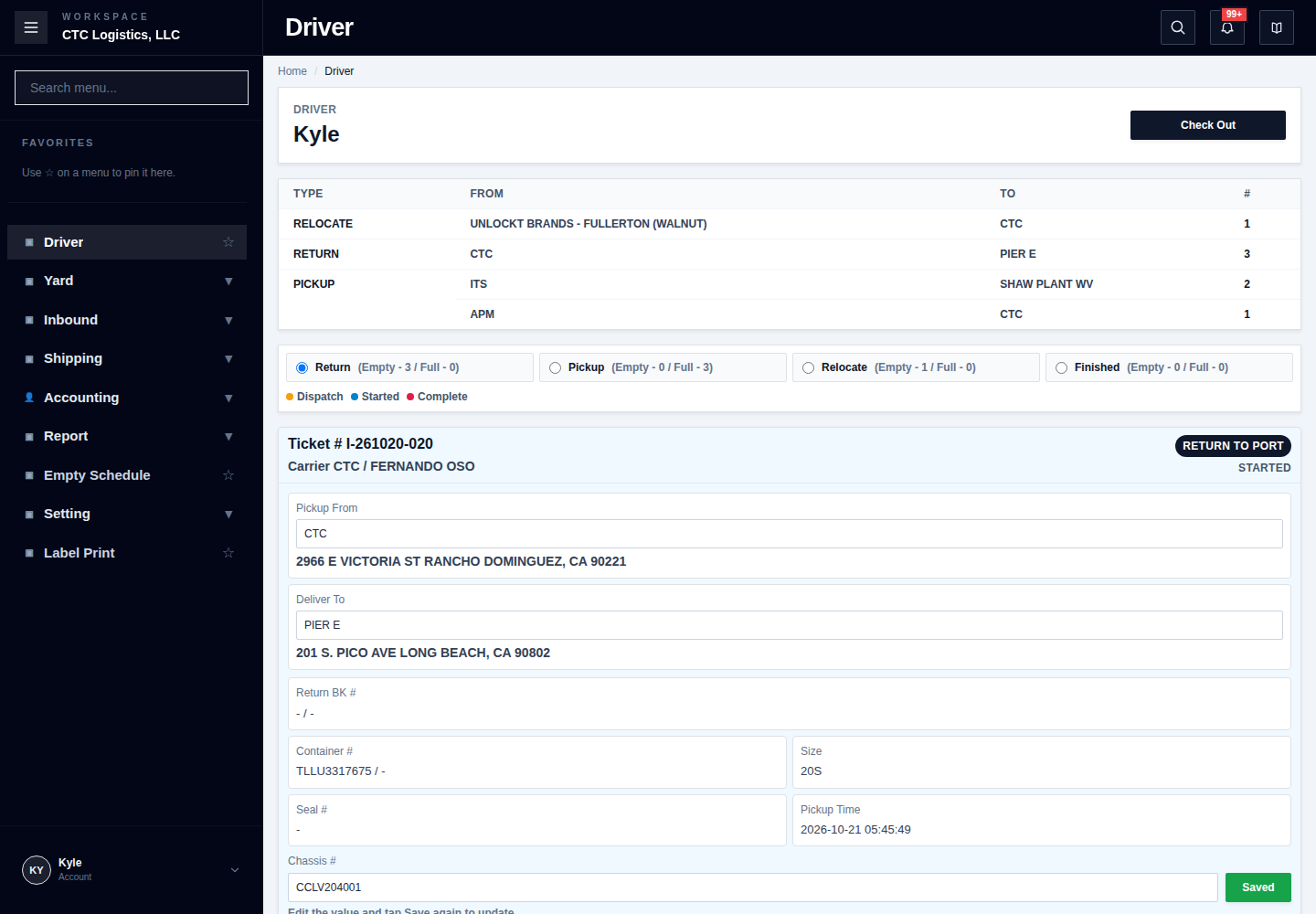
Steps
1. Check whose work this is
Look at the name at the top and compare it with the delivery cards. Confirm the assigned ticket, the from and to, the freight type, the container and the chassis — and that the physical unit matches the card.
If you can see another driver's work, or a card is unexpectedly unlocked, stop and report the account and the ticket. Never act on a card merely because its buttons are enabled.
2. Check in
- Select Check In.
- Verify the date and start time, and enter the actual truck number, starting mileage and remark.
- Record the actual inspection findings — condition, engine, in-cab, exterior. Do not select all unless every item is genuinely fine.
- Submit once, then confirm your cards become enabled.
If the check-in result is unclear, refresh the driver log first. Do not submit a second check-in until you have confirmed no log was created.
3. Save the delivery details
- Pickup From and Deliver To save the moment you change them.
- Container number, chassis number and Remark need Save or Enter.
- If the ticket or equipment is no longer found, stop and give office the ticket number and the equipment identifier.
4. Start a scheduled delivery
Recheck the ticket, the physical unit, the from and to, then select Start, once.
If the container is leaving our yard, Start is blocked while a yard move still owns it. Wait for office, then refresh. Starting can clear the yard spot and change the delivery in two separate steps — if it fails, report both the card and the yard state. Do not move it again blindly.
5. Take the photos
Use Photo to upload delivery evidence. When the finish asks for one, an ingate photo must be visible before you submit.
The photo saves before the delivery completes. If the finish then fails, keep the photo and refresh. Do not upload it again.
6. Send an arrival notice (yard deliveries)
Send the notice for deliveries to our own yard. Office may mark it assigned, hold outside, or dismissed.
"Assigned" is not a parking place. Wait for an actual instruction.
Send your current location only when asked. It is a single ping, not tracking, and does not change the delivery's status.
7. Finish
At a customer: select Finish, upload the requested photo, submit once, then confirm the card reads Complete and the time is on it.
At our yard: select Finish, satisfy the photo prompt, then choose the actual yard location. - If the target is empty, the container moves first and the delivery completes second. If the second step fails, the map may already show the unit while your card still says Started. Refresh; do not repeat the move. - If the target is occupied, confirm first. The delivery becomes Complete and the placement is queued. That means the delivery leg ended, not that the container was placed.
8. Park back at our yard (if offered)
- You select Request Parking, once.
- Office assigns a spot, or an area and lane.
- You wait, follow the instruction, and select Confirm Parked. If given an area, enter the exact spot.
- Complete the photo prompt and submit once.
- Refresh the parking status, the delivery status, the map and the queue.
Confirming parking and completing the delivery are separate. If parking is confirmed but the delivery still says Started, do not confirm parking again.
9. Report a problem, or undo
Use Trouble when the delivery cannot safely continue, recording the ticket, the location, a photo and the exact error.
Undo returns a delivered or troubled card to Started and clears the time — but it is not a full reversal. Office must compare the equipment, the yard and the photos.
10. Check out
Verify your completed tickets and any pending yard or parking hand-off. Enter the finish time, submit once, and confirm the screen returns to Check In and your cards lock.
Deleting a driver log is an exceptional correction of a wrongly created log — not the normal way to end a day.
If something goes wrong
| What you see | What to do |
|---|---|
| Check-in timed out | Refresh the driver log. Do not submit a second |
| Start timed out | Refresh. Do not start again |
| Finish failed but the photo is there | Keep the photo, refresh, retry only the finish |
| Parking confirmed, delivery still Started | Verify the yard. Complete only the delivery status |
| Undo used, things still look wrong | Undo is not a full reversal. Report it with the delivery, equipment and yard state |
What good looks like
- Every completed ticket shows a delivery time and the required photo.
- Your clock shows you started and finished with no unexplained gap.
- Any yard or parking hand-off was either completed or handed to office by name.
- Nothing was carried silently.
Screens used
Driver— this screen
Related
- Truck Operator — all your tasks
- Handing Work from the Yard to a Driver
- Something's Wrong
- Moving Equipment Around the Yard
Notes
Trade terms you will hear. Your delivery may be the POD (Proof of Delivery) the customer is waiting on. A container held too long outside the terminal attracts detention. See the Glossary.