Loader and Yard Execution
Purpose
What each role does with the same job once it has been planned — office and dispatch, the forklift operator, the yard truck driver, the driver, the label printer, and the administrator.
Before you start
- You have the right account for this screen (see Permissions and Access).
- The date and record you are working on are correct.
- Words you do not know are in the Glossary.
Access
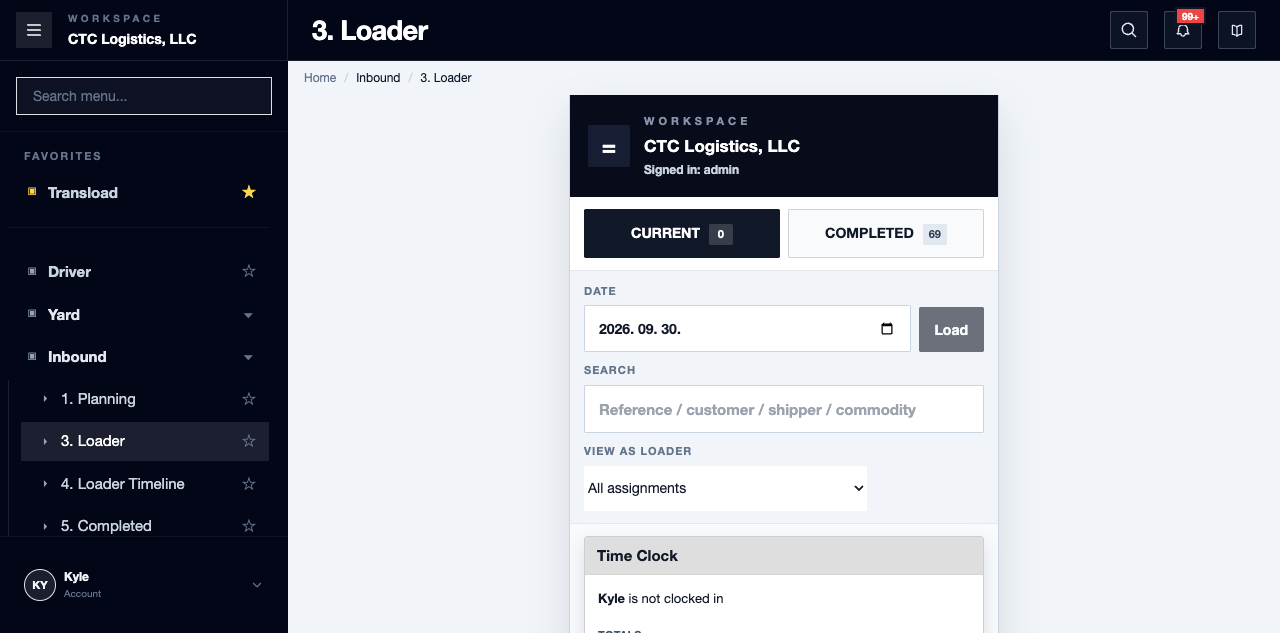
Inbound > 1. Planning · Inbound > 3. Loader · Yard > Yard Instruction · Driver ·
Label Print
Screen
Steps
Office and Dispatch
- Review the day from the Export Dashboard.
- Confirm the freight, customer, container, booking, delivery and document details on the appointment or list views.
- Use
Inbound > 1. Planningfor check-in, dock and warehouse planning, and work ready to dispatch. - Use the Assignment Board inside
Inbound > 1. Planningto sequence loader jobs. The old standalone Assignment Board is no longer the entry point. - Use the Yard Map or Yard Dispatch when a move, reservation, release or instruction is needed.
- Review payables, receivables, rates and reports once the work is far enough along to bill.
Forklift Operator
- Open
Inbound > 3. Loaderand clock in if the time controls are there. - Start the assigned job before relying on the full work details.
- Complete the loading, unloading, transload, reload or spare work, with the required quantities, weights, seal, location and photos when prompted.
- Confirm the completion summary before leaving the job.
Yard Truck Driver
- Open
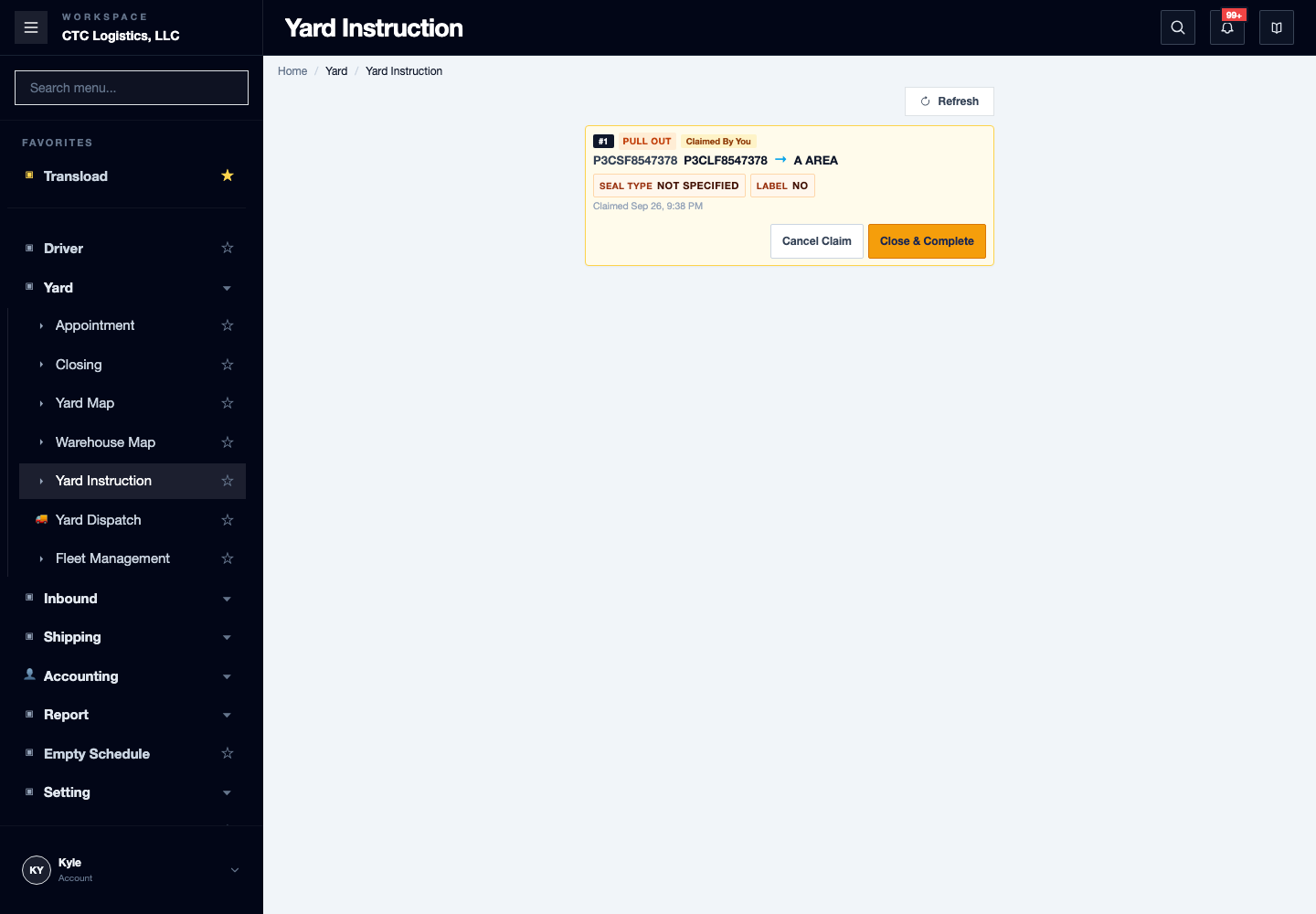
Yard > Yard Instruction. - Refresh, confirm the item is still at the From spot, then claim one scheduled instruction.
- Move only the item you claimed, choose the exact actual spot for area and lane work, and complete it once.
- For a pull-out, use
Close & Completeand submit the yard closing once — report a partial error rather than repeating the whole form. - Ask office or dispatch to verify the completed instruction and the yard map.
Driver
- Open
Driver, confirm your own identity, and check in before using an assigned row. - Confirm the ticket, the physical unit and the from and to; save the actual equipment, remark and photo evidence.
- Start once, follow the applicable finish path, then reread everything you committed.
- Check out only after the completed and outstanding hand-offs have been reviewed.
Label Printer
- Open
Label Print, search, and open the intended load. - Confirm the reference, commodity, customer code, quantity, offload date and location.
- Print, then verify the physical output.
Administrator
Maintain user and menu access from Setting, and carrier, fuel, master, company, commodity and rate
data from the relevant settings or accounting menus. Use administration tools only for approved setup
and account maintenance.
Fields
| Field | What it means |
|---|---|
| From / To | Where the item is and where it is going |
| Seal, quantities, weights | What the job actually involved |
| Location selector | A separate write — reread after changing it |
Status
| Shown | Means |
|---|---|
| A scheduled instruction | Waiting to be claimed |
| A displayed assigned driver | Not an active claim after Cancel Claim — refresh |
| READY on the loader | Undo does not prove a full restoration — office must verify |
Notes
- Check the Yard Map before and after any yard move when location accuracy matters.
- Use the Loader Timeline to review staff activity, job timing and work that never completed.
- Keep the planning and loader pages in step with what is actually happening on the floor.
- A page that errors should stay visible as an error. Do not let it sit pending indefinitely, and do not hide a failure.
- Undo is not full recovery on the loader or the driver. Office must verify the planner, the assignment, the timeline, and the delivery, equipment and yard evidence together.
- Printing stores no completion — verify the physical label yourself.
- An arrival marked "assigned" is an acknowledgement, not a yard location. A current-location ping is a single event, not tracking.