Loader Timeline and Completed Work
Purpose
The two screens office uses to check that the floor actually did the work: - the timeline — when each person clocked in, took breaks, and started and finished jobs - completed work — the finished inbound and load records, with follow-up actions
Before you start
- You have the right account for this screen (see Permissions and Access).
- The date and record you are working on are correct.
- Words you do not know are in the Glossary.
Access
Inbound → 4. Loader Timeline / 5. Completed
Screen
Steps
Review the Timeline
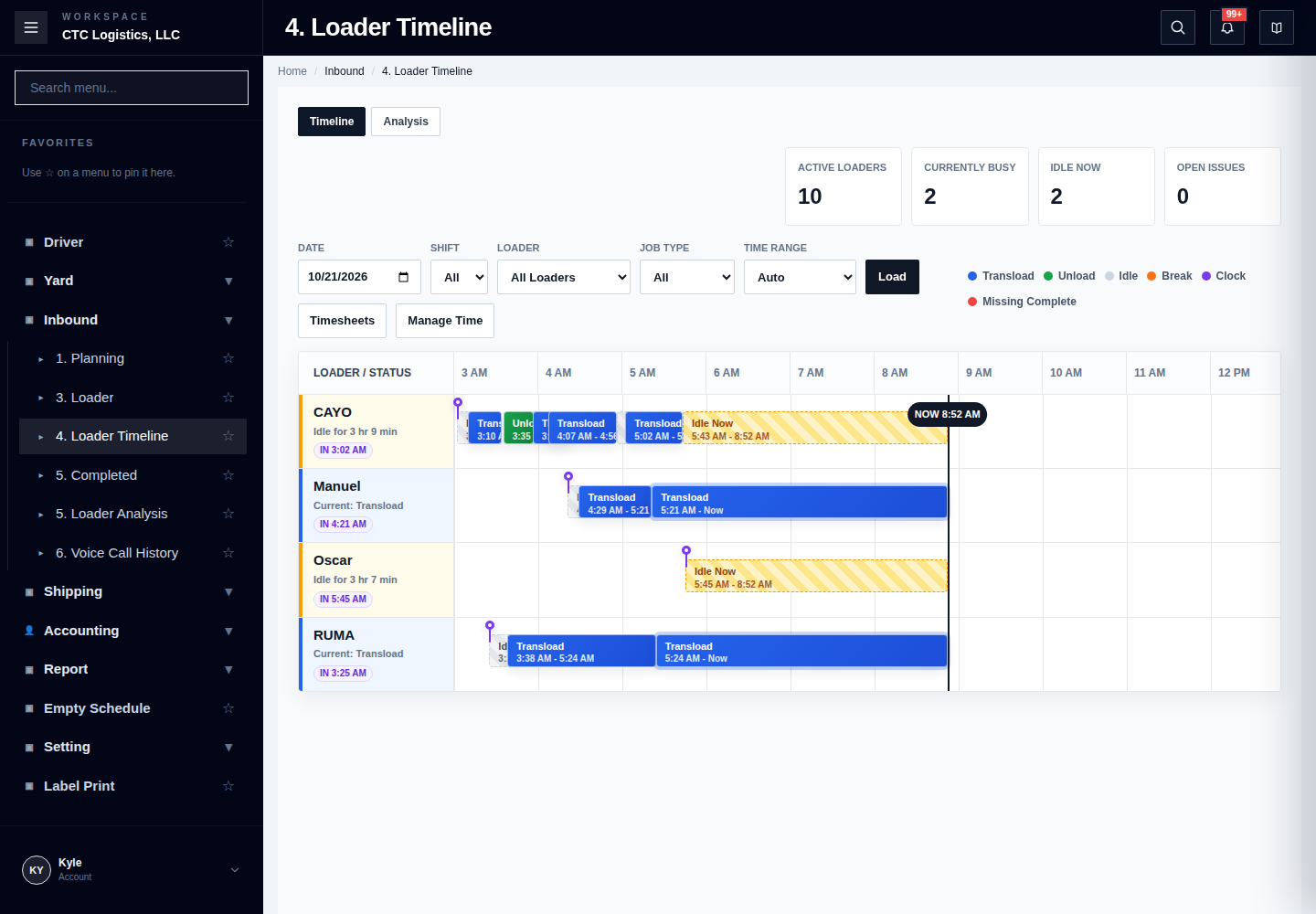
The timeline shows:
- clock in and clock out markers
- break and lunch blocks
- each loader's job start and job end blocks
- idle gaps and work that never completed
- a detail drawer for the selected block
Review Completed Work
Open Completed to see finished inbound and load records in a drawer. Use it to:
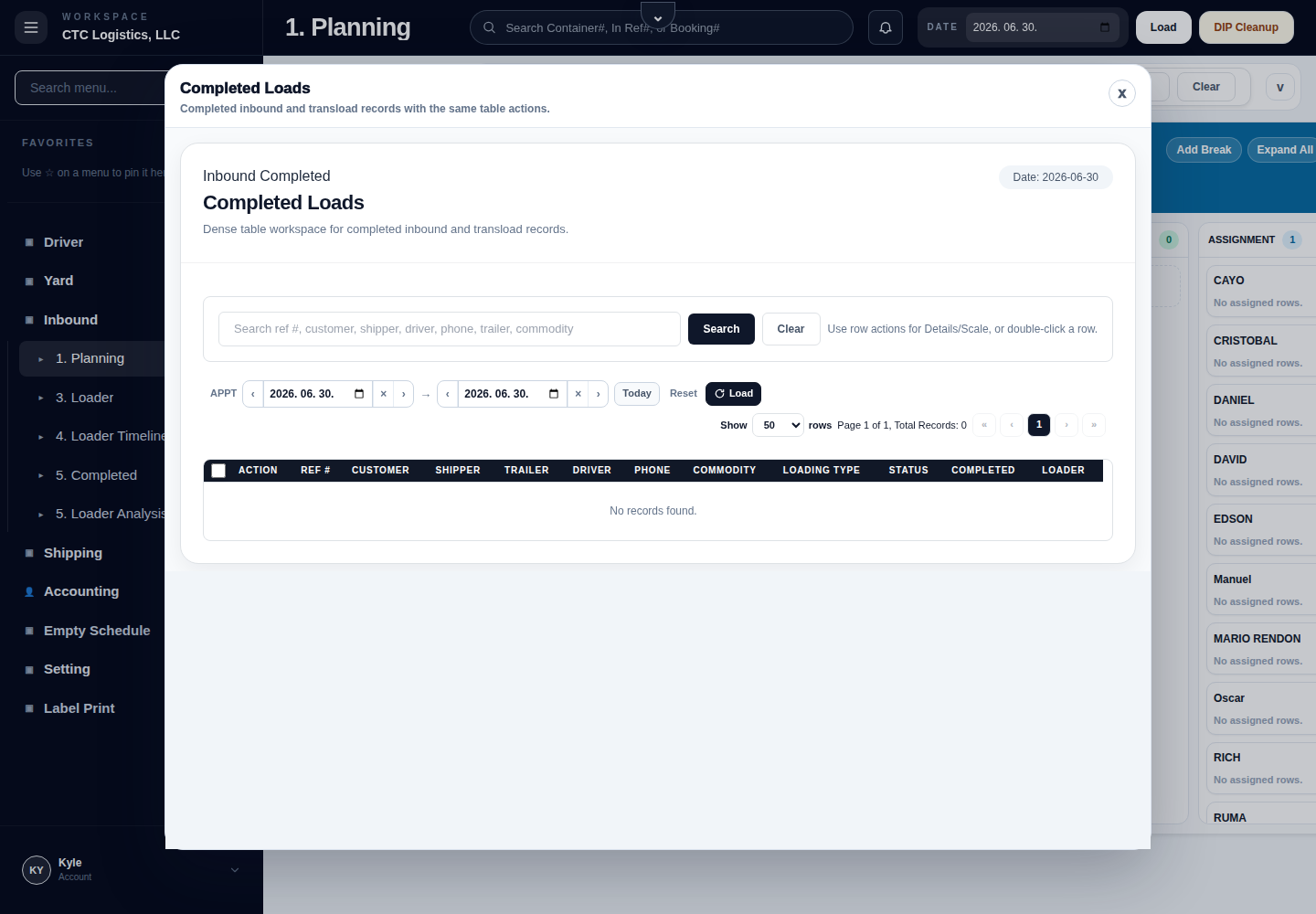
- confirm completed work
- search or review completed records
- open the completed-table actions without leaving the planning page
This is a follow-up screen with edit and weighing actions — not a read-only audit. See Adjusting Bale Stock and Scale Portal for what those actions do.
Fields
| Field | What it means |
|---|---|
| Clock in / out marker | When the person started and finished the shift |
| Break / lunch block | Time away from the floor |
| Job start / job end | The actual physical work window |
| Idle gap | Time with no recorded activity |
| Missing-complete marker | A job with no end event |
Status
| Shown | Means |
|---|---|
| A job start with no job end | The work may not have been completed. Verify before concluding |
| An idle gap | Nobody recorded activity. It is not proof nobody worked |
| An expired break closed automatically | The system closed it for you |
Notes
- Manager Manage Time can add, edit or delete clock and break records. It does not edit job blocks.
- A completed row should not reappear on the plan board. If completed work needs yard follow-up, use the Yard Dispatch drawer rather than replanning it.
When a Job Is Missing From the Timeline
- Confirm the terminal row and the planner first.
- Confirm the assigned loader is stored as a valid user.
- Do not repeat Start or Complete to manufacture a missing event.
- Use the manager correction path only for clock and break records, and escalate a missing job block with the reference and the visible states.
Repeating a start or a completion to fill a gap in the timeline produces a second physical action and a worse record. Report it instead.