Scale Portal
Purpose
The Scale Portal records the two weighings a vehicle needs: arriving loaded, leaving loaded, or arriving empty, leaving empty — depending on the direction of the movement.
Who does this
Yard Truck Driver or Dispatch.
Before you start
- You have the right account for this screen (see Permissions and Access).
- The date and record you are working on are correct.
- Words you do not know are in the Glossary.
Access
Shipping → Scale Portal
Screen
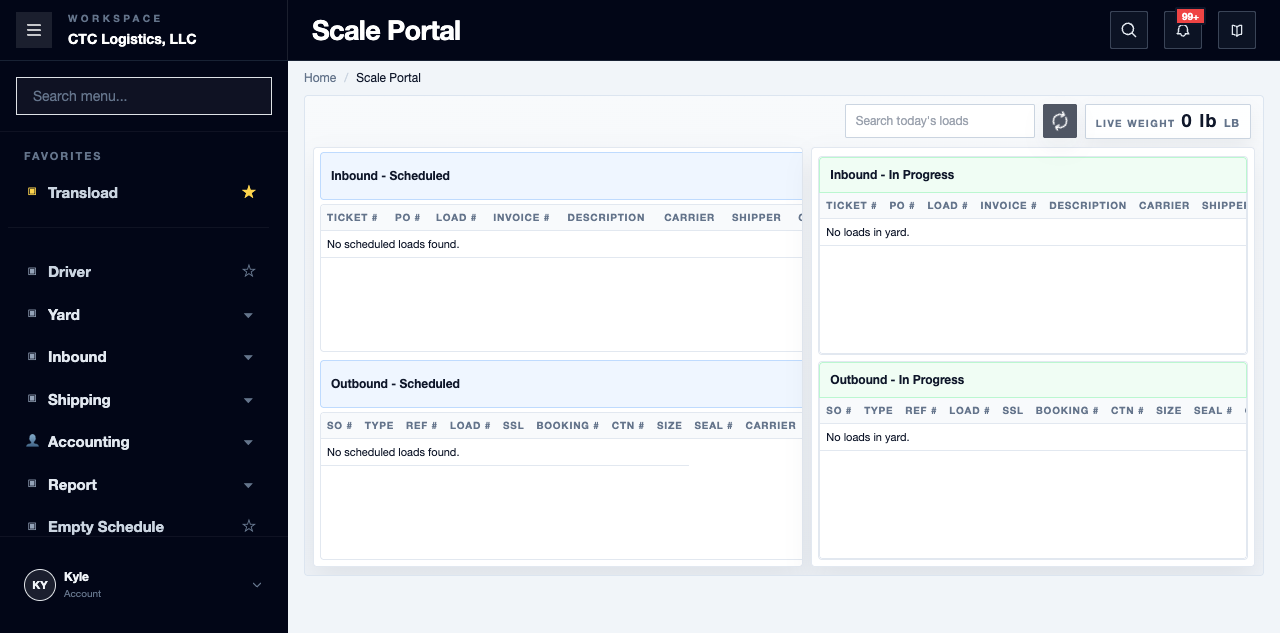
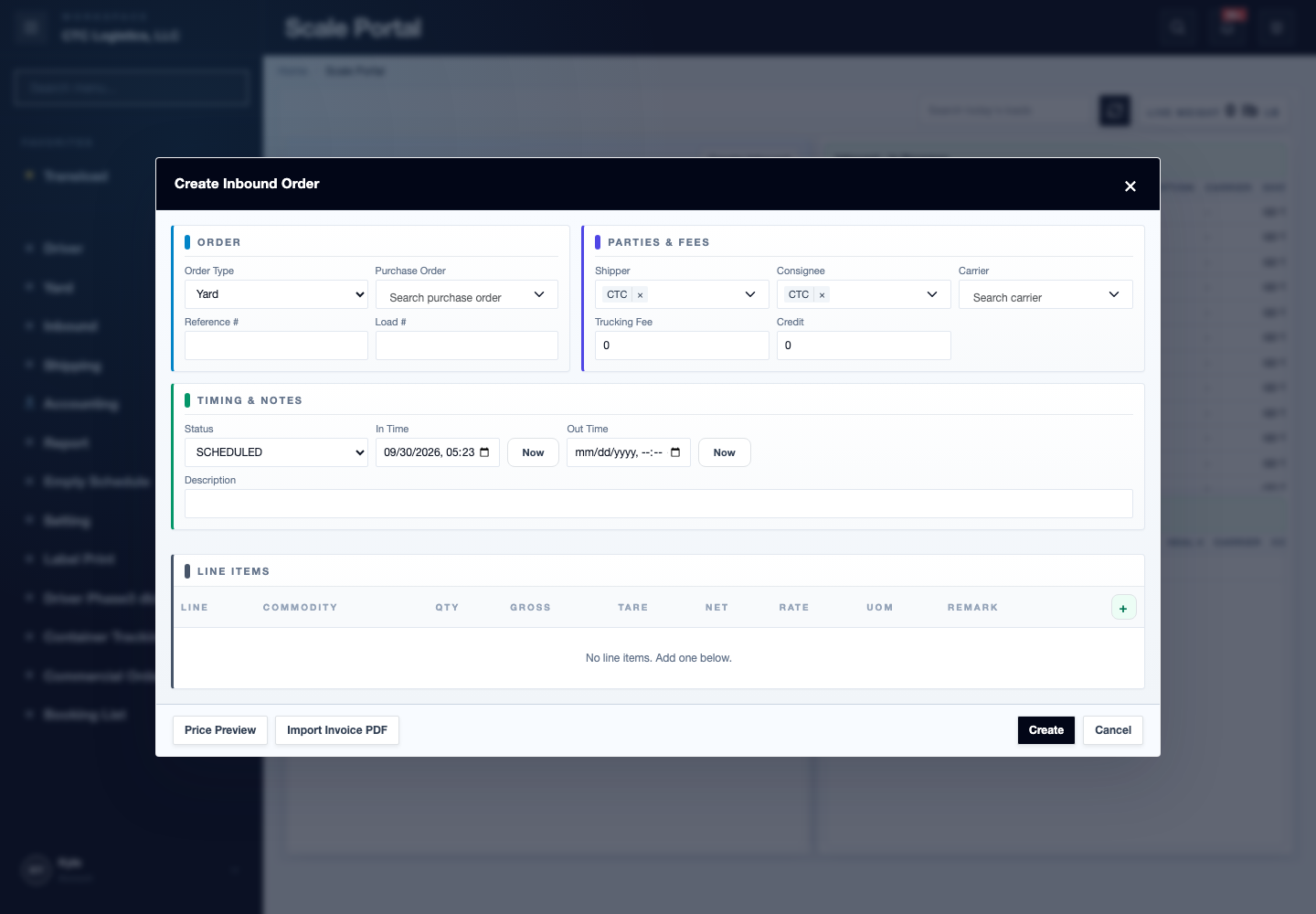
Main Features
Before Any Weighing
- Ignore DEMO rows. They are placeholders shown when no active ticket exists.
- Confirm the exact flow, order, items, equipment and any existing ticket on the page.
- Verify the physical weight yourself. The live weight display is not evidence that the scale is connected.
Which stage comes first depends on the direction:
| Movement | First | Second |
|---|---|---|
| Purchase / Doortrade — arriving | Gross | Tare |
| Sales / Export — leaving | Tare | Gross |
Check In
- Submit once.
- Refresh and reopen the active ticket. Confirm the ticket number, the first weight and time, and the order and equipment.
- For Sales or Export, reopen the outbound order separately and confirm it shows the expected arrival time and state.
If the ticket exists but the order disagrees, never check in again. Write down the ticket and order ids and the times you can see, and escalate.
Check Out
- Confirm the first stage and all the current values.
- Submit once.
The completed ticket disappears from the active list, and there is no completed-ticket detail here to reread. Disappearance alone is not proof. Keep the order and ticket reference you can see.
- For Sales or Export, reopen the outbound order and confirm the departure time and completed state. Even then, both stored stages are not shown.
- For a Purchase, finalizing the receipt belongs to the inbound procedure. If it fails or the browser closes, do not check out again and do not invent a finalize request — keep the completed ticket and escalate.
Fields
| Field | What it means |
|---|---|
| Gross | The vehicle loaded |
| Tare | The vehicle empty |
| Ticket number | The record of both stages |
| Live weight | A display only. Not evidence of scale integration |
Status
| Shown | Meaning |
|---|---|
| An active ticket | One stage is recorded |
| The ticket gone from the list | The second stage was submitted — confirm elsewhere |
| DEMO row | A placeholder. Ignore it |
Warehouse Only, Direct Outbound and Mixed are not stored choices. Direct and Mixed only return a link to the allocation workbench; they do not allocate or split anything.
Notes
- Walk-in orders are created before the ticket. A walk-in Sales or Export order can be created with no items on it.
- Any error, including the 7-second timeout, means reread every boundary before retrying. The original request may still have gone through.
- If the header or items saved before the ticket failed, stop and reconcile each row with its owner.
- If checkout succeeded but finalize failed, keep the checkout and escalate. There is no finalize-only recovery here once the page reloads.
- If a stage is repeated, missing, or the weight is wrong, stop and preserve the values and timestamps for the owner to review.
- Delete is not Undo. Deleting a progressed ticket can detach links while the order and stock effects remain.
- Print only from the intended ticket action, and only after confirming which ticket is current. Do not guess at identifiers, and do not substitute the generic ticket output — it is not the sales-order weight ticket and has a known tenant-isolation fault.
Related
- Weighing a Load at the Scale — the business view of this screen
- Receiving an Inbound Purchase — what happens after weighing
- Working a Delivery