Order Schedule and Allocation
Purpose
Two screens that decide when work happens and which stock pays for it: - Order Schedule — when an order is expected - Allocation Workbench — which stock lot an order draws from Both are views over the inbound and outbound records. If something is wrong on either, fix it on the re
Before you start
- You have the right account for this screen (see Permissions and Access).
- The date and record you are working on are correct.
- Words you do not know are in the Glossary.
Access
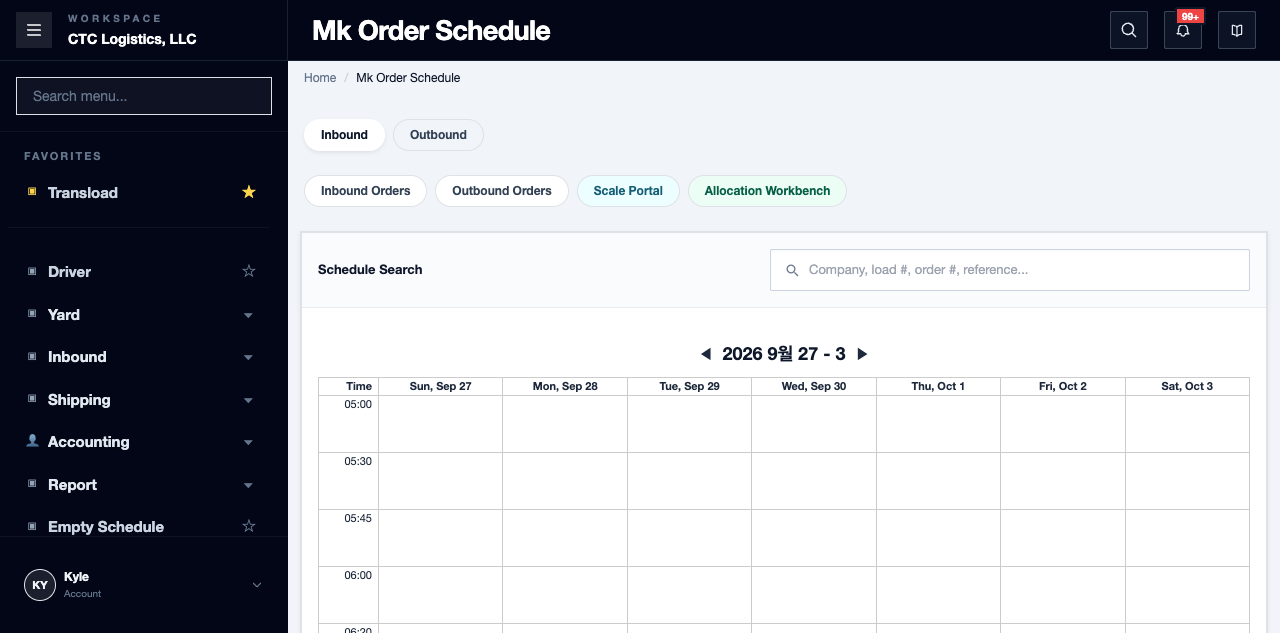
Shipping → Order Schedule
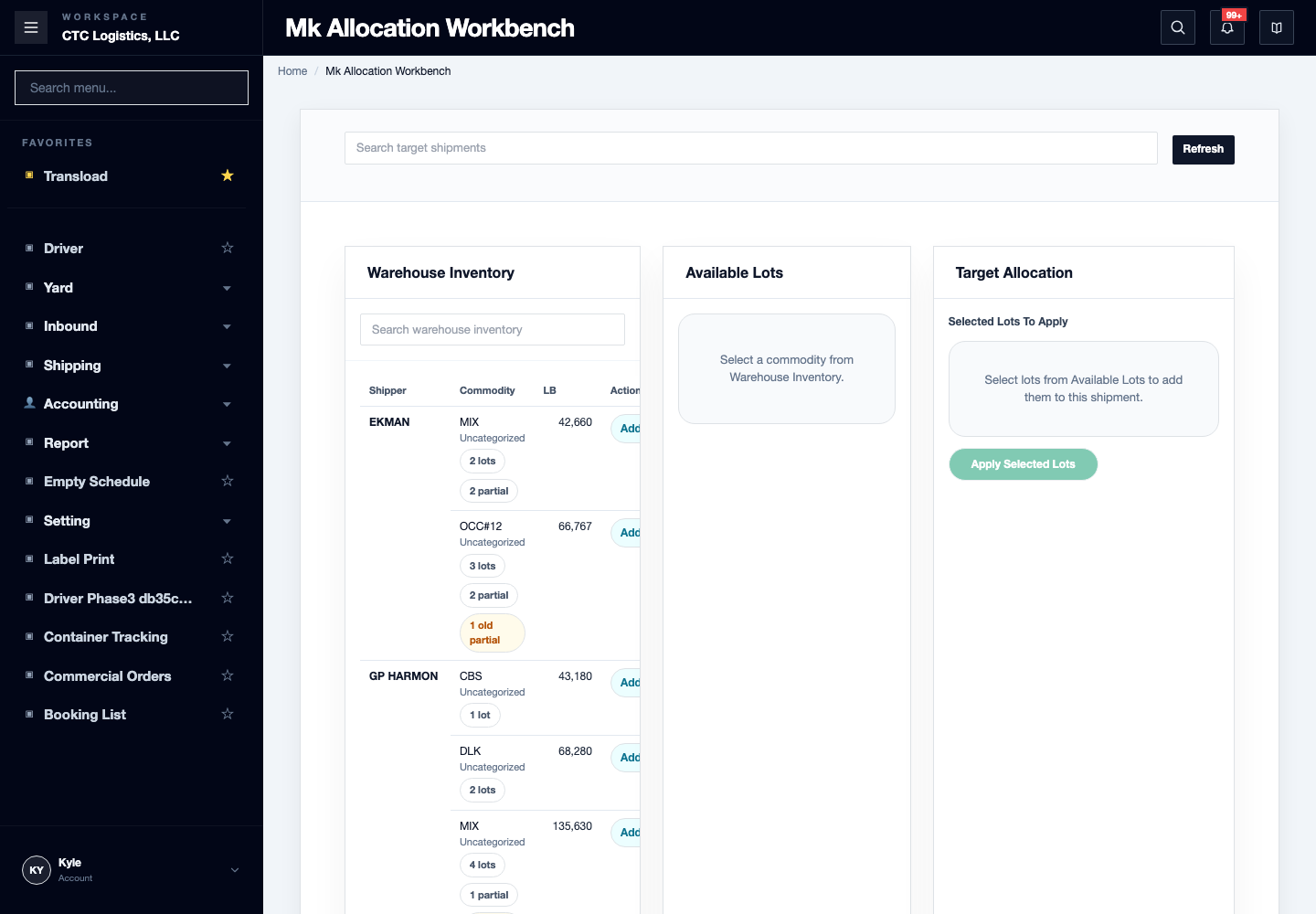
Shipping → Inventory
Screen
Steps
Move Work on the Schedule
- Find the order, and open its detail when the timing matters.
- Read the card time as the latest operational evidence, not necessarily the planned time.
- Use the editor to create or change an order fully. Dragging only changes the planned time.
- After a drag, reread both the schedule and the order detail.
A later arrival, departure or weighing time can put the card back where it was even though your drag succeeded.
Allocate Inventory
- Open the exact outbound target and verify the order number, container, size, whether it is closed, how far the weighing and delivery have got, and how much demand is still open.
- Check the lot: its status, that it was received, its owner, commodity and unit, and both remaining balances.
- Refresh the workbench immediately before applying.
- Check by hand that the weight you staged does not exceed the open demand or the lot balance.
- Apply, once.
- Reread the outbound items, the allocations, the lot balances, the open demand and the equipment link.
Fields
| Field | What it means |
|---|---|
| Card time | The latest evidence, which may not be the planned time |
| Lot remaining weight / quantity | Both must cover what you are about to stage |
| Open demand | How much the order still needs |
Status
Apply is either accepted or rejected as a whole.
A row rejected by the server rolls back the entire request. But a lot or target that is only business-ineligible can still go through, because the write does not repeat every check the read screen applies.
Notes
- Apply also creates a new outbound line, so demand that was already open can stay open. This is expected, not a fault.
- The write reduces weight but not remaining quantity, and two people applying at once can overdraw a lot. If a balance goes wrong, stop allocating and report it.
- A drag that rolls back only proves the save failed. It does not tell you whether the network, the system or the scale blocked it. Reread the order and the scale before deciding who fixes it.
- On a timeout, reread before retrying.
- There is no way to undo an allocation. If the wrong lot or quantity was applied, stop, write down the ids, and escalate. Never use Export Brokerage cancel to repair an allocation.
Related
- Creating a Sales Order — the order being scheduled
- Planning Incoming Deliveries — the inbound side of the board
- Adjusting Bale Stock