Commercial Orders
Purpose
A commercial order is the agreement with a customer or supplier: a Purchase (you buy) or a Sales (you sell), with the goods on it.
Before you start
- You have the right account for this screen (see Permissions and Access).
- The date and record you are working on are correct.
- Words you do not know are in the Glossary.
Access
Commercial Orders
Screen
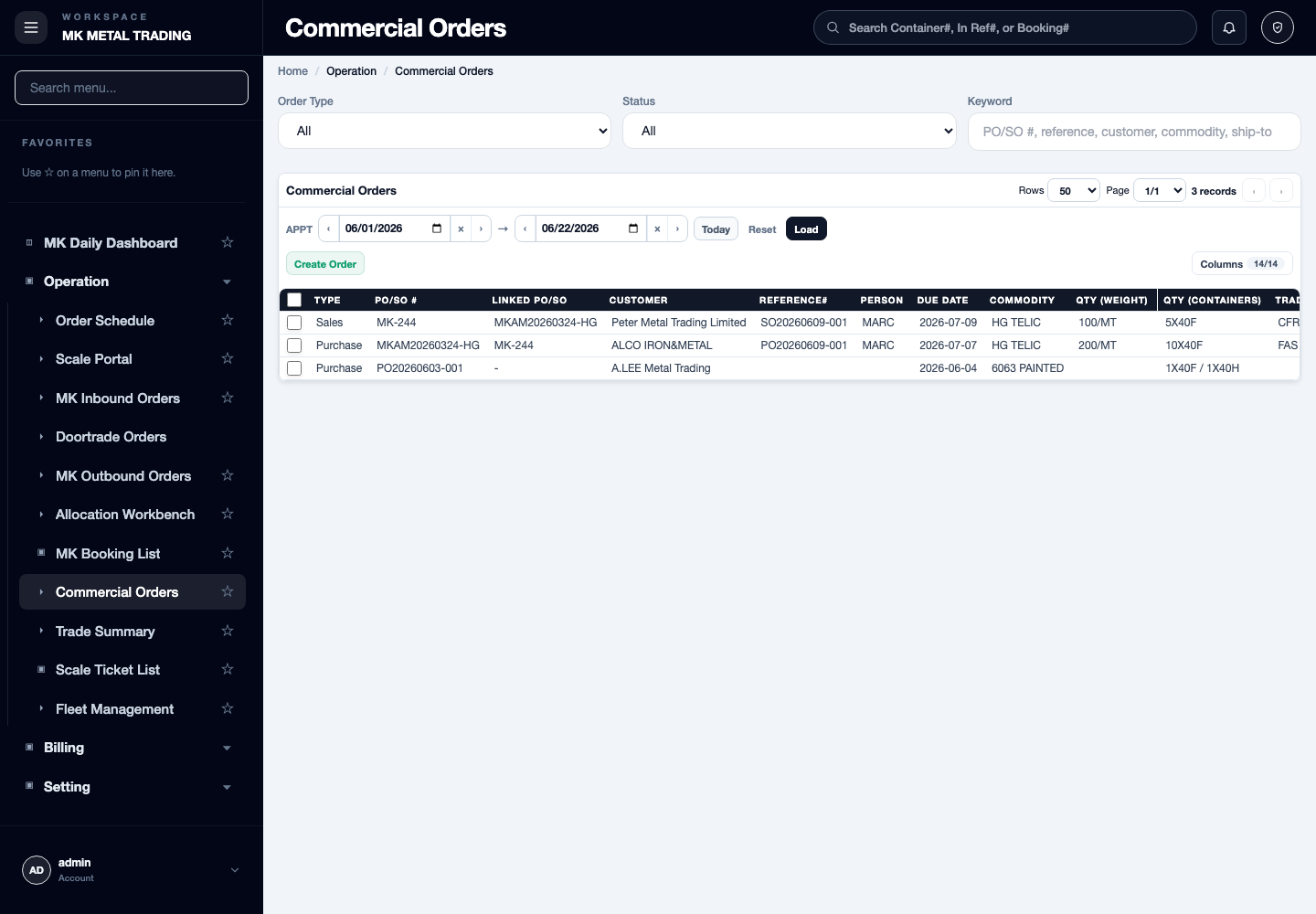
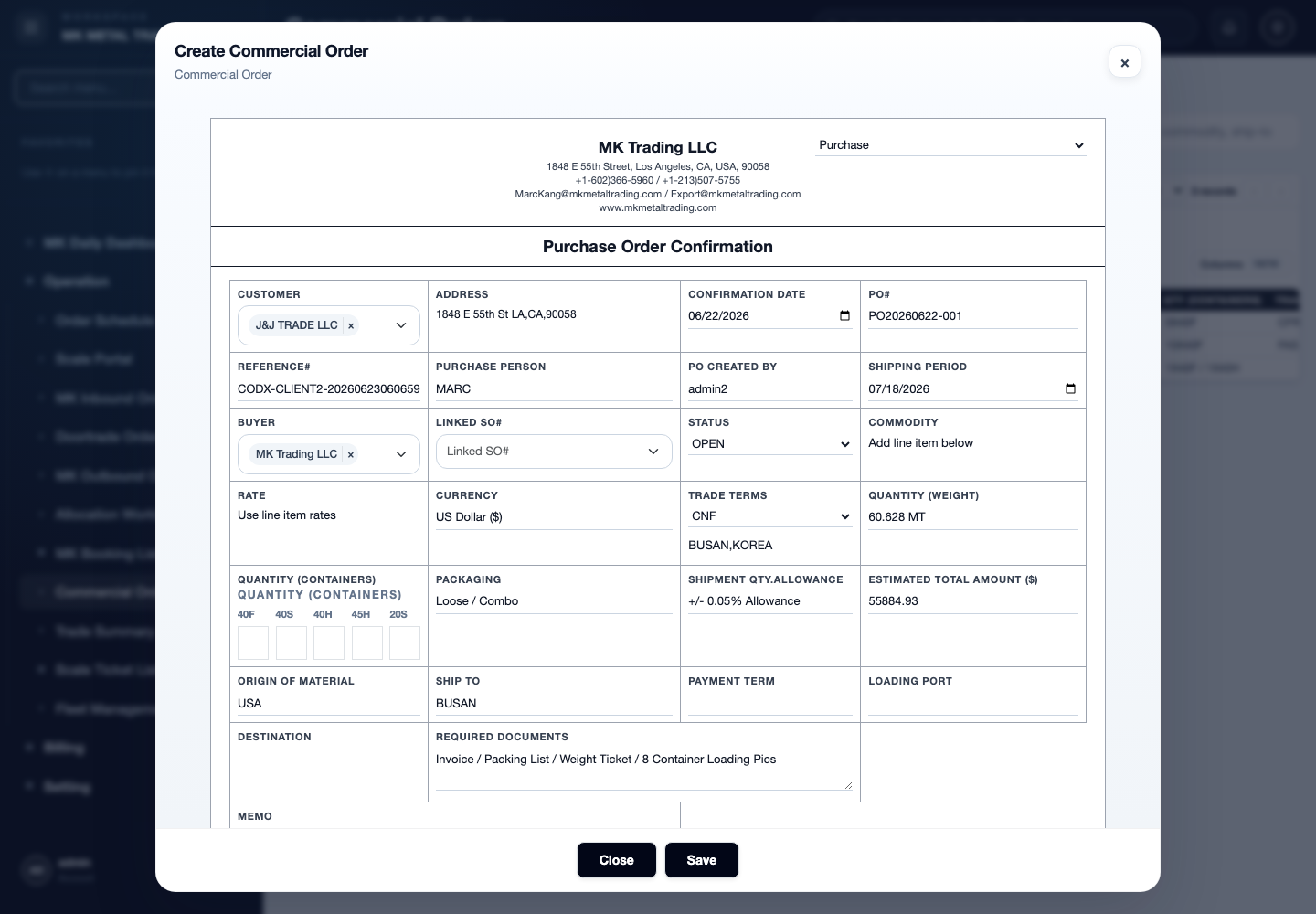
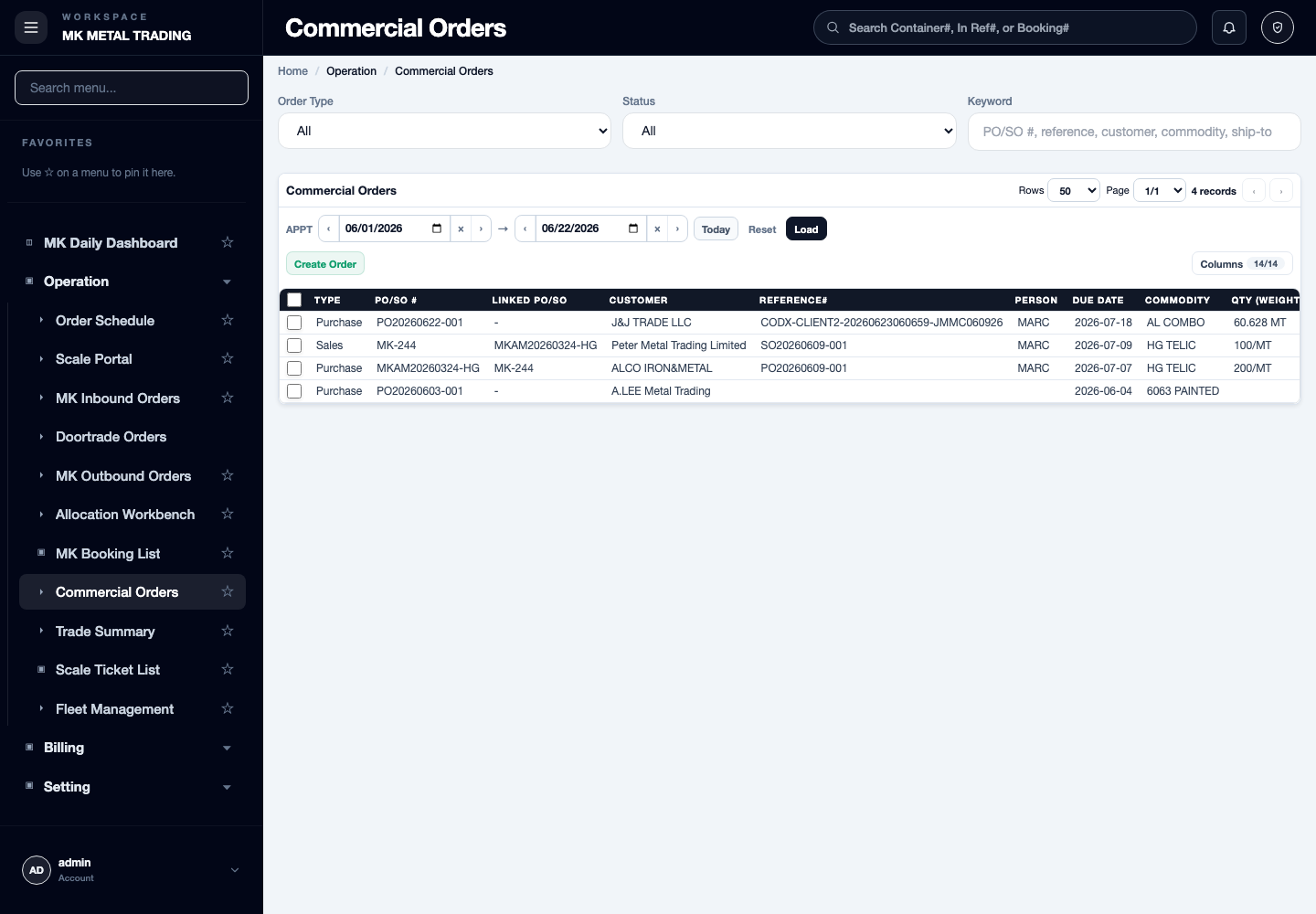
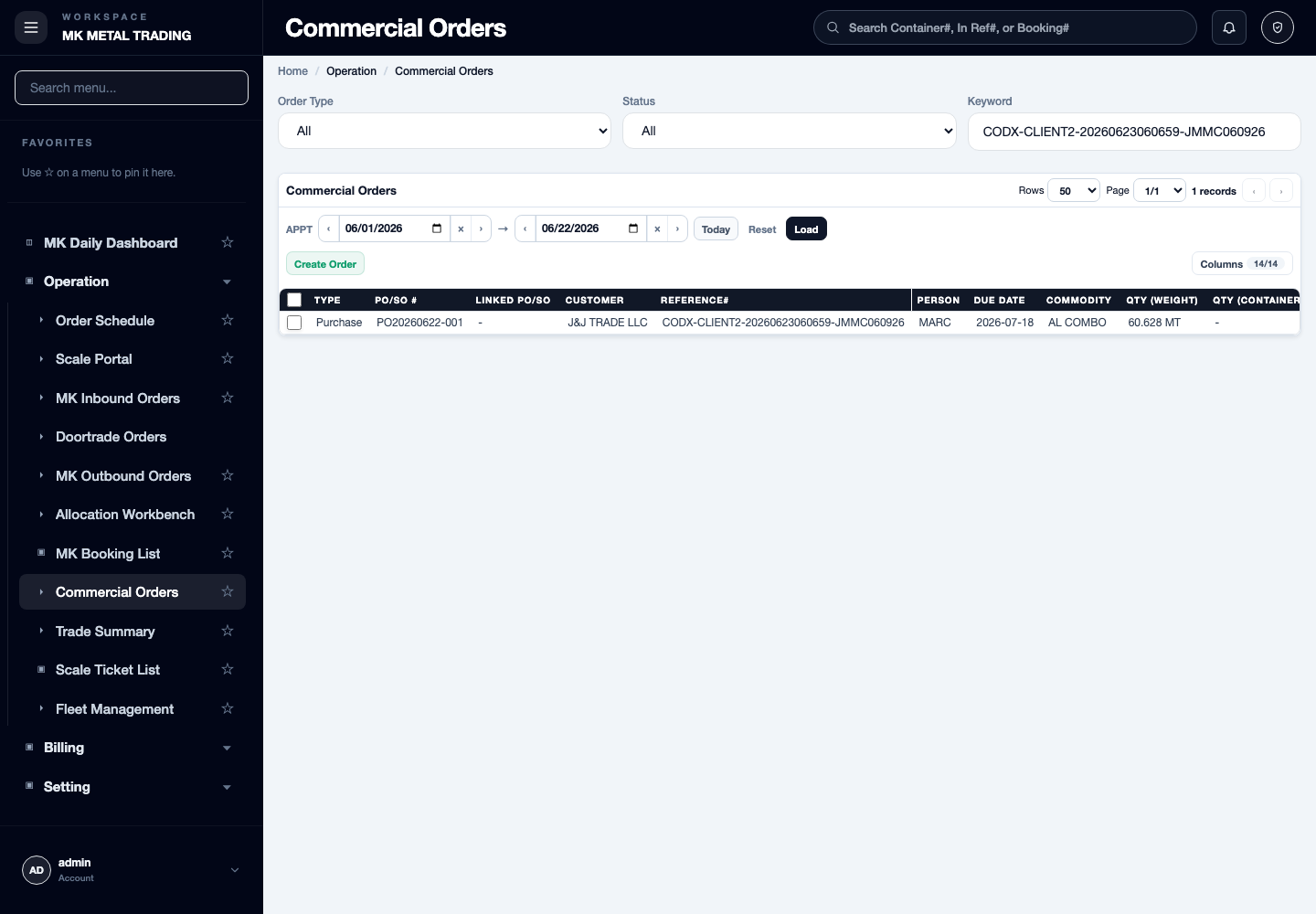
Steps
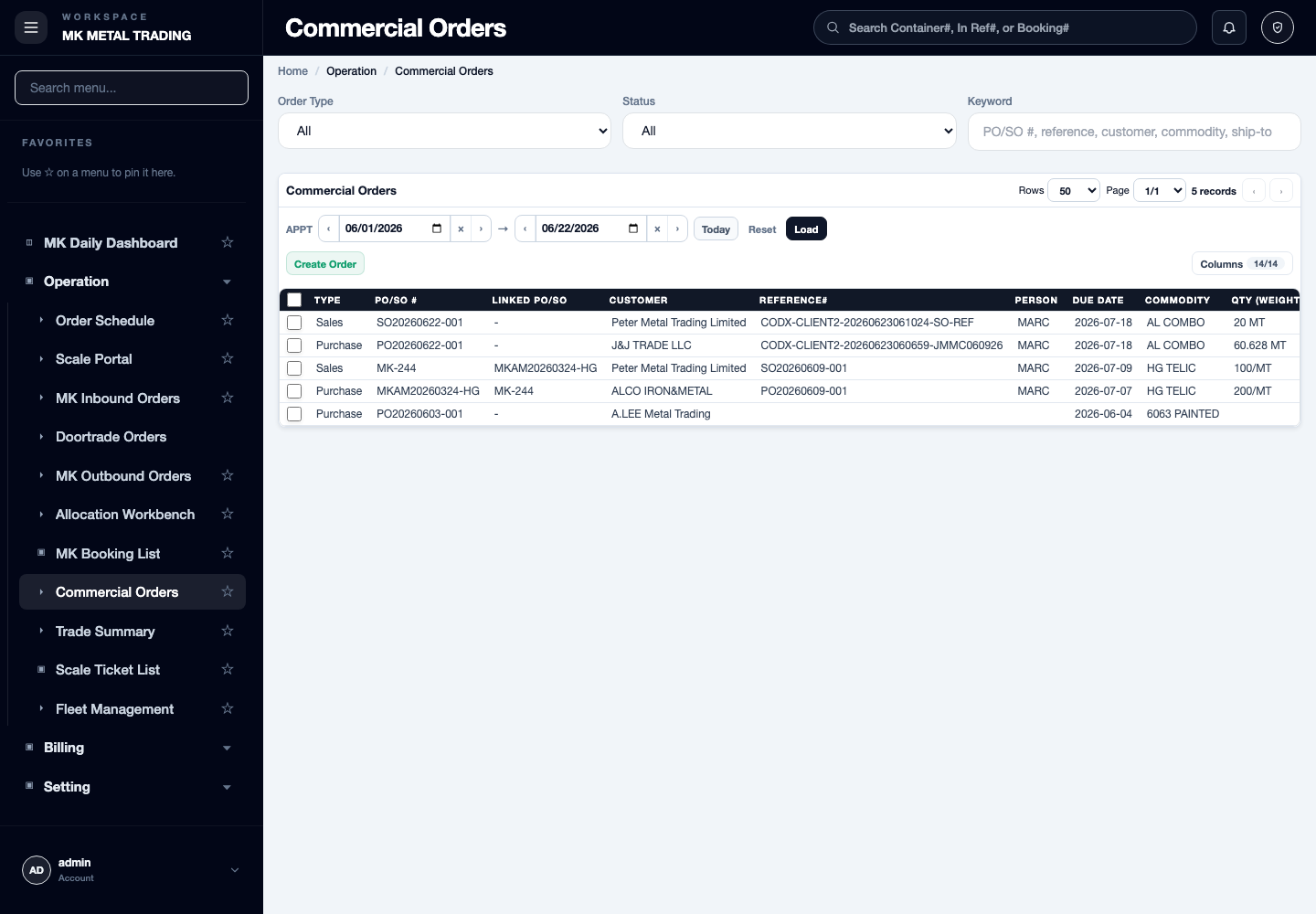
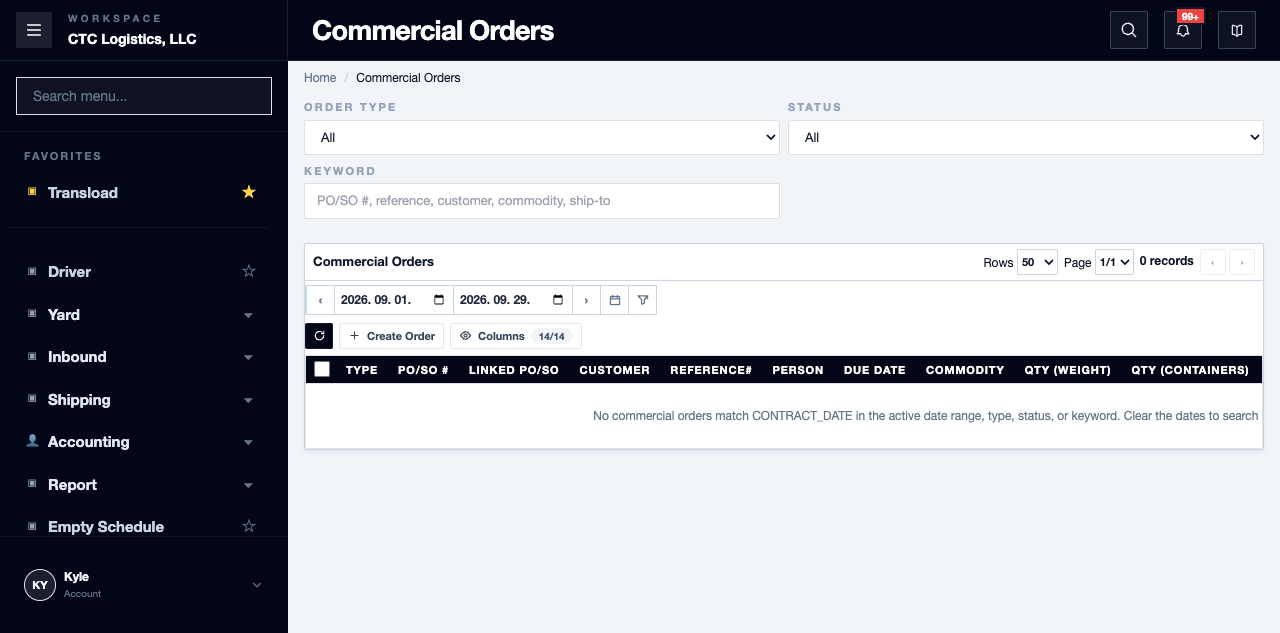
Search the Register First
- Set the date range covering the intended confirmation date.
- Filter by purchase or sales, or by status.
- Search by PO or SO number, reference, counterparty, commodity, linked order, or ship-to.
- Open anything that looks like a match before creating another agreement.
The list returns at most 1,000 rows. A row hidden by a filter is not proof the agreement does not exist.
Create a Purchase Agreement
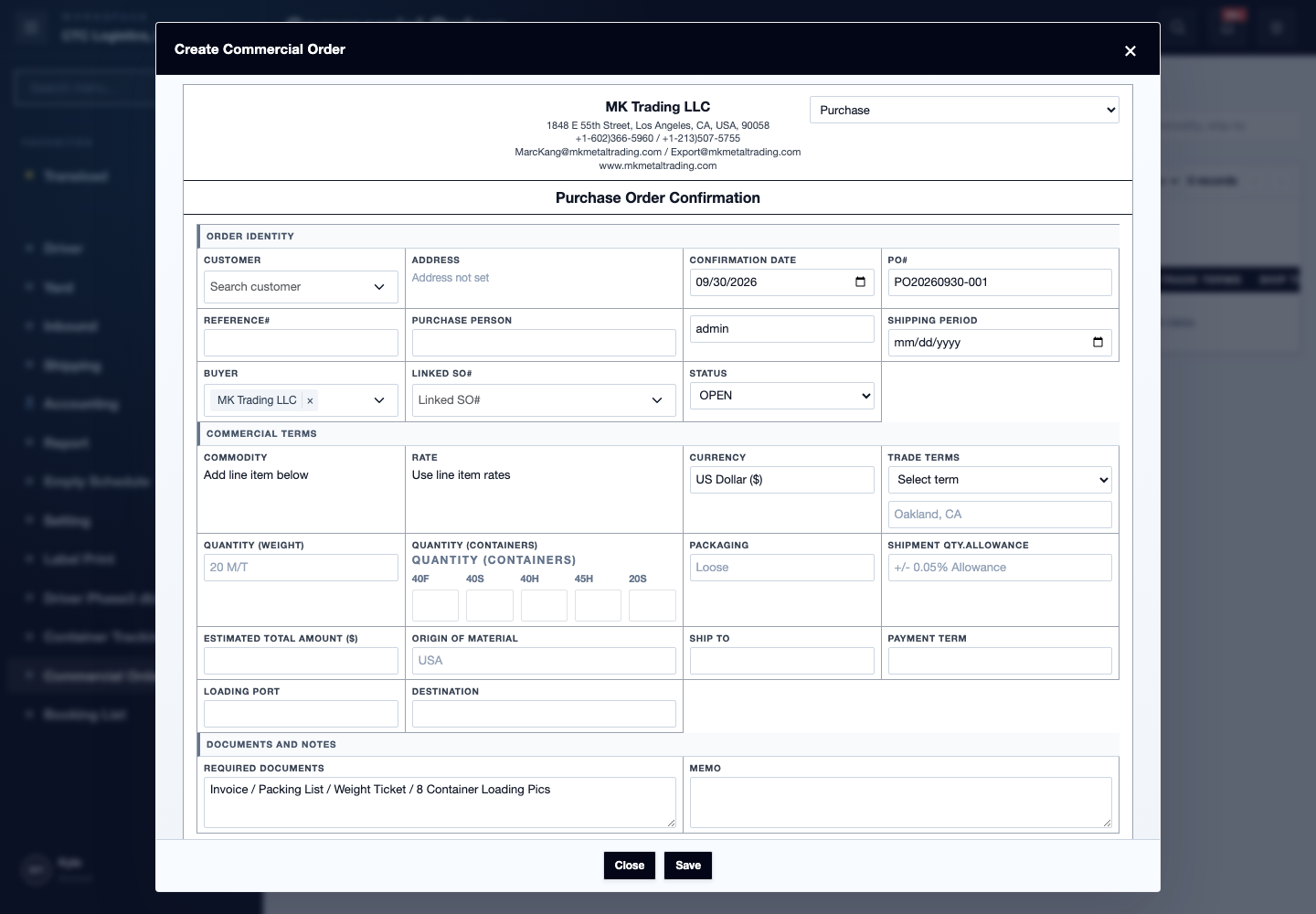
- Select Create Order, then Purchase.
- Choose the supplier.
- Review the generated PO number preview. If it is unchanged, the final number is reserved during save.
- Enter and review the confirmation date, reference, contacts, due date, terms, ports, the weight or container plan, packaging, allowance, estimated amount, origin, ship-to, documents and memo.
- Add at least one line with commodity, a quantity above zero, a unit, a rate, and a memo if needed.
- Add signatures only when they are part of the actual agreement.
- Save once.
- Search the resulting number, open the detail, and verify every value and line.
Create a Sales Agreement
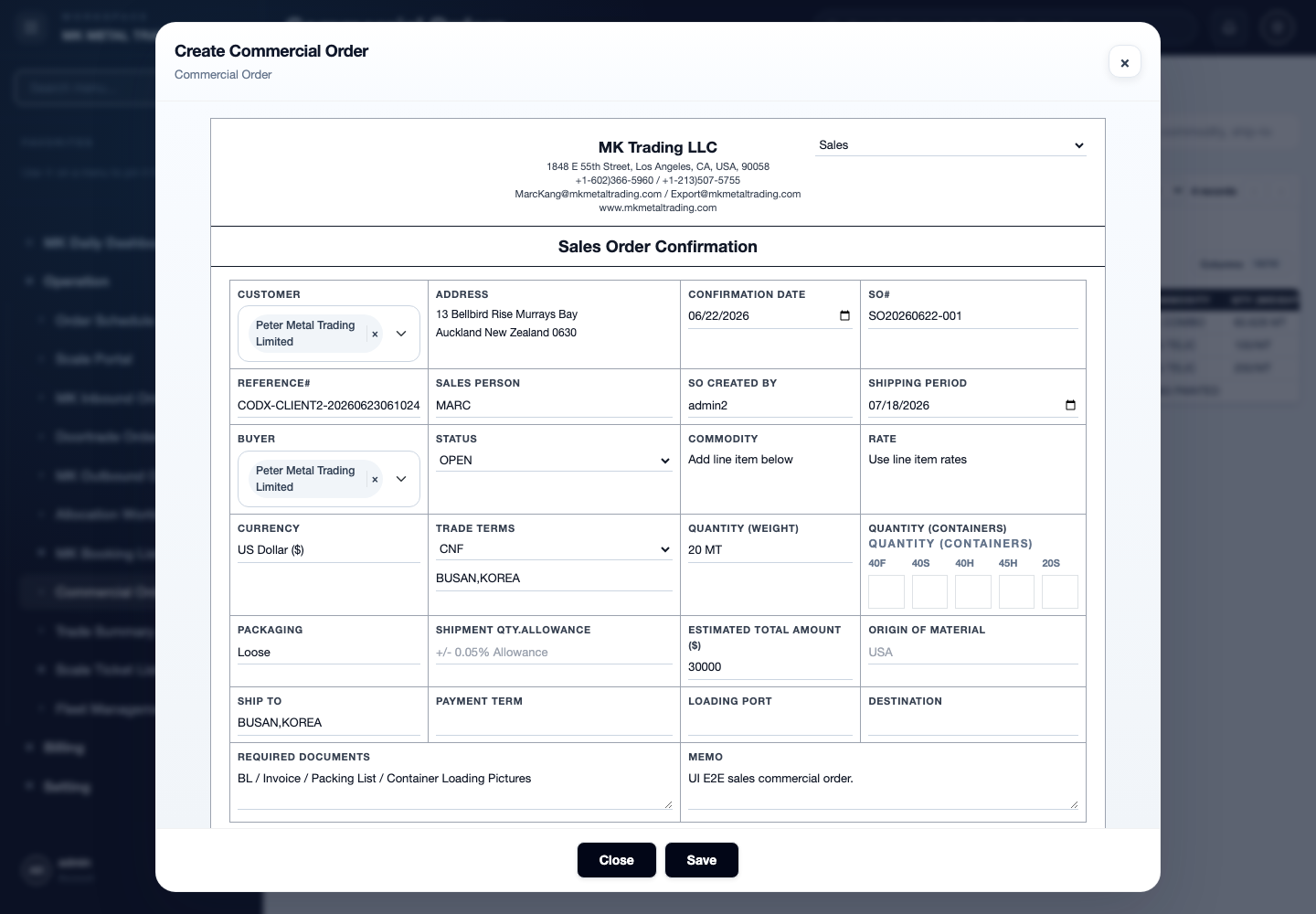
- Select Create Order, then Sales.
- Choose the buyer.
- Review the SO number preview and the commercial terms.
- Add at least one line with commodity, a positive quantity, a unit and the sales rate.
- Save once, then reopen the detail.
The sales editor does not offer the link selector, so creating a sales agreement does not by itself connect it to a purchase.
Link a Purchase to a Sales Agreement
- Create and verify both agreements.
- Reopen the Purchase.
- Choose the sales agreement in Linked SO.
- Save, then reopen the purchase to confirm, and reopen the sales agreement to see the reverse link.
The system rejects a self-link, a same-type link, and rows that are missing, deleted or from another company. It does not enforce one-to-one pairing or any business status rule.
If you are not certain which sales agreement belongs to which purchase, stop. Write down both numbers instead of guessing.
Check What the Server Derived
After saving, reopen the detail and check these specifically — the system decides several of them:
- the final PO or SO number
- text and memos, which are uppercased
- the due date
- the total quantity
- the estimated total amount, especially if you left it zero or blank
- rounded container counts and the generated container summary
- the commodity name, taken from the commodity you selected
- the default required-document text
- the signatures
A success alert followed by a list reload is not an exact read-back. Reopen the detail.
Change an Agreement Before Any Work Has Used It
- Open the detail and look at Execution Orders.
- An empty section only covers header-linked execution. It does not prove there are no item-only execution references.
- Confirm from current operational evidence that nothing has used this agreement or its lines as an execution source. If you cannot establish that, keep the record and report the gap rather than replacing the lines.
- Make the change, review the whole item table, then save once.
- Reopen and verify every item, not only the one you changed.
An update here replaces the complete item set: old lines are set aside and the submitted lines are inserted again, so line identities can change. Concurrent edits are not detected — the later save overwrites the earlier one.
Change an Agreement After Work Has Used It
When the detail shows one or more execution orders:
- the line controls are locked and the existing lines are preserved
- changing the purchase or sales type is rejected
- delete is rejected
- other header fields remain editable
There is no approved rule saying which header fields may change after execution. Change only the one field you meant, save once, then reread both the agreement and its execution references. Do not try to bypass the line or type lock.
Print a Confirmation
- Select exactly one saved row and choose Print, or use
Open Print Viewin the detail. - Check the title, the agreement number, the counterparty, the dates, the terms, the quantities, the rates, the required documents, the memo and the signatures.
A sales print shows the linked PO. A purchase print does not show its linked SO — verify that in the detail or the list.
Use the browser print action only once the intended agreement is on screen.
Delete an Agreement
- Reopen the detail and inspect the execution evidence. An empty section is not sufficient proof that there are no item-only execution references.
- If prior execution use cannot be ruled out, keep the agreement and report the gap instead of deleting it.
- Decide whether you mean delete, or the separate cancelled status.
- Select exactly one proven, unexecuted row and delete it.
- Search the number and confirm the row is gone.
- If another agreement was linked to it, reopen that one and confirm the link was cleared.
Delete sets the agreement and its lines aside. There is no restore and no delete history. If execution exists, the request is rejected and the execution must be dealt with in its own inbound or outbound process.
Fields
| Field | What it means |
|---|---|
| PO / SO number | Generated. The preview may change at save |
| Counterparty | The supplier or buyer |
| Confirmation date, reference, due date | The agreement's own dates and reference |
| Terms, ports, packaging, allowance | Commercial terms |
| Line | Commodity, quantity above zero, unit, rate |
| Company template values | Prefill suggestions. Review every field |
| Free text | Stored in uppercase, except signatures |
Status
The labels are DRAFT, OPEN, PARTIAL, FULFILLED and CANCELLED.
The system does not work out
PARTIALorFULFILLEDfrom what has actually been executed. Choosing a status is a manual business decision.
CANCELLEDkeeps the agreement. It is not a delete.
Notes
- Review every prefilled template value against the deal you were given. A template is a proposal, not source evidence.
- Check anything where format matters — numbers, dates, and text the other party will read.
- Signatures belong to the real agreement, not to the template.
- Printing is not recorded, and closing the print window does not change the status.
- If a save is rejected, nothing from that save is applied. Correct the value and save again.
- For updates, check whether work has already started on the agreement before replacing its lines.
When Something Goes Wrong
| You see | What it means | What to do |
|---|---|---|
| Counterparty or commodity not found | The option is stale | Reload the options and pick the current value. Do not submit an id directly |
| Invalid unit, quantity or due date | The request was rolled back | Correct the field and submit once |
| Linked PO or SO error | The relation is self, same-type, missing, deleted or another company's | Reopen the purchase and choose an available sales row |
| Could not reserve the number, or duplicate | Number reservation did not complete | Search by date, type and reference before creating again |
| Linked execution exists | Type change and delete are blocked | Reload the detail and review the linked execution |
| Signature storage not configured | The signature cannot be stored | Preserve the evidence and report it. Do not clear other values to force a save |
| Timeout after save or delete | The transaction may or may not have committed | Search and reopen the exact agreement before retrying |
| Saved values differ in case or number | The system normalised them | Record what you submitted and what it stored |
| Another user's changes disappeared | There is no stale-update guard | Stop editing, reopen the detail, and reconcile the header and lines by hand |
What to Include When You Report
- The signed-in username and the page
- Purchase or sales, the agreement id, and the PO or SO number
- The reference, the counterparty and the confirmation date
- The action you intended, and whether execution rows were visible
Related
- Creating a Purchase or Sales Agreement — the business view
- Receiving an Inbound Purchase — the purchase side
- Creating a Sales Order — the sales side