Copying or Retiring a Booking
Purpose
This job, step by step.
Who does this
MK shipping and booking staff who need to copy a booking that is nearly identical to an existing one, or who need to ret
Before you start
- You have the right account (see Permissions and Access).
- The record and date you are working on are correct.
- Words you do not know are in the Glossary.
Copying a booking
Use a copy when a new booking needs the same header details as an existing one and only a few things change.
Before you copy
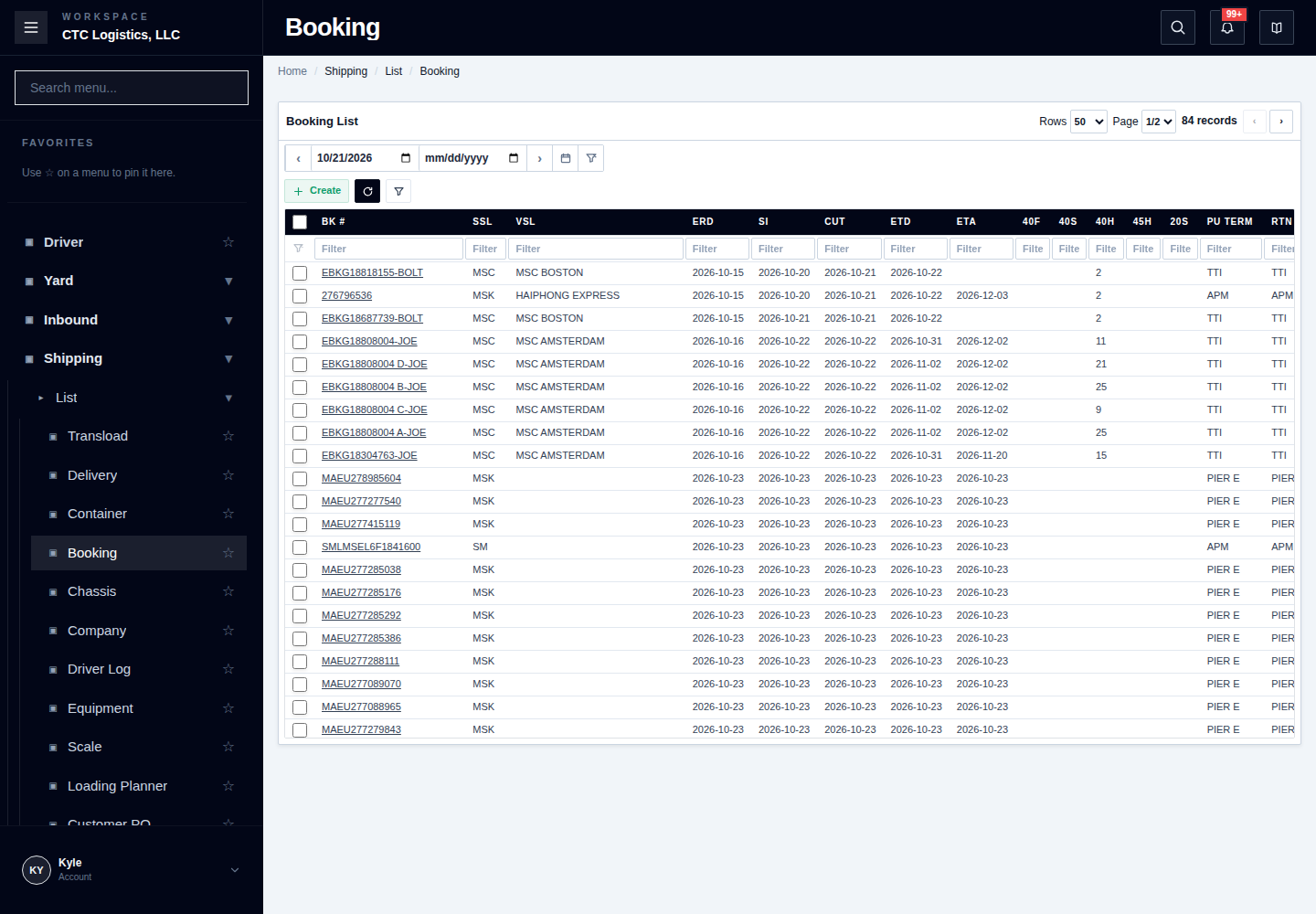
- Find the booking you want to base the copy on.
- Decide how many copies you need. You can copy up to nine at a time.
- Read the section below on what a copy does not bring across, and check the copy is still worth making.
What a copy brings across
- The invoice number
- The independent switches
- The not-in-use marker
- The link to the outbound sales order
- Other header values
What a copy does not bring across
- Containers. They are not copied.
- Attachments. They are not copied.
Both must be added to the copy yourself.
How to copy
- Select the bookings you want to copy.
- Use the clone action.
- Wait for the result.
After you copy
- Search for the new bookings. They are added with a suffix on the reference, so search for each one you expect.
- Open each new booking and check the values that were carried across, especially the invoice number and the sales order link.
- Add the containers and attachments the original had, if the copy needs them.
A copy is checked less strictly than a booking you create yourself. A booking that the normal create would refuse can be produced by copying. Always open and read what you get.
Retiring a booking
When to use it
When a booking should no longer be used, but you still need it for the record. It is not a delete — nothing is removed.
How to retire one
- Open the booking.
- Turn on the not-in-use switch.
- Save.
- Reopen the booking and confirm the switch is set.
What the switch does not do
It does not remove, and it does not lock:
- the linked outbound sales order
- containers
- output paperwork
All of that stays exactly as it was.
If something goes wrong
| Situation | What to do |
|---|---|
| A required field was refused | Correct that one field and save once. |
| The sales order link looks wrong or missing | Open the booking and the sales order separately and look. The response does not tell you whether the link changed. |
| The save result is unclear | Search by the booking number and the invoice number before saving again. |
| The copy result is unclear | Search for the base booking and every suffix you expected. Saving again can create a second set of copies. |
| A copy has no containers | That is expected — containers are not copied. Add them yourself. |
| You retired the wrong booking | Turn the switch off again. Nothing was deleted, so nothing needs restoring. |
Who owns the next step
MK shipping staff own the booking. Containers belong to the yard team and paperwork belongs to the packing team — check with them after copying, and before relying on a retired booking.